> ## Documentation Index
> Fetch the complete documentation index at: https://notes.kodekloud.com/llms.txt
> Use this file to discover all available pages before exploring further.
# Networking Deep Dive Docker
> This article explores Docker networking, including modes, network namespaces, and how to connect containers and expose services.
In this lesson, we explore Docker networking, covering built-in modes and Linux network namespaces. You’ll learn how Docker uses a bridge network, veth pairs, and iptables NAT to connect containers and expose services.
## Docker Networking Modes
Docker offers several network modes on a single host (e.g., host IP `192.168.1.10` on `eth0`):
| Mode | Behavior | Example |
| ------ | -------------------------------------------------- | --------------------------------- |
| none | No network interfaces except loopback | `docker run --network none nginx` |
| host | Shares the host’s network stack directly | `docker run --network host nginx` |
| bridge | Default: containers attach to the `docker0` bridge | `docker run nginx` |
**none**\
The container only has a loopback interface and cannot send or receive external traffic.
**host**\
Containers share the host network namespace directly.
Using `--network host` removes network isolation. Ports in the container map directly to the host and may conflict with other services.
**bridge**\
The default mode creates a `docker0` bridge with a `172.17.0.0/16` subnet. Containers receive an IP on this network.
List Docker networks and host interfaces:
```bash theme={null}
docker network ls
ip link show
```
You’ll see an interface named `docker0`:
```bash theme={null}
3: docker0: mtu 1500 qdisc noqueue state DOWN
link/ether 02:42:88:56:50:83 brd ff:ff:ff:ff:ff:ff
```
Inspect its IP address:
```bash theme={null}
ip addr show docker0
```
## Docker and Network Namespaces
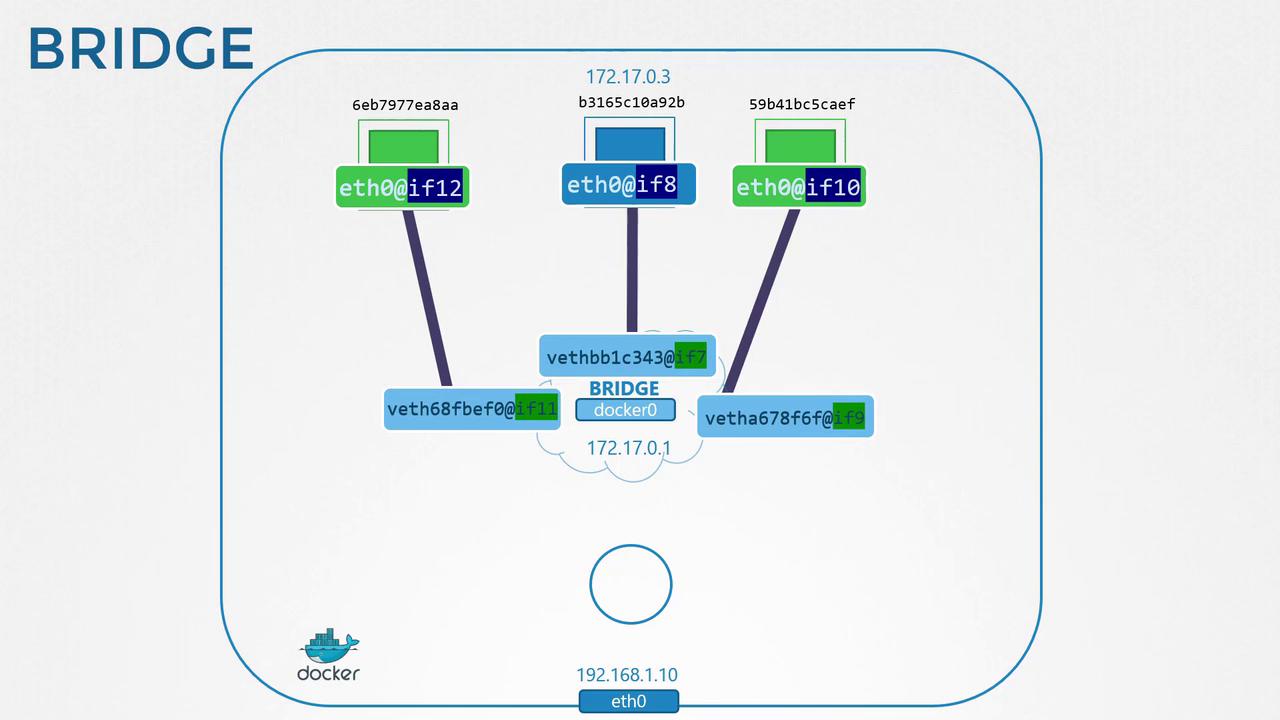
Each container runs in its own Linux network namespace. To view Docker namespaces on the host:
```bash theme={null}
sudo ip netns
# Example output:
b3165c10a92b
```
Inspect a container’s sandbox and namespace path:
```bash theme={null}
docker inspect 942d70e585b2 \
--format '{{json .NetworkSettings}}'
```
```json theme={null}
{
"Bridge": "",
"SandboxID": "b3165c10a92b50edc4c8aa5f37273e180907ded31",
"SandboxKey": "/var/run/docker/netns/b3165c10a92b"
}
```
When a container starts, Docker creates a veth pair:
* One end attaches to the host bridge (`docker0`).
* The other end goes inside the container namespace as `eth0`.
Host side:
```bash theme={null}
ip link show
# Example:
8: vethbb1c343@i7f: mtu 1500 qdisc noqueue master docker0
link/ether 9e:71:37:83:9f:50 brd ff:ff:ff:ff:ff:ff link-netnsid 1
```
Container side:
```bash theme={null}
ip -n b3165c10a92b addr
# Example:
7: eth0@if8: mtu 1500 qdisc noqueue
link/ether 02:42:ac:11:00:03 brd ff:ff:ff:ff:ff:ff
inet 172.17.0.3/16 brd 172.17.255.255 scope global eth0
```
Each new container repeats this process, assigning a unique IP in `172.17.0.0/16`.
## Container-to-Container and Host Communication
Containers on the same bridge can communicate by IP. The host also reaches them directly:
```bash theme={null}
curl http://172.17.0.3:80
# => Welcome to nginx!
```
External clients cannot access container IPs on the bridge network without port publishing.
## Publishing Ports (Port Mapping)
Expose container ports to external clients with `-p hostPort:containerPort`:
```bash theme={null}
docker run -p 8080:80 nginx
```
Access via `http://192.168.1.10:8080`:
```bash theme={null}
curl http://192.168.1.10:8080
# => Welcome to nginx!
```
### Behind the Scenes: iptables NAT
Docker adds iptables NAT rules to forward traffic:
```bash theme={null}
iptables -t nat -A DOCKER -p tcp --dport 8080 \
-j DNAT --to-destination 172.17.0.3:80
```
This ensures incoming connections on host port 8080 are redirected to the container’s port 80.
## References
* [Docker Networking](https://docs.docker.com/network/)
* [Linux Network Namespaces](https://man7.org/linux/man-pages/man7/namespaces.7.html)
* [iptables Documentation](https://www.netfilter.org/projects/iptables/)