> ## Documentation Index
> Fetch the complete documentation index at: https://notes.kodekloud.com/llms.txt
> Use this file to discover all available pages before exploring further.
# Namespaces and Capabilities
> This article explores how Docker uses Linux namespaces and capabilities for process isolation and security in containerized environments.
In this lesson, we explore how Docker leverages Linux namespaces and capabilities to isolate and secure containerized processes. You’ll learn about PID namespaces, user mappings, and fine-grained capability controls.
## Process Isolation with PID Namespaces
Docker uses Linux namespaces to give each container its own view of system resources—PIDs, network interfaces, IPC, mounts, and time-sharing clocks:
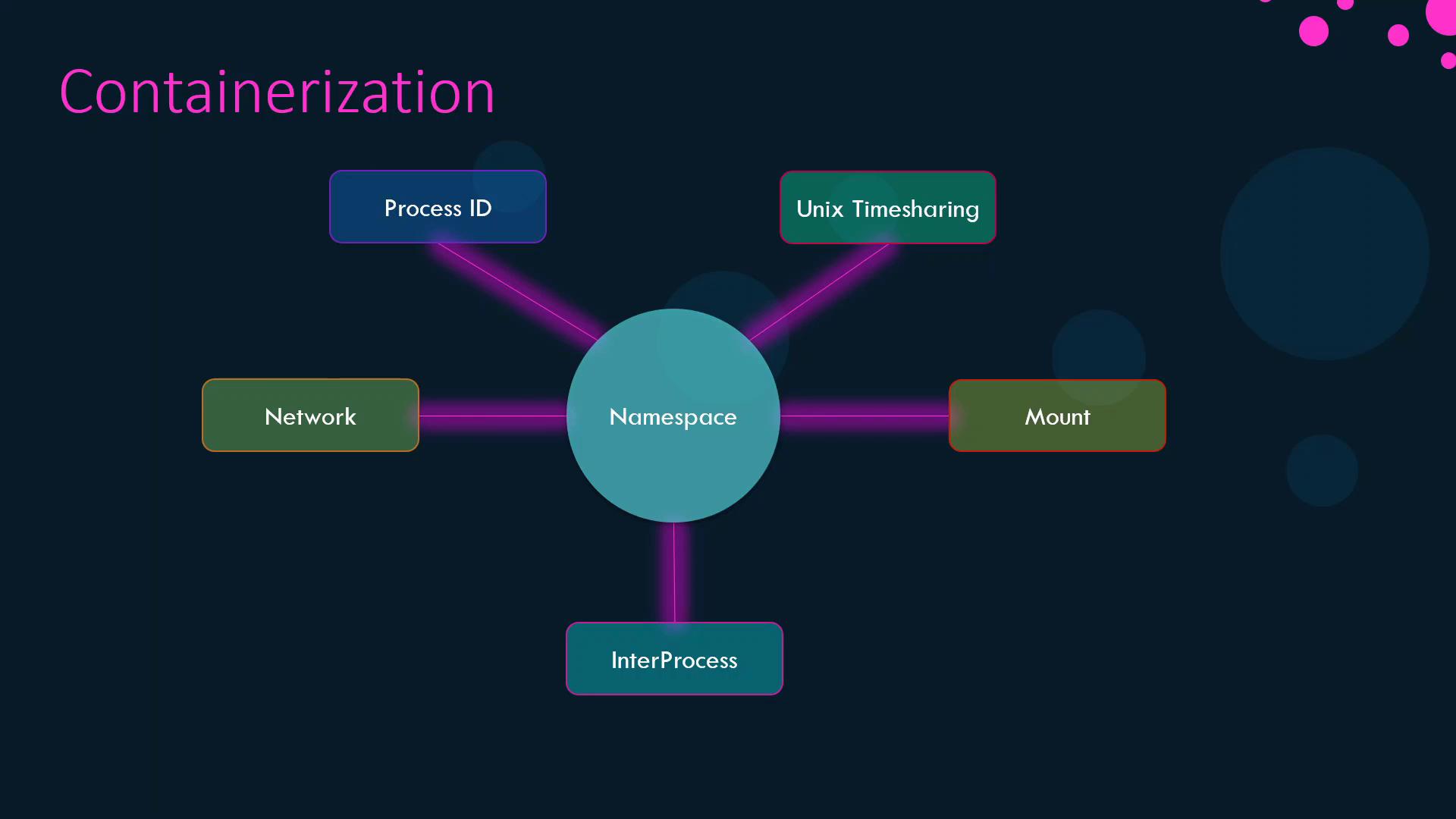
When Linux boots, it creates a single init process (PID 1) and forks all other processes from it. On the host, PIDs must remain unique, but containers also need a PID 1 without colliding with host IDs. PID namespaces solve this by providing each container its own PID space.
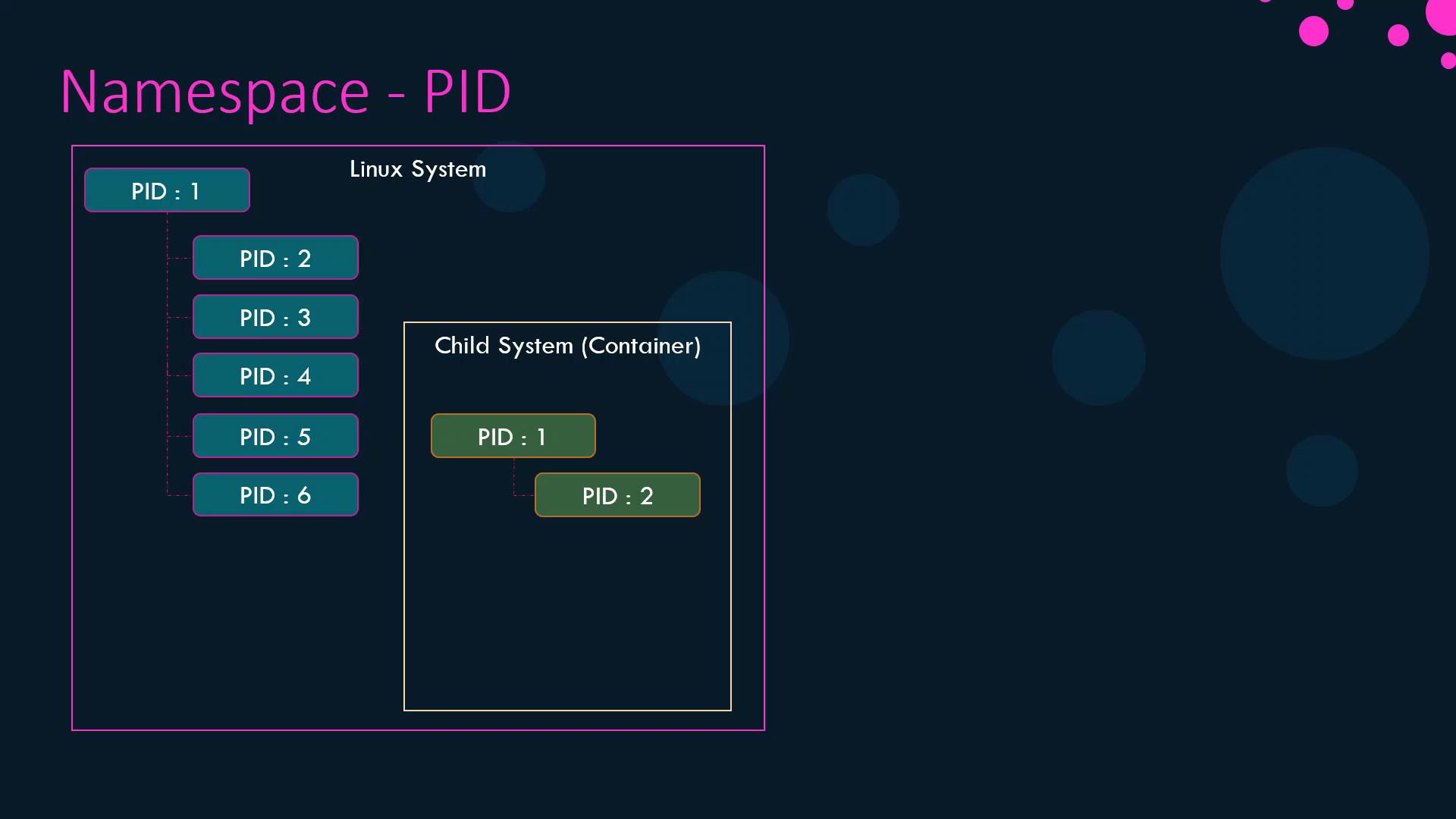
Processes inside the container see only PIDs 1 and 2, while the host maps them to PIDs 5 and 6.
### Demonstration
1. Launch a container that sleeps for an hour:
```bash theme={null}
docker run -d --name pid-namespace-test ubuntu sleep 3600
```
2. Inside the container, list processes:
```bash theme={null}
docker exec -it pid-namespace-test bash -c "ps aux"
```
```plaintext theme={null}
USER PID %CPU %MEM VSZ RSS TTY STAT START TIME COMMAND
root 1 0.0 0.0 4528 828 ? Ss 03:06 0:00 sleep 3600
```
3. On the host, verify the same process has a different PID:
```bash theme={null}
ps aux | grep sleep
```
```plaintext theme={null}
USER PID %CPU %MEM VSZ RSS TTY STAT START TIME COMMAND
root 3816 0.0 0.0 4528 828 ? Ss 06:06 0:00 sleep 3600
```
The output shows how PID namespaces isolate container processes from the host.
## User and Process Ownership
By default, Docker runs container processes as `root` inside the container, which maps to `root` on the host. To confirm:
```bash theme={null}
docker run --rm ubuntu sleep 1
docker ps
```
To run processes as a non-root user, use the `--user` flag:
```bash theme={null}
docker run --rm --user 1000 ubuntu sleep 3600
docker exec -it bash -c "ps aux"
```
```plaintext theme={null}
USER PID %CPU %MEM VSZ RSS TTY STAT START TIME COMMAND
1000 1 0.0 0.0 4528 828 ? Ss 03:06 0:00 sleep 3600
```
You can also set a default user in your `Dockerfile`:
```dockerfile theme={null}
FROM ubuntu
USER 1000
```
```bash theme={null}
docker build -t my-ubuntu-image .
docker run --rm my-ubuntu-image sleep 3600
docker exec -it bash -c "ps aux"
```
```plaintext theme={null}
USER PID %CPU %MEM VSZ RSS TTY STAT START TIME COMMAND
1000 1 0.0 0.0 4528 828 ? Ss 03:06 0:00 sleep 3600
```
## Linux Capabilities
Beyond namespaces, Docker restricts container privileges by dropping most Linux capabilities from the root user inside a container. This prevents operations like rebooting the host or altering network configurations.
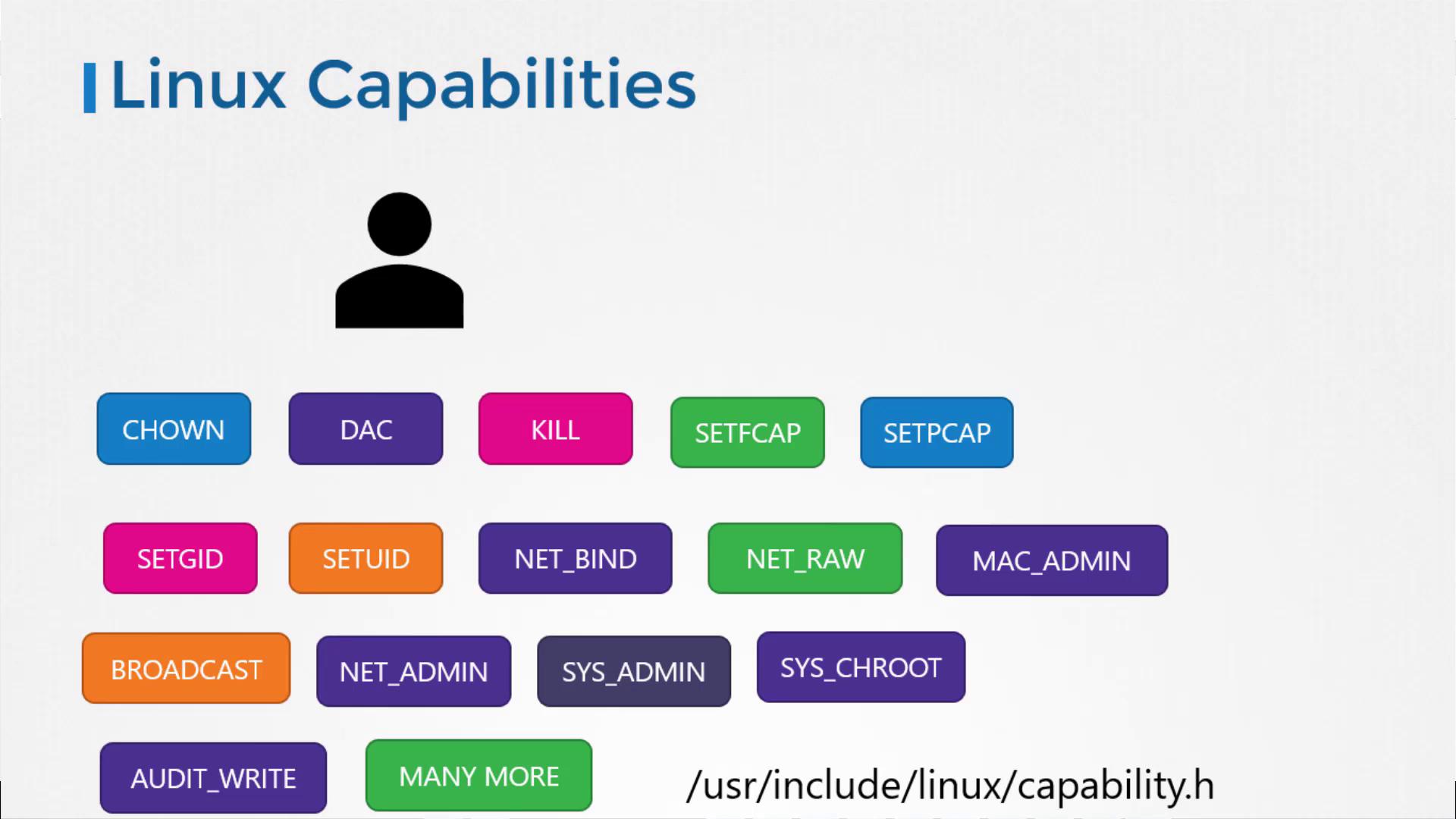
By default, containers run with a minimal set of capabilities. You can customize them using `--cap-add`, `--cap-drop`, or the `--privileged` flag:
| Command | Description |
| ------------------------- | ---------------------------------------- |
| `--cap-add=` | Add a specific capability |
| `--cap-drop=` | Remove a specific capability |
| `--privileged` | Grant all capabilities (not recommended) |
Granting `--privileged` mode gives the container all host capabilities, which can compromise security. Use it only when absolutely necessary.
For a full list of Linux capabilities, see [Kernel Capabilities](http://man7.org/linux/man-pages/man7/capabilities.7.html).
That’s it for namespaces and capabilities in Docker. Proceed to the next lesson for more on container networking and storage.
## Links and References
* [Docker run reference](https://docs.docker.com/engine/reference/commandline/run/)
* [Linux namespaces overview](https://man7.org/linux/man-pages/man7/namespaces.7.html)
* [Docker security documentation](https://docs.docker.com/engine/security/security/)