> ## Documentation Index
> Fetch the complete documentation index at: https://notes.kodekloud.com/llms.txt
> Use this file to discover all available pages before exploring further.
# Resource Limits CPU
> This article explores controlling CPU resource usage for Docker containers using cgroups and discusses CPU scheduling, shares, and limiting techniques.
In this lesson, we’ll explore how to control CPU resource usage for Docker containers using cgroups. Without limits, containers share the host kernel and can consume all available CPU and memory. If memory runs out, the Linux kernel’s OOM killer may terminate processes—including critical services—to free resources.
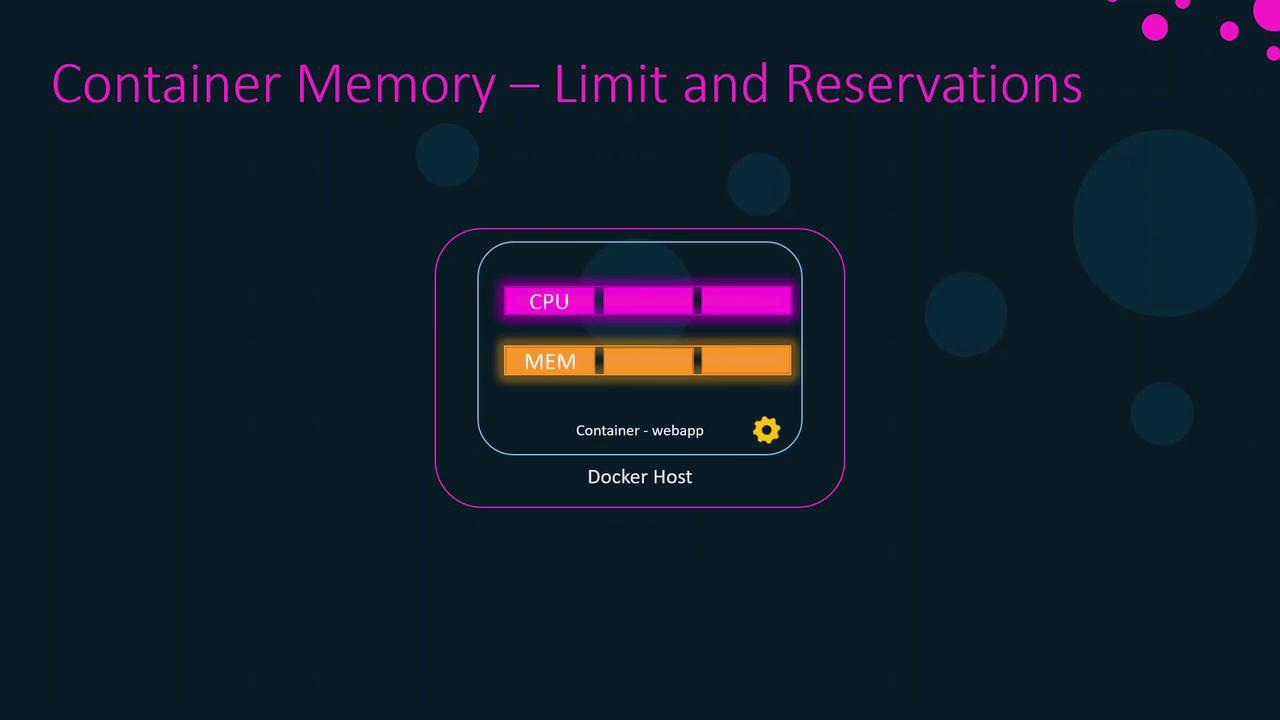
Understanding how the Linux scheduler allocates CPU time is key to setting effective limits.
## CPU Scheduling on Linux
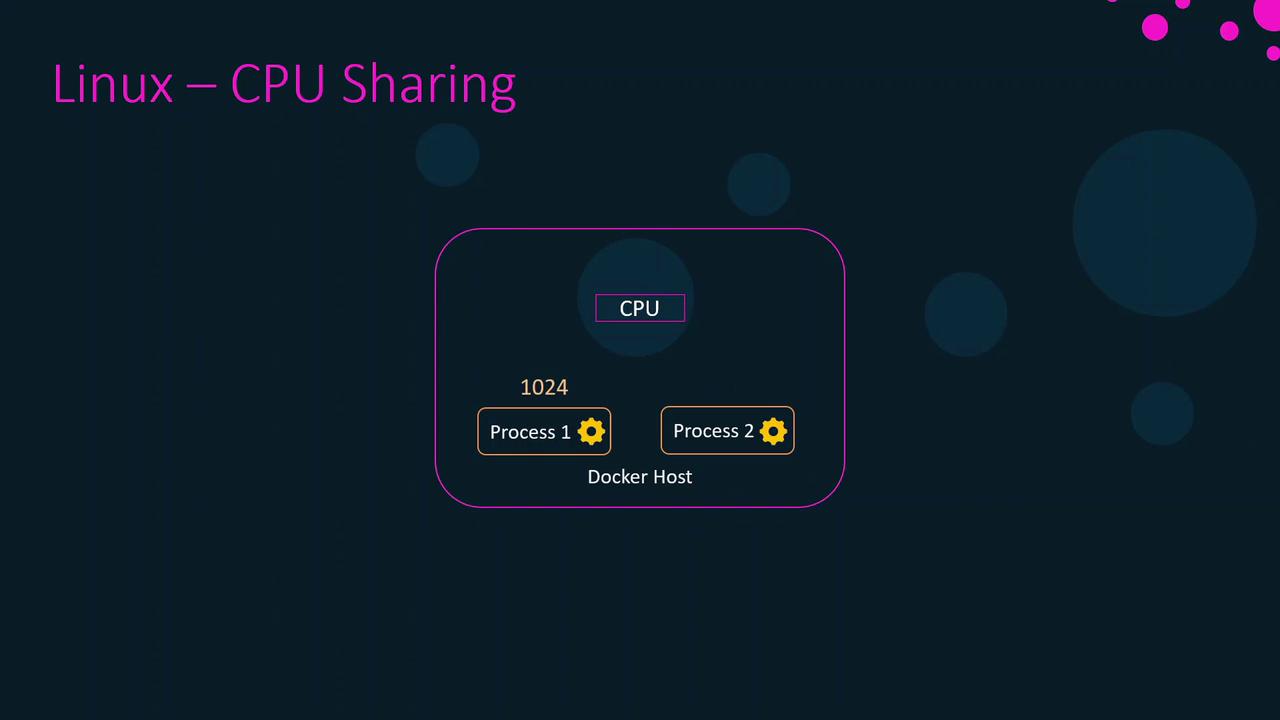
On a host with a single CPU core, two processes cannot truly run simultaneously. The Linux scheduler gives each process a tiny time slice (measured in microseconds), switching rapidly so they appear parallel. When one process has more weight, it receives more or longer slices.
### CPU Shares and Weights
CPU shares are relative weights, not hard caps. For example:
* Process A: 1024 shares
* Process B: 512 shares
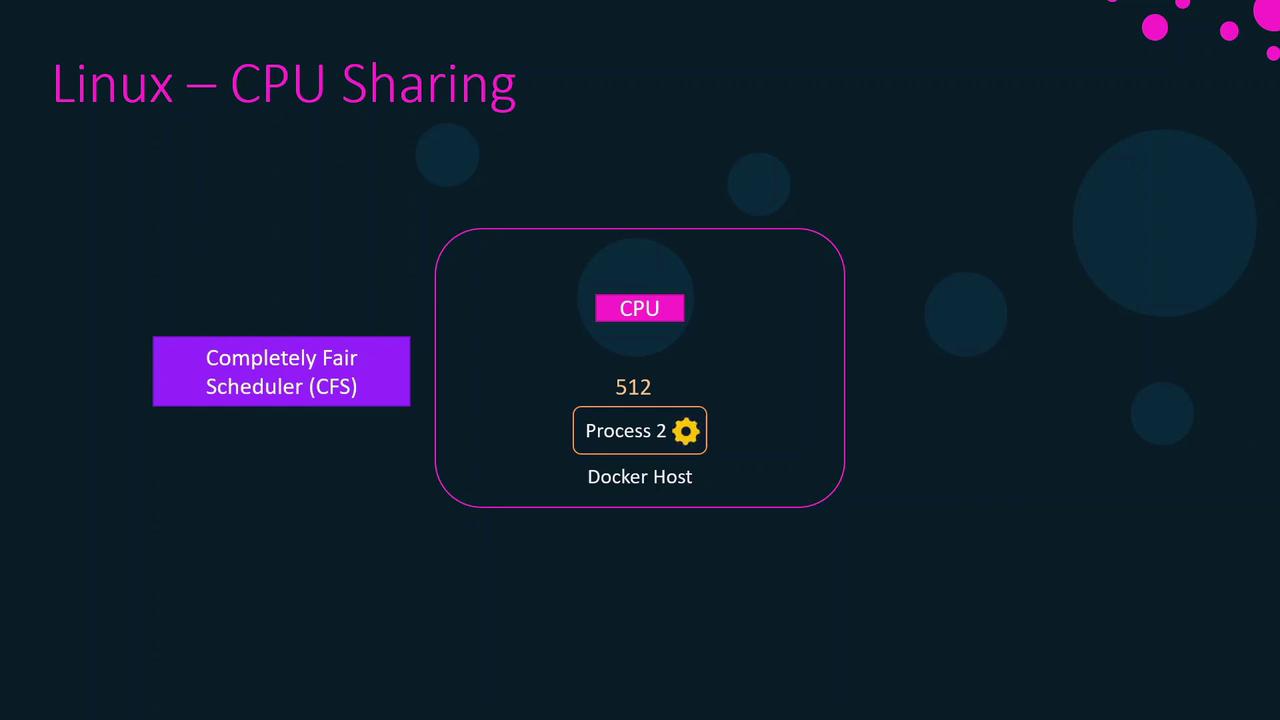
When both run, A gets twice the CPU time B gets. If A runs alone, it can still use 100% of the CPU despite its share count.
Docker leverages the Completely Fair Scheduler (CFS) by default. While Docker 1.13+ supports a real-time scheduler, we’ll focus on CFS here.
## Applying CPU Shares to Containers
By default, each container gets 1024 CPU shares. To change this weight:
```bash theme={null}
docker run --cpu-shares=512 --name webapp4 webapp
```
In this example, `webapp4` has half the CPU weight of any container using the default 1024 shares.
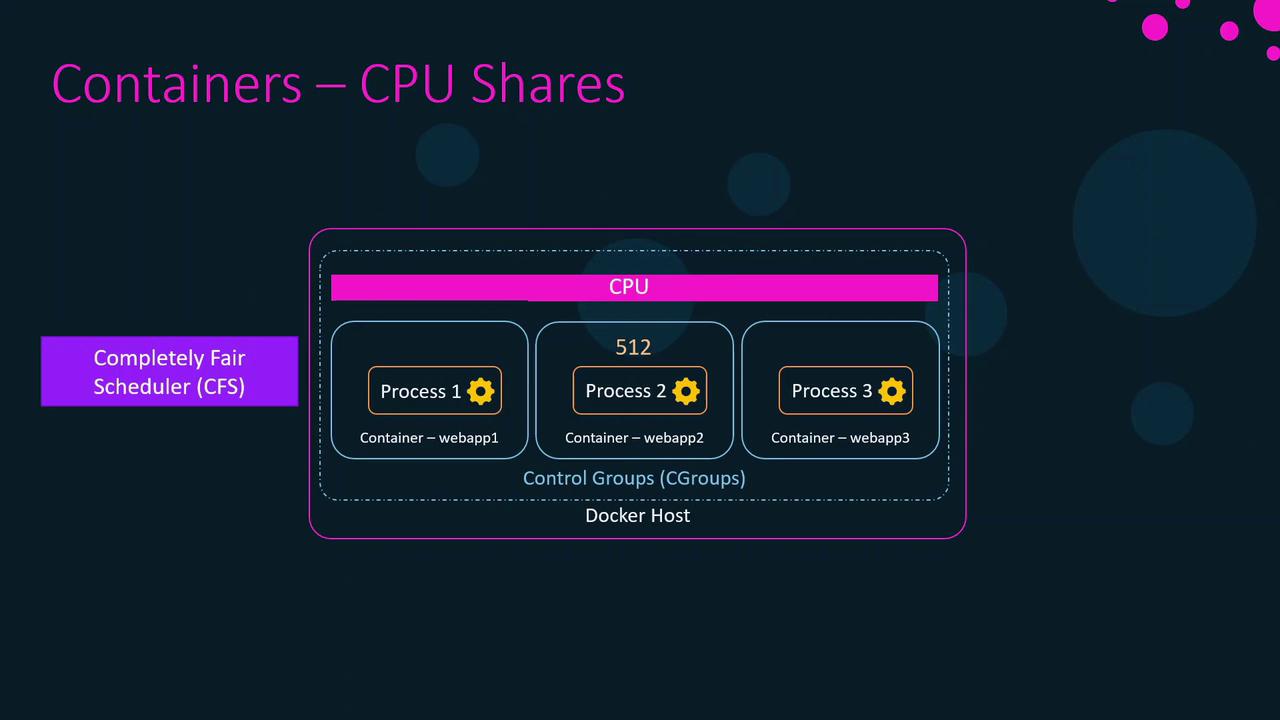
CPU shares only affect relative scheduling. A container with fewer shares can still use 100% of CPU if it’s the only active workload.
## Restricting Containers to Specific CPUs
To pin a container to specific cores, use `--cpuset-cpus`. On a 4-core host (0–3):
```bash theme={null}
docker run --cpuset-cpus="0-1" --name webapp1 webapp
docker run --cpuset-cpus="0-1" --name webapp2 webapp
docker run --cpuset-cpus="2" --name webapp3 webapp
docker run --cpuset-cpus="2" --name webapp4 webapp
```
Here, `webapp1` and `webapp2` run only on cores 0 and 1; `webapp3` and `webapp4` on core 2. Core 3 stays free for other tasks.
## Limiting CPU Usage with `--cpus`
Since Docker 1.13, you can enforce a hard CPU cap:
```bash theme={null}
docker run --cpus=2.5 --name webapp4 webapp
```
This restricts `webapp4` to 2.5 CPU cores (≈62.5% of a 4-core host). To update an existing container:
```bash theme={null}
docker update --cpus=2.5 webapp4
```
Without proper CPU limits, a container can monopolize the host CPU, starving other containers or the Docker daemon and causing an unresponsive system.
## CPU Limit Configuration Options
| Option | Description | Example |
| --------------- | ------------------------------------------ | -------------------------------------- |
| `--cpu-shares` | Relative CPU weight (default: 1024 shares) | `docker run --cpu-shares=512 nginx` |
| `--cpuset-cpus` | Pin container to specific CPU cores | `docker run --cpuset-cpus="0-1" nginx` |
| `--cpus` | Hard limit on number of CPU cores | `docker run --cpus=2.5 nginx` |
## Links and References
* [Docker CPU and Memory Constraints](https://docs.docker.com/config/containers/resource_constraints/)
* [Linux CFS Scheduler](https://www.kernel.org/doc/html/latest/scheduler/sched-design-CFS.html)
* [Docker Control Groups (cgroups)](https://docs.docker.com/config/containers/resource_constraints/#cgroups)
* [Docker Certified Associate Exam Course](https://example.com/docker-certified-associate)