> ## Documentation Index
> Fetch the complete documentation index at: https://notes.kodekloud.com/llms.txt
> Use this file to discover all available pages before exploring further.
# Demo Image Registry and Operations
> This lesson covers essential image operations in Docker Hub using the web interface and Docker CLI.
In this lesson, we’ll dive into Docker Hub and walk through essential image operations using both the web interface and Docker CLI. You’ll learn how to find, pull, tag, push, inspect, save, and remove images efficiently.
## 1. Exploring Docker Hub
Open your browser and go to [hub.docker.com](https://hub.docker.com).
If you don’t have a Docker Hub account yet, sign up now—you’ll need it to push images later.
Docker Hub classifies images into three categories:
| Resource Type | Description | Identifier Example |
| ------------------------- | --------------------------------------------------- | ------------------------ |
| Official images | Maintained by Docker; carries an **official** badge | `httpd` |
| Verified publisher images | Provided by ecosystem partners; marked **verified** | `puppet/puppet-agent` |
| Community (user) images | Uploaded by users; named with `username/imagename` | `yogeshraheja/wordpress` |
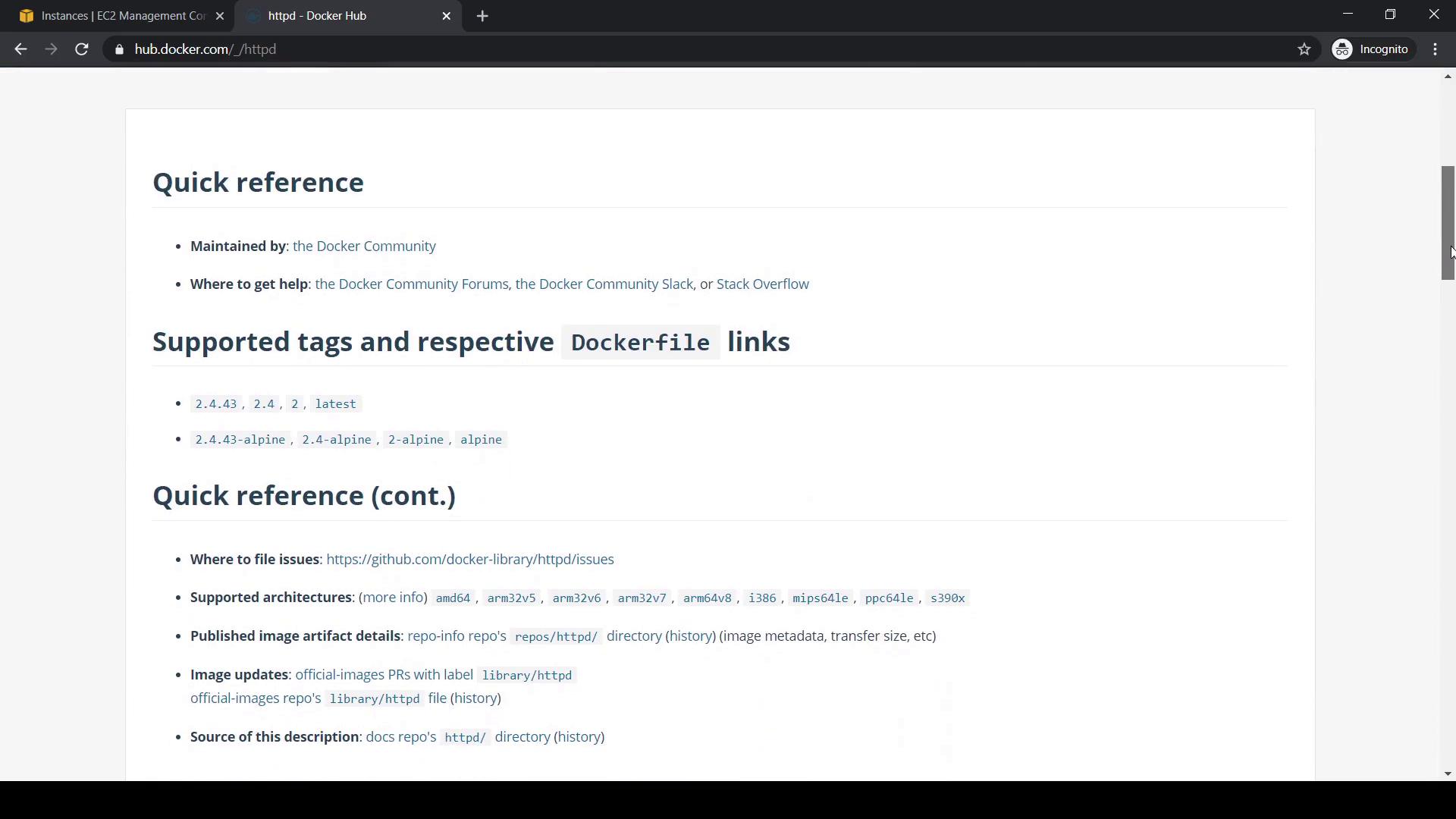
Search for the Apache HTTP Server image (`httpd`) and click **httpd**. You’ll see:
* **Supported Tags**: Available versions (e.g., `latest`, `alpine`).
* **Dockerfile** links: How the image is built.
* Quick info on architectures, update history, and help resources.
***
## 2. Listing and Pulling Images Locally
First, see which images are already on your host:
```bash theme={null}
docker image ls
```
Sample output:
```text theme={null}
REPOSITORY TAG IMAGE ID CREATED SIZE
ubuntu latest 1d622ef86b13 10 days ago 73.9MB
```
Pull the default HTTPD image (`httpd:latest`):
```bash theme={null}
docker pull httpd
```
Verify it’s downloaded:
```bash theme={null}
docker image ls
```
***
## 3. Searching Images via CLI
Instead of the web UI, search Docker Hub from your terminal:
```bash theme={null}
docker search httpd
```
To refine results:
```bash theme={null}
docker search --limit 2 httpd
docker search --filter stars=10 httpd
docker search --filter stars=10 --filter is-official=true httpd
```
***
## 4. Pulling Specific Tags and Tagging Images
Grab the Alpine-based HTTPD variant:
```bash theme={null}
docker pull httpd:alpine
```
Verify both images:
```bash theme={null}
docker image ls
```
Tag `httpd:alpine` locally:
```bash theme={null}
docker image tag httpd:alpine httpd:kodekloudv1
docker image ls
```
Both tags share the same **IMAGE ID** and **SIZE**, since they reference the same layers.
***
## 5. Checking Disk Usage
Assess disk space consumed by images, containers, and volumes:
```bash theme={null}
docker system df
```
***
## 6. Pushing Images to Docker Hub
1. Log in to Docker Hub:
```bash theme={null}
docker login
```
2. Retag your image with your Docker Hub username (replace ``):
```bash theme={null}
docker tag httpd:kodekloudv1 /httpd:kodekloudv1
```
3. Push the image:
```bash theme={null}
docker push /httpd:kodekloudv1
```
If you try `docker push httpd:kodekloudv1` without your username, you’ll get an “access denied” error. Always retag with your Docker Hub namespace.
After a successful push, confirm locally:
```bash theme={null}
docker image ls
```
You should see:
```text theme={null}
REPOSITORY TAG IMAGE ID CREATED SIZE
/httpd kodekloudv1 eee6a6a3a3c9 9 days ago 107MB
```
On Docker Hub, navigate to your repositories to view it.
***
## 7. Removing Images
### Locally
Remove a single tag:
```bash theme={null}
docker image rm httpd:kodekloudv1
```
If the image ID is still referenced by other tags, remove all of them:
```bash theme={null}
docker image rm httpd:alpine
docker image rm /httpd:kodekloudv1
```
Confirm removal:
```bash theme={null}
docker image ls
```
### On Docker Hub
1. Sign in to Docker Hub and go to your account.
2. Select the repository to delete.
3. Click **Settings** → **Delete Repository**.
4. Type the repository name to confirm.
***
## 8. Inspecting and Exploring Images
* View an image’s layer history:
```bash theme={null}
docker image history ubuntu
```
* Inspect detailed metadata:
```bash theme={null}
docker image inspect httpd
```
***
## 9. Saving and Loading Images
Export an image to a tarball:
```bash theme={null}
docker image save alpine:latest -o alpine-latest.tar
```
Remove the local image:
```bash theme={null}
docker image rm alpine:latest
```
Load it back:
```bash theme={null}
docker image load -i alpine-latest.tar
```
This is useful for air-gapped or offline transfers.
***
## 10. Exporting and Importing a Container Filesystem
1. Run a container:
```bash theme={null}
docker container run -itd --name test alpine
```
2. Export its filesystem:
```bash theme={null}
docker export test > test-container.tar
```
3. Import as a new image:
```bash theme={null}
docker image import test-container.tar test-image:latest
```
4. Verify:
```bash theme={null}
docker image ls
```
***
That covers image registry and operations with Docker Hub and CLI. Happy Dockering!
## Links and References
* [Docker Documentation](https://docs.docker.com/)
* [Docker Hub](https://hub.docker.com/)
* [Docker CLI Reference](https://docs.docker.com/engine/reference/commandline/cli/)