> ## Documentation Index
> Fetch the complete documentation index at: https://notes.kodekloud.com/llms.txt
> Use this file to discover all available pages before exploring further.
# Docker Image Registry
> This lesson explores Dockers image registry, including Docker Hub and private registries, image categories, searching, and managing images.
In this lesson, we explore Docker’s image registry. Throughout our work, we’ve run many containers using images—but where do these images reside, and how do you access them?
All images are stored in a central repository called an **image registry**. By default, Docker uses **Docker Hub**, a public registry hosting thousands of both public and private images. You can push your own images to Docker Hub and choose to keep them private.
## Default Registries
On top of Docker Hub, organizations can deploy private registries internally or use managed services from cloud providers:
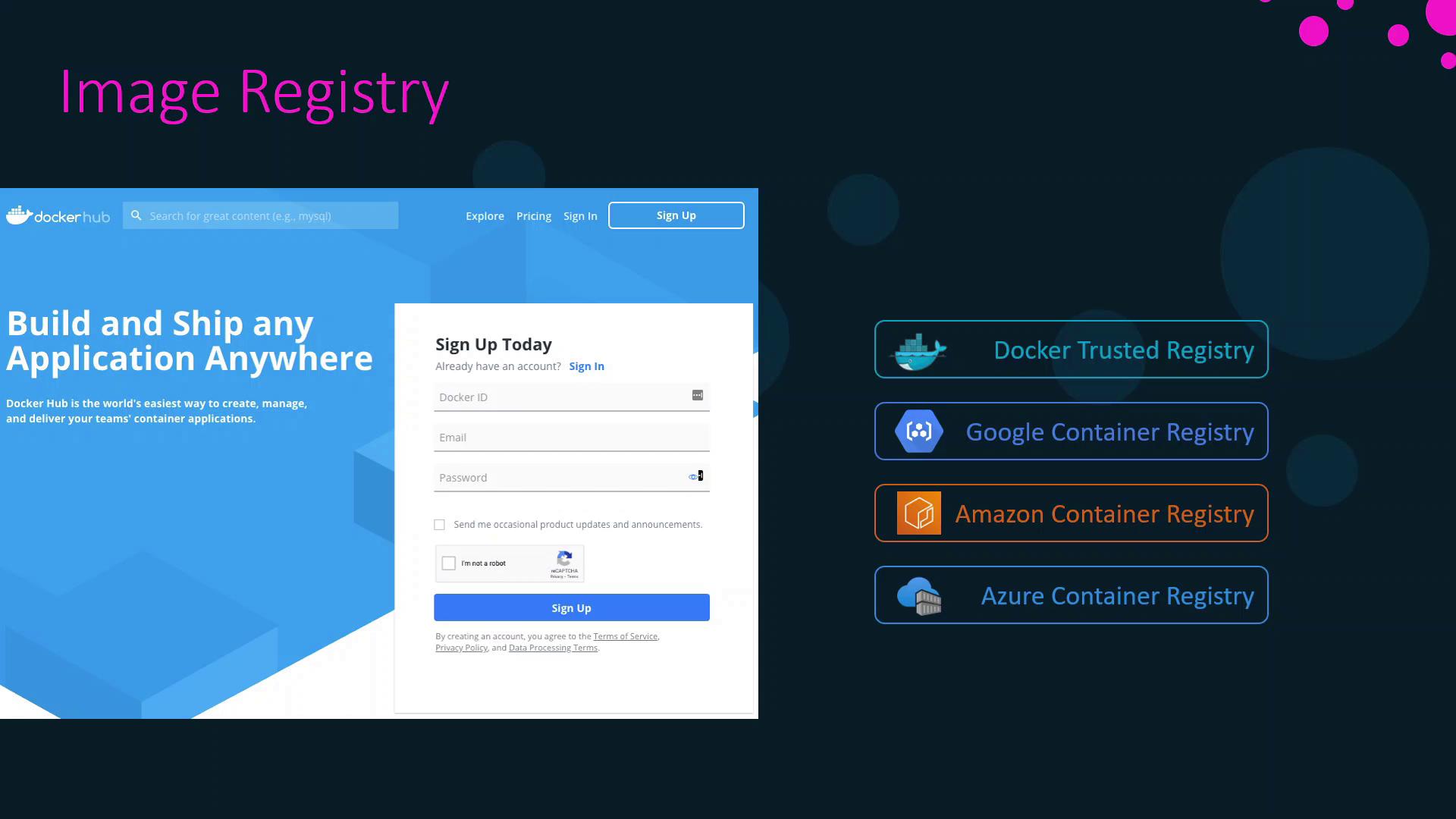
| Registry Type | Description | Link |
| --------------------------------- | ----------------------------------- | ------------------------------------------------------------------------------------------------------------ |
| Docker Hub | Docker’s public registry | [hub.docker.com](https://hub.docker.com/) |
| Docker Trusted Registry | On-premises private registry | [docs.docker.com/enterprise/registry](https://docs.docker.com/enterprise/registry/) |
| Google Container Registry | Managed registry by Google Cloud | [cloud.google.com/container-registry](https://cloud.google.com/container-registry) |
| Amazon Elastic Container Registry | Managed registry by AWS | [aws.amazon.com/ecr](https://aws.amazon.com/ecr/) |
| Azure Container Registry | Managed registry by Microsoft Azure | [azure.microsoft.com/services/container-registry/](https://azure.microsoft.com/services/container-registry/) |
## Image Categories on Docker Hub
On Docker Hub, images are organized into three categories:
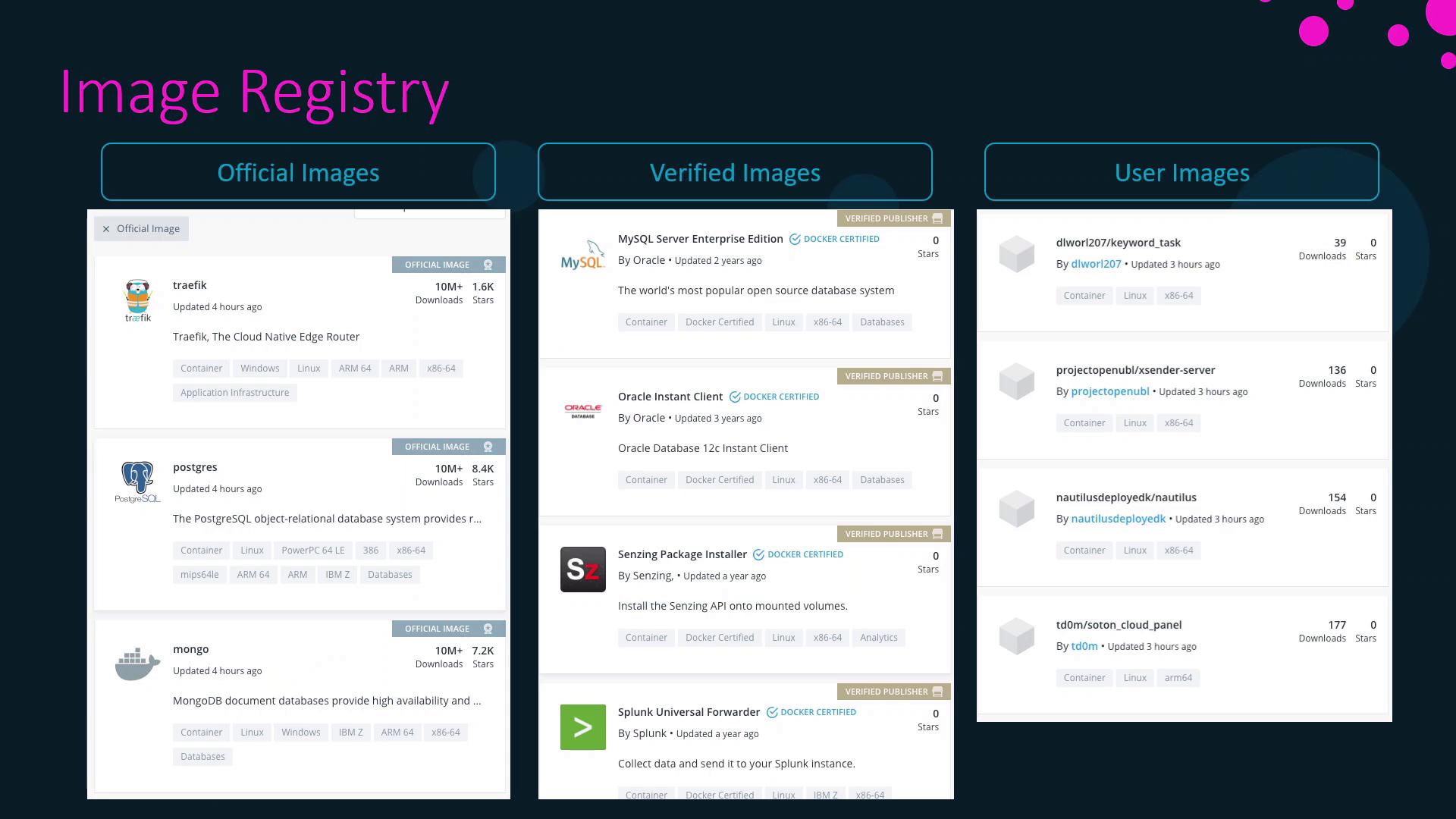
| Category | Maintained By | Examples |
| --------------- | ---------------------- | ------------------------------------------- |
| Official Images | Docker | `ubuntu`, `nginx`, `node`, `mongo` |
| Verified Images | Trusted vendors | `oracle`, `splunk`, `datadog`, `dynatrace` |
| User Images | Community contributors | Various open-source and custom applications |
## Searching for Images on Docker Hub
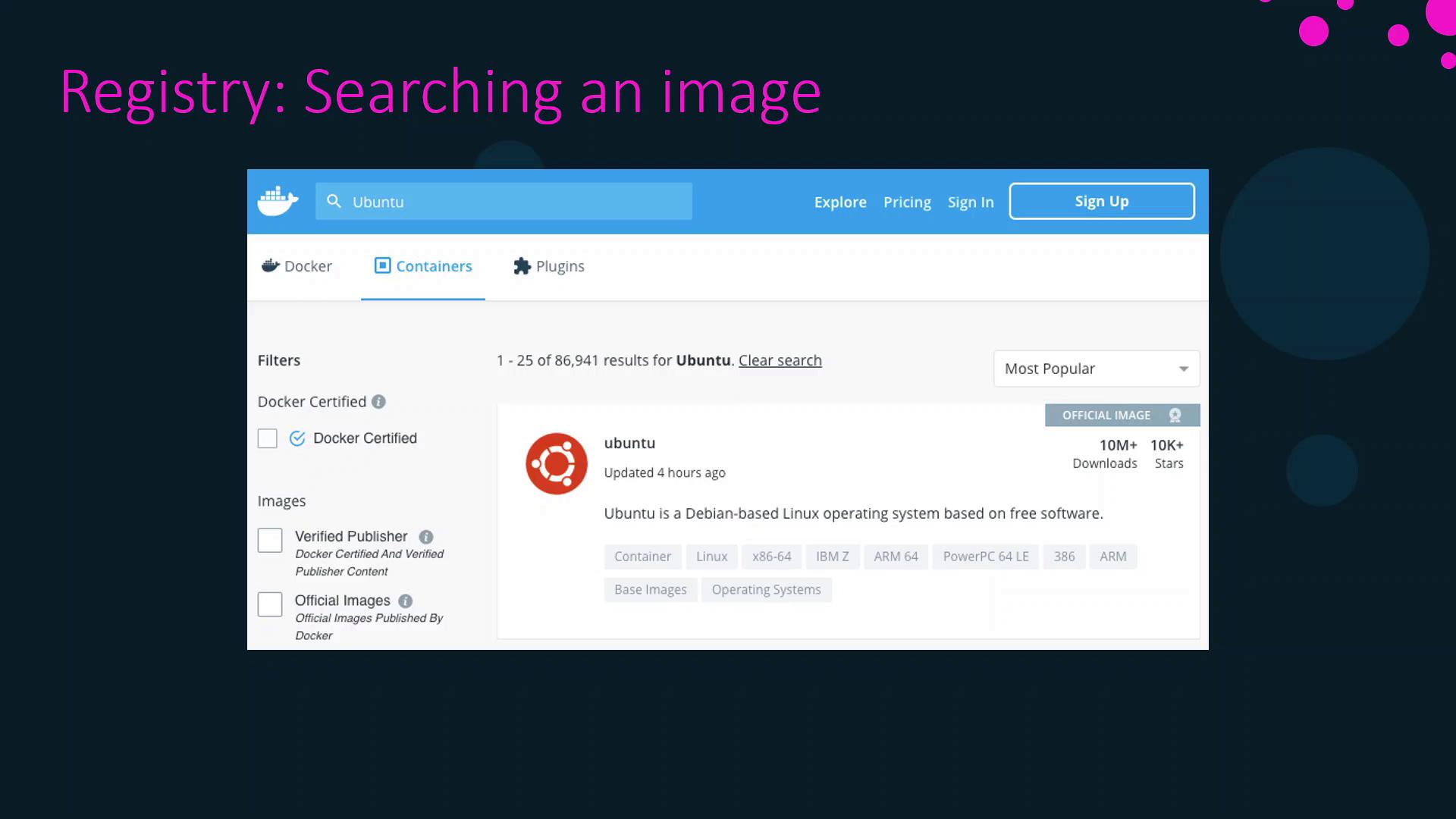
You can browse and search images via the web interface. For example, searching for “Ubuntu” displays official Ubuntu images along with download counts and star ratings:
## Working with Image Tags
Each image can have multiple tags. When you pull or run an image without specifying a tag, Docker uses the default tag: `latest`. This tag points to the version designated by the image maintainers.
Pulling `ubuntu` is equivalent to pulling `ubuntu:latest`, which currently refers to Ubuntu 20.04.
```bash theme={null}
# Pulls the Ubuntu image with the default 'latest' tag
docker pull ubuntu
# Both commands are equivalent
docker run ubuntu
docker run ubuntu:latest
```
To pull a specific version, specify its tag. For example, Ubuntu 18.04 is tagged as `bionic`, and Ubuntu 14.04 as `trusty`:
```bash theme={null}
docker pull ubuntu:bionic
```
## Listing and Searching Images from the CLI
### List Local Images
To display all images on your host:
```bash theme={null}
docker image ls
```
Example output:
```bash theme={null}
REPOSITORY TAG IMAGE ID CREATED SIZE
ubuntu latest 549b9b86cb8d 4 weeks ago 64.2MB
```
### Search Docker Hub from Terminal
```bash theme={null}
docker search httpd
```
By default, this returns up to 25 results. To limit the output (maximum 100):
```bash theme={null}
docker search httpd --limit 2
```
### Filter Search Results
Use filters like `stars` and `is-official` to refine results:
```bash theme={null}
# HTTPD images with at least 10 stars
docker search httpd --filter stars=10
# Only official HTTPD images
docker search httpd --filter is-official=true
# Combine multiple filters
docker search httpd --filter stars=10 --filter is-official=true
```
## Pulling Images Without Running Containers
If you only want to download an image without starting a container:
```bash theme={null}
docker image pull httpd
```
Example output:
```bash theme={null}
Using default tag: latest
latest: Pulling from library/httpd
8ec398bc0356: Pull complete
354e6904d655: Pull complete
27298e4c749a: Pull complete
10e27104ba69: Pull complete
36412f6b2f6e: Pull complete
Digest: sha256:769018135ba22d3a7a2b91cb898de711562cdf51ad6621b2b13e95f3798de
Status: Downloaded newer image for httpd:latest
docker.io/library/httpd:latest
```
Verify the image is present:
```bash theme={null}
docker image ls
```
***
That concludes this lesson on Docker image registries. In the next lesson, we’ll dive into container management.
## References
* [Docker Hub](https://hub.docker.com/)
* [Docker Trusted Registry](https://docs.docker.com/enterprise/registry/)
* [Google Container Registry](https://cloud.google.com/container-registry)
* [Amazon Elastic Container Registry](https://aws.amazon.com/ecr/)
* [Azure Container Registry](https://azure.microsoft.com/services/container-registry/)