> ## Documentation Index
> Fetch the complete documentation index at: https://notes.kodekloud.com/llms.txt
> Use this file to discover all available pages before exploring further.
# Swarm Operations
> This article explains how to manage Swarm nodes, including promoting, demoting, draining, and removing nodes for maintenance and high availability.
In this lesson, you’ll learn how to:
* Promote and demote Swarm nodes
* Drain nodes for maintenance
* Remove nodes from your cluster
These operations help maintain high availability and streamline cluster management.
## Promote and Demote Nodes
Only Swarm manager nodes can orchestrate the cluster. You can elevate a worker node to manager or revert a manager back to a worker. Run these commands on any current manager.
### Promote a Worker to Manager
```bash theme={null}
docker node promote worker1
```
Promoting a node requires you to be connected to an active manager. Check your current context with `docker info`.
Verify the updated node list:
| ID | HOSTNAME | STATUS | AVAILABILITY | MANAGER STATUS | ENGINE VERSION |
| -------- | -------- | ------ | ------------ | -------------- | -------------- |
| 91uxgq6… | manager1 | Ready | Active | Leader | 19.03.8 |
| 2lux7z6… | worker1 | Ready | Active | Reachable | 19.03.8 |
| w0qr6k2… | worker2 | Ready | Active | | 19.03.8 |
### Demote a Manager to Worker
```bash theme={null}
docker node demote worker1
```
Confirm the demotion:
| ID | HOSTNAME | STATUS | AVAILABILITY | MANAGER STATUS | ENGINE VERSION |
| -------- | -------- | ------ | ------------ | -------------- | -------------- |
| 91uxgq6… | manager1 | Ready | Active | Leader | 19.03.8 |
| 2lux7z6… | worker1 | Ready | Active | | 19.03.8 |
| w0qr6k2… | worker2 | Ready | Active | | 19.03.8 |
## Drain a Node for Maintenance
Before patching or upgrading, remove workloads from a node to avoid downtime. The following diagram shows a Swarm cluster with one manager and two workers running a “Web” service.
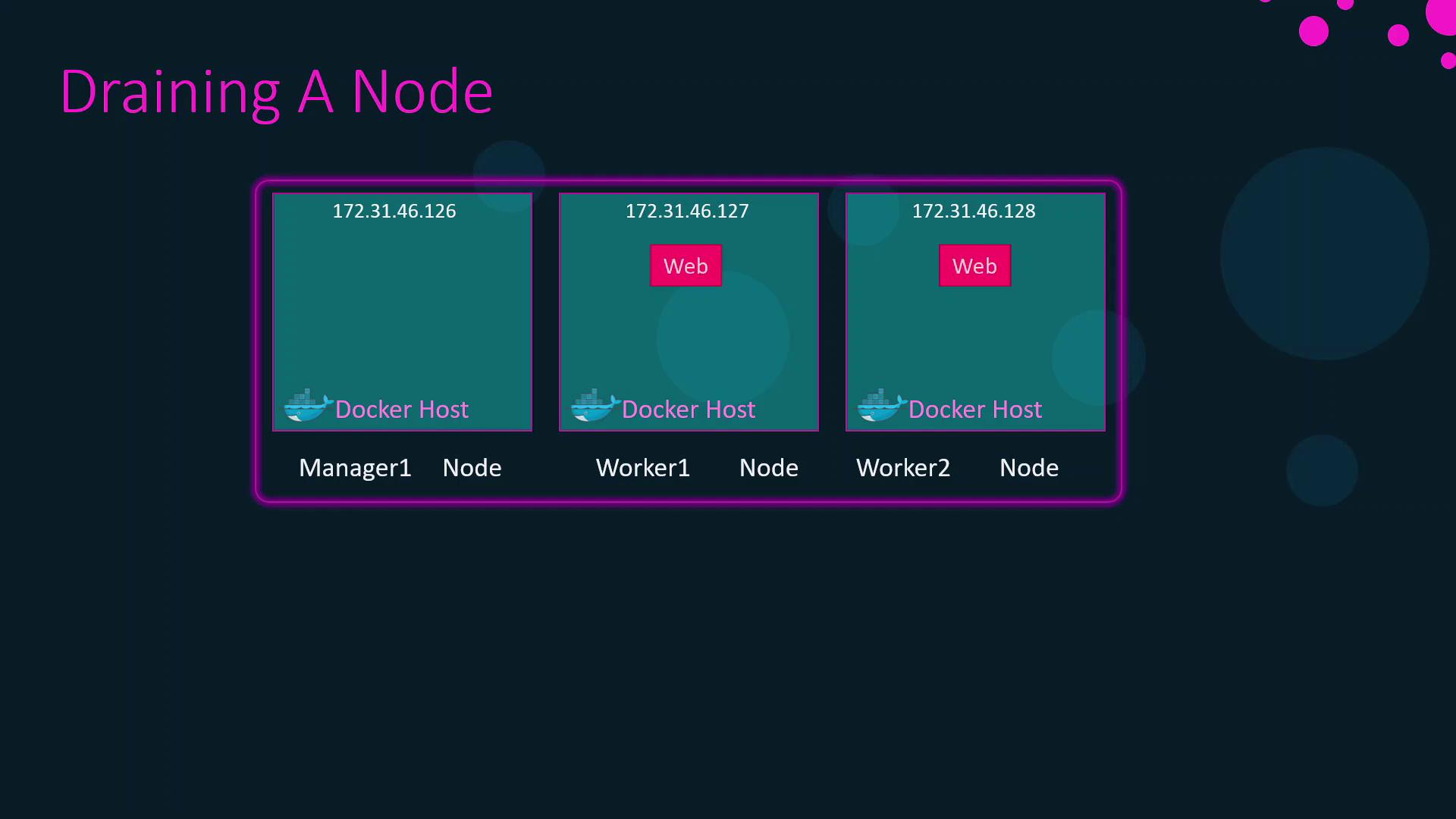
Drain `worker1` to migrate its tasks:
```bash theme={null}
docker node update --availability drain worker1
```
Draining a node stops new tasks from being scheduled and reschedules existing ones on other workers. Ensure your cluster has enough capacity before draining.
Check the drain status:
| ID | HOSTNAME | STATUS | AVAILABILITY | MANAGER STATUS | ENGINE VERSION |
| -------- | -------- | ------ | ------------ | -------------- | -------------- |
| 91uxgq6… | manager1 | Ready | Active | Leader | 19.03.8 |
| 2lux7z6… | worker1 | Ready | Drain | | 19.03.8 |
| w0qr6k2… | worker2 | Ready | Active | | 19.03.8 |
After maintenance, reactivate scheduling:
```bash theme={null}
docker node update --availability active worker1
```
Now `worker1` will accept new tasks:
| ID | HOSTNAME | STATUS | AVAILABILITY | MANAGER STATUS | ENGINE VERSION |
| -------- | -------- | ------ | ------------ | -------------- | -------------- |
| 91uxgq6… | manager1 | Ready | Active | Leader | 19.03.8 |
| 2lux7z6… | worker1 | Ready | Active | | 19.03.8 |
| w0qr6k2… | worker2 | Ready | Active | | 19.03.8 |
## Remove a Node from the Swarm
To permanently remove a worker node:
1. Drain the node:
```bash theme={null}
docker node update --availability drain worker2
```
2. Log in to `worker2` and leave the swarm:
```bash theme={null}
docker swarm leave
```
Example confirmation:
```bash theme={null}
Node left the swarm.
```
At this point, `worker2` is safely removed, and your cluster continues with the remaining nodes.
## References
* [Docker Swarm Overview](https://docs.docker.com/engine/swarm/)
* [Docker Node Management](https://docs.docker.com/engine/reference/commandline/node/)
* [Docker Maintenance Best Practices](https://docs.docker.com/config/containers/resource_constraints/)