> ## Documentation Index
> Fetch the complete documentation index at: https://notes.kodekloud.com/llms.txt
> Use this file to discover all available pages before exploring further.
# Access Control in DTR
> This article explores managing users, organizations, teams, and repository permissions in Docker Trusted Registry for secure image sharing.
In this lesson, we’ll explore how to manage users, organizations, teams, and repository permissions in \[Docker Trusted Registry]\[Docker Trusted Registry]. Leveraging DTR’s integration with \[Universal Control Plane]\[Universal Control Plane], you can secure and streamline image sharing across your organization.
## Repository Visibility
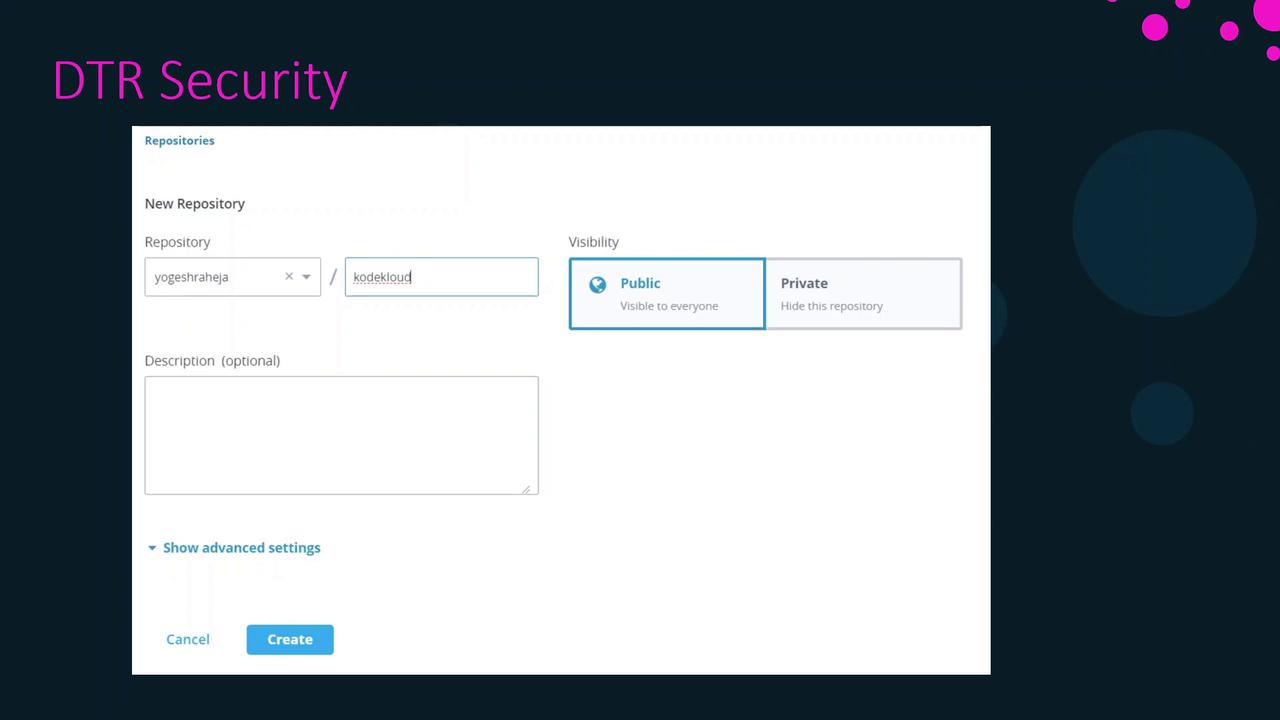
DTR repositories can be **public** or **private**.
* **Public**: Any user with your DTR URL can pull images without authentication.
* **Private**: Only authenticated users with the right permissions can pull images.
To access private repositories, authenticate with `docker login ` using a valid DTR account.
## Managing User Accounts
Every push or pull to DTR requires a user account. You have two options:
1. **UCP Accounts**\
Users created in \[Universal Control Plane] are automatically available in DTR.
2. **DTR Local Accounts**\
Create users directly in the DTR web UI; they’ll also appear in UCP.

## Organizations and Teams
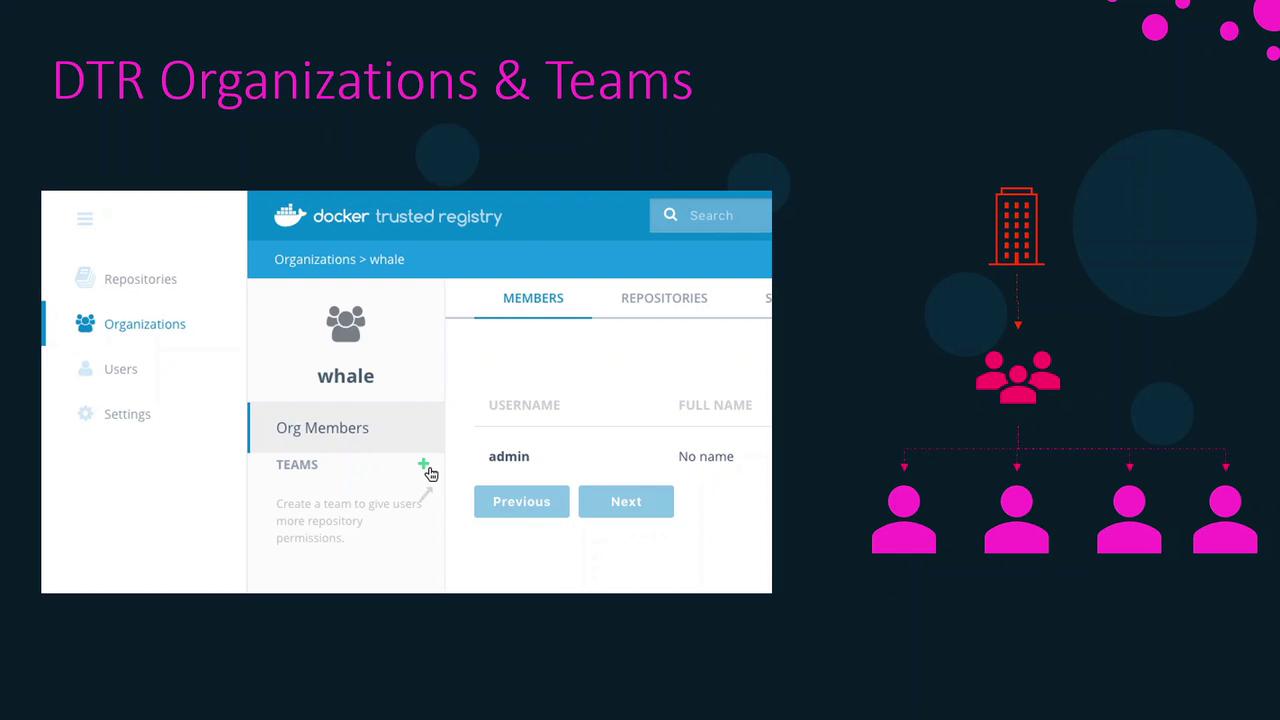
To collaborate on repositories, group users into organizations and teams:
1. **Create an Organization**
2. **Define Teams** within that organization
3. **Add Users** to each team
Team membership grants access to all repositories assigned to that team.
Organize users into teams by project or role to maintain consistent permissions and reduce administrative overhead.
## Repository Permission Levels
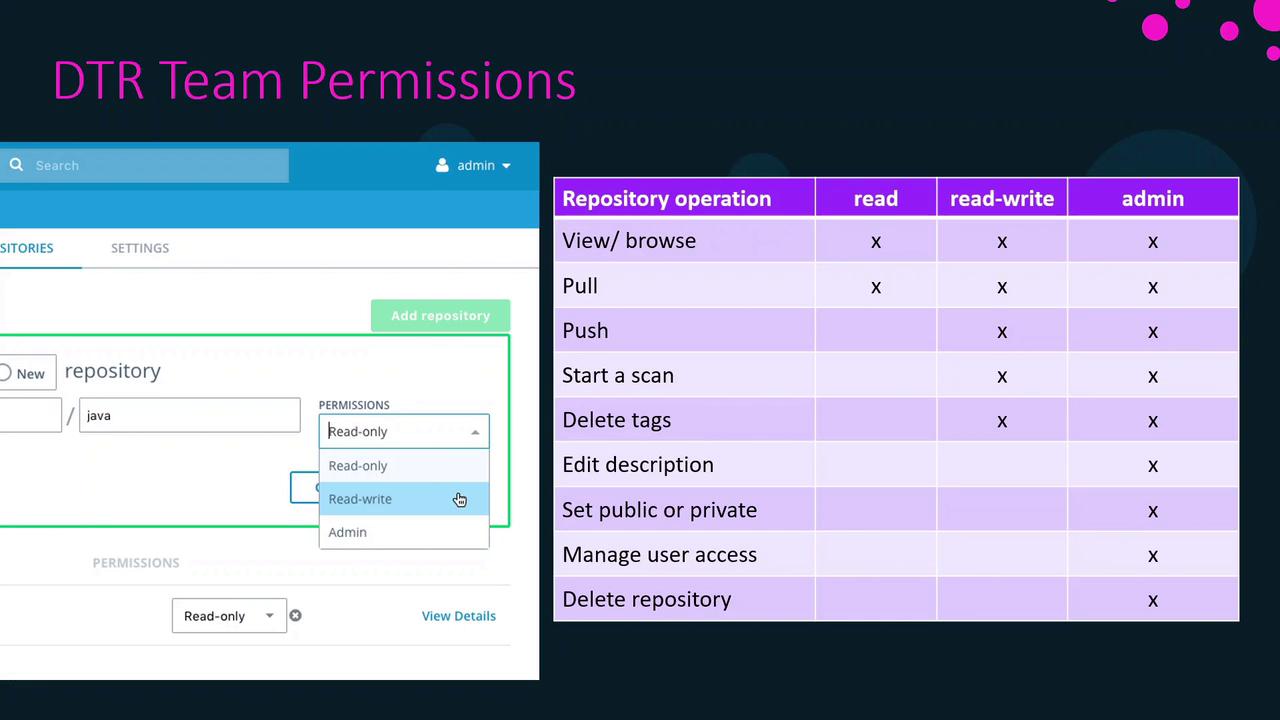
Assign one of three permission levels when granting a team access to a repository:
| Permission | Actions Allowed |
| ---------- | ----------------------------------------------------- |
| Read | View repository metadata & pull images |
| Write | Pull, push, tag, and scan images |
| Admin | Full control: read/write actions plus manage settings |
## Summary
* Choose **public** or **private** visibility based on your security needs.
* Use **UCP** or **DTR** to manage user accounts seamlessly.
* Leverage **organizations** and **teams** to simplify collaboration.
* Assign granular **permission levels** (Read, Write, Admin) to control repository access.
By following these best practices, you’ll ensure secure, efficient access control in Docker Trusted Registry.
***
## References
* [Docker Trusted Registry Documentation](https://docs.docker.com/ee/dtr/)
* [Universal Control Plane Documentation](https://docs.docker.com/ee/ucp/)