> ## Documentation Index
> Fetch the complete documentation index at: https://notes.kodekloud.com/llms.txt
> Use this file to discover all available pages before exploring further.
# Demo Docker Trusted Registry
> This guide covers essential Docker Trusted Registry tasks including login, repository management, image pushing, scanning, and cleanup operations.
In this guide, we’ll walk through key Docker Trusted Registry (DTR) tasks—logging in via UI and CLI, configuring external URLs, creating repositories, pushing and scanning images, adjusting scan settings, and cleaning up images and repositories.
## Table of Contents
1. [Accessing and Configuring DTR](#1-accessing-and-configuring-dtr)
2. [CLI Login to DTR](#2-cli-login-to-dtr)
3. [Creating a Repository](#3-creating-a-repository)
4. [Pushing Images to DTR](#4-pushing-images-to-dtr)
5. [Scanning Images for Vulnerabilities](#5-scanning-images-for-vulnerabilities)
6. [Scanning an Older Image](#6-scanning-an-older-image)
7. [Adjusting Image Scan Settings](#7-adjusting-image-scan-settings)
8. [Deleting Tags and Repositories](#8-deleting-tags-and-repositories)
## 1. Accessing and Configuring DTR
1. Open your browser and navigate to your DTR’s IP or DNS.
2. Log in with your credentials.
If your DTR VM doesn’t have a persistent IP or DNS name, any change will break UI access. Always assign a static IP or DNS record.
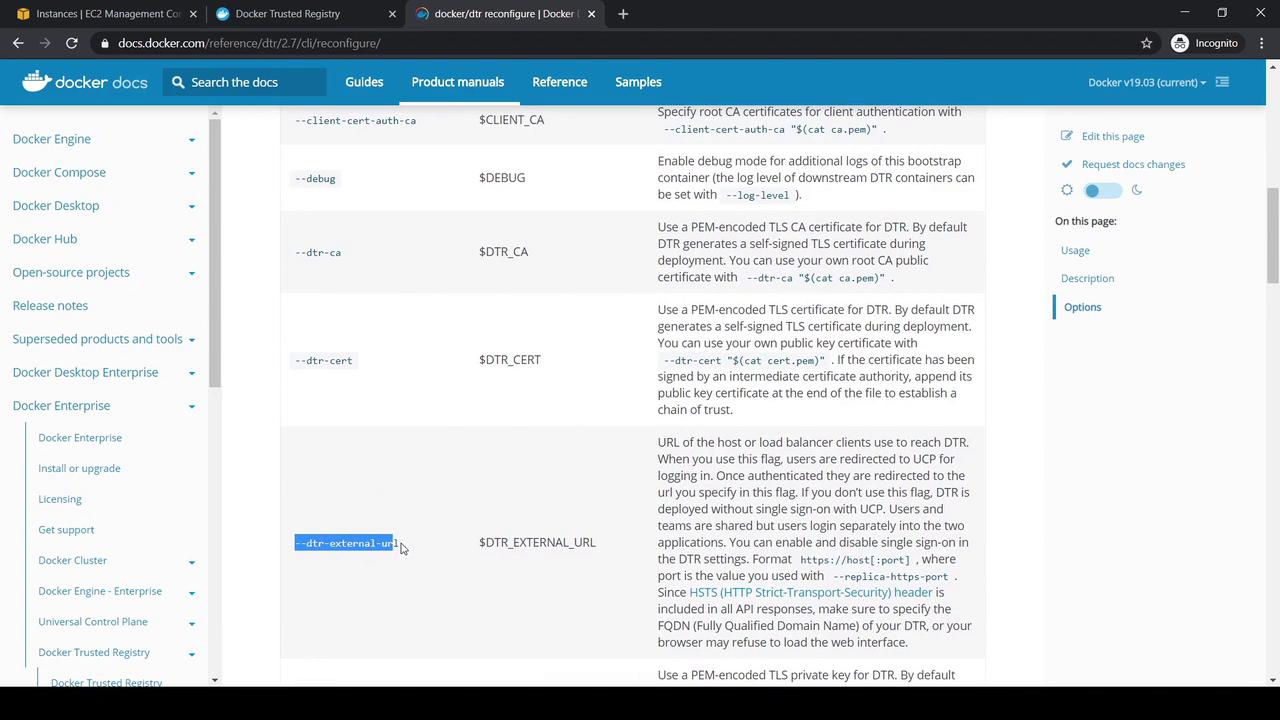
3. To update the external URL for DTR, use the `dtr reconfigure` command:
```bash theme={null}
docker/dtr reconfigure --dtr-external-url https://
```
## 2. CLI Login to DTR
On a machine with the UCP client bundle:
```bash theme={null}
docker login 54.145.234.153
# Username (yogeshraheja): yogeshraheja
# Password:
# Login Succeeded
```
If you see `x509: certificate signed by unknown authority`, add the DTR CA certificate to your Docker daemon trust store. See the **Configuring your Docker Daemon** section in the [DTR User Guide](/docs/dtr/2.7/guides/admin/configure/).
## 3. Creating a Repository
1. In the DTR UI, click **New Repository**.
2. Select **Public**, enter your namespace (e.g., `yogeshraheja/kodekloud`), and create.
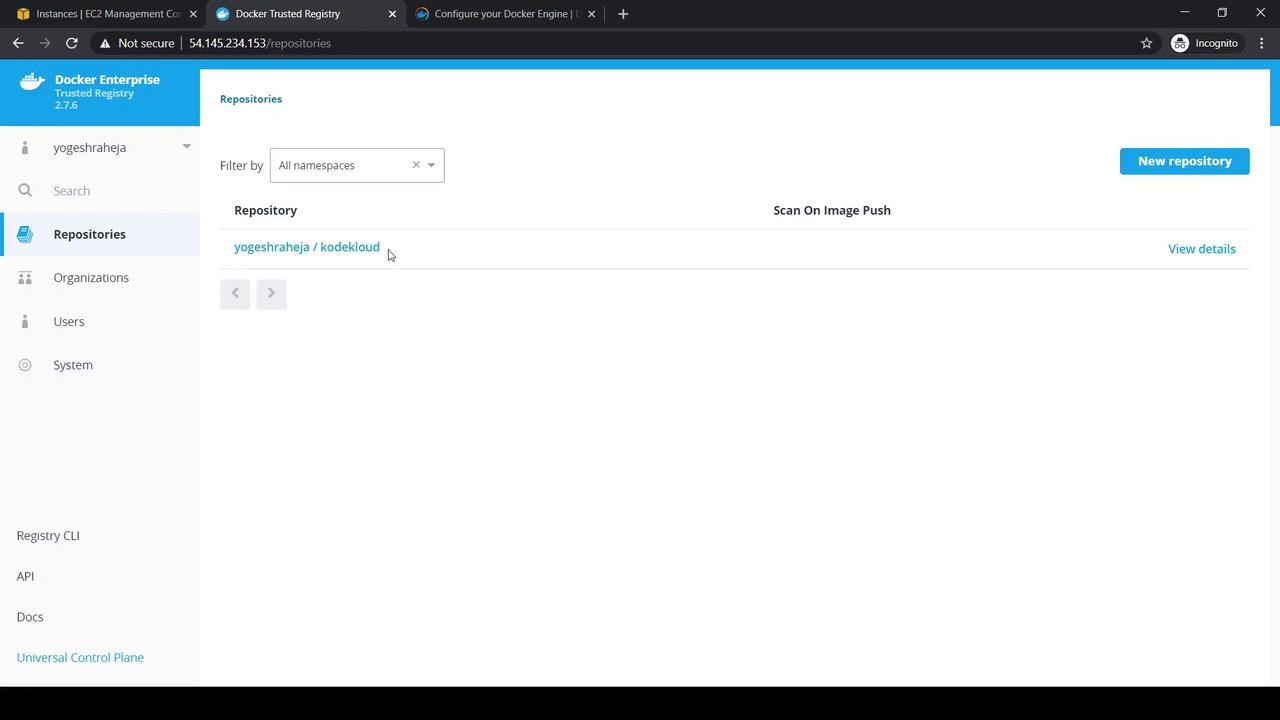
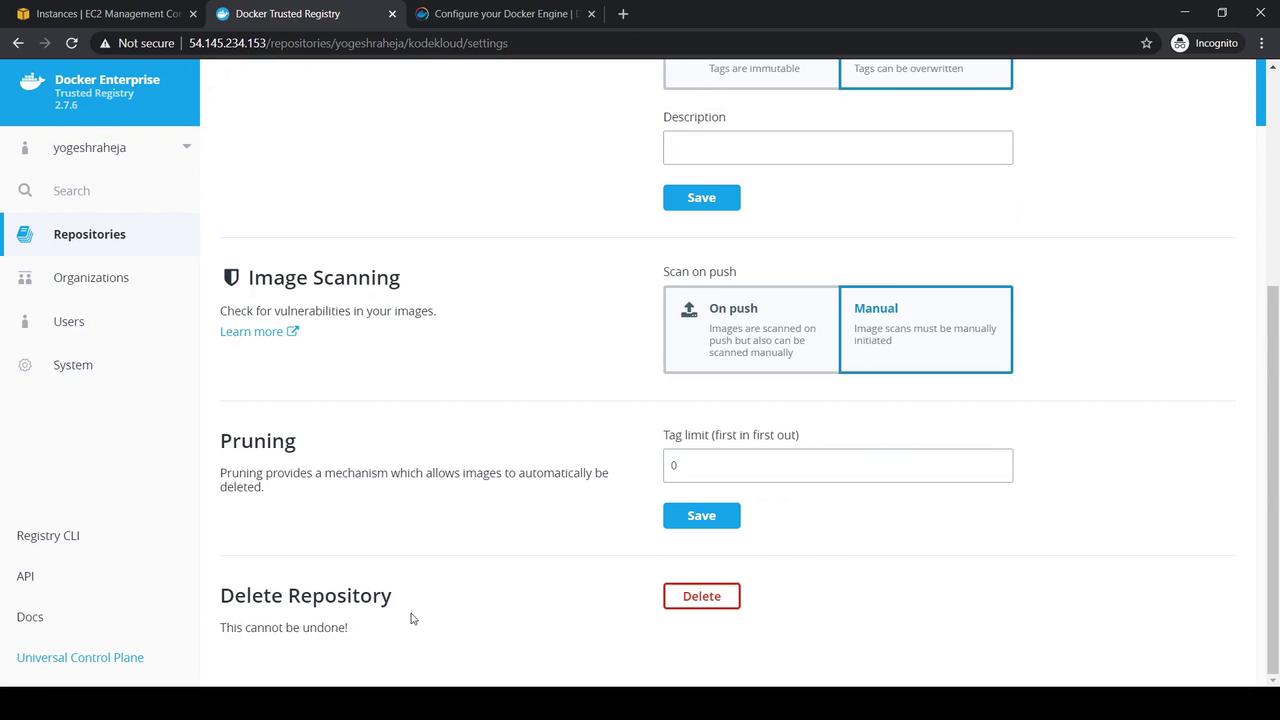
Within your repository you can:
* **Info**, **Tags**, **Promotions** views
* **Edit** description
* **Permissions** to manage access
* **Settings → Delete Repository**
## 4. Pushing Images to DTR
1. Pull a base image:
```bash theme={null}
docker pull alpine:latest
```
2. Tag for your registry (default tag is `latest`):
```bash theme={null}
docker tag alpine:latest 54.145.234.153/yogeshraheja/kodekloud
```
3. Add a version tag:
```bash theme={null}
docker tag alpine:latest 54.145.234.153/yogeshraheja/kodekloud:v1
```
4. Push the image:
```bash theme={null}
docker push 54.145.234.153/yogeshraheja/kodekloud:v1
```
5. Verify locally:
```bash theme={null}
docker image ls
REPOSITORY TAG IMAGE ID SIZE
54.145.234.153/yogeshraheja/kodekloud latest f70734b6a266 5.61MB
54.145.234.153/yogeshraheja/kodekloud v1 f70734b6a266 5.61MB
```
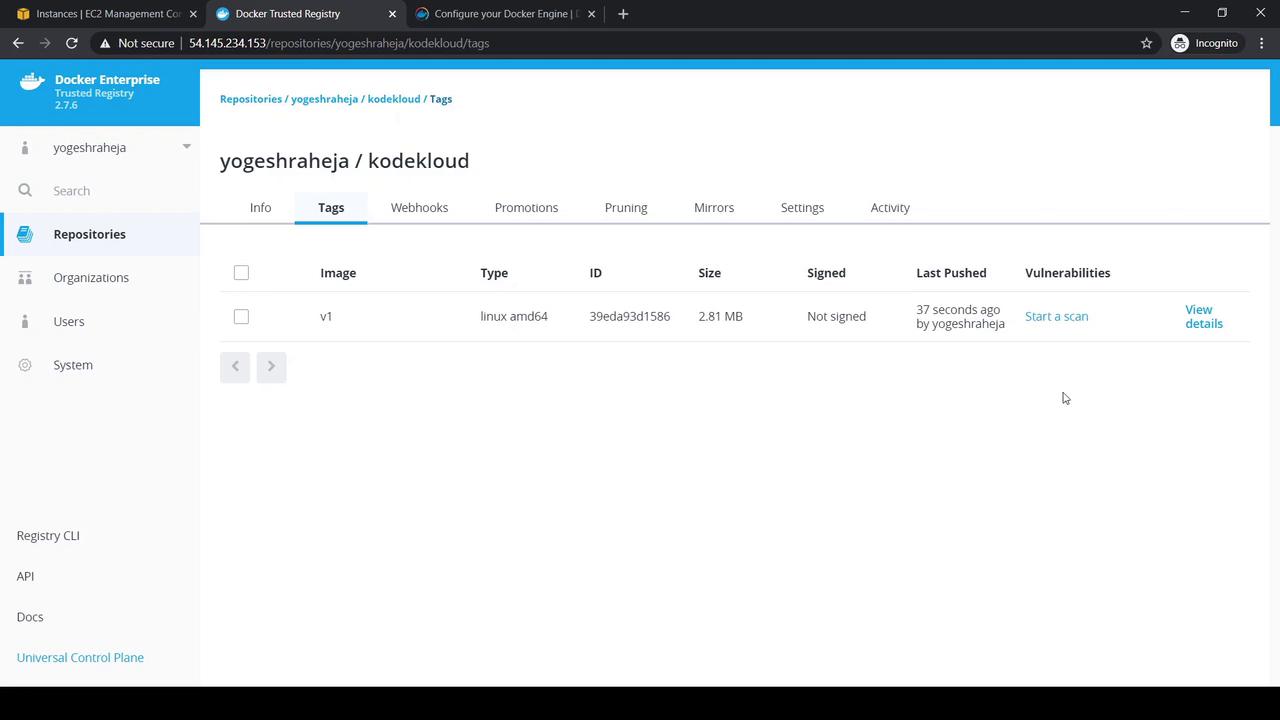
Refresh the DTR UI and check **Tags** for your image.
## 5. Scanning Images for Vulnerabilities
1. In the **Tags** tab, select your `v1` tag.
2. Click **Start a Scan** or **View Details**:
3. View **Layers** and **Components** before scanning:
```text theme={null}
1 ADD file:b91adb67b67… in /
2 CMD ["/bin/sh"]
```
4. After the scan completes, **Components** lists all packages:
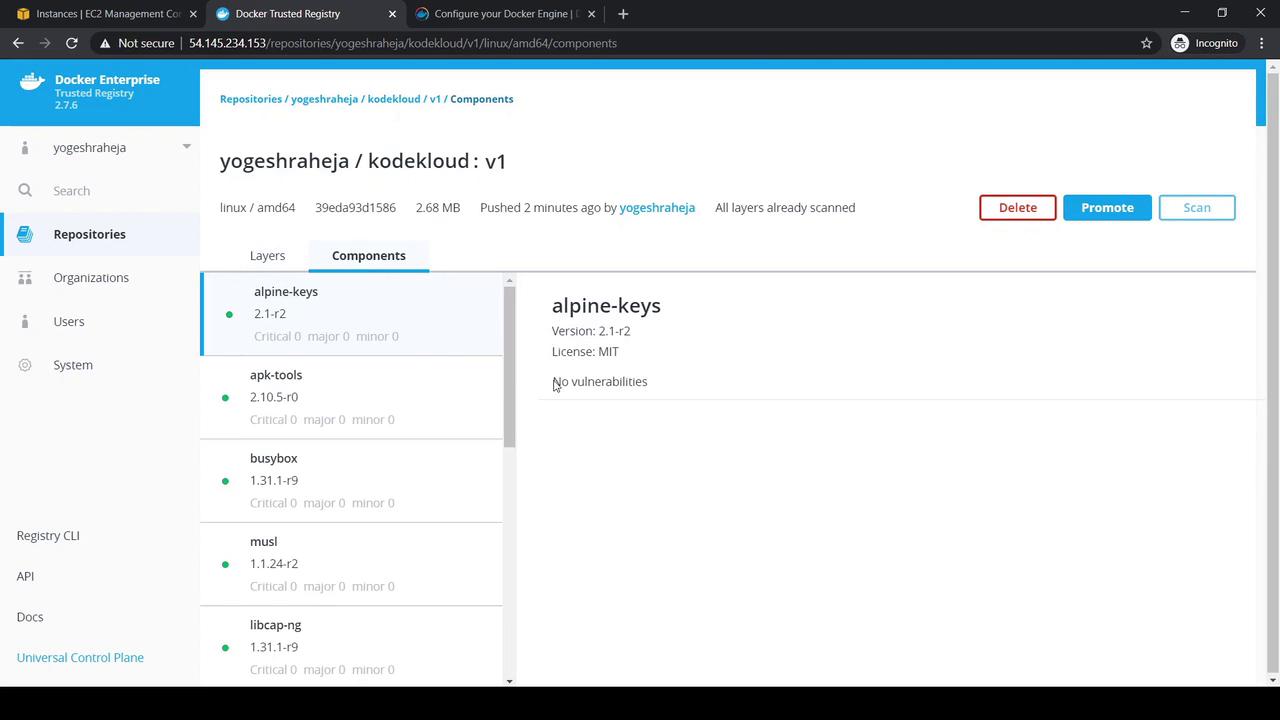
5. The **Vulnerabilities** tab should report zero issues.
## 6. Scanning an Older Image
Demonstrate vulnerabilities by pushing an older image:
```bash theme={null}
docker pull yogeshraheja/result:v1
docker tag yogeshraheja/result:v1 54.145.234.153/yogeshraheja/kodekloud:v2
docker push 54.145.234.153/yogeshraheja/kodekloud:v2
```
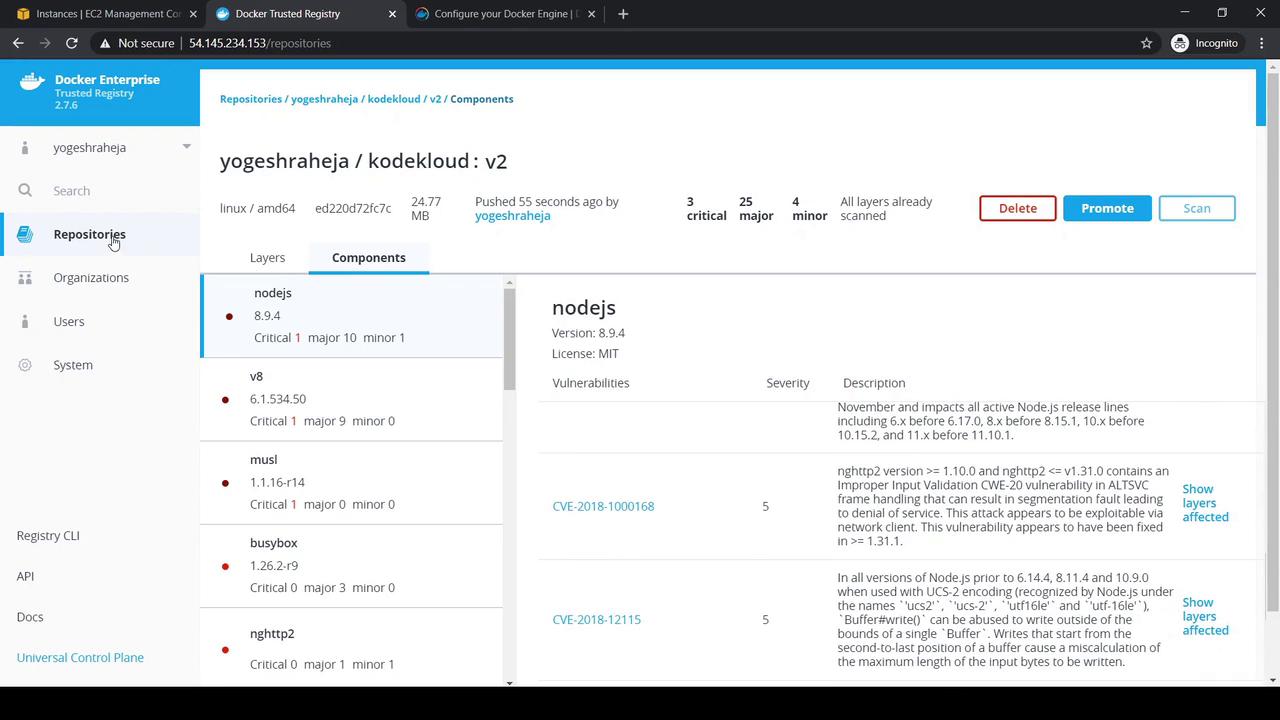
Refresh and scan the `v2` tag. You may see multiple vulnerabilities:
## 7. Adjusting Image Scan Settings
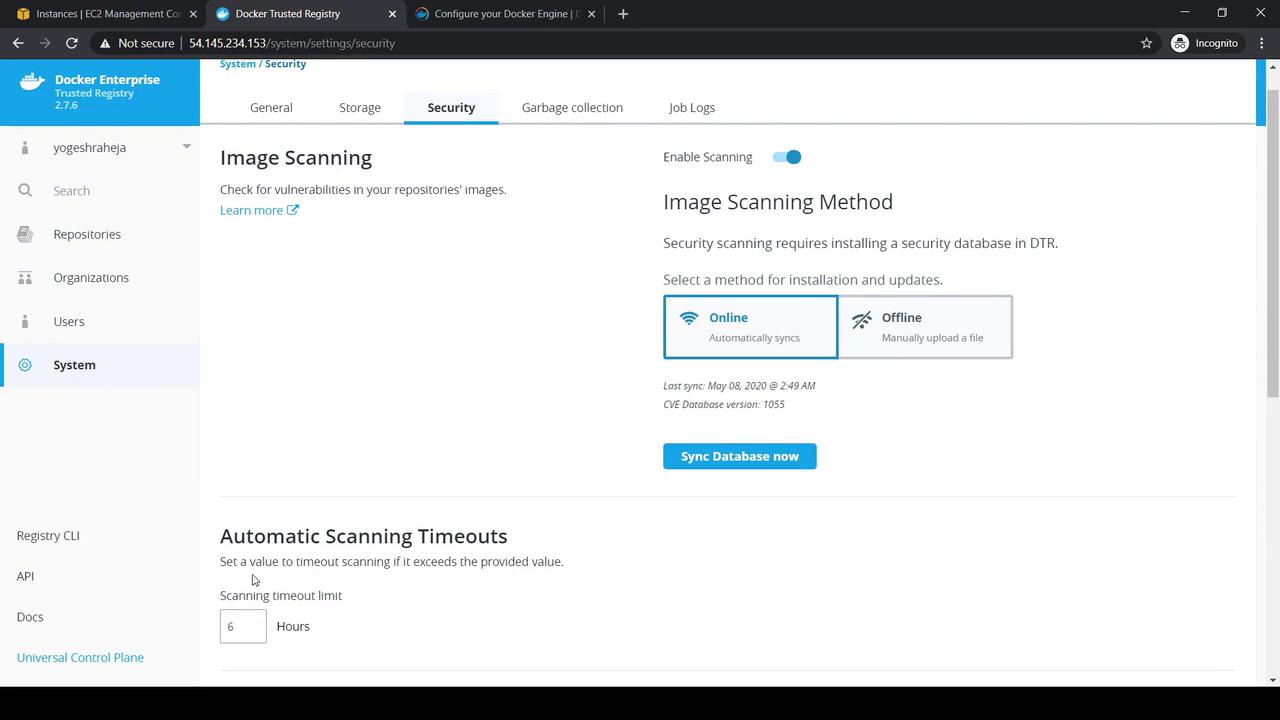
1. In DTR UI, go to **System → Security**.
2. Enable image scanning and choose **Online** or **Offline CVE** mode.
3. Adjust scan timeout and review last CVE sync date:
## 8. Deleting Tags and Repositories
* **Delete a Tag**: In **Tags**, select the tag (e.g., `v2`) → **Delete** → confirm by typing `Delete`.
* **Delete a Repository**: In **Settings**, find **Delete Repository**, enter the repository name, and confirm.
***
## Quick Reference Table
| Operation | CLI Command | UI Location |
| ------------------------ | ------------------------------------------------- | -------------------------------- |
| Update External URL | `docker/dtr reconfigure --dtr-external-url ` | N/A |
| Login to DTR | `docker login ` | N/A |
| Create Repository | N/A | **New Repository** |
| Push Image | `docker tag`, `docker push` | **Tags** |
| Scan for Vulnerabilities | N/A | **Tags → Start a Scan** |
| Configure Scan Settings | N/A | **System → Security** |
| Delete Tag | N/A | **Tags → Delete** |
| Delete Repository | N/A | **Settings → Delete Repository** |
## Links and References
* [Docker Trusted Registry CLI Reference](https://docs.docker.com/ee/dtr/2.7/cli/)
* [Configuring your Docker Daemon](https://docs.docker.com/engine/security/certificates/)
* [Docker Enterprise Documentation](https://docs.docker.com/ee/)