> ## Documentation Index
> Fetch the complete documentation index at: https://notes.kodekloud.com/llms.txt
> Use this file to discover all available pages before exploring further.
# Demo Image promotion and Garbage Collection
> Optimize Docker image workflow with automatic promotions and storage management through garbage collection in Docker Trusted Registry.
Optimize your Docker image workflow by configuring automatic image promotions from development to production repositories and managing storage with garbage collection in Docker Trusted Registry (DTR).
**Table of Contents**
1. [Configure Image Promotion Policy](#configure-image-promotion-policy)
2. [Push and Promote an Image](#push-and-promote-an-image)
3. [Configure Garbage Collection](#configure-garbage-collection)
4. [Links and References](#links-and-references)
***
## Configure Image Promotion Policy
First, set up an automated policy to move images tagged as `stable` from your development repository (`devimages`) to production (`prodimages`).
1. In the DTR UI, go to **Repositories** and select **devimages**.
2. Click **Promotions** and choose **Tag Name** as the criterion.
3. Define the rule:
* **tagName** == `"stable"`
4. Click **Add**.
5. Under **Target Repository**, pick **prodimages**.
6. For **Target Tag Name**, enter `%n` to preserve the original tag.
7. Save by clicking **Save and Apply**.
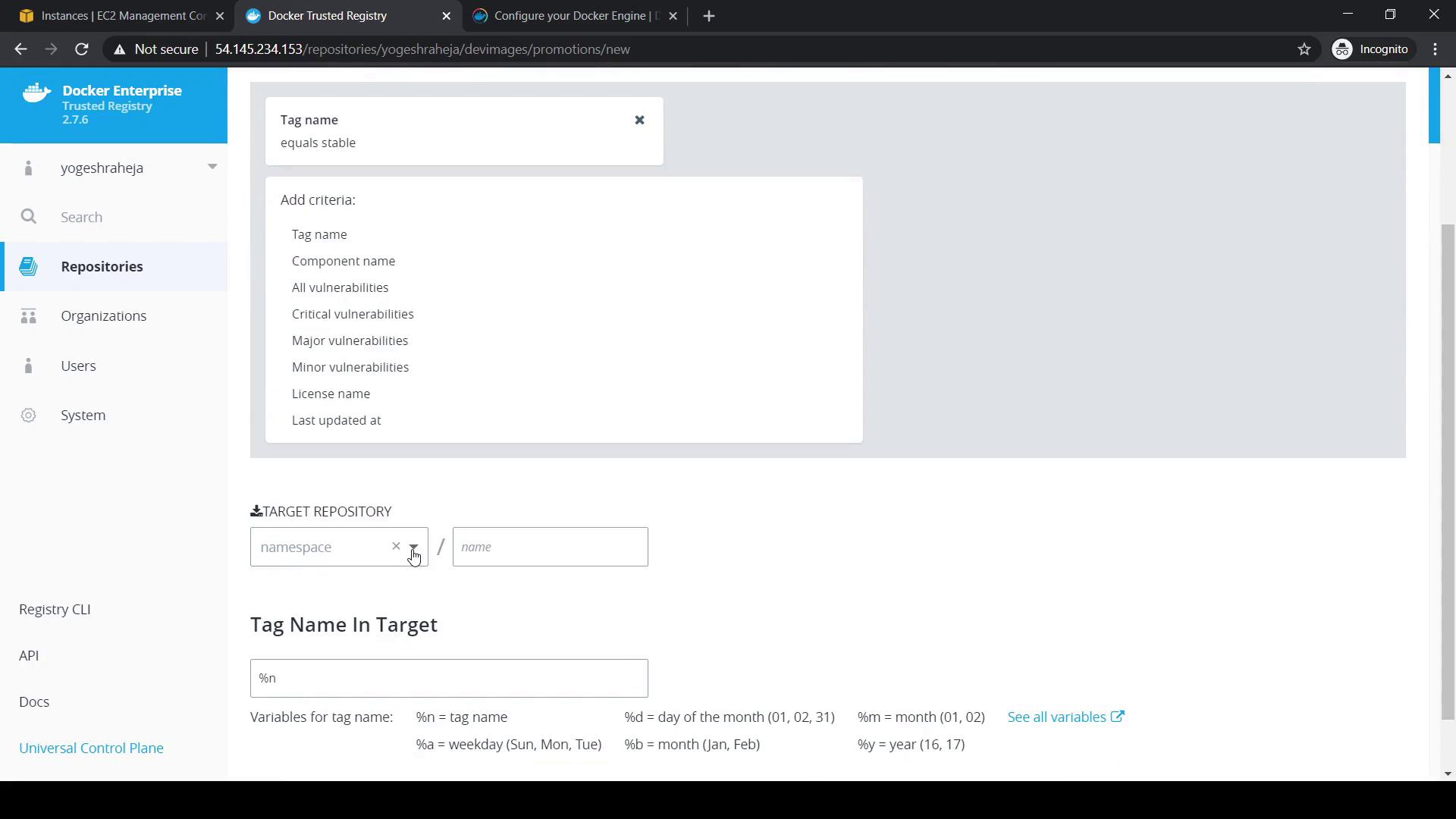
After saving, you’ll see the new policy listed with **Last Promoted** set to *never* until it runs for the first time.
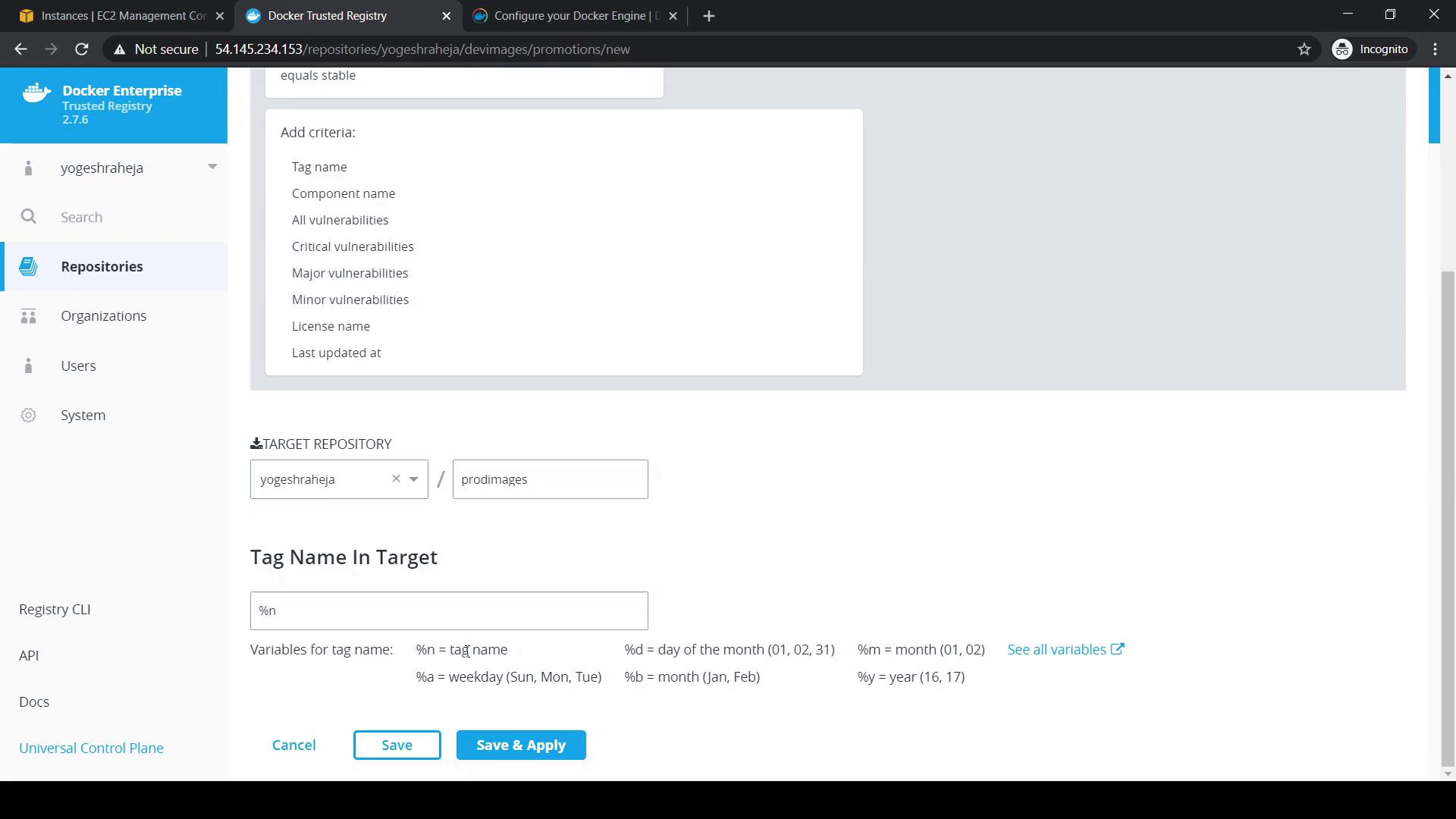
Make sure both `devimages` and `prodimages` repositories exist and are empty before you create the policy.
***
## Push and Promote an Image
Tag and push an image with `stable` on your local machine to trigger the promotion:
```bash theme={null}
# Tag alpine:latest for devimages
docker tag alpine:latest 54.145.234.153/yogeshraheja/devimages:stable
# Push to the devimages repository
docker push 54.145.234.153/yogeshraheja/devimages:stable
```
Return to the DTR console:
1. Refresh **devimages**.
2. Under **Promotions**, **Last Promoted** will update to the current timestamp.
3. Click **Activity** to view the detailed promotion log.
To confirm, inspect **prodimages**:
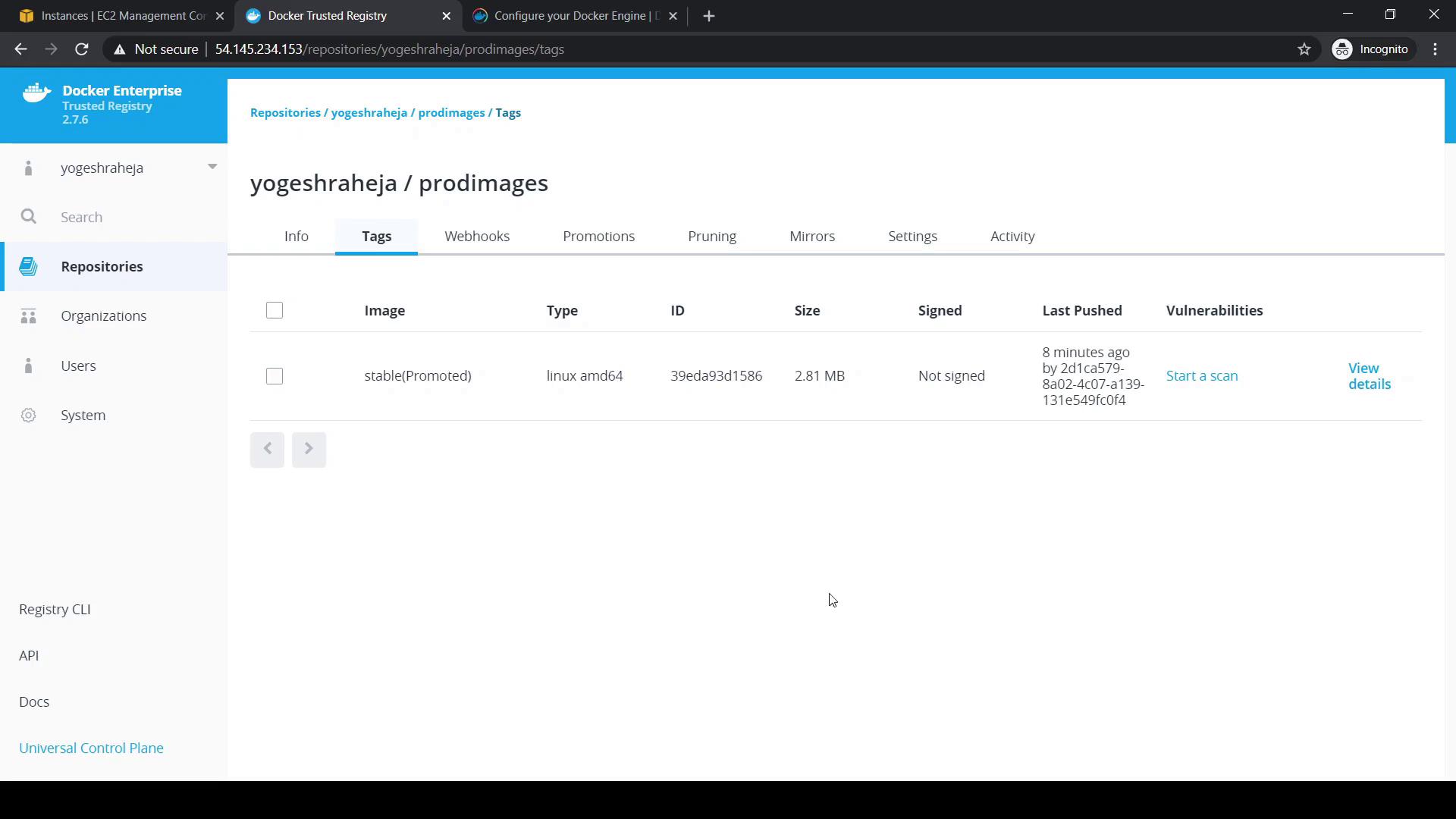
The `stable (Promoted)` tag indicates that the image has been moved successfully.
Production repositories should only receive thoroughly tested images. Double-check your promotion rules to avoid deploying unverified containers.
***
## Configure Garbage Collection
Over time, untagged images accumulate and consume disk space. DTR’s Garbage Collection removes these images based on your schedule.
1. Navigate to **System** > **Garbage Collection** in the DTR UI.
2. Choose a collection mode:
| Mode | Description |
| ------------------ | ------------------------------------------------- |
| Until Done | Runs until **all** untagged images are removed. |
| For a Defined Time | Runs for a specified duration (e.g., 10 minutes). |
| Never (Default) | Disables automatic garbage collection. |
3. (Optional) Schedule it using a cron expression for regular cleanups.
4. Click **Save** to apply.
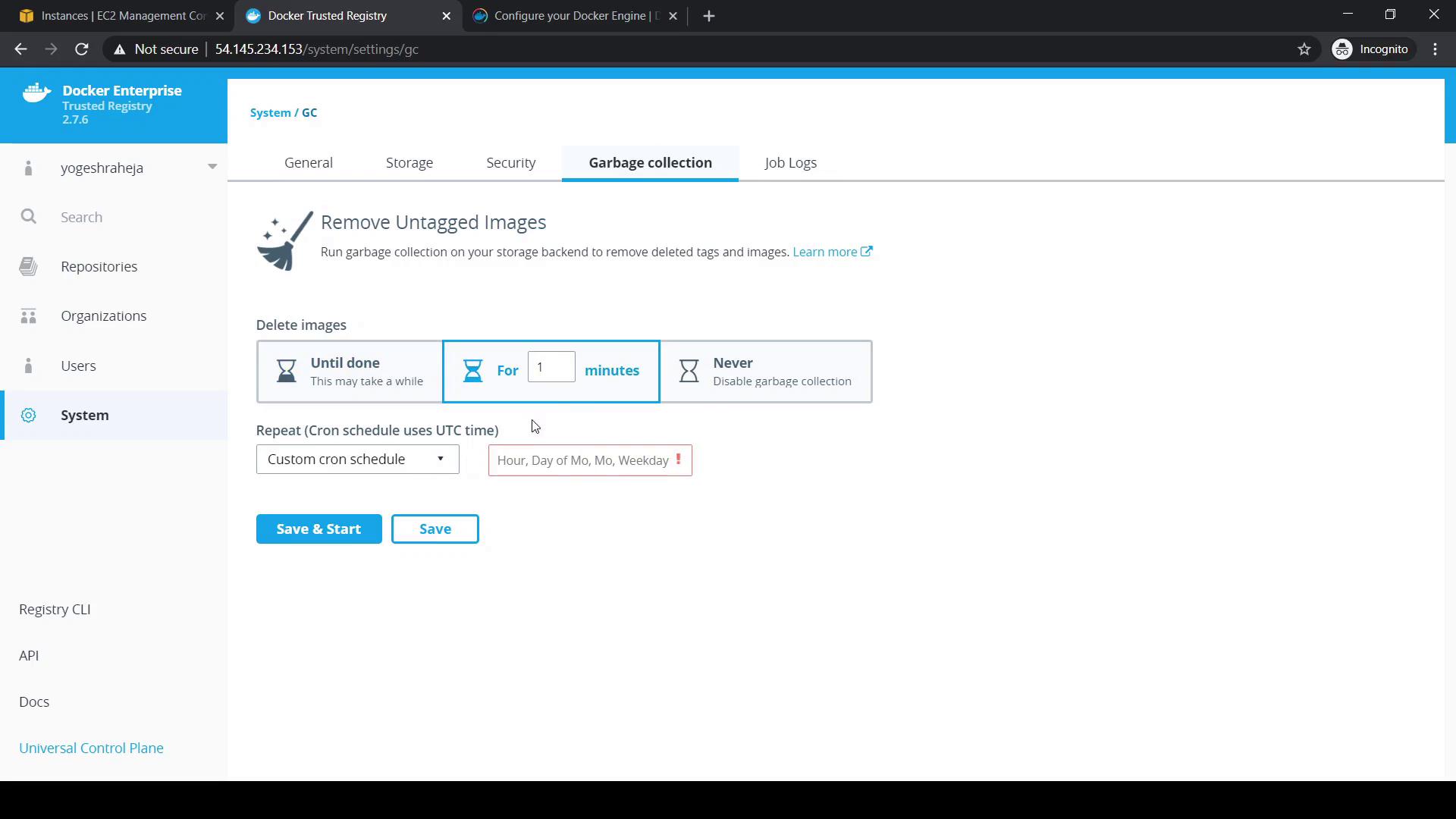
By default, automatic garbage collection is disabled. Enabling it prevents your DTR storage from filling up.
***
## Links and References
* [Docker Trusted Registry Overview](https://docs.docker.com/ee/dtr/)
* [Manage Images with DTR](https://docs.docker.com/ee/dtr/manage-images/)
* [Docker Docs: Garbage Collection](https://docs.docker.com/ee/dtr/admin/store/#garbage-collection)
***