> ## Documentation Index
> Fetch the complete documentation index at: https://notes.kodekloud.com/llms.txt
> Use this file to discover all available pages before exploring further.
# Docker Trusted Registry Operations
> This article covers the workflow for using Docker Trusted Registry, including naming, tagging, pushing, and sharing images in a private registry.
In this lesson, we’ll walk through the end-to-end workflow for working with Docker Trusted Registry (DTR). You’ll learn how to name, tag, push, and share images within your organization’s private registry.
## Recap: Docker Image Naming Conventions
When you reference an image without specifying a registry host, Docker defaults to Docker Hub (`docker.io`). An image reference is composed of three parts:
| Component | Description | Example |
| ---------- | ----------------------------- | ----------- |
| Registry | Host address for the registry | `docker.io` |
| Namespace | Account or organization name | `httpd` |
| Repository | Repository (image) name | `httpd` |
```yaml theme={null}
# Explicitly specifying Docker Hub
image: docker.io/httpd/httpd
# Omitting the registry (defaults to Docker Hub)
image: httpd/httpd
```
If you leave out the registry host, Docker assumes `docker.io`. Always include the full path when pushing to a private registry.
***
## Using an Internal Registry
In a Docker Enterprise environment with your own registry (e.g., `registry.company.org`), image references must include that host:
```text theme={null}
registry.company.org/httpd/httpd
```
If you don’t have a DNS entry for your registry, you can use its IP address. However, using a stable DNS name is recommended to avoid future disruptions.
### 1. Build and Tag Your Image
Build your application and tag it for the internal registry. Replace `54.145.234.153` with your registry’s IP or hostname, and adjust the namespace/repository as needed:
```bash theme={null}
docker build . -t 54.145.234.153/yogeshraheja/kodekloud
```
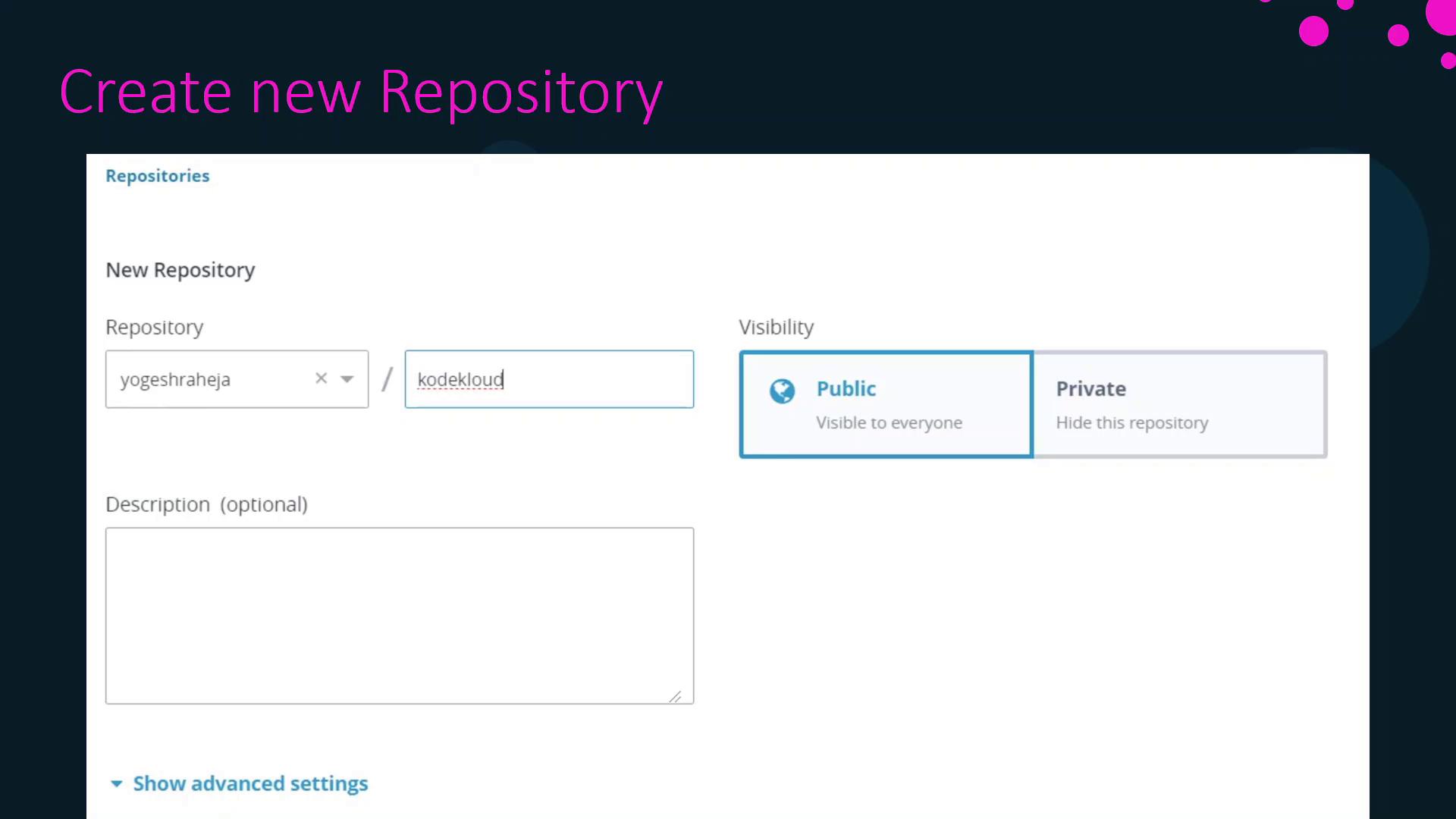
### 2. Create the Repository in DTR UI
Before pushing, create the repository via the DTR web interface:
* Click **New Repository**.
* Enter the **Namespace** (user or organization).
* Provide a **Repository name**.
* (Optional) Add a **Description**.
* Set the **Visibility** (public or private).
### 3. Push the Image to DTR
With the repository created, push your tagged image:
```bash theme={null}
# Build and tag (if not already done)
docker build . -t 54.145.234.153/yogeshraheja/kodekloud
# Push to your private registry
docker push 54.145.234.153/yogeshraheja/kodekloud
```
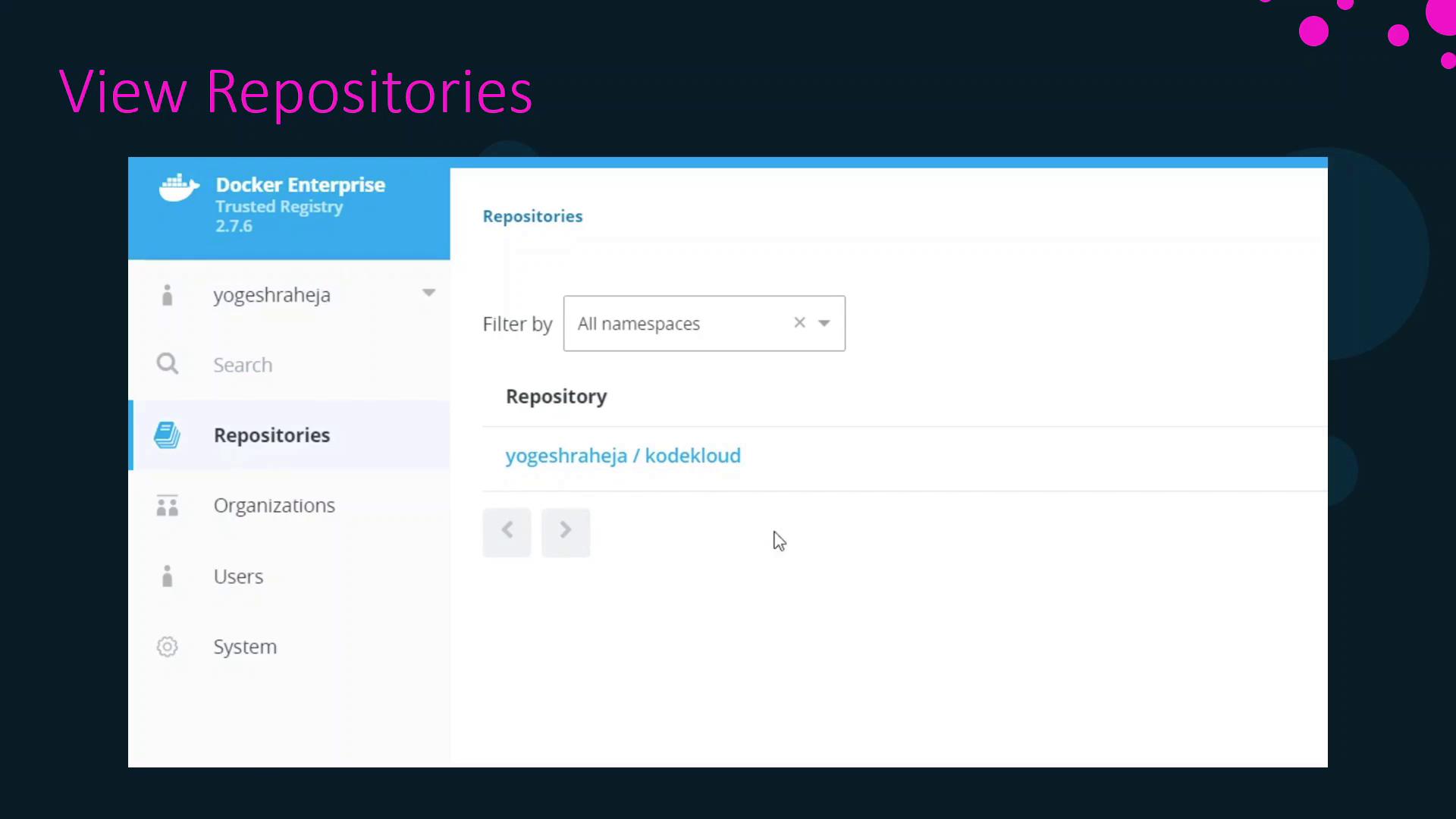
Once the push completes, you’ll see the repository listed under **Repositories** in the DTR interface.
### 4. Pulling the Image
Other team members can now retrieve the image:
```bash theme={null}
docker pull 54.145.234.153/yogeshraha/kodekloud
```
This completes the standard workflow: build, tag, create, push, and pull images within Docker Trusted Registry.
***
## Links and References
* [Docker Official Documentation](https://docs.docker.com/)
* [Docker Trusted Registry Guide](https://docs.docker.com/ee/dtr/)
* [Docker Hub](https://hub.docker.com/)