> ## Documentation Index
> Fetch the complete documentation index at: https://notes.kodekloud.com/llms.txt
> Use this file to discover all available pages before exploring further.
# Image Scanning
> This article explains how to use the image scanning feature in Docker Trusted Registry to identify security vulnerabilities in container images.
Ensure your container images are free from known security vulnerabilities by using the built-in image scanning feature of Docker Trusted Registry (DTR). Image scanning inspects OS packages, libraries, and dependencies to uncover issues before deployment. You can enable scanning in the DTR UI under **System > Security**.
Image scanning requires Docker Trusted Registry v2.6 or later. Verify your version under **System > Settings** before enabling this feature.
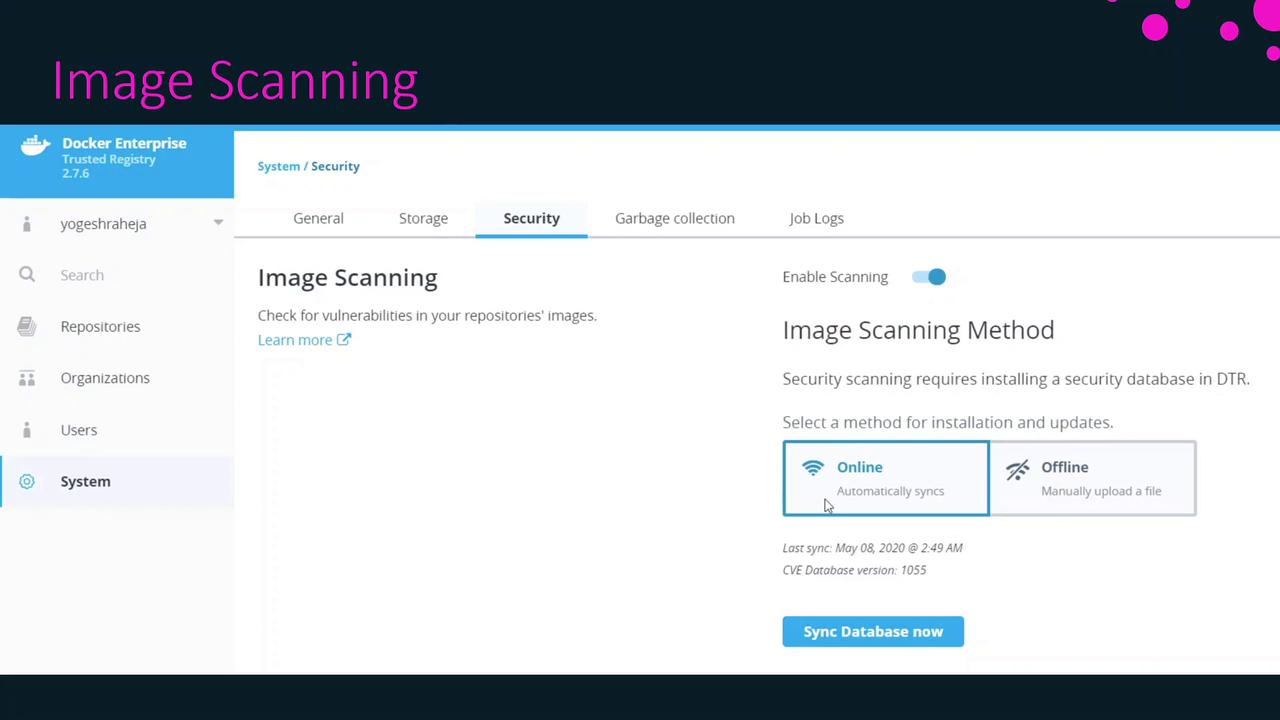
By default, DTR pulls vulnerability data from the [US National Vulnerability Database (NVD)](https://nvd.nist.gov/), but you can also upload a custom database file if your organization maintains its own feeds. After enabling scanning and syncing the database, you’re ready to run vulnerability assessments on your image tags.
## Initiate a Manual Scan
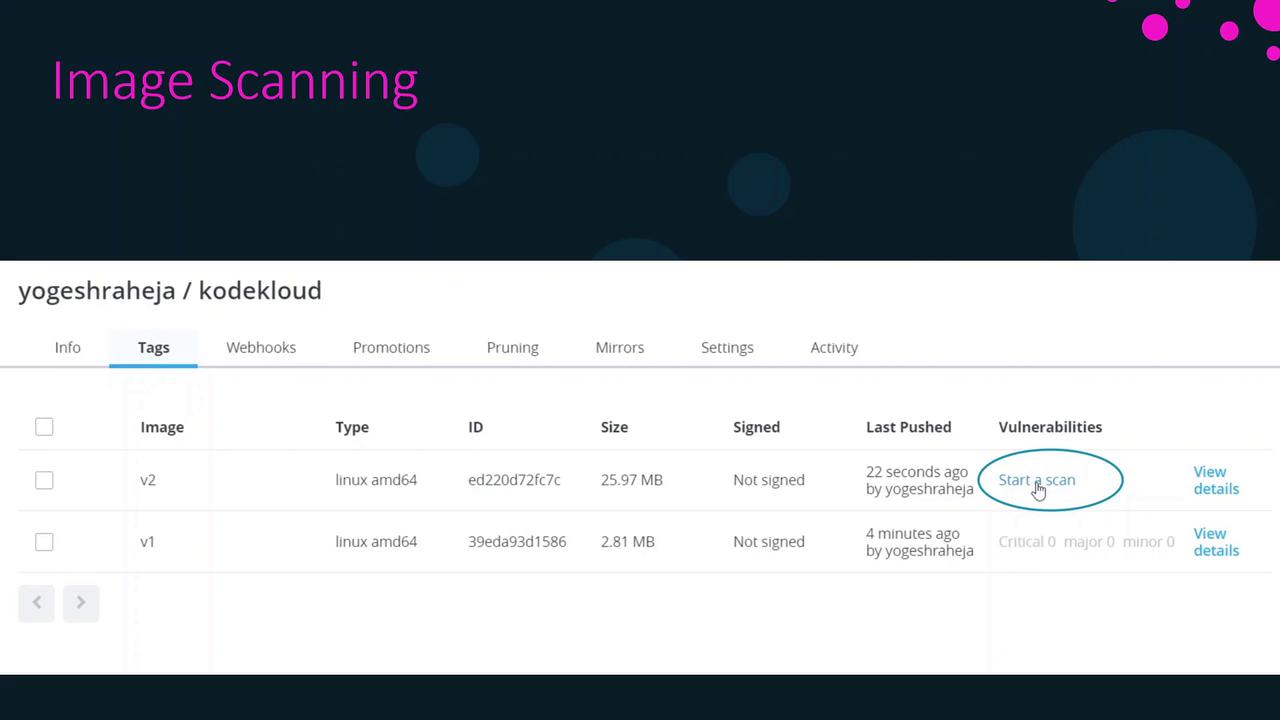
To perform an on-demand scan for a specific image tag:
1. Navigate to the **Repositories** view in DTR.
2. Select your repository and open the **Tags** tab.
3. Click **Start a Scan** next to the tag you want to analyze.
## Configure Scan Triggers
DTR supports two scan modes. Choose the one that best fits your CI/CD workflow:
| Scan Mode | Description |
| --------- | ----------------------------------------------------- |
| Manual | You must start each scan yourself via the UI or API. |
| On Push | Scans automatically run whenever a new tag is pushed. |
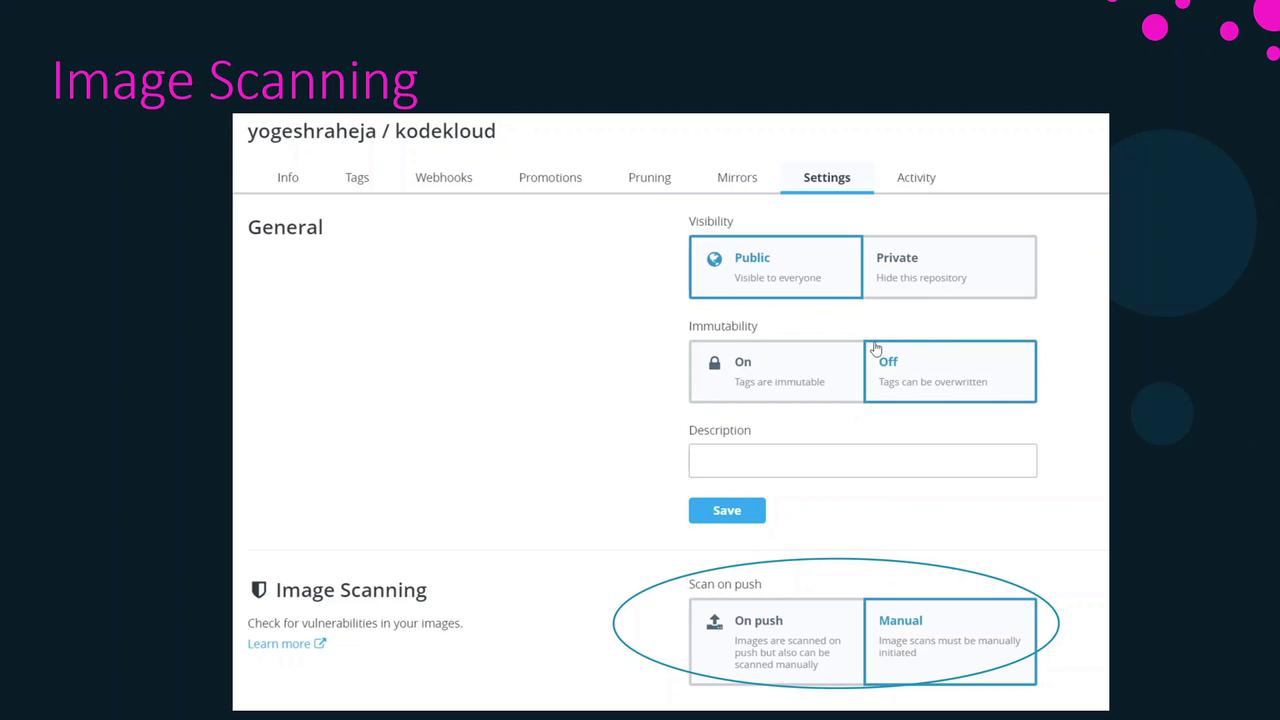
Enabling **On Push** scanning can increase resource usage and may impact registry performance during peak push events.
## Review the Scan Report
Once a scan completes, DTR categorizes findings by severity and lists the affected components along with the version in which each issue was introduced. The main severity levels are:
| Severity | Description |
| -------- | ------------------------------------------- |
| Critical | Highest impact—immediate remediation needed |
| Major | Significant risk—plan to upgrade/patch |
| Minor | Low risk—monitor and remediate as needed |
For example, your Dockerfile might look like this:
```dockerfile theme={null}
FROM alpine:3.10
ENV NODE_VERSION=8.9.4
ENV YARN_VERSION=1.3.2
RUN addgroup -g 1000 node \
&& adduser -u 1000 -G node -s /bin/sh node \
&& apk add --no-cache --virtual .build-deps \
yarn curl gnupg tar
CMD ["node"]
```
In this snippet:
* `NODE_VERSION=8.9.4` or `YARN_VERSION=1.3.2` may contain known vulnerabilities.
* The `apk add` command pulls in packages that should be checked against the latest security advisories.
After identifying risky packages, look for patched releases or apply vendor fixes before rebuilding the image.
## Summary
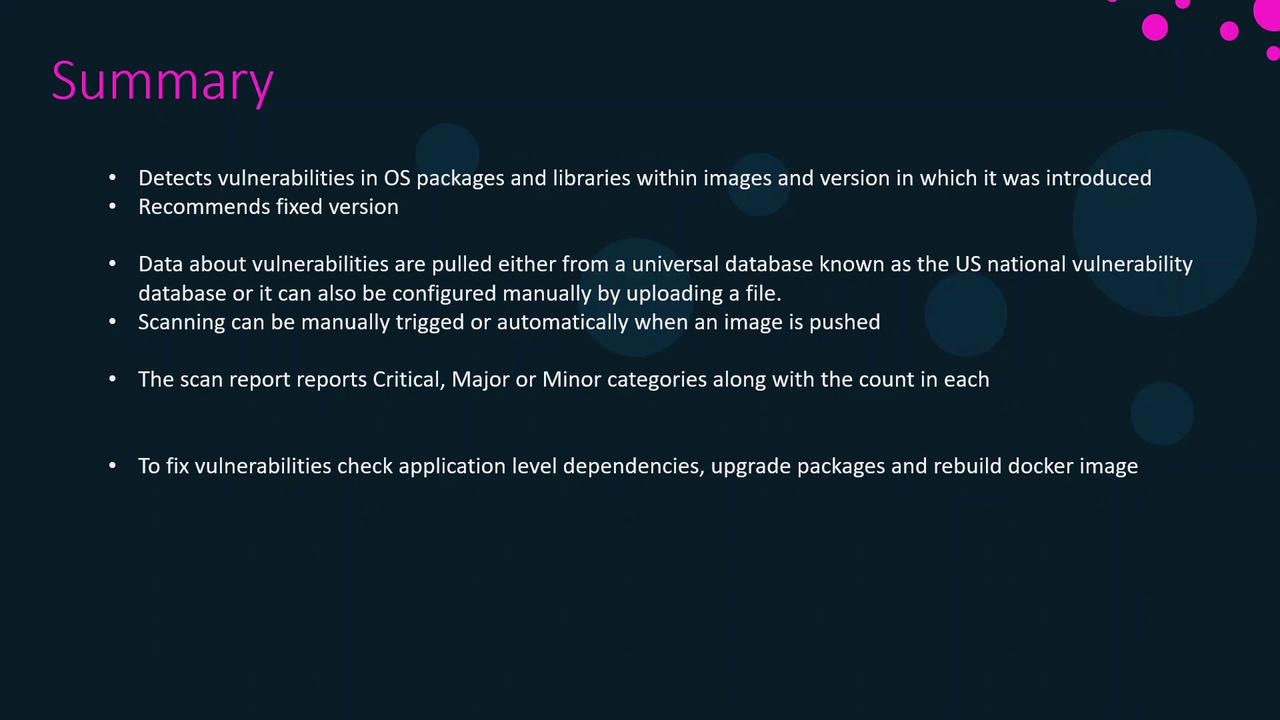
Key benefits of DTR image scanning:
* Detects vulnerabilities in OS packages, libraries, and dependencies
* Retrieves data from the US NVD or your custom feed
* Offers Manual and On Push scan modes
* Classifies findings by severity (Critical, Major, Minor)
* Provides version details to trace when issues were introduced
* Recommends updated releases or patches for remediation
Next steps: integrate automated scans into your CI/CD pipelines, review reports regularly, and update vulnerable components to keep your container images secure.
## Links and References
* [Docker Trusted Registry Image Scanning](https://docs.docker.com/ee/dtr/)
* [US National Vulnerability Database (NVD)](https://nvd.nist.gov/)
* [Dockerfile reference](https://docs.docker.com/engine/reference/builder/)