> ## Documentation Index
> Fetch the complete documentation index at: https://notes.kodekloud.com/llms.txt
> Use this file to discover all available pages before exploring further.
# Demo Deployments Updates and Rollback
> This tutorial teaches managing rolling updates and rollbacks for Kubernetes Deployments.
In this tutorial, you will learn how to manage rolling updates and rollbacks for Kubernetes Deployments. We’ll cover:
1. Creating a Deployment
2. Downgrading an image using `kubectl edit`
3. Updating the image with `kubectl set image`
4. Rolling back to a previous revision
5. Simulating and recovering from a failed rollout
***
## 1. Create the Deployment
First, ensure there are no existing Pods in the `default` namespace:
```bash theme={null}
kubectl get pods
# No resources found in default namespace.
```
Define your Deployment in `deployment.yaml`:
```yaml theme={null}
apiVersion: apps/v1
kind: Deployment
metadata:
name: myapp-deployment
labels:
tier: frontend
spec:
replicas: 6
selector:
matchLabels:
app: myapp
template:
metadata:
labels:
app: myapp
spec:
containers:
- name: nginx
image: nginx
```
Create the Deployment and track its rollout:
```bash theme={null}
kubectl create -f deployment.yaml --record
kubectl rollout status deployment/myapp-deployment
# deployment "myapp-deployment" successfully rolled out
```
View the rollout history:
```bash theme={null}
kubectl rollout history deployment/myapp-deployment
# REVISION CHANGE-CAUSE
# 1 kubectl create -f deployment.yaml --record
```
| Command | Purpose |
| ----------------------------------------------------- | ------------------------------------------------ |
| `kubectl create -f deployment.yaml --record` | Create Deployment and annotate the change-cause |
| `kubectl rollout status deployment/myapp-deployment` | Watch the rolling update until completion |
| `kubectl rollout history deployment/myapp-deployment` | List Deployment revisions and their change-cause |
***
## 2. Downgrade NGINX via `kubectl edit`
Inspect the current spec:
```bash theme={null}
kubectl describe deployment myapp-deployment
```
All Pods run `nginx:latest` by default. To downgrade to `nginx:1.18`:
```bash theme={null}
kubectl edit deployment myapp-deployment --record
```
Locate the container definition and update the image tag:
```diff theme={null}
containers:
- name: nginx
- image: nginx
+ image: nginx:1.18
```
Browse all available NGINX tags on Docker Hub to pick a stable version:\
[https://hub.docker.com/\_/nginx](https://hub.docker.com/_/nginx)
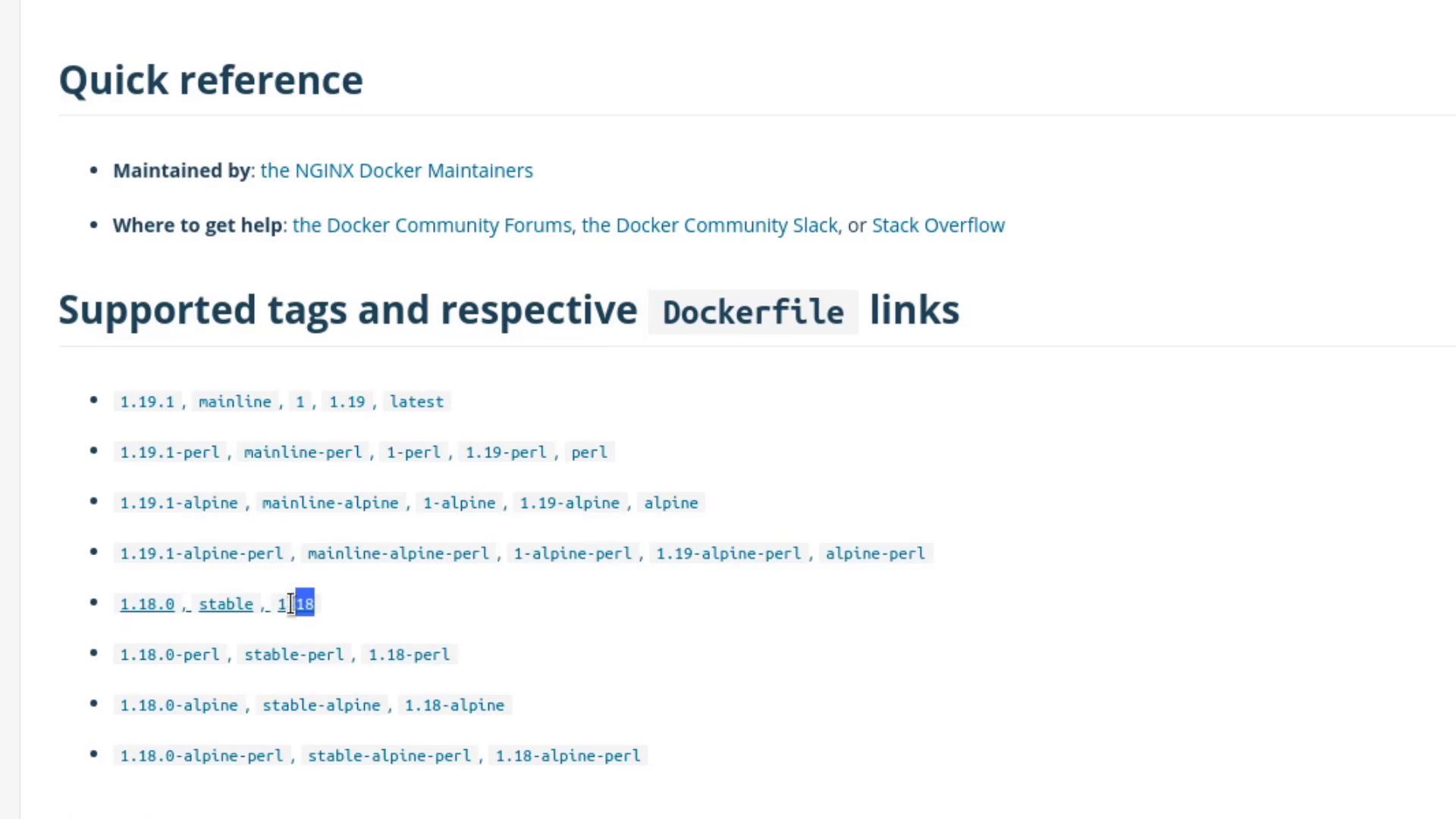
Save and close the editor, then monitor the rollout:
```bash theme={null}
kubectl rollout status deployment/myapp-deployment
# deployment "myapp-deployment" successfully rolled out
```
Verify the annotation:
```bash theme={null}
kubectl describe deployment myapp-deployment
```
Look under **Annotations** for:\
`kubernetes.io/change-cause=kubectl edit deployment myapp-deployment --record`
***
## 3. Update Using `kubectl set image`
Alternatively, patch the image without editing YAML:
```bash theme={null}
kubectl set image deployment/myapp-deployment \
nginx=nginx:1.18-perl --record
kubectl rollout status deployment/myapp-deployment
kubectl rollout history deployment/myapp-deployment
# REVISION CHANGE-CAUSE
# 1 kubectl create -f deployment.yaml --record
# 2 kubectl edit deployment myapp-deployment --record
# 3 kubectl set image deployment/myapp-deployment nginx=nginx:1.18-perl --record
```
Confirm all Pods have the updated image:
```bash theme={null}
kubectl get pods
```
***
## 4. Roll Back to a Previous Revision
If `nginx:1.18-perl` proves unstable, revert to revision 2 (the plain `1.18`):
```bash theme={null}
kubectl rollout undo deployment/myapp-deployment --to-revision=2
kubectl rollout status deployment/myapp-deployment
kubectl describe deployment myapp-deployment
# Container Image: nginx:1.18
```
***
## 5. Simulate a Failed Rollout
Intentionally introduce a bad image to see rollback behavior:
```bash theme={null}
kubectl edit deployment myapp-deployment --record
```
Change the image to an invalid tag:
```diff theme={null}
containers:
- name: nginx
- image: nginx:1.18
+ image: nginx:1.18-does-not-exist
```
Using a non-existent image will trigger `ImagePullBackOff` errors and stall the rollout.\
Ensure you revert quickly to avoid service disruption.
Save and watch the rollout status:
```bash theme={null}
kubectl rollout status deployment/myapp-deployment
# Waiting for deployment "myapp-deployment" rollout to finish: 3 out of 6 new replicas have been updated...
```
Inspect Pods:
```bash theme={null}
kubectl get pods
# Some Pods display ImagePullBackOff while old replicas still serve traffic.
```
Rollback the faulty revision:
```bash theme={null}
kubectl rollout undo deployment/myapp-deployment
kubectl rollout status deployment/myapp-deployment
kubectl get pods
```
All Pods should now run `nginx:1.18` again.
***
## Links and References
* [Kubernetes Deployments](https://kubernetes.io/docs/concepts/workloads/controllers/deployment/)
* [kubectl Cheat Sheet](https://kubernetes.io/docs/reference/kubectl/cheatsheet/)
* [Docker Hub – NGINX Repository](https://hub.docker.com/_/nginx/)