> ## Documentation Index
> Fetch the complete documentation index at: https://notes.kodekloud.com/llms.txt
> Use this file to discover all available pages before exploring further.
# Demo Deployments
> This walkthrough teaches how to convert a ReplicaSet into a Deployment in Kubernetes, covering creation, application, and verification steps.
In this walkthrough, you’ll learn how to convert an existing ReplicaSet into a fully managed **Deployment**. Deployments offer declarative updates, rollbacks, and scaling capabilities—making them the recommended way to run replicas in production. We’ll:
1. Prepare the project structure
2. Create the Deployment manifest
3. Apply the Deployment
4. Verify the rollout and inspect resources
***
## 1. Prepare the directories and files
1. From your project root, create a folder named `deployments`.
2. Inside `deployments`, create a file called `deployment.yaml`.
To see what we’re building on, here’s the reference ReplicaSet we defined earlier:
```yaml theme={null}
# replicaset.yaml (for reference)
apiVersion: apps/v1
kind: ReplicaSet
metadata:
name: myapp-replicaset
labels:
app: myapp
spec:
selector:
matchLabels:
app: myapp
replicas: 4
template:
metadata:
labels:
app: myapp
spec:
containers:
- name: nginx
image: nginx
```
***
## 2. Create the Deployment manifest
Copy the spec from the ReplicaSet into `deployments/deployment.yaml`, then:
* Change `kind` to `Deployment`
* Set `metadata.name` and labels to match your application
* Adjust `replicas` to **3** (or your desired count)
```yaml theme={null}
# deployments/deployment.yaml
apiVersion: apps/v1
kind: Deployment
metadata:
name: myapp-deployment
labels:
tier: frontend
app: myapp
spec:
replicas: 3
selector:
matchLabels:
app: myapp
template:
metadata:
labels:
app: myapp
spec:
containers:
- name: nginx
image: nginx
```
The `selector.matchLabels` field must exactly match the labels on the Pod template. Otherwise, Kubernetes won’t know which Pods belong to this Deployment.
***
## 3. Apply the Deployment
Run:
```bash theme={null}
kubectl apply -f deployments/deployment.yaml
```
Or, if you prefer `create`:
```bash theme={null}
kubectl create -f deployments/deployment.yaml
```
***
## 4. Verify the rollout and inspect resources
You can quickly see the status of your Deployment and its Pods:
| Action | Command | Description |
| --------------------- | ---------------------------------------------- | -------------------------------------------- |
| List Deployments | `kubectl get deployments` | Show READY, UP-TO-DATE, AVAILABLE columns |
| List all Pods | `kubectl get pods` | Confirm your Pods are Running |
| Describe a Deployment | `kubectl describe deployment myapp-deployment` | View events, strategy, and replica counts |
| List all resources | `kubectl get all` | Get Pods, Services, Deployments, ReplicaSets |
1. **Check the Deployment status**
```bash theme={null}
kubectl get deployments
```
Example output:
```text theme={null}
NAME READY UP-TO-DATE AVAILABLE AGE
myapp-deployment 3/3 3 3 10s
```
2. **List the Pods**
```bash theme={null}
kubectl get pods
```
Example output:
```text theme={null}
NAME READY STATUS RESTARTS AGE
myapp-deployment-5d8fcb5b6c-abc 1/1 Running 0 30s
myapp-deployment-5d8fcb5b6c-def 1/1 Running 0 30s
myapp-deployment-5d8fcb5b6c-ghi 1/1 Running 0 30s
```
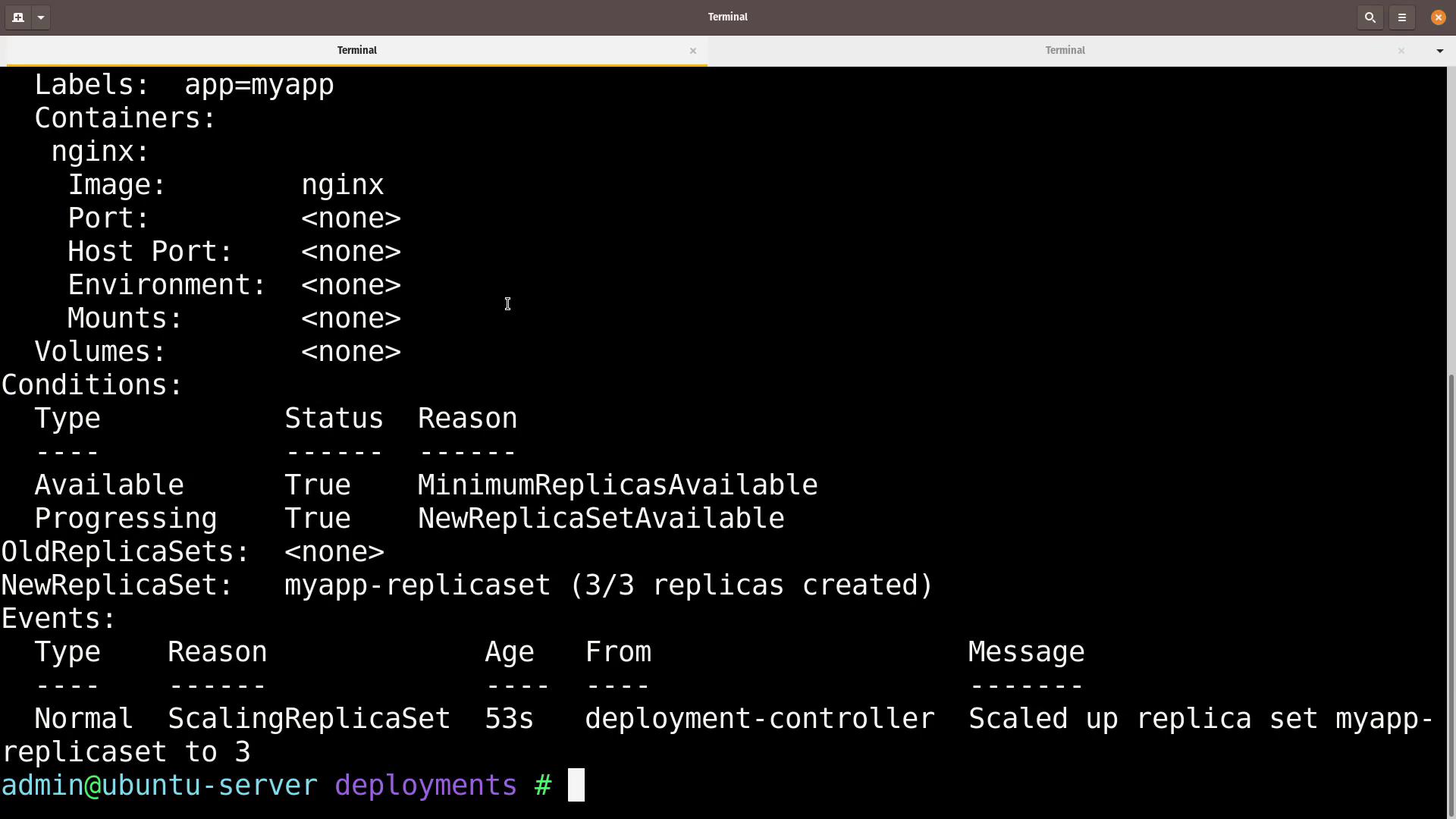
3. **Describe the Deployment**
```bash theme={null}
kubectl describe deployment myapp-deployment
```
You’ll see details such as desired vs. available replicas, rollout strategy, and recent events:
4. **View all objects in the namespace**
```bash theme={null}
kubectl get all
```
Example output:
```text theme={null}
NAME READY STATUS RESTARTS AGE
pod/myapp-deployment-5d8fcb5b6c-abc 1/1 Running 0 1m
pod/myapp-deployment-5d8fcb5b6c-def 1/1 Running 0 1m
pod/myapp-deployment-5d8fcb5b6c-ghi 1/1 Running 0 1m
NAME TYPE CLUSTER-IP EXTERNAL-IP PORT(S) AGE
service/kubernetes ClusterIP 10.96.0.1 443/TCP 15m
NAME READY UP-TO-DATE AVAILABLE AGE
deployment.apps/myapp-deployment 3/3 3 3 1m
NAME DESIRED CURRENT READY AGE
replicaset.apps/myapp-deployment-5d8fcb5b6c 3 3 3 1m
```
To roll out updates, modify `spec.template.spec.containers[].image` and run:
```bash theme={null}
kubectl apply -f deployments/deployment.yaml
```
Then track progress with:
```bash theme={null}
kubectl rollout status deployment/myapp-deployment
```
***
## Links and References
* [Kubernetes Deployments](https://kubernetes.io/docs/concepts/workloads/controllers/deployment/)
* [kubectl Cheat Sheet](https://kubernetes.io/docs/reference/kubectl/cheatsheet/)
* [Rolling Updates and Rollbacks](https://kubernetes.io/docs/tutorials/kubernetes-basics/update/update-intro/)