> ## Documentation Index
> Fetch the complete documentation index at: https://notes.kodekloud.com/llms.txt
> Use this file to discover all available pages before exploring further.
# PODs
> This article explains Kubernetes Pods, their characteristics, scaling, multi-container patterns, and benefits compared to plain Docker containers.
In this lesson, you’ll learn about Kubernetes Pods—the smallest deployable units in a Kubernetes cluster. We’ll cover what Pods are, how to scale them, the multi-container (sidecar) pattern, and how Pods compare to plain Docker containers.
## Prerequisites
Before continuing, make sure:
* Your applications are packaged as Docker images and pushed to a registry (e.g., Docker Hub).
* You have a healthy Kubernetes cluster (single-node or multi-node) up and running.
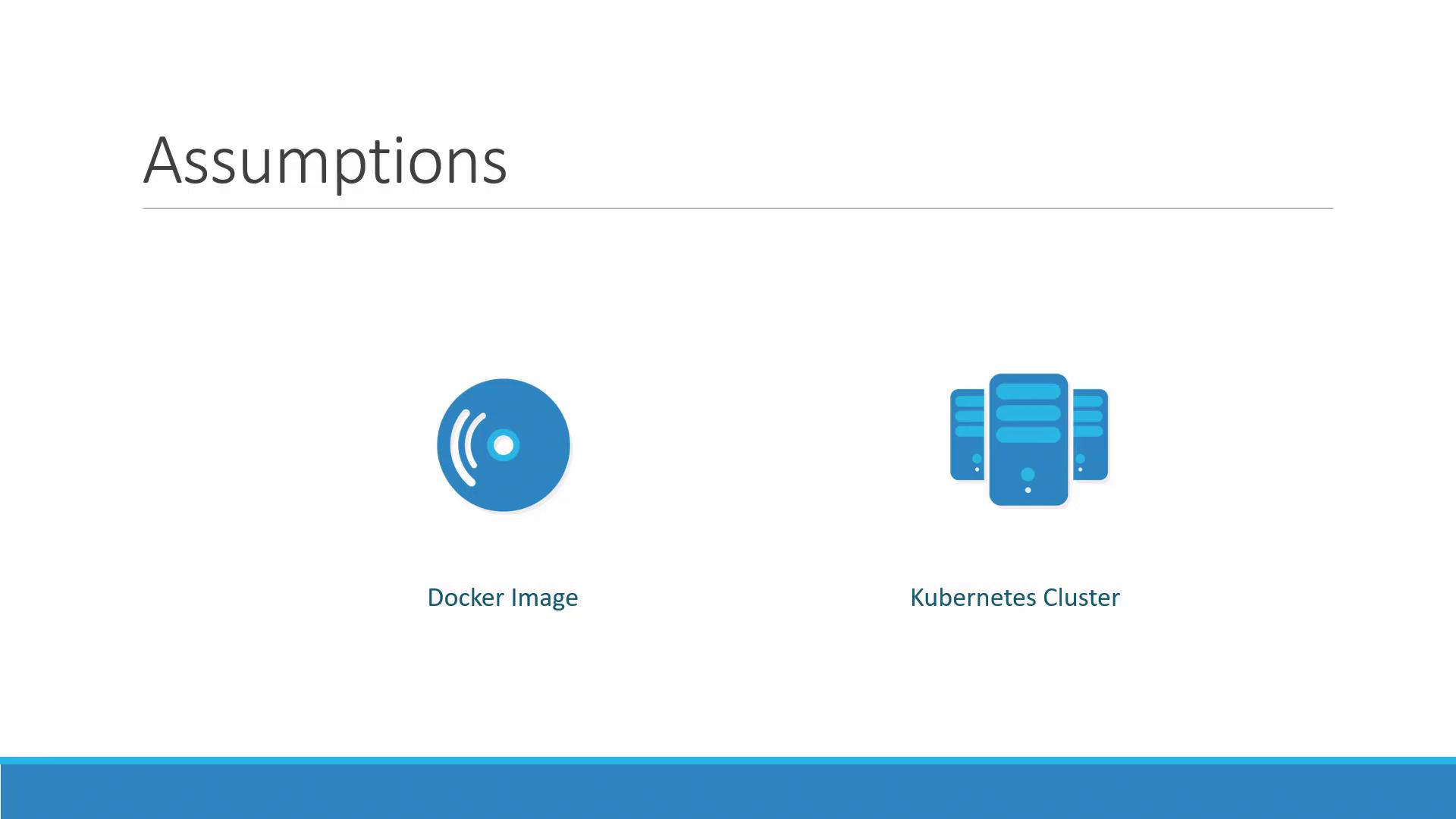
With these prerequisites met, Kubernetes can pull your images and schedule them onto worker nodes. But instead of deploying containers directly, Kubernetes wraps them in **Pods**.
## What Is a Pod?
A **Pod** represents one or more containers that share storage, network, and a specification for how to run them. By default, a Pod hosts a single container instance of your application:
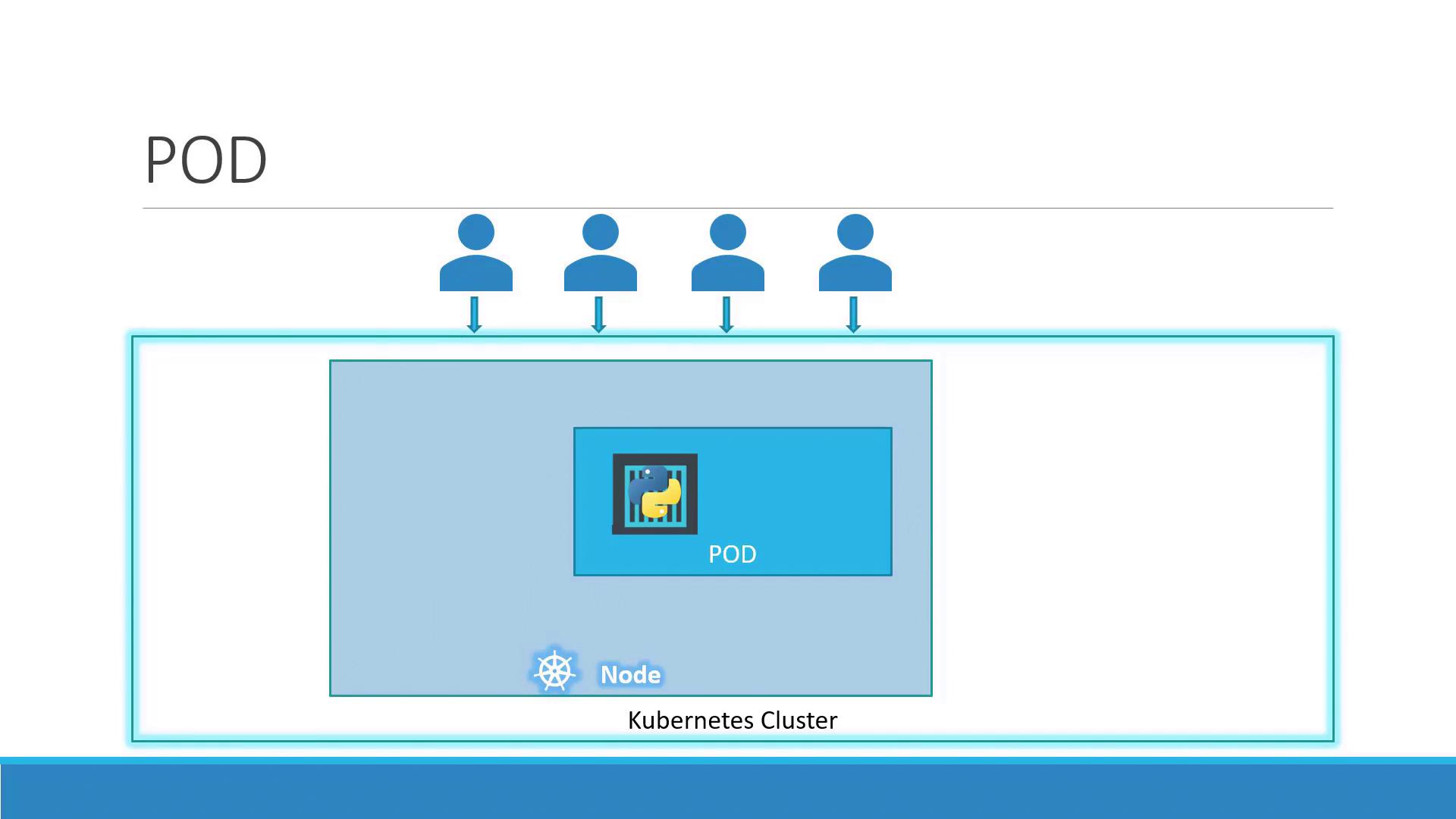
Key characteristics:
* One-to-one mapping between a Pod and its main container (default).
* Shared network namespace: containers in the same Pod communicate over `localhost`.
* Shared volumes for data exchange between containers.
## Scaling Pods
When your app needs to handle more load, you **scale** by adding or removing Pods—never by adding containers to an existing Pod. Kubernetes also balances traffic across all running Pods.
| Action | Command |
| ---------- | ------------------------------------------------------------ |
| Scale Up | `kubectl scale deployment --replicas=` |
| Scale Down | `kubectl scale deployment --replicas=` |
If a node runs out of capacity, simply add more nodes to your cluster and schedule additional Pods there.
## Multi-Container Pods
In some cases, two or more containers must run together and share resources. This sidecar pattern is useful for helpers such as logging agents or proxies:
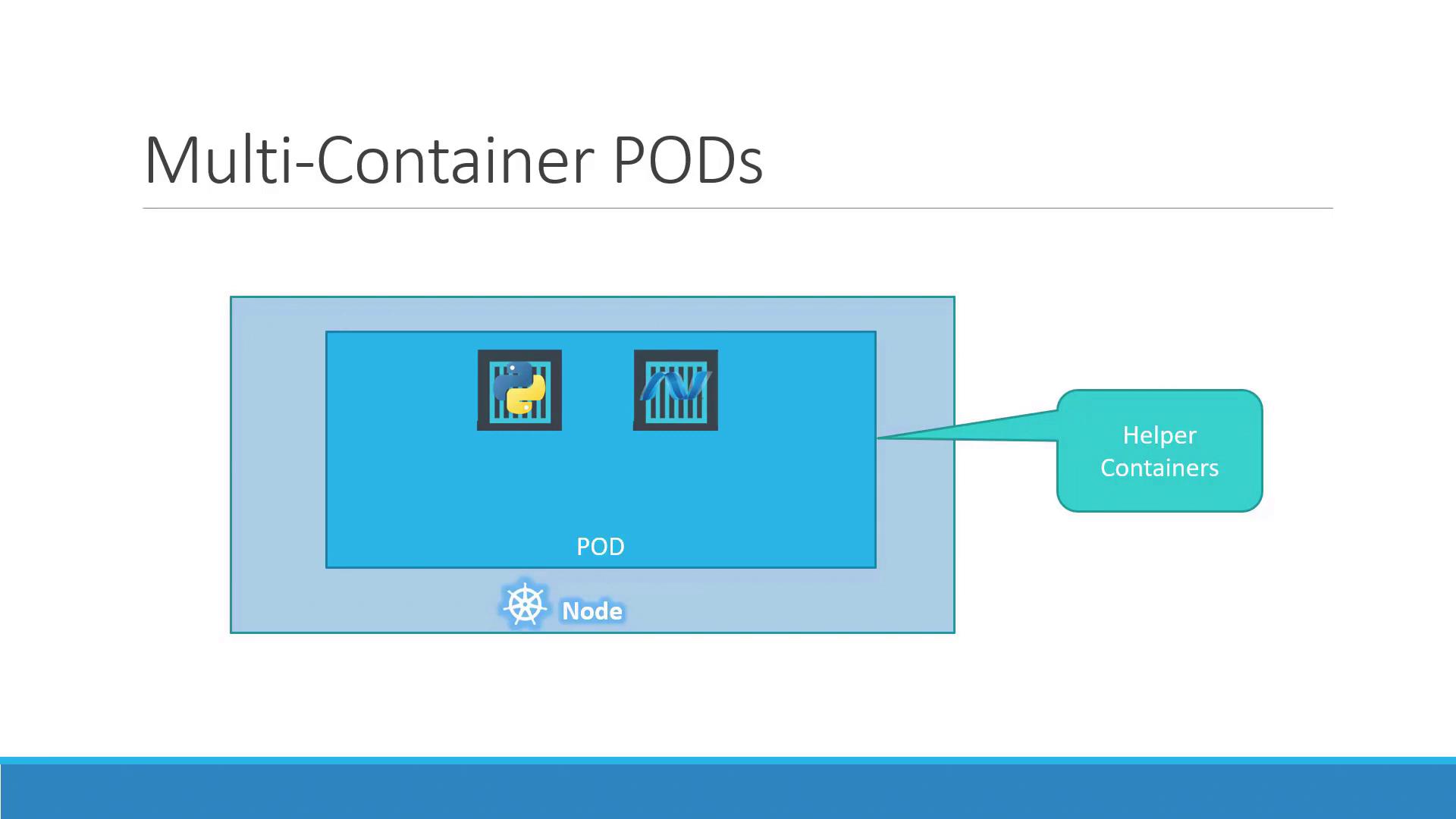
In a multi-container Pod:
* Containers share the same lifecycle (start/stop together).
* Communication happens over the same network namespace.
* Volumes can be mounted by all containers in the Pod.
Multi-container Pods are ideal for sidecars but shouldn’t replace scaling. Use them sparingly to avoid complexity.
## Benefits Compared to Plain Docker
Running containers manually with Docker CLI requires you to:
```bash theme={null}
docker run python-app
docker run python-app
docker run helper --link app1
docker run helper --link app2
```
You’d have to:
* Manage links between helper and app containers.
* Create and maintain custom networks and volumes.
* Monitor and restart containers if they fail.
With Kubernetes Pods, you define all containers in a single manifest. Kubernetes ensures they:
* Share networking and storage automatically.
* Have unified lifecycle management.
* Are monitored and restarted as needed.
Even if you’re running a single container today, Pods future-proof your architecture for scaling and sidecars.
## Deploying a Pod
You can create a Pod quickly with `kubectl run`. For example, to deploy an NGINX Pod:
```bash theme={null}
kubectl run nginx --image=nginx
```
List your Pods:
```bash theme={null}
kubectl get pods
```
Example output:
| NAME | READY | STATUS | RESTARTS | AGE |
| -------------------- | ----- | ----------------- | -------- | --- |
| nginx-8586cf59-whssr | 0/1 | ContainerCreating | 0 | 3s |
After a few seconds, the Pod moves to `Running`:
```bash theme={null}
kubectl get pods
```
| NAME | READY | STATUS | RESTARTS | AGE |
| -------------------- | ----- | ------- | -------- | --- |
| nginx-8586cf59-whssr | 1/1 | Running | 0 | 8s |
The Pod is running inside the cluster but not exposed externally. Use a Service to make it accessible to clients.
## Next Steps
Now that you understand Pods, explore how to expose them with [Kubernetes Services](https://kubernetes.io/docs/concepts/services-networking/service/) and configure networking for production workloads.
## References
* [Kubernetes Documentation](https://kubernetes.io/docs/)
* [Kubernetes Concepts: Pods](https://kubernetes.io/docs/concepts/workloads/pods/)
* [Docker Hub](https://hub.docker.com/)