> ## Documentation Index
> Fetch the complete documentation index at: https://notes.kodekloud.com/llms.txt
> Use this file to discover all available pages before exploring further.
# Persistent Volume Claims
> This article explains Kubernetes Persistent Volume Claims and their binding process with Persistent Volumes for managing storage resources.
In Kubernetes, storage resources are decoupled from pods using Persistent Volumes (PV) and Persistent Volume Claims (PVC).
* A **PersistentVolume** (PV) is a cluster-level resource representing a piece of storage provisioned by an administrator.
* A **PersistentVolumeClaim** (PVC) is a user’s request for storage, specifying capacity, access modes, and optional selectors.
When a PVC is created, Kubernetes matches it to an available PV that meets its requirements and then binds them.
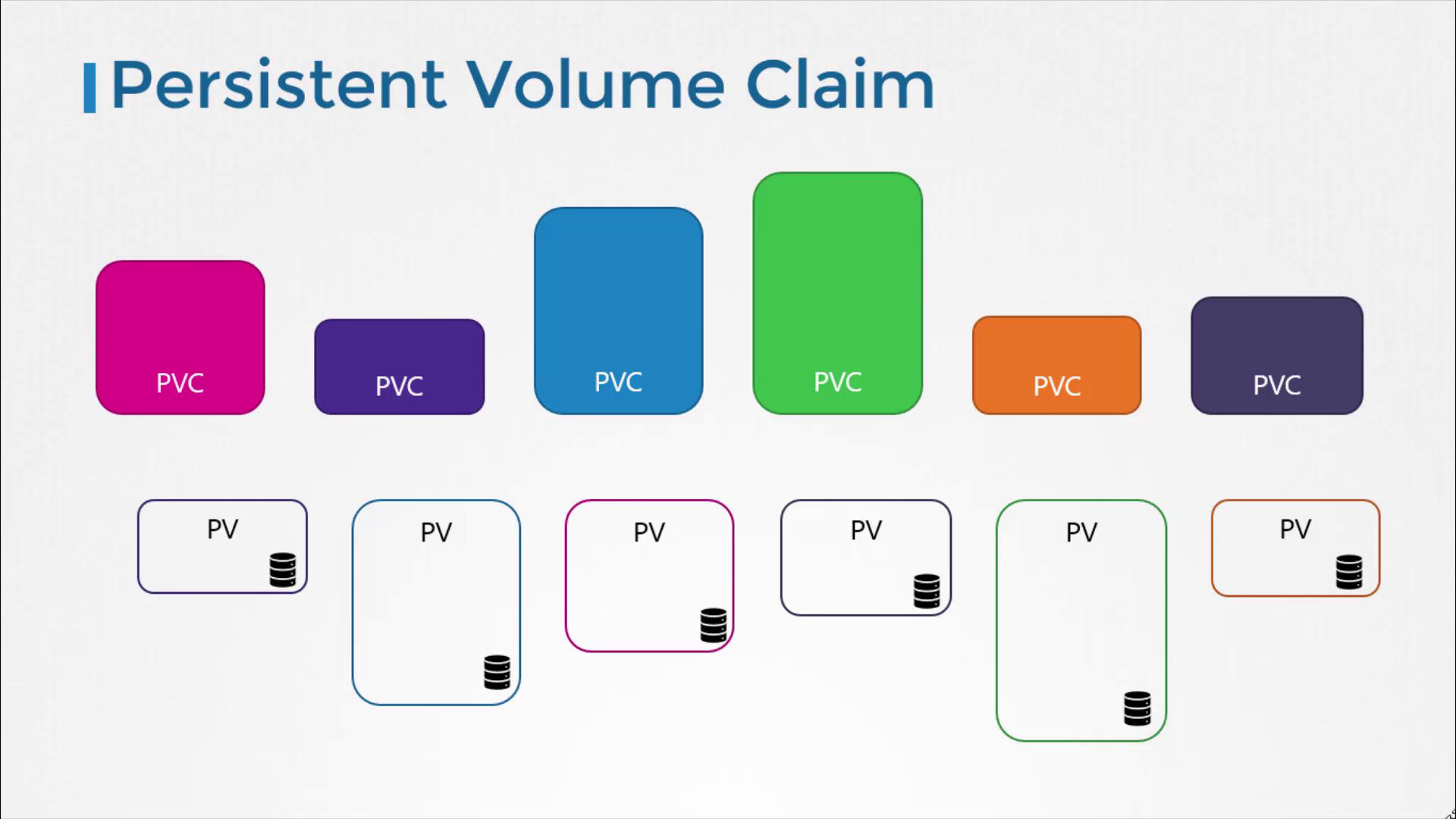
## How PV-PVC Binding Works
The binding process evaluates several criteria to find a suitable PV for a PVC:
* **Capacity**: PV storage ≥ PVC request
* **Access Modes**: e.g., `ReadWriteOnce`, `ReadOnlyMany`
* **Volume Mode**: e.g., `Filesystem` or `Block`
* **Storage Class**: must match if specified
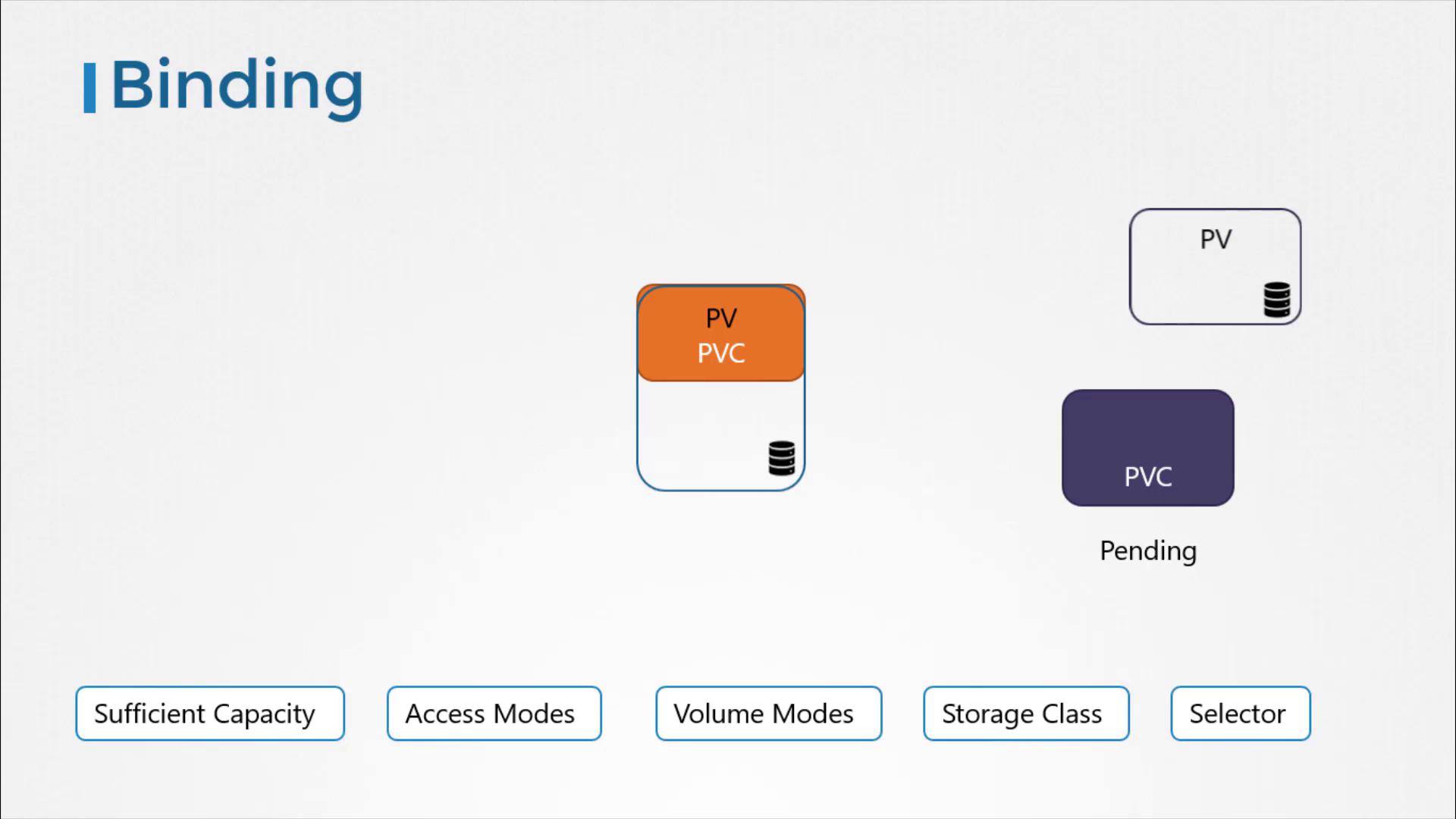
* **Label Selectors** (optional): target specific volumes
### Using Label Selectors
You can refine binding with labels on both PVC and PV:
```yaml theme={null}
# pvc-selector.yaml
apiVersion: v1
kind: PersistentVolumeClaim
metadata:
name: myclaim
spec:
selector:
matchLabels:
name: my-pv
accessModes:
- ReadWriteOnce
resources:
requests:
storage: 500Mi
```
```yaml theme={null}
# pv-with-label.yaml
apiVersion: v1
kind: PersistentVolume
metadata:
name: pv-vol1
labels:
name: my-pv
spec:
capacity:
storage: 1Gi
accessModes:
- ReadWriteOnce
awsElasticBlockStore:
volumeID:
fsType: ext4
```
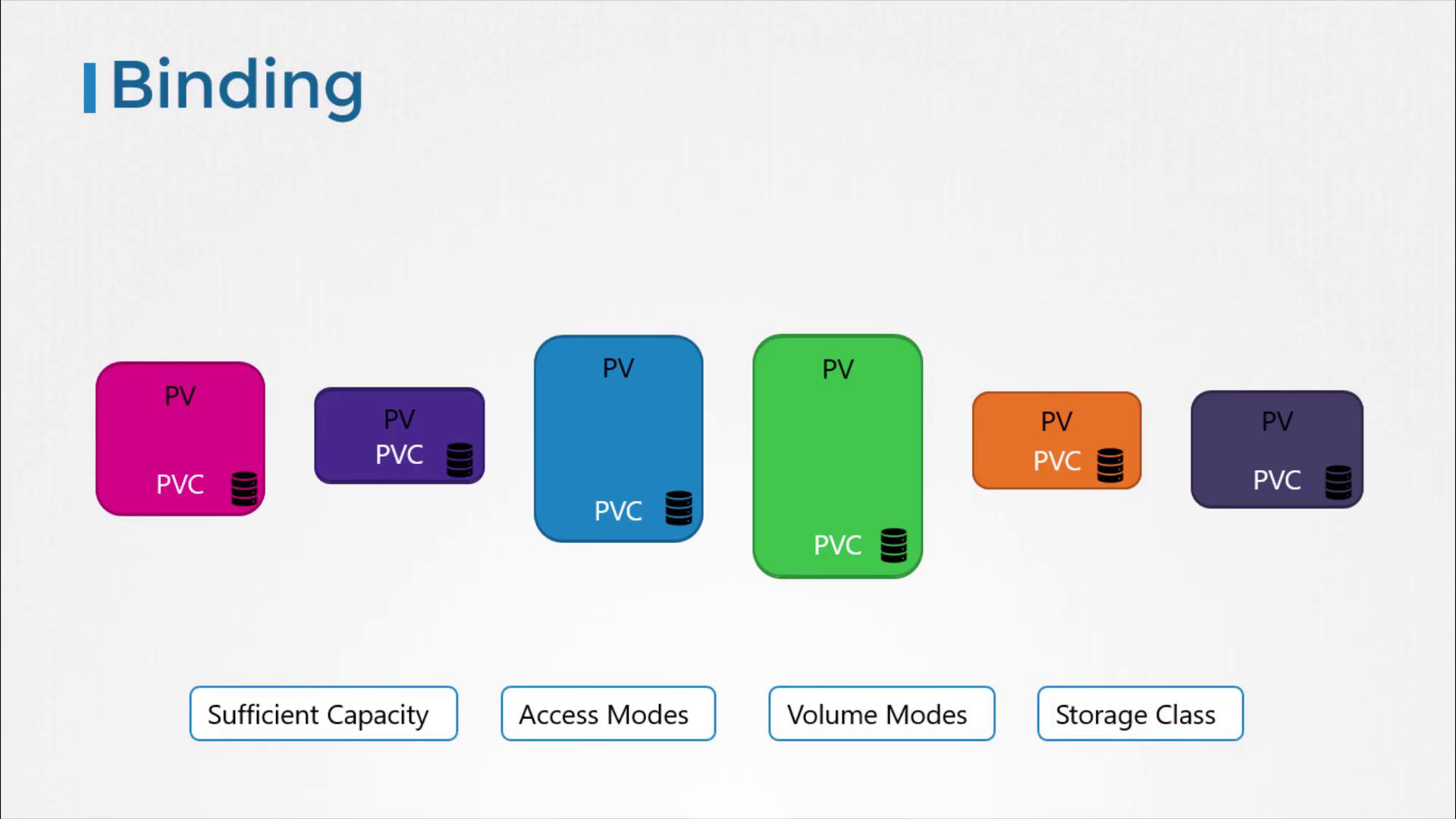
A PVC binds to only one PV and vice versa. If a PV is larger than the requested size, the leftover space remains unused and cannot be shared.
## Step-by-Step: Creating a PersistentVolumeClaim
1. **Define the PVC**\
Save the following manifest as `pvc-definition.yaml`:
```yaml theme={null}
apiVersion: v1
kind: PersistentVolumeClaim
metadata:
name: myclaim
spec:
accessModes:
- ReadWriteOnce
resources:
requests:
storage: 500Mi
```
2. **Apply the PVC**
```bash theme={null}
kubectl apply -f pvc-definition.yaml
```
3. **Verify Status**
```bash theme={null}
kubectl get pvc myclaim
```
```plaintext theme={null}
NAME STATUS VOLUME CAPACITY ACCESS MODES
myclaim Pending
```
Once a matching PV is available, the PVC transitions to `Bound`:
```bash theme={null}
kubectl get pvc myclaim
```
```plaintext theme={null}
NAME STATUS VOLUME CAPACITY ACCESS MODES
myclaim Bound pv-vol1 1Gi RWO
```
If your cluster supports dynamic provisioning, you can skip creating a PV manually. Just specify a `storageClassName` in the PVC.
## Reclaim Policies
When a PVC is deleted, the PV’s reclaim policy determines what happens to the underlying storage:
| Reclaim Policy | Behavior | Use Case |
| ---------------- | ----------------------------------------------------------------- | ---------------------------------------- |
| Retain (default) | PV and data are kept intact | Manual cleanup or data recovery |
| Delete | PV and its data are deleted automatically | Ephemeral workloads or test environments |
| Recycle | Data is scrubbed (basic `rm -rf /thevolume/*`) and made available | Shared test space (deprecated in v1.22) |
To set a reclaim policy, include it in the PV spec:
```yaml theme={null}
spec:
persistentVolumeReclaimPolicy: Delete
```
## Cleaning Up
Remove the PVC when you no longer need it:
```bash theme={null}
kubectl delete pvc myclaim
```
Depending on the reclaim policy, the PV will either be deleted, retained, or recycled.
## Links and References
* [Kubernetes Persistent Volumes](https://kubernetes.io/docs/concepts/storage/persistent-volumes/)
* [Persistent Volume Claims](https://kubernetes.io/docs/concepts/storage/persistent-volumes/#persistentvolumeclaims)
* [Storage Classes](https://kubernetes.io/docs/concepts/storage/storage-classes/)
* [AWS Elastic Block Store (EBS)](https://kubernetes.io/docs/concepts/storage/volumes/#awselasticblockstore)