> ## Documentation Index
> Fetch the complete documentation index at: https://notes.kodekloud.com/llms.txt
> Use this file to discover all available pages before exploring further.
# Readiness Probes
> This guide explains Kubernetes readiness probes, their role in traffic management, and best practices for ensuring Pods are ready to serve requests.
In this guide, you’ll learn how Kubernetes readiness probes contribute to observability and reliability by controlling when your Pods receive traffic. We’ll cover Pod lifecycle phases, conditions, probe types, configuration options, and best practices for multi-Pod deployments.
***
## Pod Lifecycle Recap
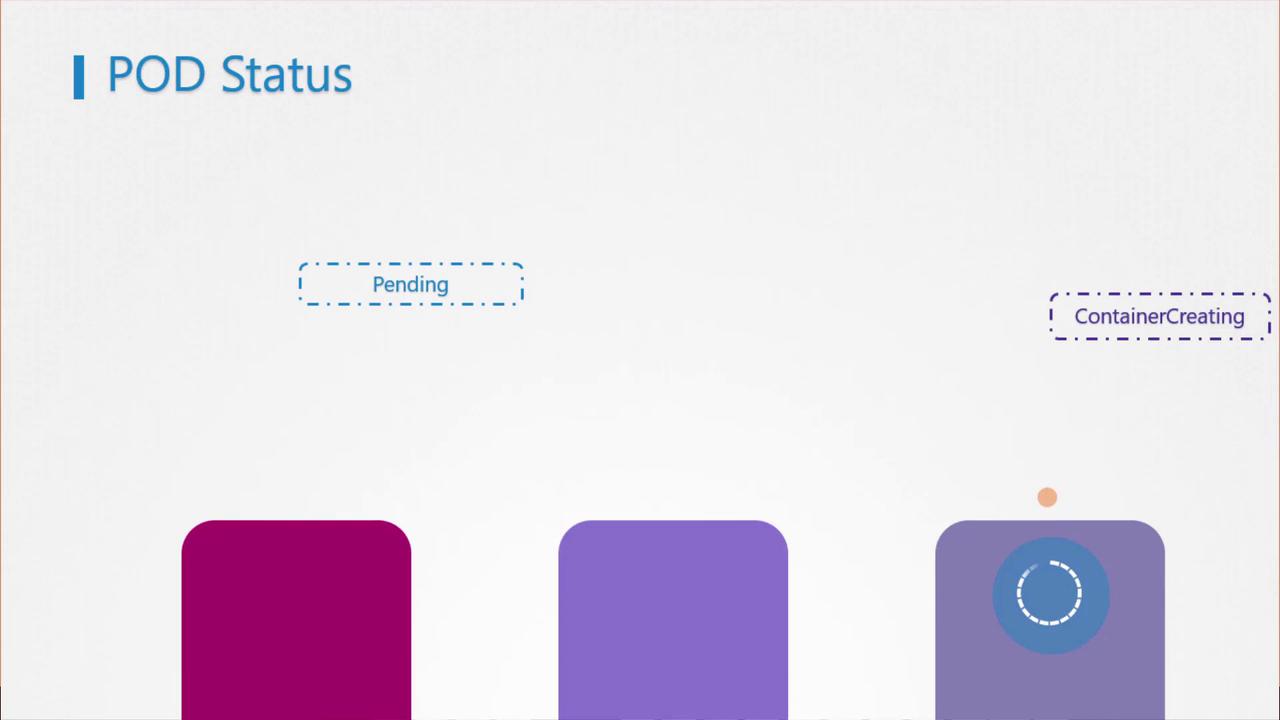
A Pod transitions through several high-level phases:
* **Pending**: Scheduler is selecting a node.
* **ContainerCreating**: Image pull and container startup.
* **Running**: All containers have started successfully.
Check the current phase:
```bash theme={null}
kubectl get pods
```
For more detail on each Pod, use:
```bash theme={null}
kubectl describe pod
```
***
## Understanding Pod Conditions
Pod conditions are booleans that provide deeper insights:
* **PodScheduled**: Has the scheduler assigned a node?
* **Initialized**: Have init containers completed?
* **ContainersReady**: Are all containers in `Running` state?
* **Ready**: Is the Pod prepared to serve requests?
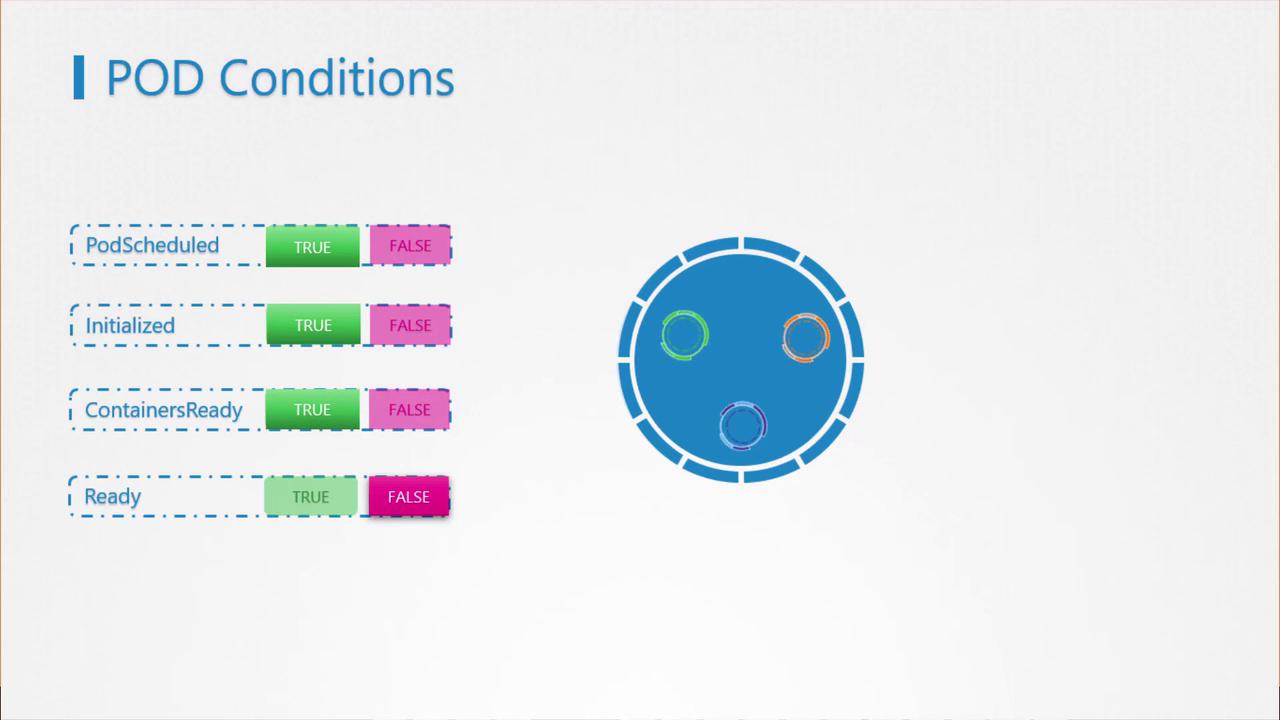
Inspect conditions directly:
```bash theme={null}
kubectl describe pod
```
By default, Kubernetes marks the `Ready` condition as `True` once containers start, even if the application isn’t fully initialized.
***
## Why Readiness Probes Matter
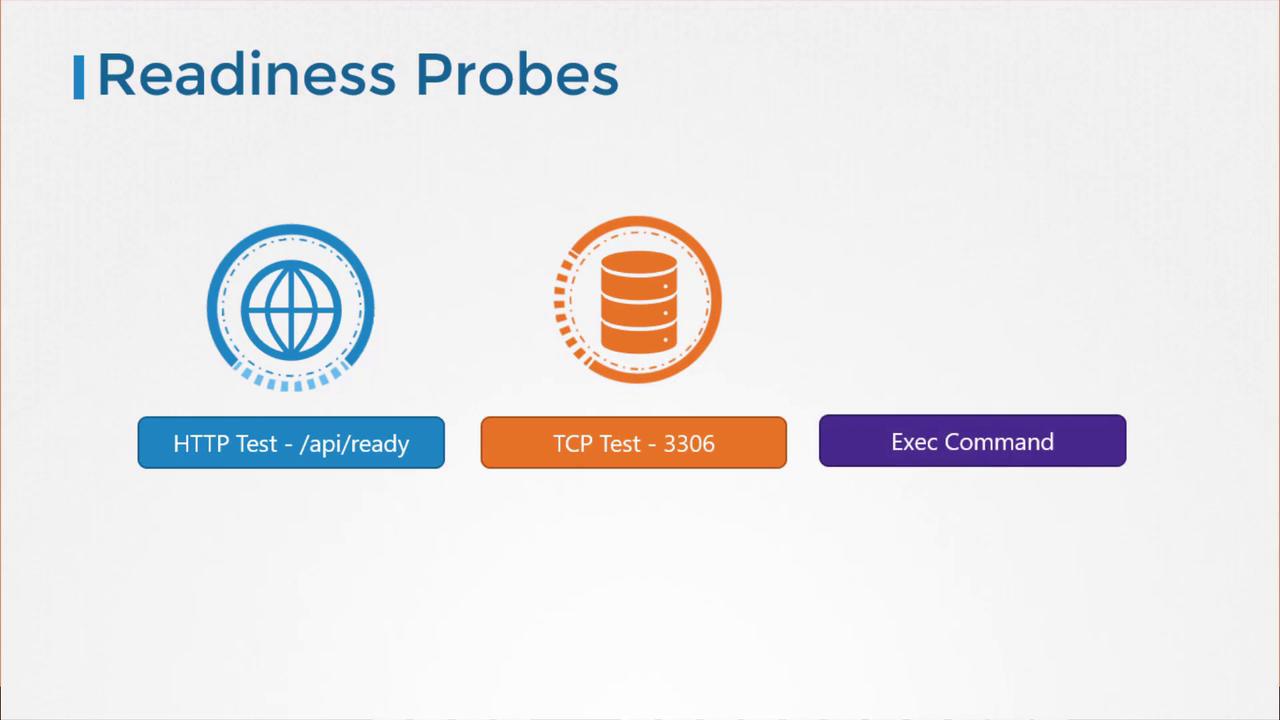
Without readiness probes, a Service may route traffic to a Pod before its application is ready, resulting in errors for end users. Readiness probes let you tie the `Ready` condition to an actual in-container health check.
***
## Probe Types
| Type | Description | Example Snippet |
| ---------- | ------------------------------------------- | ----------------------------- |
| HTTP GET | Performs an HTTP GET request against a path | `httpGet: { path: "/ready" }` |
| TCP Socket | Attempts a TCP connection on a port | `tcpSocket: { port: 3306 }` |
| Exec | Runs a command inside the container | `exec: { command: ["cat"] }` |
***
## Configuring Readiness Probes
Add a `readinessProbe` block under your container spec:
### 1. HTTP GET Probe
```yaml theme={null}
apiVersion: v1
kind: Pod
metadata:
name: simple-webapp
spec:
containers:
- name: simple-webapp
image: simple-webapp:latest
ports:
- containerPort: 8080
readinessProbe:
httpGet:
path: /api/ready
port: 8080
```
### 2. TCP Socket Probe
```yaml theme={null}
readinessProbe:
tcpSocket:
port: 3306
```
### 3. Exec Command Probe
```yaml theme={null}
readinessProbe:
exec:
command:
- cat
- /app/is_ready
```
***
## Customizing Probe Timing
Fine-tune how and when probes run:
```yaml theme={null}
readinessProbe:
httpGet:
path: /api/ready
port: 8080
initialDelaySeconds: 10
periodSeconds: 5
failureThreshold: 3
```
| Parameter | Description | Default |
| ------------------- | --------------------------------------------- | ------- |
| initialDelaySeconds | Seconds to wait before first probe | 0 |
| periodSeconds | Interval between each probe | 10 |
| failureThreshold | Number of failures before marking as **fail** | 3 |
Consider also configuring **liveness probes** to restart unhealthy containers.
***
## Readiness in a Scaled Deployment
When you scale a Deployment, only Pods that pass their readiness probe will start receiving traffic. This prevents service disruptions caused by uninitialized instances.
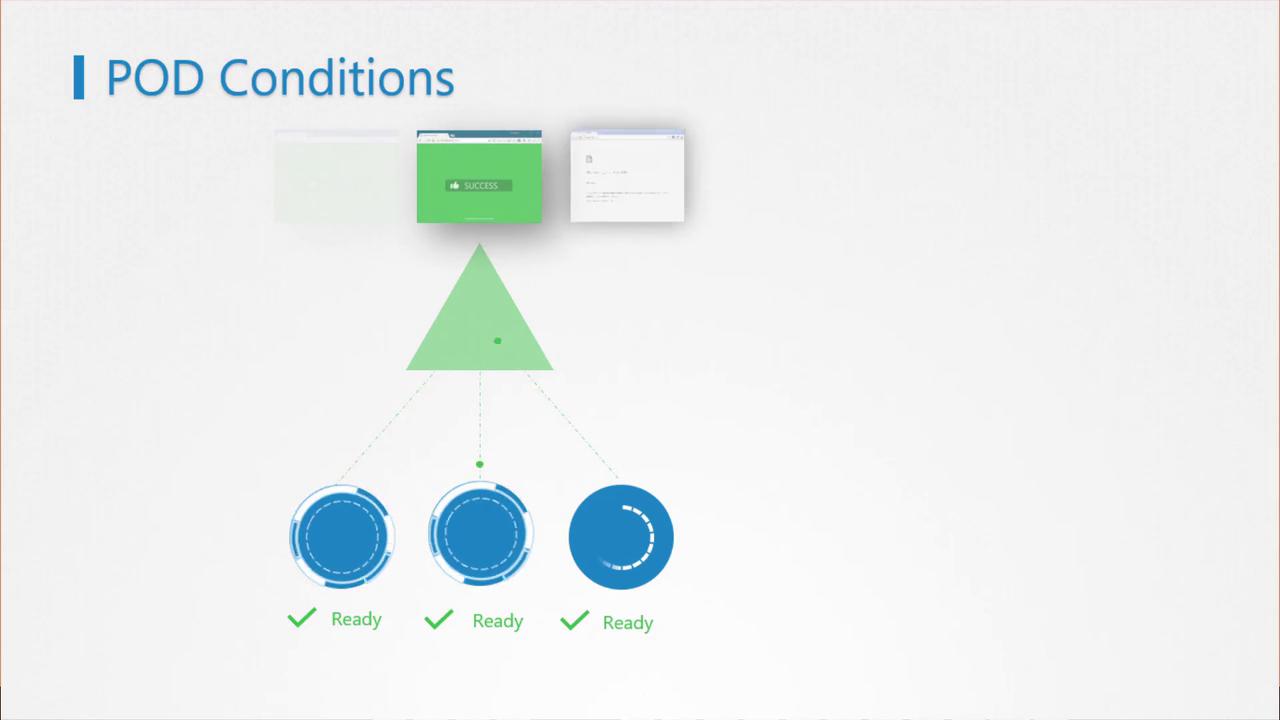
Ensure your readiness probe endpoint is lightweight and fast to avoid delaying traffic routing.
***
## Links and References
* [Kubernetes Readiness and Liveness Probes](https://kubernetes.io/docs/tasks/configure-pod-container/configure-liveness-readiness-startup-probes/)
* [Kubernetes Concepts: Pods](https://kubernetes.io/docs/concepts/workloads/pods/)
* [kubectl Cheat Sheet](https://kubernetes.io/docs/reference/kubectl/cheatsheet/)
***