> ## Documentation Index
> Fetch the complete documentation index at: https://notes.kodekloud.com/llms.txt
> Use this file to discover all available pages before exploring further.
# Volumes in Kubernetes
> This guide explains Kubernetes volumes, their functionality, storage backends, and examples using hostPath and AWS EBS volumes.
Persistent storage is a critical aspect of running stateful applications on Kubernetes. In this guide, you’ll learn how Kubernetes volumes work, explore storage backends, and see examples using both `hostPath` and AWS EBS volumes.
## Volumes in Docker
Containers created by Docker are ephemeral by design: all data written inside a container is lost when it stops or is removed. To persist data across container restarts or recreations, you attach a volume at creation time.
Docker volumes decouple container lifecycles from data lifecycles.\
Learn more: [Docker Volumes](https://docs.docker.com/storage/volumes/).
## Volumes in Kubernetes
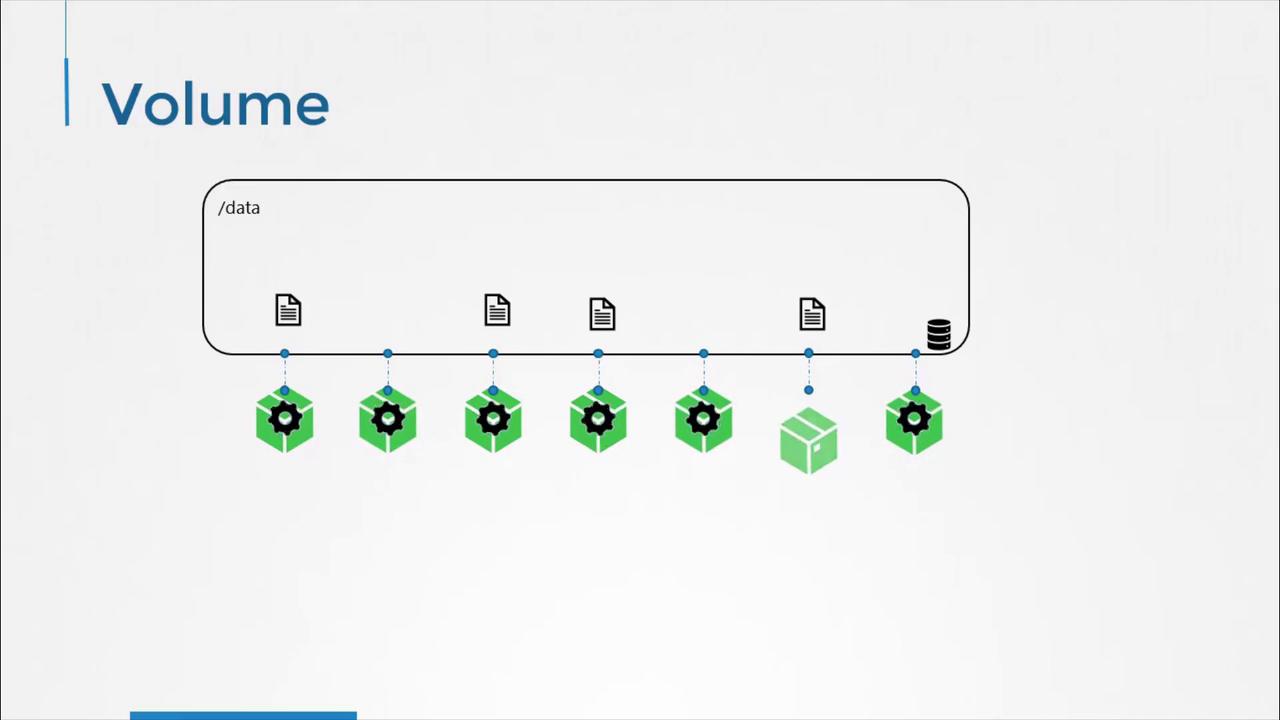
Kubernetes Pods inherit the same ephemeral behavior: when a Pod is deleted, its filesystem is wiped clean. To preserve data beyond a Pod’s lifecycle, define one or more volumes in the Pod spec and mount them into containers.
## Example: Generating a Random Number with a hostPath Volume
The following Pod manifest demonstrates how to use a `hostPath` volume. Each time the Pod runs, it appends a random number to `/opt/number.out`. The underlying directory on the node (`/data`) retains all generated numbers, even after the Pod is deleted.
```yaml theme={null}
apiVersion: v1
kind: Pod
metadata:
name: random-number-generator
spec:
containers:
- name: alpine
image: alpine
command: ["/bin/sh", "-c"]
args: ["shuf -i 0-100 -n 1 >> /opt/number.out"]
volumeMounts:
- name: data-volume
mountPath: /opt
volumes:
- name: data-volume
hostPath:
path: /data
type: Directory
```
How it works:
* `hostPath.path` points to `/data` on the Kubernetes node.
* The Pod’s container mounts this directory at `/opt`.
* Random numbers accumulate in `/data/number.out` on the host.
`hostPath` volumes are bound to a single node’s filesystem and do **not** provide data sharing or high availability. Avoid using them in multi-node clusters.
## Storage Options for Kubernetes Volumes
Kubernetes supports a variety of volume types and storage backends. Below is a summary of common volume plugins:
| Storage Type | Description | Example Volume Spec |
| ------------------------------------- | ------------------------------- | -------------------------------------------------- |
| NFS | Network File System for sharing | `nfs.server:port,path` |
| AWS Elastic Block Store (EBS) | Block storage in AWS | `awsElasticBlockStore: { volumeID, fsType: ext4 }` |
| Azure Disk | Managed disks in Azure | `azureDisk: { diskName, diskURI, fsType }` |
| Google Compute Engine Persistent Disk | Block storage in GCP | `gcePersistentDisk: { pdName, fsType }` |
| CephFS | Distributed file system | `cephfs: { monitors, path, user }` |
Learn more: [Kubernetes Volumes](https://kubernetes.io/docs/concepts/storage/volumes/)
## Example: AWS EBS Volume
To switch from a `hostPath` volume to AWS EBS, replace the `hostPath` section with an `awsElasticBlockStore` definition in your Pod spec:
```yaml theme={null}
volumes:
- name: data-volume
awsElasticBlockStore:
volumeID:
fsType: ext4
```
This configuration mounts an existing EBS volume into your Pod, providing durable, block-level storage managed by AWS.
## Next Steps: PersistentVolumeClaims
While static volumes require manual provisioning, PersistentVolumeClaims (PVCs) enable dynamic provisioning and binding of storage resources. In the next lesson, you’ll see how to request storage with PVCs and bind them to Pods automatically.
***
## Links and References
* [Kubernetes Persistent Volumes](https://kubernetes.io/docs/concepts/storage/persistent-volumes/)
* [Kubernetes Persistent Volume Claims](https://kubernetes.io/docs/concepts/storage/persistent-volumes/#persistentvolumeclaims)
* [Docker Volumes](https://docs.docker.com/storage/volumes/)
* [AWS EBS CSI Driver](https://github.com/kubernetes-sigs/aws-ebs-csi-driver)