> ## Documentation Index
> Fetch the complete documentation index at: https://notes.kodekloud.com/llms.txt
> Use this file to discover all available pages before exploring further.
# Storage and Filesystems
> This article explores Dockers storage architecture, file systems, layered image architecture, and storage drivers for managing data on the host.
Hello and welcome to this technical deep-dive into Docker's storage architecture and file systems. My name is Mumshad Mannambeth, and in this lesson we will explore how Docker manages data on the host and the intricacies of container file systems. We will investigate the folder structure created by Docker, the layered image architecture, the copy-on-write mechanism, and various storage drivers.
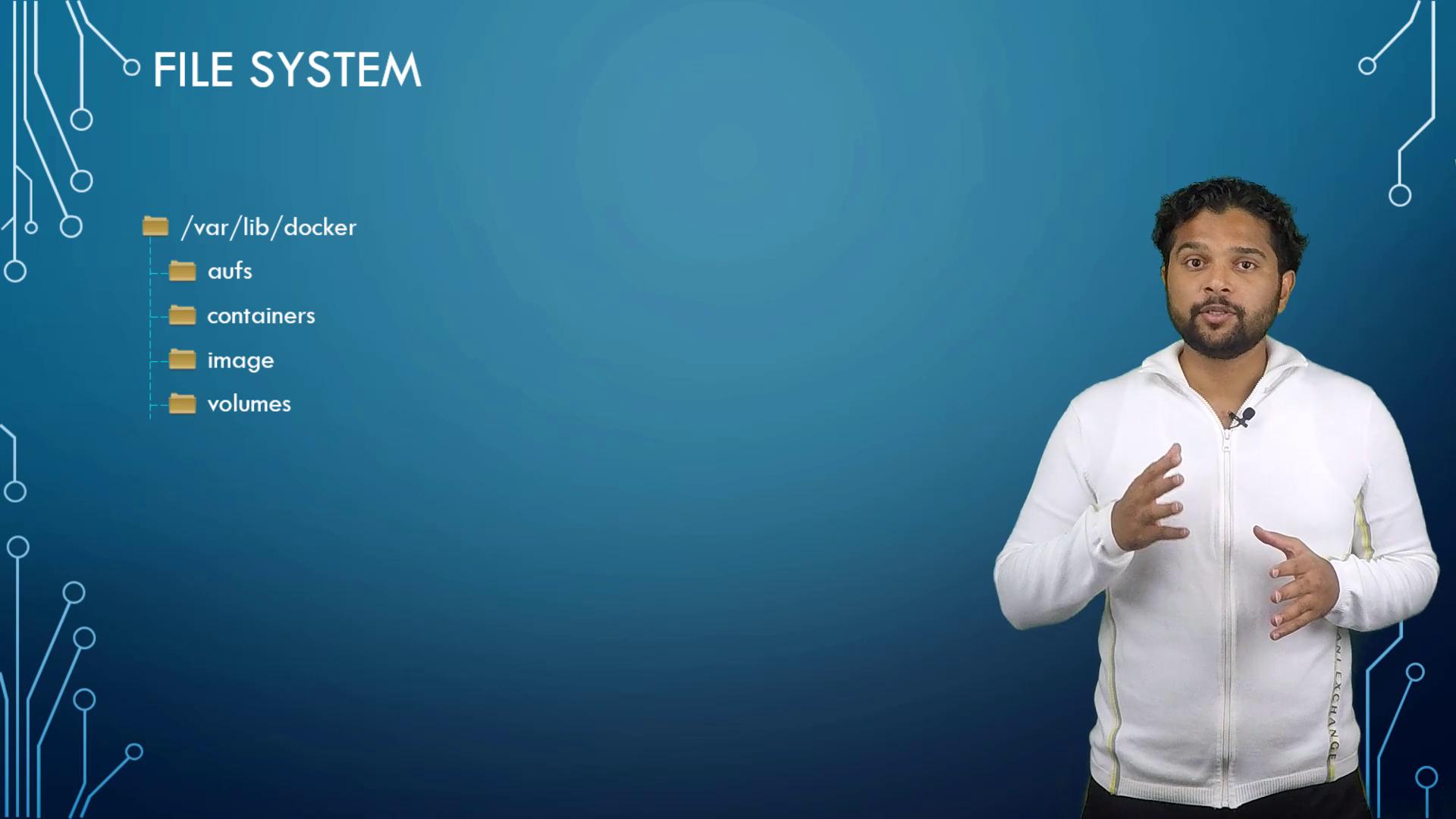
When Docker is installed, it sets up a folder structure at `/var/lib/docker` that contains several subdirectories such as `aufs`, `containers`, `images`, and `volumes`. These directories are critical because they store all Docker-related data, including files for images, running containers, and persistent volumes. For example, files related to containers reside in the `containers` folder, while image files are stored in the `images` folder.
## Docker Image Layered Architecture
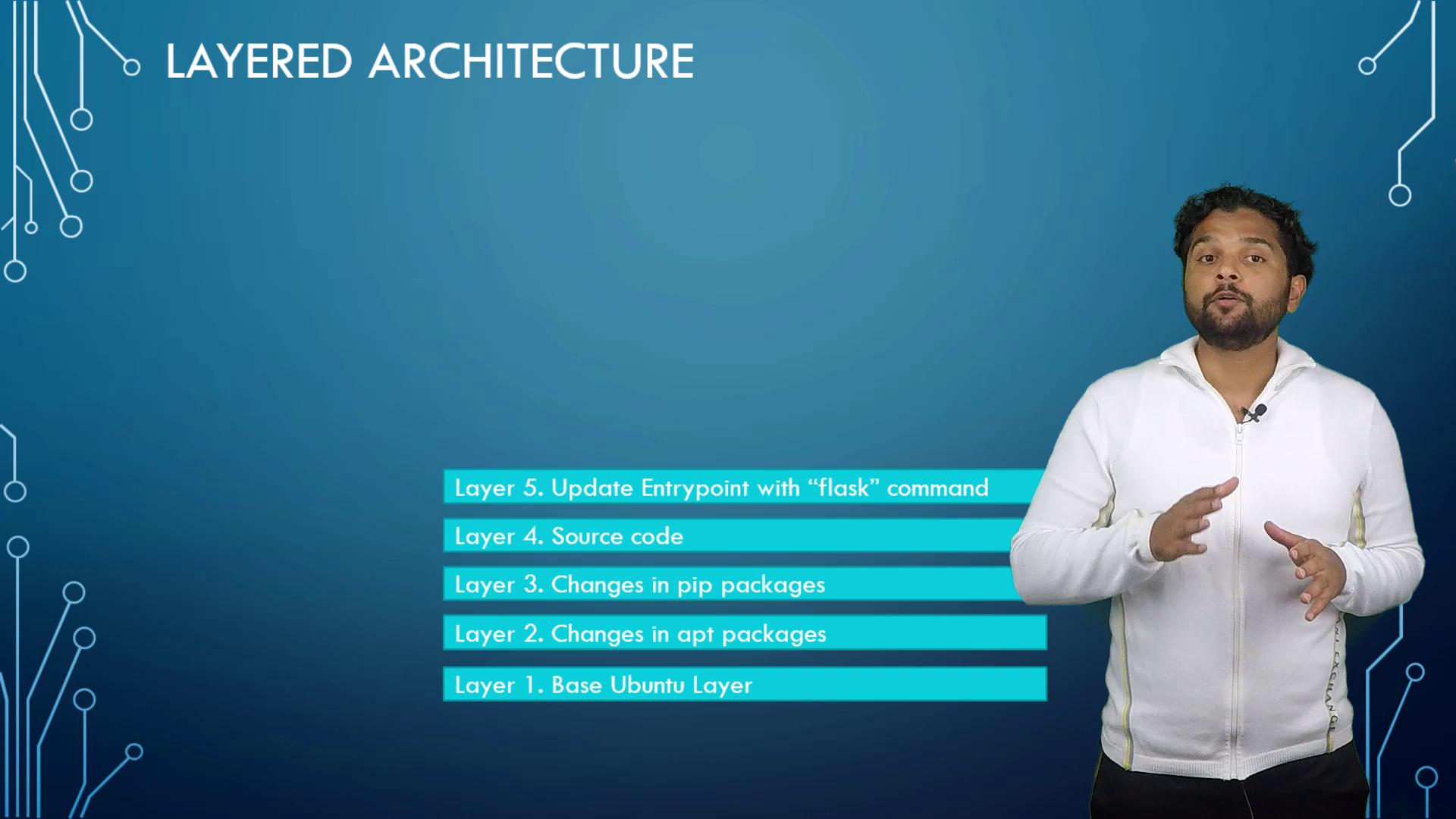
Docker images use a layered architecture. Every instruction in a Dockerfile results in the creation of a new layer that only contains the changes from the previous one. Consider the following example Dockerfile:
```dockerfile theme={null}
FROM Ubuntu
RUN apt-get update && apt-get -y install python
RUN pip install flask flask-mysql
COPY . /opt/source-code
ENTRYPOINT FLASK_APP=/opt/source-code/app.py flask run
```
Build this image with the command:
```bash theme={null}
docker build -t mmumshad/my-custom-app .
```
In this build:
1. The base Ubuntu image (\~120 MB) is established.
2. A subsequent layer installs APT packages (around 300 MB).
3. Additional layers add Python dependencies.
4. The application source code is injected.
5. Lastly, the entry point is configured.
Because Docker caches these layers, a similar Dockerfile—even if only differing in the source code and entry point—can reuse the cached layers for the base image, package installations, and dependencies. For instance, another Dockerfile might look like:
```dockerfile theme={null}
FROM Ubuntu
RUN apt-get update && apt-get -y install python
RUN pip install flask flask-mysql
COPY app2.py /opt/source-code
ENTRYPOINT FLASK_APP=/opt/source-code/app2.py flask run
```
Build this second image using:
```bash theme={null}
docker build -t mmumshad/my-custom-app-2 .
```
Docker reuses the first three layers and only builds the layers that include the new source code and entry point. This efficient caching mechanism accelerates builds and conserves disk space.
The layered structure from bottom up is as follows:
1. Base Ubuntu image
2. Installed packages
3. Python dependencies
4. Application source code
5. Entry point configuration
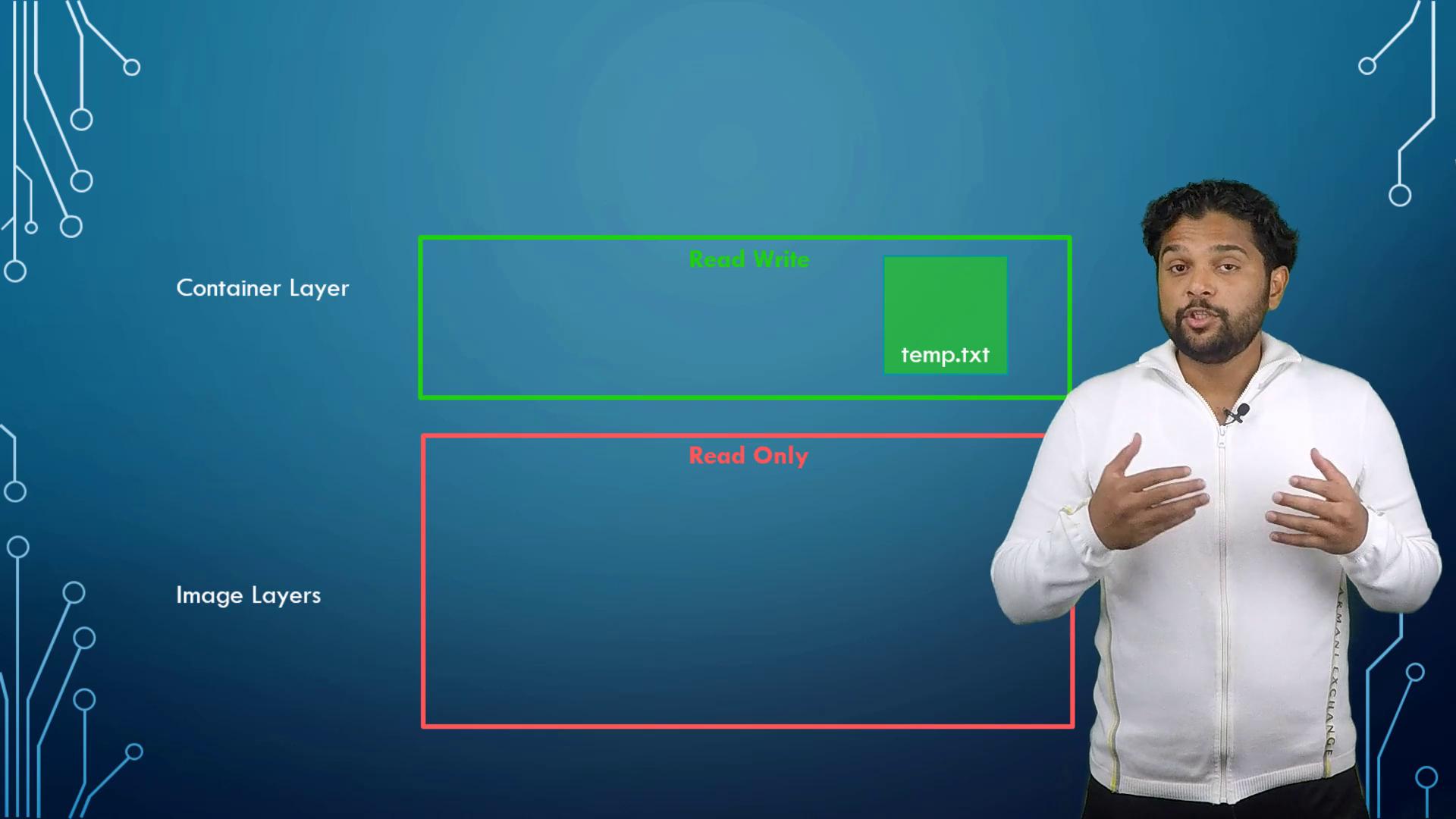
Once the build is complete, the image layers are read-only. When you run a container using the `docker run` command, Docker mounts a new writable layer on top of these image layers. This writable layer manages any changes made during runtime—such as log files, temporary files, or user modifications. For instance, if you log into a container and create a file (like `temp.txt`), that file is stored in the writable layer:
```bash theme={null}
docker run -it mmumshad/my-custom-app bash
# Inside the container:
touch temp.txt
```
Even though image layers are immutable, Docker uses a "copy-on-write" mechanism to enable modifications. In this process, if you attempt to change a file within an image layer (such as editing `app.py`), Docker first copies the file to the writable layer and then applies your modifications. This method ensures that the original image remains unchanged while allowing each container to keep its own changes.
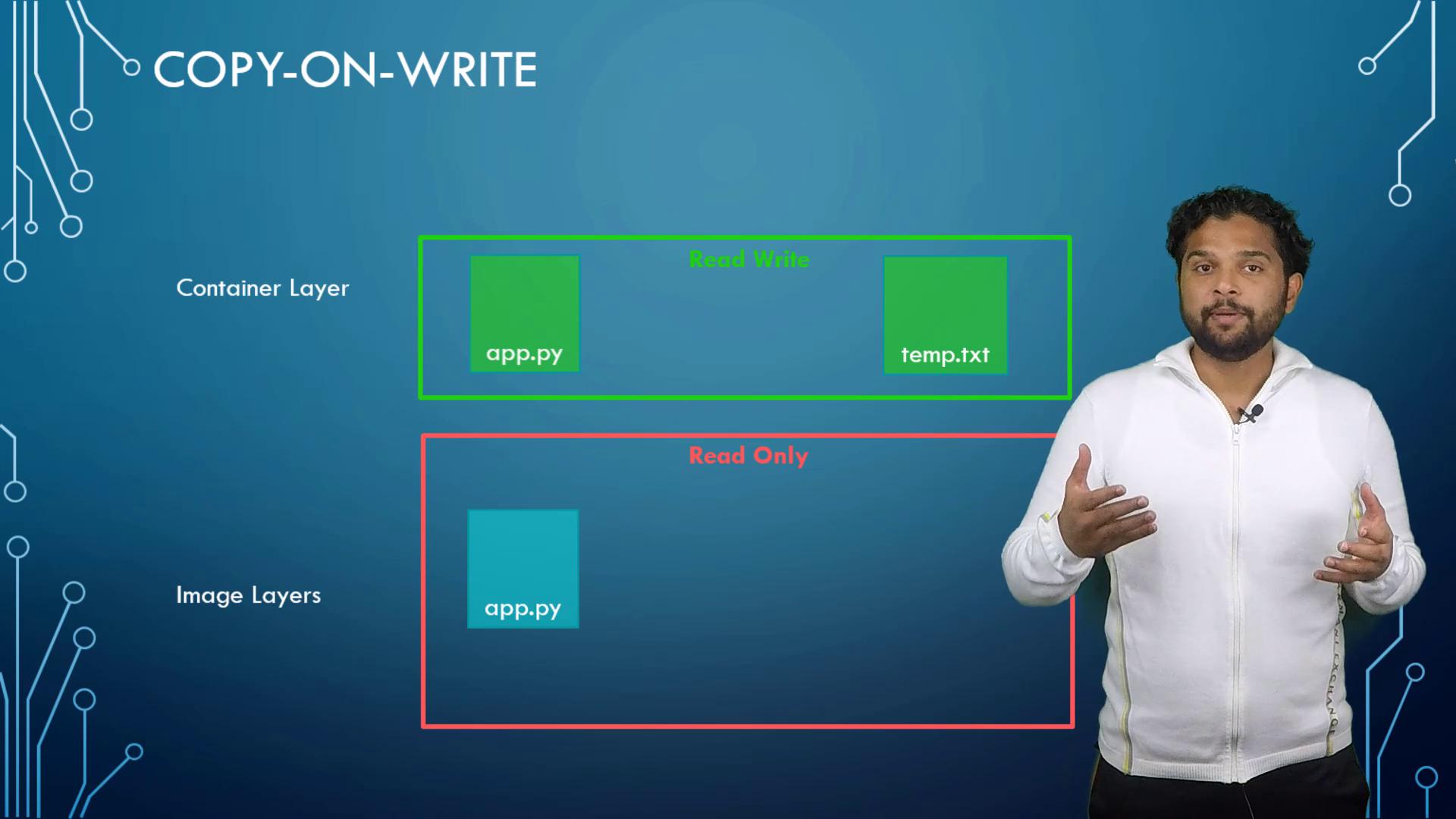
When a container is removed, its writable layer, along with all modifications, is deleted. To preserve critical data, such as database files, mount an external volume.
## Persisting Data with Volumes and Bind Mounts
Persisting data is crucial for stateful applications. To create a volume:
```bash theme={null}
docker volume create data_volume
```
This command creates a volume directory under `/var/lib/docker/volumes`. Then, run a container with the volume mounted to a specific directory:
```bash theme={null}
docker run -v data_volume:/var/lib/mysql mysql
```
In this example, MySQL writes data to `data_volume`, ensuring data persistence even if the container is removed. Docker will also automatically create the volume if it does not exist, and you can verify this by listing the contents of `/var/lib/docker/volumes`.
Alternatively, if you prefer using an existing directory on the Docker host (for example, `/data/mysql`), use a bind mount:
```bash theme={null}
docker run -v /data/mysql:/var/lib/mysql mysql
```
This maps the host directory directly to the container.
Although the `-v` flag is widely used for mounting volumes, the newer `--mount` option is preferred for its explicit syntax. For example:
```bash theme={null}
docker run --mount type=bind,source=/data/mysql,target=/var/lib/mysql mysql
```
## Docker Storage Drivers
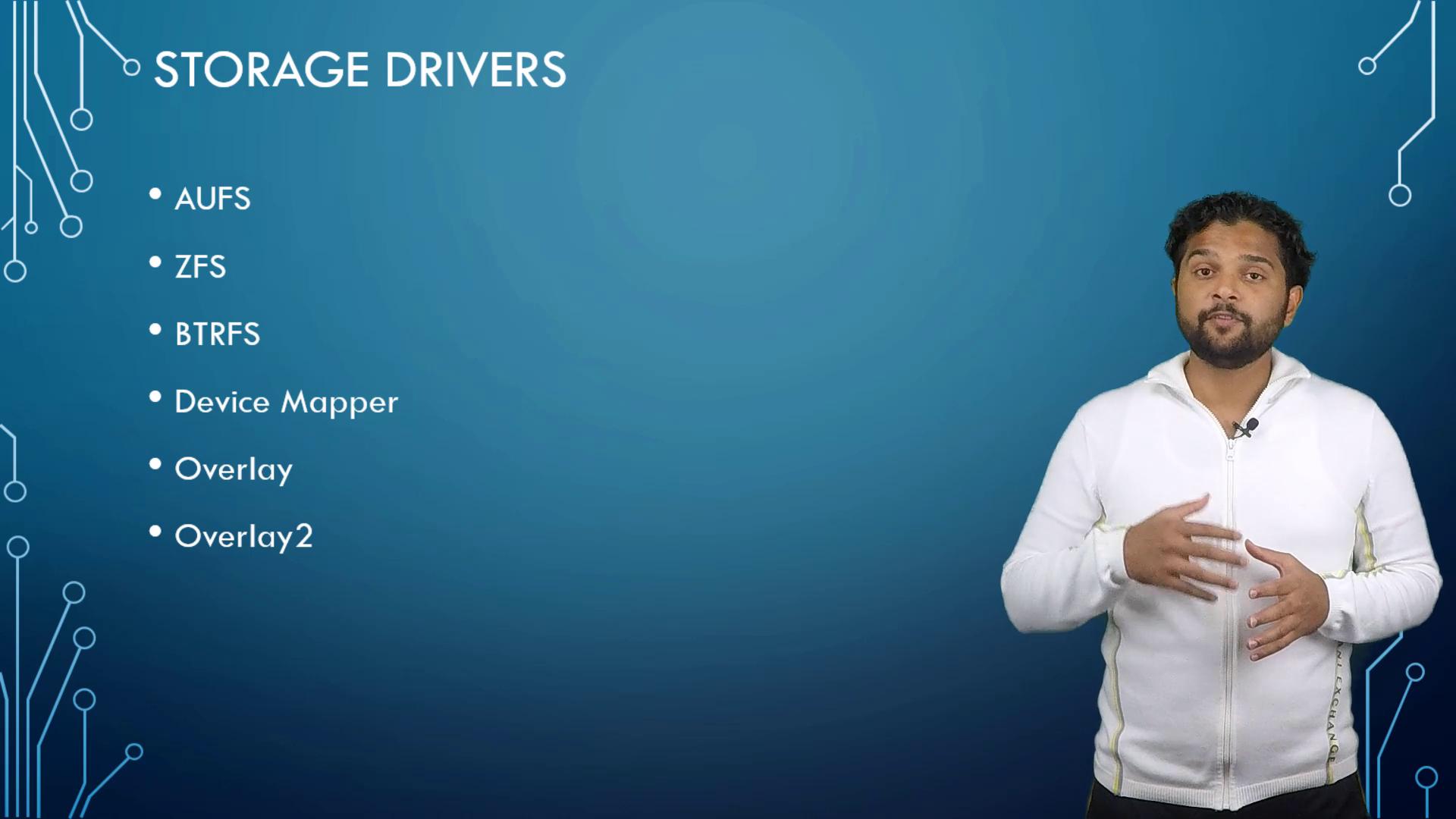
The layered architecture, writable container layers, and copy-on-write features are all made possible by Docker storage drivers. Popular storage drivers include:
| Storage Driver | Description | Common Use Case |
| ---------------- | ------------------------------------- | -------------------------- |
| AUFS | Advanced multi-layer union filesystem | Default on Ubuntu |
| BTRFS | Modern Copy-on-Write filesystem | Advanced usage scenarios |
| VFS | Simple filesystem used for debugging | Limited to specific cases |
| Device Mapper | Uses Linux's device-mapper | Fedora/CentOS defaults |
| Overlay/Overlay2 | Efficient copy-on-write drivers | Modern Linux distributions |
The choice of storage driver depends on your host operating system and performance requirements. For instance, Ubuntu generally uses AUFS by default, whereas Fedora or CentOS might lean towards Device Mapper. Docker automatically selects the most optimized driver for your system, although you can configure a specific driver if needed.
This concludes our exploration of Docker's storage and file system architecture. For further reading on these storage drivers and additional Docker concepts, please refer to the official [Docker Documentation](https://docs.docker.com/).
See you in the next lesson.