> ## Documentation Index
> Fetch the complete documentation index at: https://notes.kodekloud.com/llms.txt
> Use this file to discover all available pages before exploring further.
# Demo Example Voting Application
> This guide covers deploying a multi-container voting application using Docker, including its architecture, components, and deployment steps.
Welcome to this guide on deploying the example voting application from the Docker samples repository. This demo showcases a multi-container application architecture using Docker, featuring several components. In this article, we review the application's design, examine source code segments, and deploy the application using Docker commands. Later, we will expand this demo to incorporate Docker Compose, Docker Stacks, and Swarm services.
***
## Overview
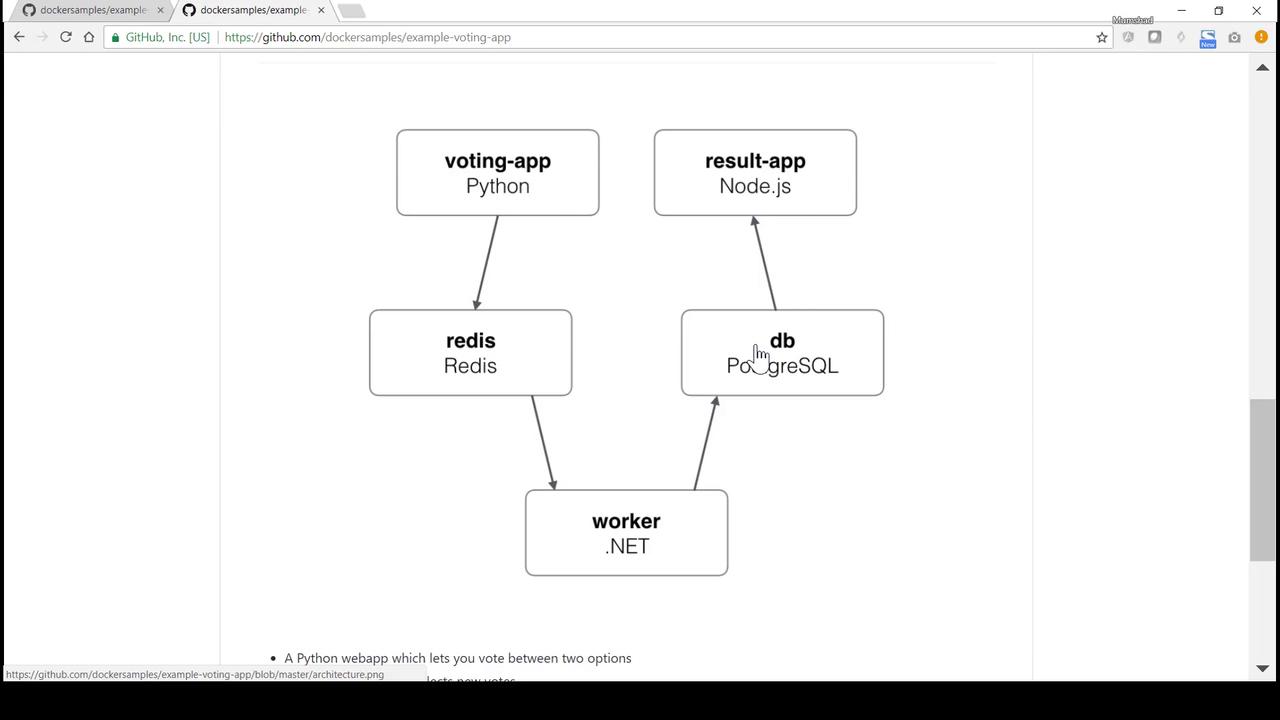
The voting application is composed of the following components:
* A Python-based voting application (using Flask) that presents a web page for casting votes.
* A Redis messaging service that temporarily stores votes.
* A Java-based worker application that processes votes from Redis and updates a PostgreSQL database.
* A Node.js-powered results application that queries PostgreSQL and displays real-time voting results.
Redis and PostgreSQL utilize official Docker Hub images, while the voting app, worker, and results components are custom-developed.
Below is the architecture diagram that illustrates the interaction between these components:
***
## The Voting Application
The repository organizes the custom applications into distinct folders. Let’s begin by exploring the voting application. Within the **vote** directory, the Flask application is defined in the file `app.py`. The application handles both GET and POST requests. In a GET request, it renders the main page (`index.html`), while the POST handler processes the vote by pushing vote data to Redis.
Below is an example of the Python code for the voting application:
```python theme={null}
@app.route("/", methods=['POST', 'GET'])
def hello():
voter_id = request.cookies.get('voter_id')
if not voter_id:
voter_id = hex(random.getrandbits(64))[2:-1]
vote = None
if request.method == 'POST':
redis = get_redis()
vote = request.form['vote']
data = json.dumps({'voter_id': voter_id, 'vote': vote})
redis.rpush('votes', data)
resp = make_response(render_template(
'index.html',
option_a=option_a,
option_b=option_b,
hostname=hostname,
vote=vote,
))
resp.set_cookie('voter_id', voter_id)
return resp
if __name__ == "__main__":
app.run(host='0.0.0.0', port=80, debug=True, threaded=True)
```
In the **vote** directory, you will also find the `Dockerfile`, which builds the voting application image. This Dockerfile uses the Python 2.7 Alpine image, installs dependencies from `requirements.txt`, copies the source code, exposes port 80, and runs the application using Gunicorn.
```dockerfile theme={null}
# Using official Python runtime base image
FROM python:2.7-alpine
# Set the application directory
WORKDIR /app
# Install our requirements.txt
ADD requirements.txt /app/requirements.txt
RUN pip install -r requirements.txt
# Copy our code into the container
ADD . /app
# Make port 80 available for links and/or publishing
EXPOSE 80
# Define the command to run when launching the container
CMD ["gunicorn", "app:app", "-b", "0.0.0.0:80", "--log-file", "-", "--access-logfile", "-", "--workers", "4", "--keep-alive", "0"]
```
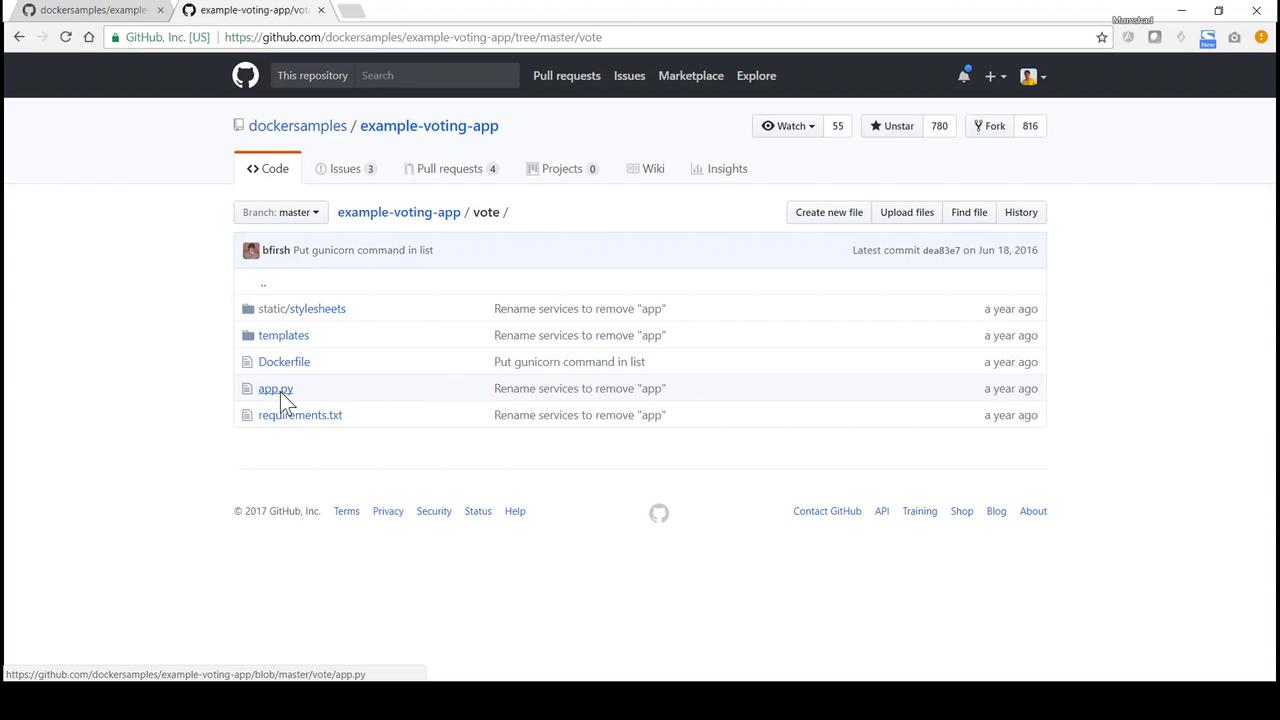
Click on the **vote** directory in the repository to view files such as `app.py` and the `Dockerfile`. This overview helps in understanding how the application components are organized.
Below is a GitHub screenshot showing the repository page for the voting application with files like `Dockerfile` and `app.py`:
***
## The Worker Application
The worker is located in the **worker** folder. This Java-based application connects to Redis and PostgreSQL. It monitors Redis for new votes using a blocking pop operation. When a vote is received, the worker updates the PostgreSQL database.
Here is a snippet of the Java code for the worker:
```java theme={null}
package worker;
import redis.clients.jedis.Jedis;
import redis.clients.jedis.exceptions.JedisConnectionException;
import java.sql.*;
import org.json.JSONObject;
class Worker {
public static void main(String[] args) {
try {
Jedis redis = connectToRedis("redis");
Connection dbConn = connectToDB("db");
System.err.println("Watching vote queue");
while (true) {
String voteJSON = redis.blpop(0, "votes").get(1);
JSONObject voteData = new JSONObject(voteJSON);
String voterID = voteData.getString("voter_id");
String vote = voteData.getString("vote");
System.err.printf("Processing vote for '%s' by '%s'\n", vote, voterID);
updateVote(dbConn, voterID, vote);
}
} catch (SQLException e) {
e.printStackTrace();
System.exit(1);
}
}
static void updateVote(Connection dbConn, String voterID, String vote) throws SQLException {
PreparedStatement insert = dbConn.prepareStatement(
"INSERT INTO votes (id, vote) VALUES (?, ?)");
insert.setString(1, voterID);
insert.setString(2, vote);
insert.executeUpdate();
}
}
```
The corresponding Dockerfile for the worker uses the Microsoft .NET SDK image. It copies the source code, restores dependencies, publishes the application, and sets the startup command.
```dockerfile theme={null}
FROM microsoft/dotnet:1.1.1-sdk
WORKDIR /code
ADD src/Worker /code/src/Worker
RUN dotnet restore -v minimal src/Worker \
&& dotnet publish -c Release -o "./" "src/Worker/"
CMD dotnet src/Worker/Worker.dll
```
Even though the code uses hostnames "redis" and "db" for connectivity, ensure that corresponding containers or network links are available at runtime.
***
## The Results Application
The results application, implemented with Node.js and Express, connects to PostgreSQL to fetch vote counts. It also uses websockets to emit live score updates to client browsers.
Below is an excerpt from its `server.js` file:
```javascript theme={null}
io.sockets.on('connection', function (socket) {
socket.emit('message', { text: 'Welcome!' });
socket.on('subscribe', function (data) {
socket.join(data.channel);
});
});
async.retry(
{ times: 1000, interval: 1000 },
function(callback) {
pg.connect('postgres://postgres@db/postgres', function(err, client, done) {
if (err) {
console.error("Waiting for db");
}
callback(err, client);
});
},
function(err, client) {
if (err) {
return console.error("Giving up");
}
console.log("Connected to db");
getVotes(client);
}
);
function getVotes(client) {
client.query('SELECT vote, COUNT(id) AS count FROM votes GROUP BY vote', [], function(err, result) {
if (err)
console.error("Error performing query: " + err);
else {
var votes = collectVotesFromResult(result);
io.sockets.emit('scores', JSON.stringify(votes));
}
});
}
```
The Dockerfile for the results app is based on a slim Node.js image. It installs dependencies from `package.json`, sets up the working directory, and starts the Node.js server on port 80.
```dockerfile theme={null}
FROM node:5.11.0-slim
WORKDIR /app
RUN npm install -g nodemon
ADD package.json /app/package.json
RUN npm config set registry http://registry.npmjs.org
RUN npm install && npm ls
RUN mv /app/node_modules /node_modules
ADD . /app
ENV PORT 80
EXPOSE 80
CMD ["node", "server.js"]
```
The overall architecture including the results application is illustrated in the following diagram:

***
## Deployment Walkthrough
### Cloning the Repository
Begin by cloning the repository to your local system:
```bash theme={null}
git clone https://github.com/dockersamples/example-voting-app.git
```
Change into the repository directory:
```bash theme={null}
cd example-voting-app
```
### Building and Running the Voting Application
1. Navigate to the **vote** directory to inspect its contents:
```bash theme={null}
cd vote
ls
```
You should see files such as `app.py`, `Dockerfile`, and the directories `static` and `templates`.
2. View the Dockerfile to confirm its contents:
```bash theme={null}
cat Dockerfile
```
3. Build the Docker image for the voting application:
```bash theme={null}
docker build -t voting-app .
```
4. Run the voting application container by mapping host port 5000 to container port 80:
```bash theme={null}
docker run -p 5000:80 voting-app
```
Open your browser and navigate to [http://localhost:5000](http://localhost:5000). You should see two options for casting your vote (for example, “Cats” and “Dogs”). Casting a vote without Redis running may result in a timeout error in the logs.
### Starting Redis
To provide a backend for votes, start a Redis container. If a container named "redis" exists, remove it first:
```bash theme={null}
docker rm redis
```
Launch Redis (detached mode is recommended):
```bash theme={null}
docker run -d --name=redis redis
```
Run the voting application container again while linking to the Redis container:
```bash theme={null}
docker run -p 5000:80 --link redis:redis voting-app
```
With Redis running and linked, casting a vote should successfully store the vote. A confirmation (often indicated by a tick mark) will be visible.
### Deploying PostgreSQL for Worker and Results Applications
The worker and results applications depend on a PostgreSQL database. It is recommended to use PostgreSQL 9.4. If a container named "db" is running, remove it:
```bash theme={null}
docker rm db
```
Start PostgreSQL in detached mode:
```bash theme={null}
docker run -d --name=db postgres:9.4
```
Verify the container is active:
```bash theme={null}
docker ps
```
### Building and Running the Worker Application
1. Navigate to the **worker** directory to inspect the source code and Dockerfile.
2. Build the worker image:
```bash theme={null}
docker build -t worker-app .
```
3. Run the worker container, linking both Redis and the PostgreSQL database:
```bash theme={null}
docker run --link redis:redis --link db:db worker-app
```
The worker will now continuously process votes from Redis and update the PostgreSQL database.
### Building and Running the Results Application
1. Change to the **result** directory:
```bash theme={null}
cd ../result
ls -l
```
2. View the Dockerfile to ensure correctness:
```bash theme={null}
cat Dockerfile
```
3. Build the results application image:
```bash theme={null}
docker build -t result-app .
```
4. Run the results container, linking it to PostgreSQL and mapping host port 5001 to container port 80:
```bash theme={null}
docker run -p 5001:80 --link db:db result-app
```
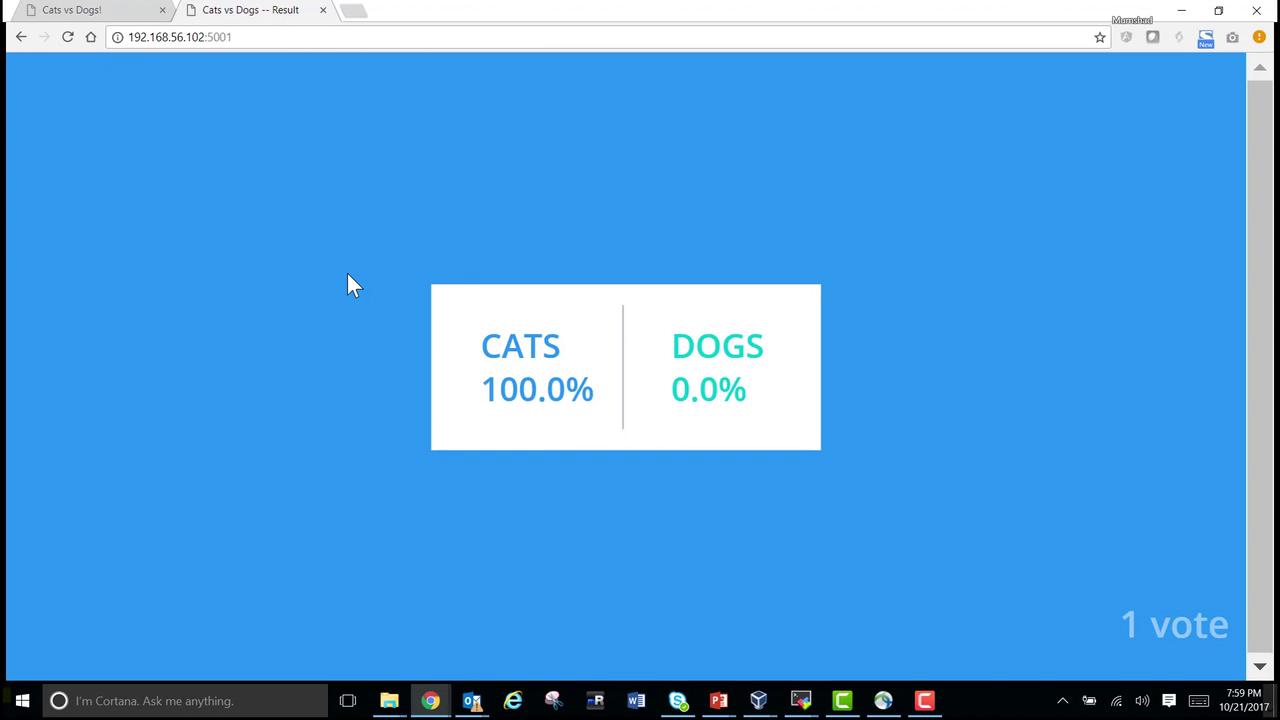
When you open your browser and visit [http://localhost:5001](http://localhost:5001), the results page displays the current vote counts. Any voting change registered by the voting application is processed by the worker and reflected on this page.
Below is an image showing a sample voting result:
***
## Summary
In this guide we have:
* Explored the architecture of the example voting application.
* Reviewed the Flask-based voting app that accepts votes and pushes them to Redis.
* Examined the Java worker which processes votes from Redis and updates PostgreSQL.
* Analyzed the Node.js results app that queries PostgreSQL and displays real-time results.
* Built and deployed each component individually using Docker commands and container linking.
In the next article, we will demonstrate how to orchestrate this multi-container setup with Docker Compose for simplified management.
Happy Dockering!