> ## Documentation Index
> Fetch the complete documentation index at: https://notes.kodekloud.com/llms.txt
> Use this file to discover all available pages before exploring further.
# Demo Docker on Windows
> This guide covers installing Docker on Windows, verifying the installation, and running Linux and Windows containers.
Welcome to this comprehensive guide on using Docker on Windows. In this lesson, you'll learn how to install Docker for Windows, verify the installation, and run both Linux and Windows containers. Follow along to set up your environment and start containerizing your applications effortlessly.
***
## Installing Docker for Windows
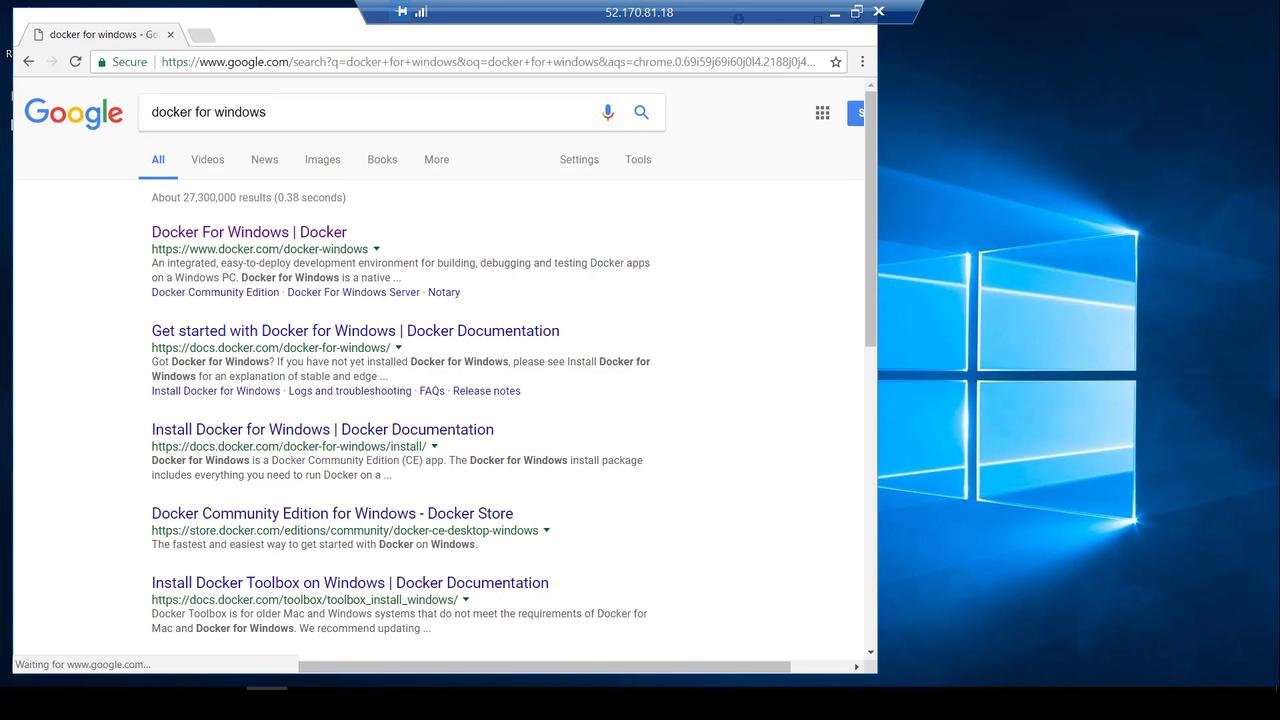
Begin by logging into your Windows Server 2016 system and opening a web browser. Search for "Docker for Windows." The top result should direct you to the Docker Store download page.
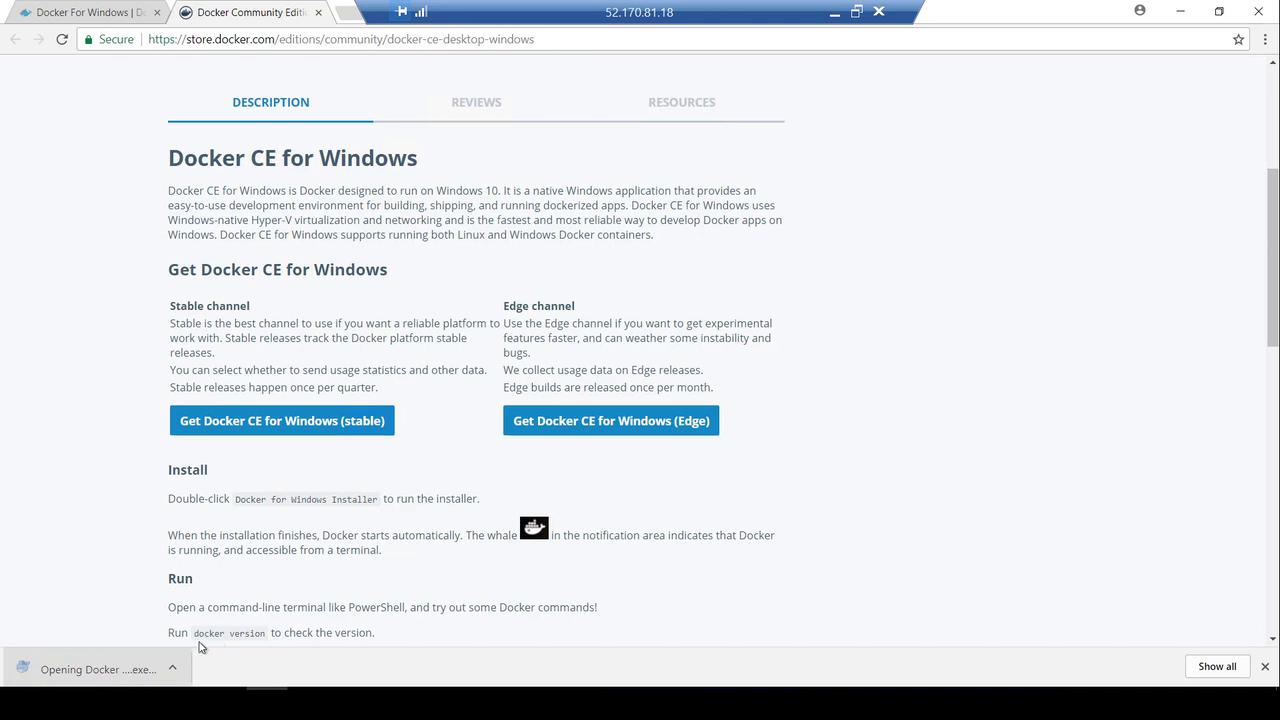
Click on the download link labeled **Get Docker CE for Windows** to initiate the download. Once the download completes, execute the installation package. During the installation process, Docker automatically downloads additional dependencies from the internet and continues with the setup.
After the installation process finishes, a confirmation message appears instructing you to log out to complete the installation.
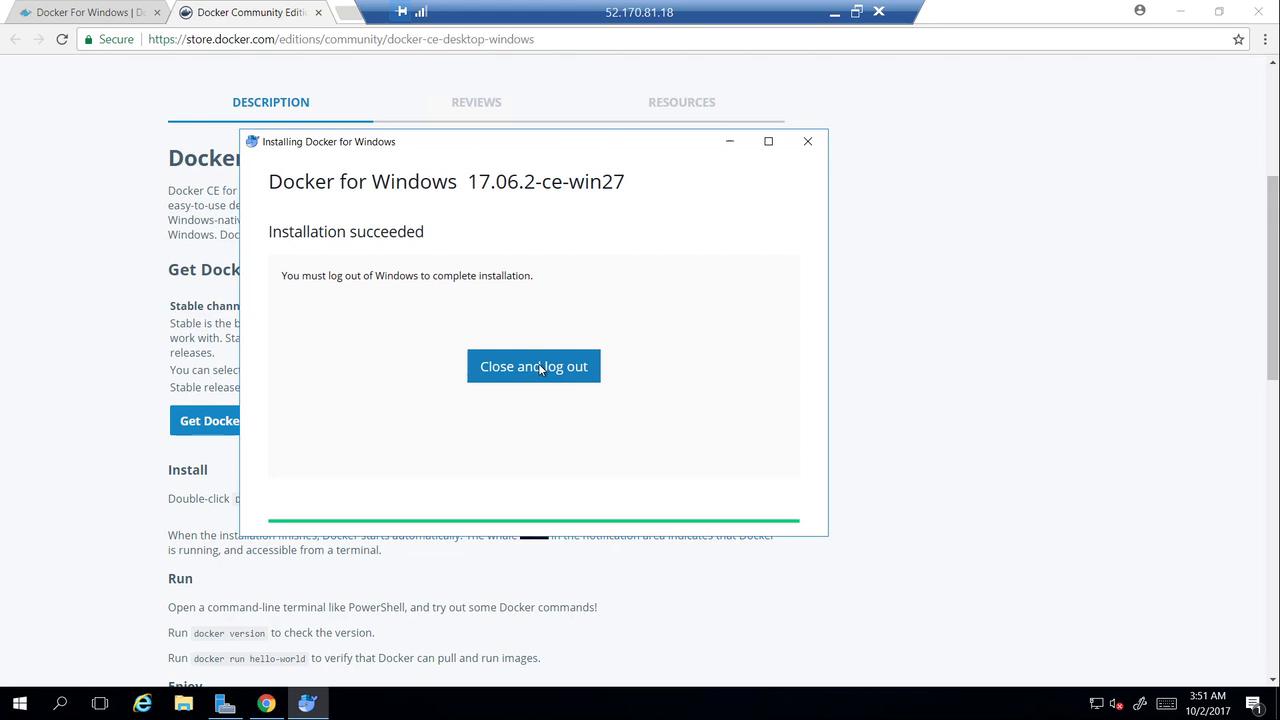
Click **Close** and then log out. After logging back into your system, you will notice a new "Docker for Windows" shortcut on your desktop. Click the shortcut to launch Docker. In the bottom right corner, Docker will start up.
Docker for Windows depends on the Hyper-V feature. If you have not enabled Hyper-V, you will receive a warning. Click **OK** to enable Hyper-V; this will automatically restart your computer.
Once your computer restarts and you log in again, allow Docker to continue starting up. Open a command prompt to verify that Docker is running properly.
***
## Verifying Docker Installation
To confirm your installation, run the following command in a command prompt:
```batch theme={null}
C:\Users\mmumshad>docker version
Client:
Version: 17.06.2-ce
API version: 1.30
Go version: go1.8.3
Git commit: cec0b72
Built: Tue Sep 5 19:57:19 2017
OS/Arch: windows/amd64
error during connect: Get http://%2F.%2Fpipe%2Fdocker_engine/v1.30/version: open //./pipe/docker_engine: The system cannot find the file specified. In the default daemon configuration on Windows, the docker client must be run elevated to connect. This error may also indicate that the docker daemon is not running.
```
Initially, you might encounter an error stating the Docker daemon is not found. This is because the service needs a bit more time to start. Once Docker is running (as indicated by a notification in the bottom right corner), re-run the command:
```batch theme={null}
C:\Users\mmumshad>docker version
Client:
Version: 17.06.2-ce
API version: 1.30
Go version: go1.8.3
Git commit: cec0b7b
Built: Tue Sep 5 19:57:19 2017
OS/Arch: windows/amd64
Server:
Version: 17.06.2-ce
API version: 1.30 (minimum version 1.12)
Go version: go1.8.3
Git commit: cec0b7b
Built: Tue Sep 5 19:59:19 2017
OS/Arch: linux/amd64
Experimental: true
```
Notice that while the client operates on Windows, the server section indicates a Linux OS. This is because Docker for Windows deploys a lightweight Linux virtual machine via Hyper-V to run Linux containers.
***
## Running Linux Containers on Windows
Validate your installation by running the `hello-world` container. This command pulls the "hello-world" image from Docker Hub and executes it inside the Linux virtual machine:
```batch theme={null}
C:\Users\mmumshad>docker run hello-world
```
The output confirms that Docker is functioning correctly:
```text theme={null}
Hello from Docker!
This message shows that your installation appears to be working correctly.
To generate this message, Docker took the following steps:
1. The Docker client contacted the Docker daemon.
2. The Docker daemon pulled the "hello-world" image from the Docker Hub.
3. The Docker daemon created a new container from that image which runs the executable that produces the output you are currently reading.
4. The Docker daemon streamed that output to the Docker client, which sent it to your terminal.
To try something more ambitious, you can run an Ubuntu container with:
$ docker run -it ubuntu bash
```
You can also start an interactive Ubuntu container with:
```batch theme={null}
C:\Users\mmumshad>docker run -it ubuntu bash
```
This confirms that Linux containers are running on your Windows machine through the Linux VM provided by Hyper-V.
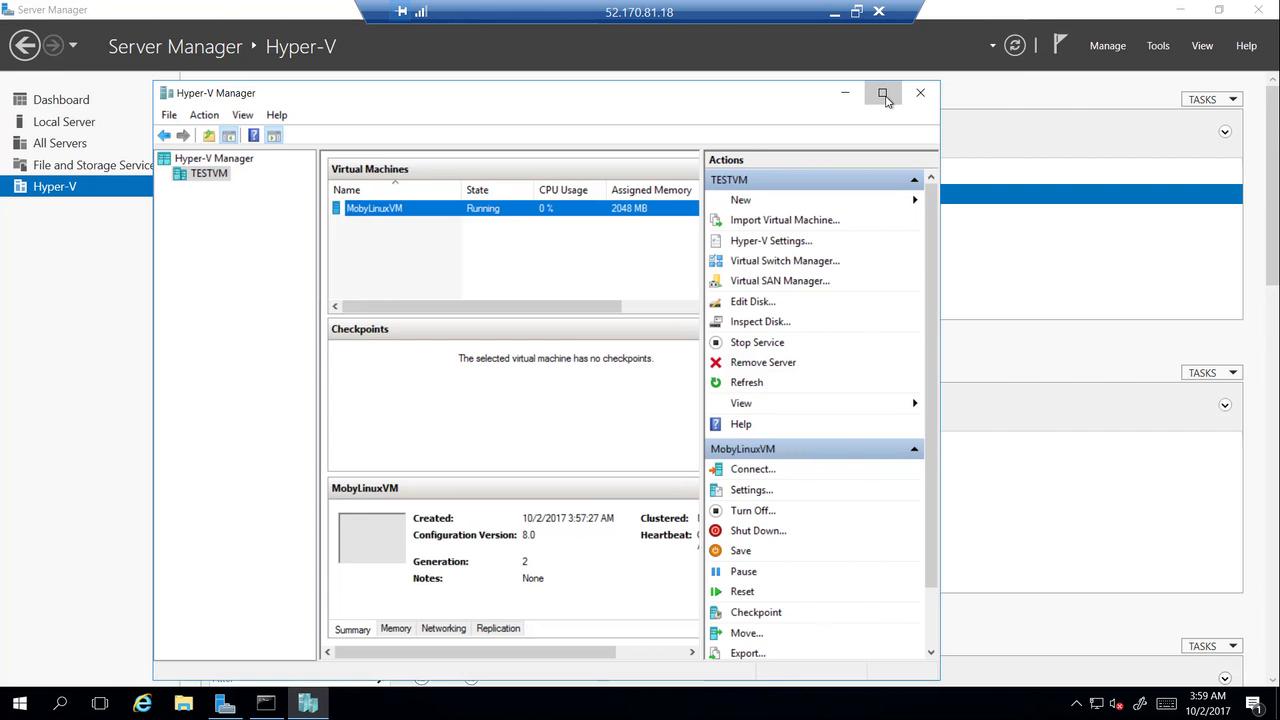
To inspect the Hyper-V deployment, open the Server Manager and navigate to Hyper-V. You should see a test virtual machine, which represents the Linux VM running Docker.

Right-click the test VM and select **Hyper-V Manager** to view additional details.
***
## Switching to Windows Containers
Windows Server 2016 and Windows 10 Professional allow you to run Windows-based containers. To switch from Linux to Windows containers:
1. Right-click the Docker icon in the system tray.
2. Select **Switch to Windows containers**.
A notification will signal that the Containers feature is not enabled. On Windows Server 2016, this feature is built-in, but if it’s disabled, clicking **OK** will enable it and restart your computer.
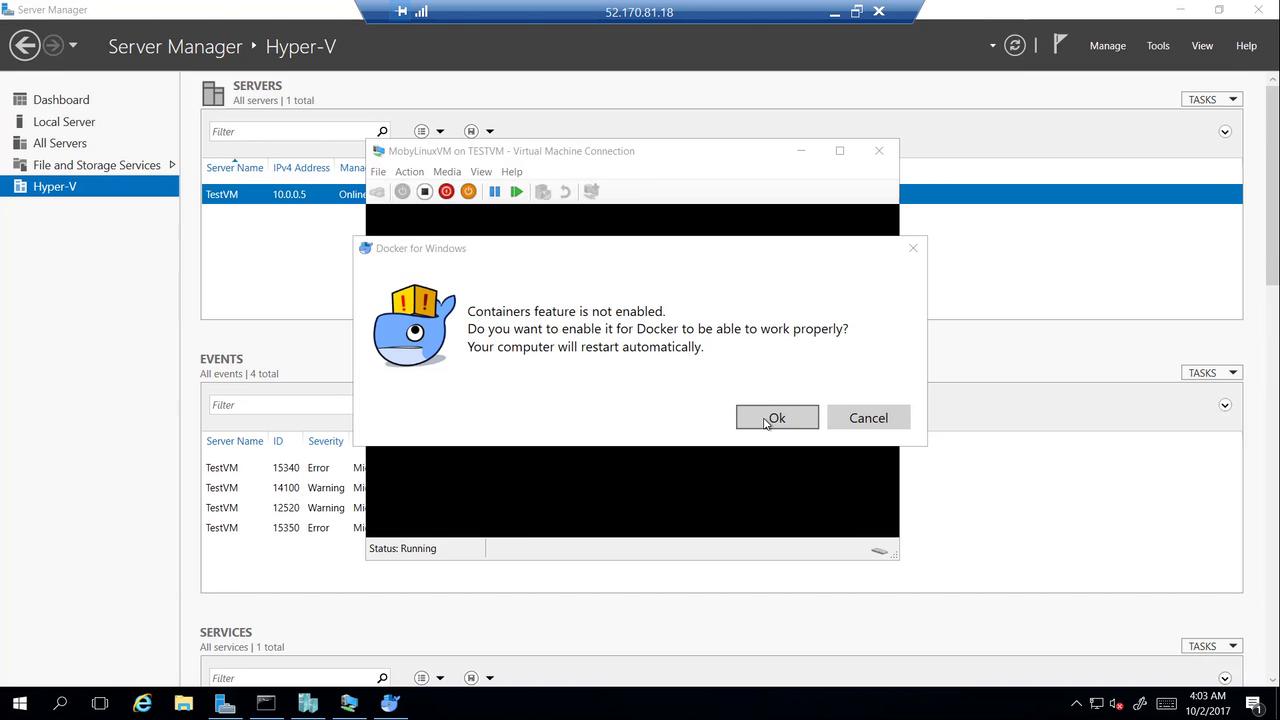
After restarting, open a command prompt again and execute the `docker version` command to verify that both the client and server are now running Windows:
```batch theme={null}
C:\Users\mmumshad>docker version
Client:
Version: [Windows Version]
...
Server:
Version: [Windows Version]
...
```
Test your Windows container setup by running the hello-world container once more:
```batch theme={null}
C:\Users\mmumshad>docker run hello-world
```
Because Windows-based images are generally larger than Linux images, the download and start-up may take a little longer. Once the image is downloaded and executed, you'll see a success message confirming Docker is working with Windows containers. The output may also include an example command to run a Windows Server container:
```batch theme={null}
PS C:\> docker run -it microsoft/windowsservercore powershell
```
This command starts a Windows Server Core container with a PowerShell prompt. You can use this image as a basis for building custom application images for Windows.
To display a list of all running and stopped containers, use the following command:
```batch theme={null}
C:\Users\mmumshad>docker ps -a
CONTAINER ID IMAGE COMMAND CREATED STATUS
5246101d669d2 microsoft/windowsservercore powershell 10/2/2017 4:15 AM Up 15 seconds
acb175d6c39e microsoft/windowsservercore powershell 10/2/2017 4:15 AM Exited (0) 3 minutes ago
69d970fec569 microsoft/windowsservercore powershell 10/2/2017 4:15 AM Up 2 minutes
```
***
## Conclusion
This guide demonstrated the complete process of installing Docker for Windows, verifying the installation, and running both Linux and Windows containers. With Docker set up on your Windows machine, you are ready to explore containerized application development. For further reading:
* [Kubernetes Basics](https://kubernetes.io/docs/concepts/overview/what-is-kubernetes/)
* [Docker Hub](https://hub.docker.com/)
* [Kubernetes Documentation](https://kubernetes.io/docs/)
Happy containerizing, and see you in the next lesson!