> ## Documentation Index
> Fetch the complete documentation index at: https://notes.kodekloud.com/llms.txt
> Use this file to discover all available pages before exploring further.
# Demo Docker Commands
> This article provides a guide on essential Docker commands for running, managing, and removing containers and images.
Welcome to this comprehensive guide on essential Docker commands. In this article, you’ll learn how to run containers, list and remove them, manage images, and pull images from Docker Hub. If you are new to Docker, check out the [official Docker documentation](https://docs.docker.com/) for further reading.
***
## Running Containers with Docker
The Docker run command is used to start a container from a specified image. Below is an example of starting a container:
```bash theme={null}
root@Docker:/root # docker run
```
To explore a variety of available images, visit the [Docker Hub website](https://hub.docker.com/) and click on "Explore". Here, you'll find many official images such as "hello-world", CentOS, Ubuntu, and more.
For instance, to run a CentOS container, use:
```bash theme={null}
root@Docker:/root # docker run centos
Unable to find image 'centos:latest' locally
latest: Pulling from library/centos
74f0853ba93b: Downloading [===============> ] 13.52MB/72.25MB
```
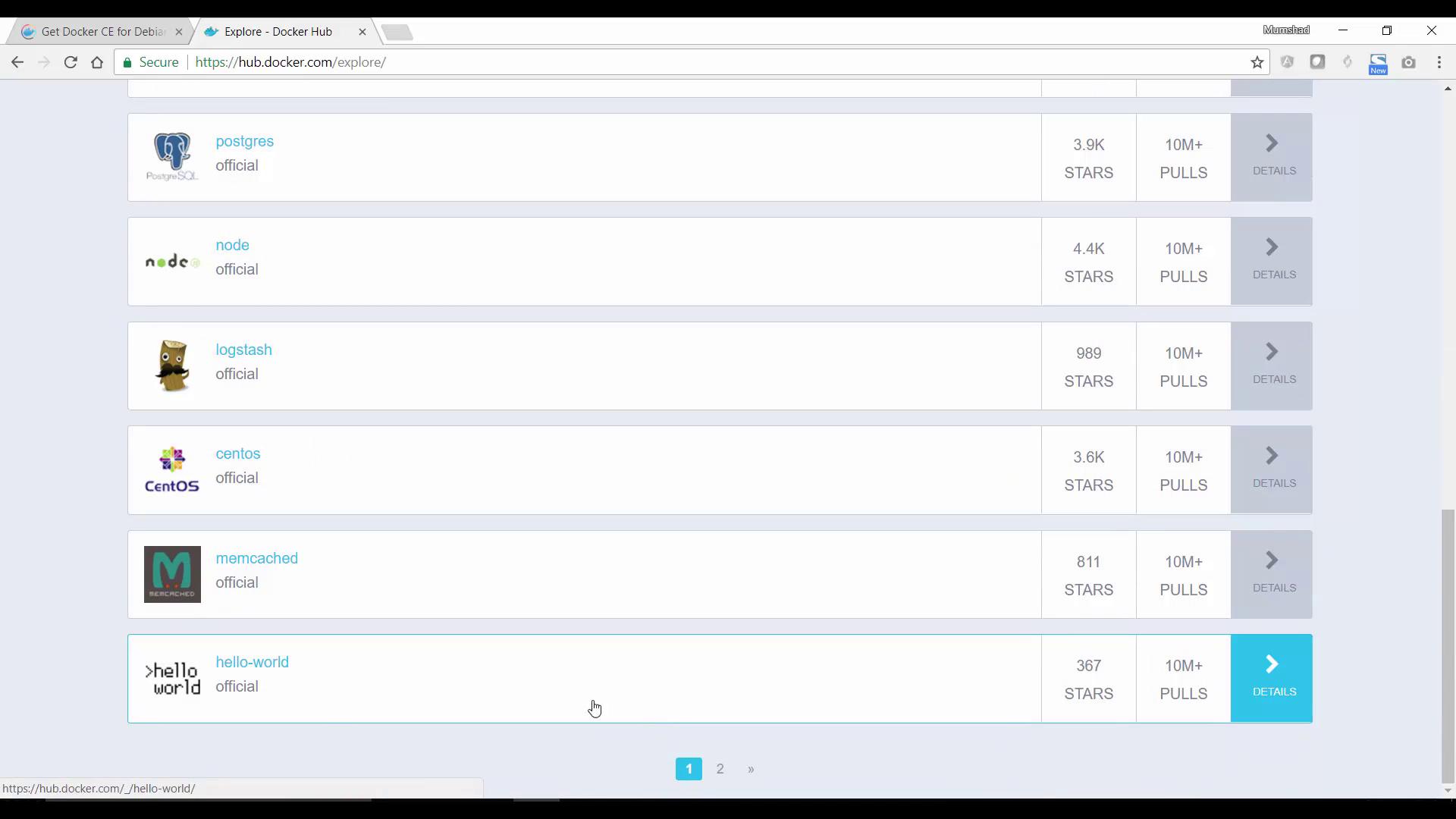
If you have custom images, use the format "username/repository". For example, if your Docker Hub ID is "Mumshad" and you have an image named "ansible-playbook", reference it as "Mumshad/ansible-playbook".
Below is another simulated output showing Docker downloading the image:
```bash theme={null}
root@Docker:/root # docker run centos
Unable to find image 'centos:latest' locally
latest: Pulling from library/centos
74f0853ba93b: Downloading [==================> ] 49.2MB/72.25MB
```
You can explicitly download an image using:
```bash theme={null}
docker pull centos
```
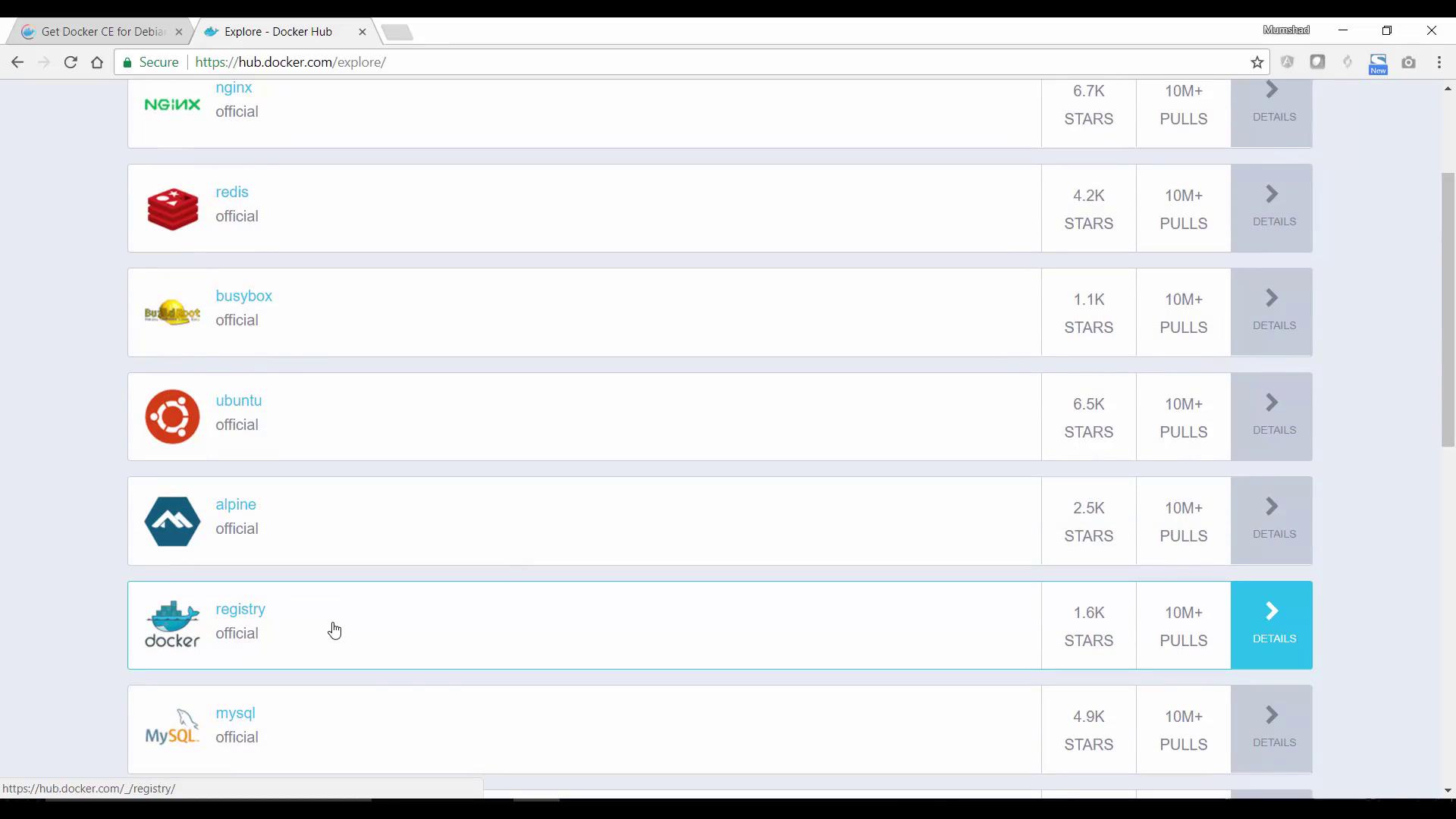
When using a base image like CentOS without specifying a command, the container will exit immediately since there is no process running. To keep the container active, launch it with an interactive shell:
```bash theme={null}
root@Docker:/root # docker run -it centos bash
```
Once inside the container, you can verify the OS by checking the release information:
```bash theme={null}
root@0aelec7e1d3 /# cat /etc/*release*
CentOS Linux release 7.3.1611 (Core)
Derived from Red Hat Enterprise Linux 7.3 (Source)
NAME="CentOS Linux"
VERSION="7 (Core)"
ID="centos"
ID_LIKE="rhel fedora"
VERSION_ID="7"
PRETTY_NAME="CentOS Linux 7 (Core)"
ANSI_COLOR="0;31"
CPE_NAME="cpe:/o:centos:centos:7"
HOME_URL="https://www.centos.org/"
BUG_REPORT_URL="https://bugs.centos.org/"
```
After verifying, simply exit the container.
***
## Listing Running and Exited Containers
To list currently running containers, execute:
```bash theme={null}
root@Docker:/root # docker ps
```
If your interactive CentOS container exited after the session ended, it will not appear in the above list. To view all containers, including those that have exited, use the `-a` flag:
```bash theme={null}
docker ps -a
```
For example, after starting a CentOS container with a sleep command:
```bash theme={null}
root@Docker:/root # docker run centos sleep 20
```
You can run this command in the background using the `-d` flag:
```bash theme={null}
root@Docker:/root # docker run -d centos sleep 20
```
Now, view the list of running containers:
```bash theme={null}
root@Docker:/root # docker ps
CONTAINER ID IMAGE COMMAND CREATED STATUS PORTS NAMES
62bbd3c98f08 centos "sleep 20" 7 seconds ago Up 6 seconds flamboyant_noyce
```
Since the container will exit after the sleep duration, re-checking with `docker ps` later will show that it has stopped. To confirm the status of all containers, including exited ones, run:
```bash theme={null}
docker ps -a
```
Containers will display exit codes indicating their termination status (e.g., 0 for normal exit, 137 for forceful termination).
***
## Removing Containers
Cleanup unused containers using the `docker rm` command. You can remove a container by its specific ID or name.
To remove a container with a specific ID:
```bash theme={null}
docker rm 1619625d7f5a
```
You can also remove multiple containers by providing parts of their IDs or names:
```bash theme={null}
docker rm 345 e0a 773
```
Below is a sample session demonstrating container removal:
```bash theme={null}
root@Docker:/root # docker rm nervous_tesla
root@Docker:/root # docker ps -a
CONTAINER ID IMAGE COMMAND CREATED STATUS PORTS NAMES
5d5b09577c30 centos "sleep 2000" 2 minutes ago Exited (137) About a minute ago sere
62bbd3c98f08 centos "sleep 20" 5 minutes ago Exited (0) 5 minutes ago flam
root@Docker:/root # docker rm 345 e0a 773
345
e0a
773
root@Docker:/root # docker ps -a
CONTAINER ID IMAGE COMMAND CREATED STATUS PORTS NAMES
5d5b09577c30 centos "sleep 2000" 2 minutes ago Exited (137) About a minute ago sere
62bbd3c98f08 centos "sleep 20" 5 minutes ago Exited (0) 5 minutes ago flam
```
***
## Managing Docker Images
Throughout your Docker sessions, you might have pulled several images such as hello-world, ubuntu, and centos. To list all locally available images, run:
```bash theme={null}
root@Docker:/root # docker images
REPOSITORY TAG IMAGE ID CREATED SIZE
busybox latest d20ae45477cb Less than a second ago 1.13MB
ubuntu latest ccc7a11d65b1 9 days ago 120MB
centos latest 328edc84f1b 2 weeks ago 193MB
hello-world latest 1815c82652c0 2 months ago 1.84kB
```
To remove an image, use the `docker rmi` command. For example, remove the busybox image with:
```bash theme={null}
root@Docker:/root # docker rmi busybox
Untagged: busybox:d20a45477cbc98f3f111d0cdff28ef406ce2e2020ef971b14e4efc0
Deleted: sha256:b82b57400c1cab8235962c07f81084ecd32fd25807207b99f52a3cb8692
Deleted: sha256:26742d9d02d698f5696ca4dc4cbe87145d47e3bf6feea4025ab28f240f2
```
Similarly, remove the Ubuntu image with:
```bash theme={null}
root@Docker:/root # docker rmi ubuntu
Untagged: ubuntu:latest
Untagged: ubuntu@sha256:344714871495f9e84096d37580d12b0e67b1a77fd6155ce001edad
Deleted: sha256:ccc7a1d65b1785dab6a1c0c70119675476943d9cc95fae798
...
```
If an image is being used by an existing container (even if stopped), Docker will not remove it. In such cases, remove the dependent containers using `docker rm -f` before attempting to delete the image.
To remove a CentOS image used by a container, first delete all associated containers and then run:
```bash theme={null}
root@Docker:/root # docker rmi centos
Untagged: centos:latest
Untagged: centos@sha256:b362758f4793674edb79ec5c7192074b2eacf200c006e127069856484526ccf2
Deleted: sha256:b362758f4793674edb79ec5c7192074b2eacf200c006e127069856484526ccf2
```
After cleanup, you might only be left with the "centos" and "hello-world" images, which you can remove in a similar manner.
***
## Pulling Docker Images
While the Docker run command pulls missing images automatically, you can download an image without starting a container using the `docker pull` command. For example, to pull the Ubuntu image, run:
```bash theme={null}
root@Docker:/root# docker pull ubuntu
Using default tag: latest
latest: Pulling from library/ubuntu
d5c6f90da05d: Downloading [==========================>]
1300883d87d5: Download complete
c220aa3cfc1b: Download complete
2e9398f099dc: Download complete
dc27a084064f: Download complete
```
After pulling the image, verify its presence:
```bash theme={null}
root@Docker:/root# docker images
REPOSITORY TAG IMAGE ID CREATED SIZE
ubuntu latest ccc7a11d65b1 9 days ago 120MB
```
***
## Running Containers in Detached Mode and Executing Commands
To run containers in the background, use the `-d` (detached) flag. For instance, to run an Ubuntu container that sleeps for 100 seconds:
```bash theme={null}
root@Docker:/root # docker run -d ubuntu sleep 100
```
Then, check the container’s status with:
```bash theme={null}
root@Docker:/root # docker ps
CONTAINER ID IMAGE COMMAND CREATED STATUS PORTS NAMES
cla19d3a7ca70 ubuntu "sleep 100" 7 seconds ago Up 6 seconds suspicious_neumann
```
To execute commands on a running container, use `docker exec`. For example, viewing the OS release information inside the Ubuntu container:
```bash theme={null}
root@Docker:/root # docker exec c1a9d3a7ca7 cat /etc/*release*
NAME="Ubuntu"
VERSION="16.04.3 LTS (Xenial Xerus)"
ID=ubuntu
ID_LIKE=debian
PRETTY_NAME="Ubuntu 16.04.3 LTS"
VERSION_ID="16.04"
HOME_URL="http://www.ubuntu.com/"
SUPPORT_URL="http://help.ubuntu.com/"
BUG_REPORT_URL="http://bugs.launchpad.net/ubuntu/"
VERSION_CODENAME=xenial
UBUNTU_CODENAME=xenial
```
***
## Conclusion
In this guide, we explored basic Docker commands that help you run containers both interactively and in detached mode, list running and stopped containers, remove containers and images, and pull images from Docker Hub. Experiment with these commands to enhance your Docker skills and master container management.
For more detailed technical resources, consider these references:
* [Kubernetes Basics](https://kubernetes.io/docs/concepts/overview/what-is-kubernetes/)
* [Docker Hub](https://hub.docker.com/)
* [Terraform Registry](https://registry.terraform.io/)
Happy Dockering and see you in the next article!