> ## Documentation Index
> Fetch the complete documentation index at: https://notes.kodekloud.com/llms.txt
> Use this file to discover all available pages before exploring further.
# Demo Docker Compose
> This article explores upgrading a Docker Compose file to version 3, highlighting configuration improvements and enhanced networking features.
In this article, we’ll explore an enhanced version of a Docker Compose file, showcasing improvements over the original version. This guide details the migration from an older, simpler version of the Compose file to a more advanced version 3 format, enabling better configuration and robust networking features.
## Original Docker Compose Configuration
Below is the initial Docker Compose setup:
```yaml theme={null}
redis:
image: redis
db:
image: postgres:9.4
vote:
image: voting-app
ports:
- 5000:80
links:
- redis
worker:
image: worker-app
links:
- db
- redis
result:
image: result-app
ports:
- 5001:80
links:
- db
```
Previously, we demonstrated a very basic, version 1 Docker Compose file. While the older format is straightforward, it lacks support for advanced features. Therefore, we will upgrade the configuration to version 3.
## Upgrading to Docker Compose Version 3
Below is an updated Compose file reflecting the changes to version 3 and a modification to the port for the result service:
```yaml theme={null}
redis:
image: redis
db:
image: postgres:9.4
vote:
image: voting-app
ports:
- 5000:80
links:
- redis
worker:
image: worker-app
links:
- db
- redis
result:
image: result-app
ports:
- 5011:80
links:
- db
```
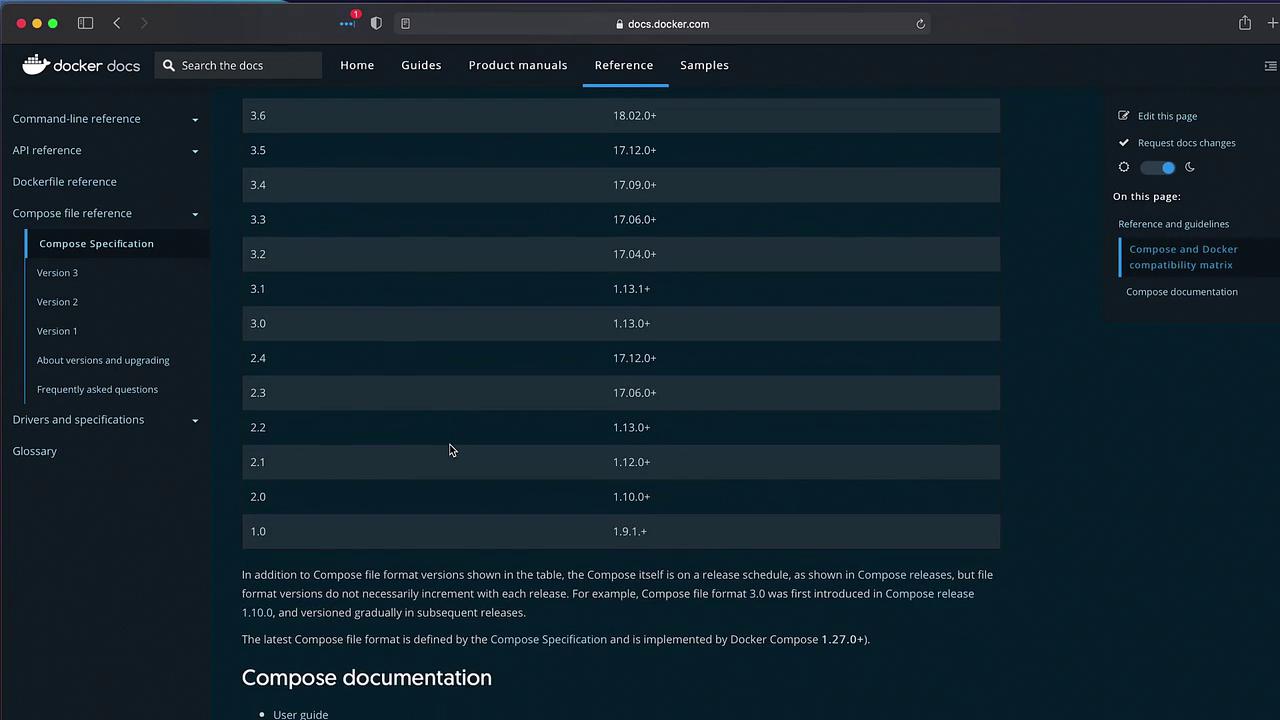
For more details on the differences between Docker Compose file versions, consult the [Docker Documentation](https://docs.docker.com/compose/compose-file/). Although a compatibility matrix is available in the documentation, this article focuses on real-world changes, so no visual diagram is provided.
## Organizing Configuration with the Services Section
In version 3, migrate all configuration settings under a top-level `services` section. For example, when using version 3.9, your Docker Compose file might look like this:
```yaml theme={null}
version: "3.9"
services:
webapp:
build: ./dir
```
With more advanced options, you can specify the build context and Dockerfile explicitly:
```yaml theme={null}
version: "3.9"
services:
webapp:
build:
context: ./dir
dockerfile: Dockerfile-alternate
args:
buildno: 1
```
If you initially had a simplified build configuration like:
```yaml theme={null}
build: ./dir
image: webapp:tag
```
…remember to nest it within the services section along with the version declaration.
### Updated Docker Compose File with Services Section
The following updated Docker Compose file demonstrates these changes by specifying the version and nesting all service definitions under the services key. In Visual Studio Code, simply indent your existing service definitions under `services:`.
```yaml theme={null}
version: '3'
services:
redis:
image: redis
db:
image: postgres:9.4
vote:
image: voting-app
ports:
- 5000:80
worker:
image: worker-app
result:
image: result-app
ports:
- 5001:80
```
With Docker Compose version 3, a default network is automatically created for all services. This allows containers to communicate using service names (e.g., the vote service can reach redis or db simply by their names). Consequently, the explicit `links` section is no longer necessary.
## Deploying the Application
Once you’ve updated your Compose file, deploy your application using the `docker-compose up` command. If your Docker Compose file resides in a directory named "code", the directory name is used as the project name:
```bash theme={null}
admin@docker-host $ docker-compose up
WARNING: The Docker Engine you're using is running in swarm mode.
Compose does not use swarm mode to deploy services to multiple nodes in a swarm. All containers will be scheduled on the current node.
To deploy your application across the swarm, use `docker stack deploy`.
Creating network "code_default" with the default driver
Creating code_worker_1 ... done
Creating code_redis_1 ... done
Creating code_result_1 ... done
Creating code_db_1 ... done
Creating code_vote_1 ... done
```
Below is the final version of our Docker Compose file without the obsolete links:
```yaml theme={null}
version: "3"
services:
redis:
image: redis
db:
image: postgres:9.4
vote:
image: voting-app
ports:
- 5000:80
worker:
image: worker-app
result:
image: result-app
ports:
- 5001:80
```
The Docker Compose process creates objects like networks and containers with names prefixed by the project name (in this case, "code"). For example, the network is named "code\_default" and the containers follow a similar nomenclature (e.g., "code\_worker\_1").
## Handling Database Connection Issues
At deployment, you might encounter errors such as "no such device or address" or "waiting for DB" in the logs. These indicate that the worker and result services are having trouble connecting to the PostgreSQL database. This issue occurs because the PostgreSQL image now requires a default superuser password via the POSTGRES\_PASSWORD environment variable.
To address this, update the DB service by adding the necessary environment variables. The configuration below sets `POSTGRES_USER` and `POSTGRES_PASSWORD` to "postgres" for consistency:
```yaml theme={null}
version: "3"
services:
redis:
image: redis
db:
image: postgres:9.4
environment:
POSTGRES_USER: postgres
POSTGRES_PASSWORD: postgres
vote:
image: voting-app
ports:
- 5000:80
worker:
image: worker-app
result:
image: result-app
ports:
- 5001:80
```
After applying these changes, run the `docker-compose up` command again. With the corrected configuration, all services should start without issue.
## Testing the Application
You can now verify the setup by accessing the voting app at [http://localhost:5000](http://localhost:5000) and viewing the results app on port 5001. When you cast a vote for "cats," the results should immediately update to show 100% for cats. Changing your vote to "dogs" should prompt a similar update, confirming that the configuration is correct and the Docker Compose file is working as intended.
That’s it for this lesson. Happy Dockering, and see you in the next article!