> ## Documentation Index
> Fetch the complete documentation index at: https://notes.kodekloud.com/llms.txt
> Use this file to discover all available pages before exploring further.
# Demo Example Voting Application with Docker Compose
> This tutorial teaches how to deploy a multi-container voting application using Docker Compose.
Welcome to this lesson on Docker Compose! In this tutorial, you will learn how to deploy a multi-container application stack using a simple voting application example. This guide is ideal for anyone looking to understand the practical usage of Docker Compose in orchestrating various services.
Before diving in, note that Docker Compose is not installed by default when you install Docker. You must install it separately. For detailed installation steps for macOS, Windows, and Linux, please refer to the [Docker documentation](https://docs.docker.com/compose/install/).
## Installing Docker Compose on Linux
Since this demonstration is executed on a Linux environment, follow these steps to install Docker Compose:
1. Download the Docker Compose binary using curl:
```bash theme={null}
sudo curl -L "https://github.com/docker/compose/releases/download/1.16.1/docker-compose" -o /usr/local/bin/docker-compose
```
2. Set the executable permissions:
```bash theme={null}
sudo chmod +x /usr/local/bin/docker-compose
```
3. Verify the installation by checking the version:
```bash theme={null}
docker-compose --version
# Output:
# docker-compose version 1.16.1, build 1719ceb
```
At this point, Docker Compose is installed and ready to use.
***
## Creating the Docker Compose File
The next step is to set up your Docker Compose file for our application. This example deploys the following services:
* **redis**: the caching database
* **db**: the PostgreSQL database
* **vote**: the voting application
* **worker**: the background worker process
* **result**: the results viewer
### Step 1: Create the File
Start by creating and writing to the Docker Compose file:
```bash theme={null}
cat > docker-compose.yml
```
### Step 2: Define the Service Configuration
Open the file for editing using your preferred text editor:
```bash theme={null}
vi docker-compose.yml
```
Within this file, add your service definitions under the root level. A sample Docker Compose file is provided below:
```yaml theme={null}
redis:
image: redis
db:
image: postgres:9.4
vote:
image: voting-app
ports:
- "5000:80"
worker:
image: worker-app
result:
image: result-app
ports:
- "5001:80"
```
In this configuration:
* The **redis** service uses the official Redis image.
* The **db** service uses PostgreSQL version 9.4.
* The **vote** service deploys the voting application, mapping port 5000 on the host to port 80 in the container.
* The **worker** service processes background tasks.
* The **result** service displays the outcome, mapping port 5001 on the host to port 80 in the container.
For seamless service communication, ensure you configure links (if necessary) to associate the voting app with Redis and the PostgreSQL database.
Save your changes once the configurations are complete.
### Step 3: Check Running Containers
After saving your changes, you can inspect the running containers with:
```bash theme={null}
docker ps
```
If you encounter an error such as:
```bash theme={null}
docker-compose up
# Output:
# -bash: docker-compose: command not found
```
You may need to install Docker Compose using `apt-get`:
```bash theme={null}
apt-get install docker-compose
```
If the package is not found via apt-get, use curl as demonstrated earlier.
***
## Deploying the Application Stack
With your Docker Compose file configured, start the application stack by executing:
```bash theme={null}
docker-compose up
```
As Docker Compose creates the containers, you will see output similar to:
```bash theme={null}
root@Docker_Host_2:/root # docker-compose up
Creating root_redis_1 ... done
Creating root_db_1 ... done
Creating root_vote_1 ... done
Creating root_result_1 ...
Creating root_worker_1 ...
```
*Note:* The container names are prefixed with the name of your current directory (e.g., "root").
### Viewing Log Output
The log output will display the initialization process for each service. For instance, during the setup of the PostgreSQL database, you might see:
```text theme={null}
waiting for server start...LOG: could not bind IPv6 socket: Cannot assign requested address
HINT: Is another postmaster already running on port 5432? If not, wait a few seconds and retry.
LOG: database system was shut down at 2017-08-20 21:56:07 UTC
LOG: MultiXact member wraparound protections are now enabled
LOG: autovacuum launcher started
Waiting for db
done
server started
ALTER ROLE
...
Connected to db
ERROR: relation "votes" does not exist at character 38
STATEMENT: SELECT vote, COUNT(id) AS count FROM votes GROUP BY vote
Error performing query: error: relation "votes" does not exist
Connected to db
Found redis at 172.17.0.2
Connecting to redis
```
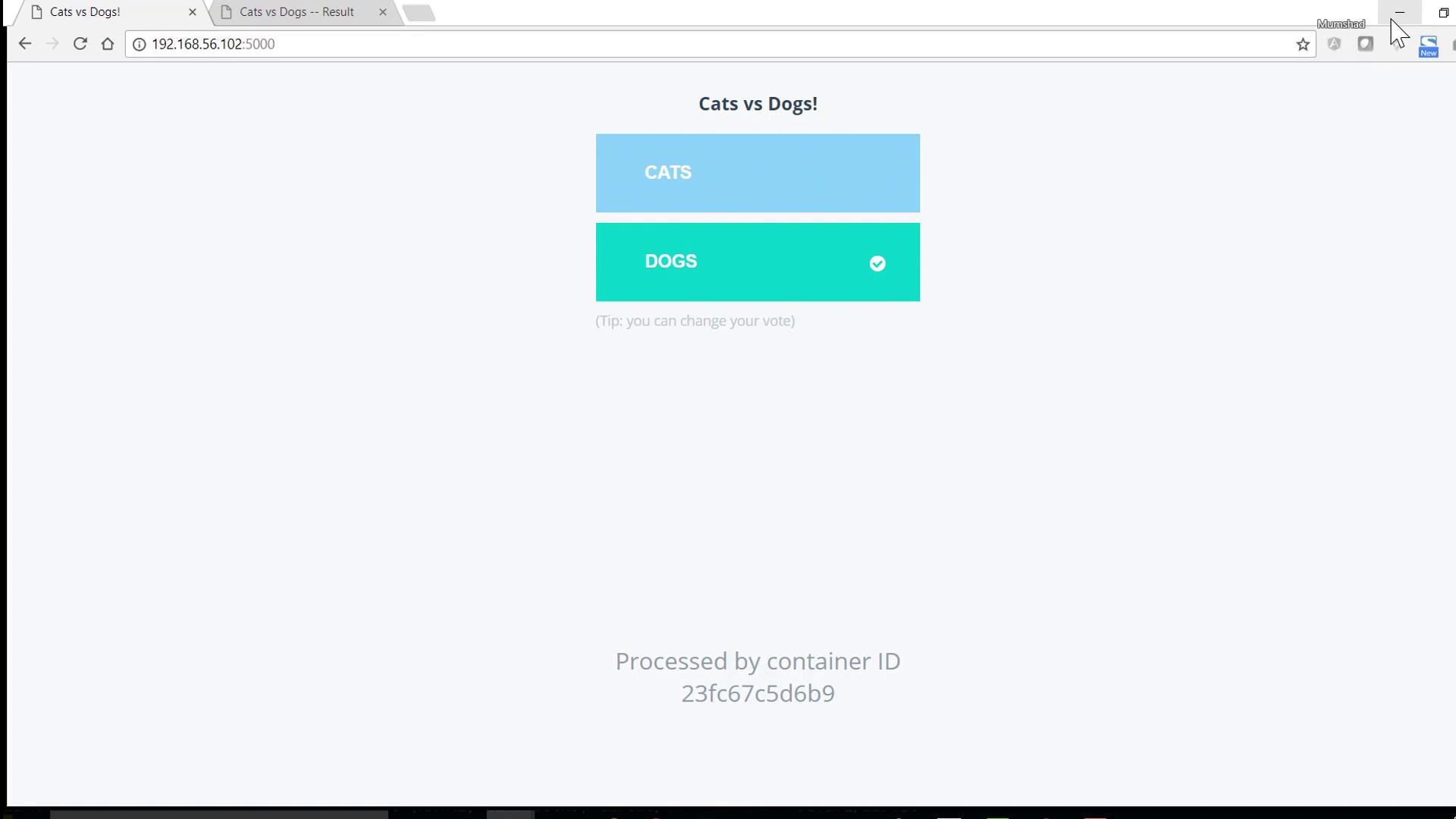
These messages confirm that the containers are in the process of booting up. Once you see all containers running, you can access the voting application and results page; cast a vote and view the outcome.
Before deploying a new stack, always ensure that no unnecessary containers are running by stopping them. You can verify this by running:
```bash theme={null}
docker ps
```
***
## Conclusion
Thank you for following along with this Docker Compose tutorial. You now have a solid understanding of how to use Docker Compose to deploy a multi-container application stack. For more information on Docker Compose and container orchestration, be sure to explore more resources in the Docker documentation.