> ## Documentation Index
> Fetch the complete documentation index at: https://notes.kodekloud.com/llms.txt
> Use this file to discover all available pages before exploring further.
# Getting started with Docker
> Introduction to Docker installation, verification, basic commands, and getting started on Linux
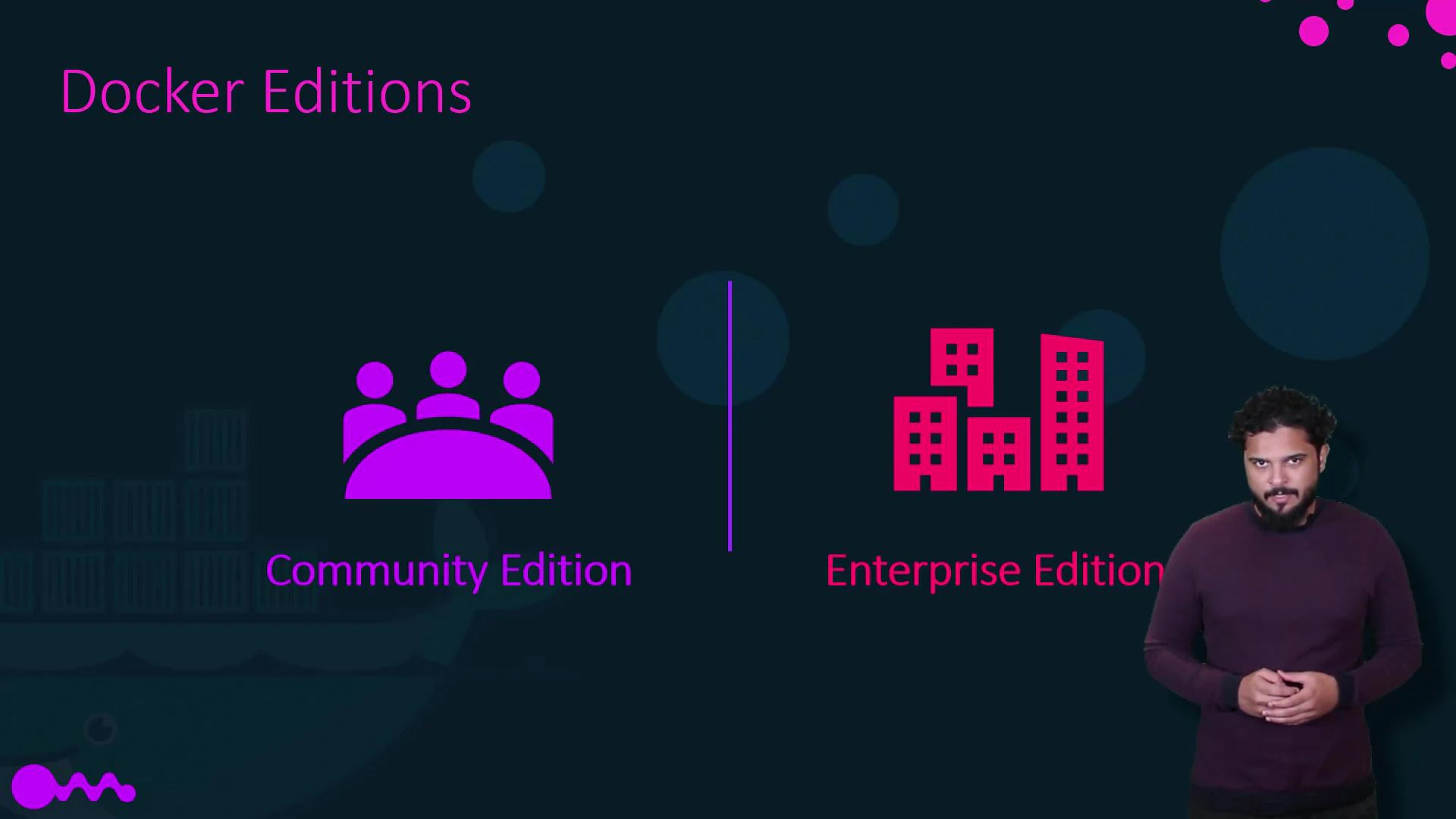
This lesson introduces Docker and walks through installing and verifying Docker on a Linux system. We'll focus on Docker's Community Edition (Docker Engine and Docker Desktop for development), which is the free, open-source distribution used by most developers and learners. Enterprise-grade, paid offerings (historically called Enterprise Edition) are available from vendors and include additional management and security features.
Why this matters: Docker containers let you package applications and their dependencies consistently across environments, which simplifies development, testing, and deployment.
## Docker Editions: Community vs Enterprise
| Edition | Typical use case | Key differences |
| ---------------------------------: | ---------------------------------------------------------------------------- | ------------------------------------------------------------------------------------------ |
| Community Edition | Local development, CI pipelines, learning | Free and open-source, available for Linux, macOS, Windows |
| Enterprise (historical/commercial) | Production environments needing vendor support, policy, and image governance | Paid support, advanced image management, enterprise controls (offered via vendor products) |
For this course we'll use the Community Edition and demonstrate installation and basic commands on Linux.
 ## Platforms and how to follow along
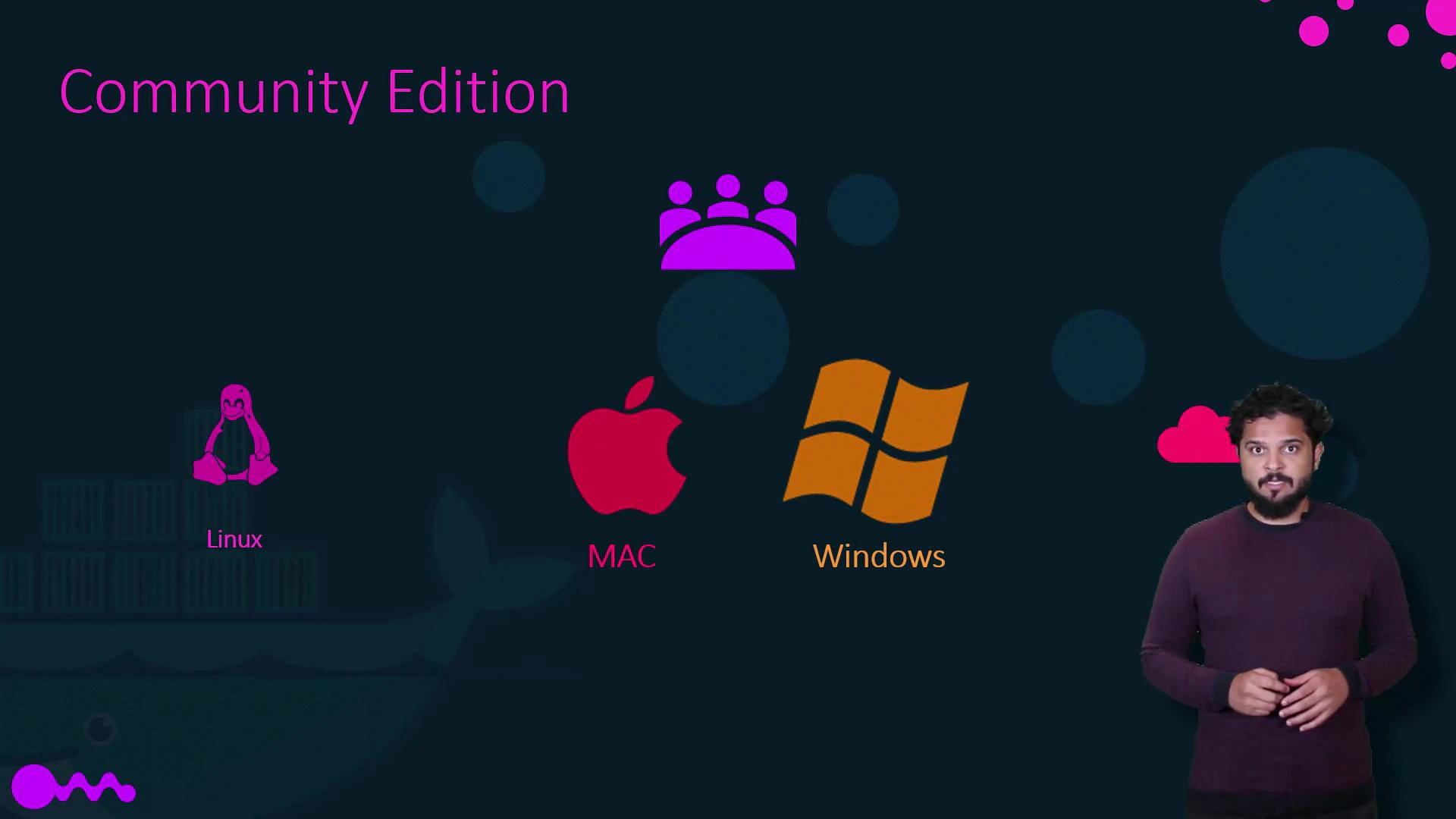
Docker Community Edition runs on Linux, macOS, and Windows and is also available on cloud platforms (AWS, Azure, GCP). In this course demo we install Docker on a Linux distribution and run basic containers. If you use macOS or Windows, two common ways to follow along are:
1. Create and use a Linux virtual machine (for example with VirtualBox) and install Docker inside that VM — this matches the Linux environment used in the demo.
2. Install Docker Desktop for macOS or Docker Desktop for Windows for a native, integrated Docker experience on those platforms.
If you choose Docker Desktop on Windows, modern setups typically use WSL2 (Windows Subsystem for Linux 2) to provide a lightweight integrated Linux kernel. Review the [Docker Desktop documentation](https://docs.docker.com/desktop/) and [Microsoft WSL docs](https://learn.microsoft.com/windows/wsl/) for prerequisites and recommended configuration.
## Platforms and how to follow along
Docker Community Edition runs on Linux, macOS, and Windows and is also available on cloud platforms (AWS, Azure, GCP). In this course demo we install Docker on a Linux distribution and run basic containers. If you use macOS or Windows, two common ways to follow along are:
1. Create and use a Linux virtual machine (for example with VirtualBox) and install Docker inside that VM — this matches the Linux environment used in the demo.
2. Install Docker Desktop for macOS or Docker Desktop for Windows for a native, integrated Docker experience on those platforms.
If you choose Docker Desktop on Windows, modern setups typically use WSL2 (Windows Subsystem for Linux 2) to provide a lightweight integrated Linux kernel. Review the [Docker Desktop documentation](https://docs.docker.com/desktop/) and [Microsoft WSL docs](https://learn.microsoft.com/windows/wsl/) for prerequisites and recommended configuration.
 ## Linux installation (demo)
Below is a concise, commonly used approach to install Docker Engine on Debian/Ubuntu-based systems. Adjust package manager commands for other distributions (yum/dnf for RHEL/CentOS/Fedora, zypper for SUSE, etc.). Always consult the official Docker docs for the latest, OS-specific instructions: [https://docs.docker.com/engine/install/](https://docs.docker.com/engine/install/)
1. Update package lists and install packages to allow apt to use a repository over HTTPS:
```bash theme={null}
sudo apt-get update
sudo apt-get install -y ca-certificates curl gnupg lsb-release
```
2. Add Docker’s official GPG key and set up the stable repository:
```bash theme={null}
curl -fsSL https://download.docker.com/linux/ubuntu/gpg | sudo gpg --dearmour -o /usr/share/keyrings/docker-archive-keyring.gpg
echo \
"deb [arch=$(dpkg --print-architecture) signed-by=/usr/share/keyrings/docker-archive-keyring.gpg] \
https://download.docker.com/linux/ubuntu \
$(lsb_release -cs) stable" | sudo tee /etc/apt/sources.list.d/docker.list > /dev/null
```
3. Install Docker Engine:
```bash theme={null}
sudo apt-get update
sudo apt-get install -y docker-ce docker-ce-cli containerd.io
```
4. Optionally, add your user to the docker group so you can run docker without sudo (log out and back in after this):
```bash theme={null}
sudo usermod -aG docker $USER
```
Note: If you prefer not to add your user to the docker group, prefix Docker commands with sudo.
## Verify the installation
Run these commands to confirm Docker is installed and running:
* Check Docker version and server/client info:
```bash theme={null}
docker version
docker info
```
* Run the official hello-world image to validate runtime:
```bash theme={null}
docker run hello-world
```
Expected: The hello-world container will run, print a confirmation message, and exit.
* List running containers (none after hello-world finishes) and all containers:
```bash theme={null}
docker ps
docker ps -a
```
## Basic Docker commands cheat sheet
| Task | Command |
| ----------------------- | ------------------------------- |
| Run a container | `docker run --rm -it imagename` |
| List running containers | `docker ps` |
| List all containers | `docker ps -a` |
| List images | `docker images` |
| Stop a container | `docker stop ` |
| Remove a container | `docker rm ` |
| Remove an image | `docker rmi ` |
Example: Run an interactive Ubuntu container
```bash theme={null}
docker run --rm -it ubuntu bash
# inside container now; exit to stop and remove
```
## Next steps
After installation and verification, try:
* Building a simple Dockerfile and image:
```dockerfile theme={null}
# Example Dockerfile
FROM alpine:latest
CMD ["echo", "Hello from my image"]
```
Build and run:
```bash theme={null}
docker build -t my-hello .
docker run --rm my-hello
```
* Exploring networking with `docker run -p` to expose ports.
* Learning image layering and how to optimize Dockerfiles.
## Links and references
* Docker Engine installation guides: [https://docs.docker.com/engine/install/](https://docs.docker.com/engine/install/)
* Docker Desktop (macOS & Windows): [https://docs.docker.com/desktop/](https://docs.docker.com/desktop/)
* WSL2 (Windows Subsystem for Linux): [https://learn.microsoft.com/windows/wsl/](https://learn.microsoft.com/windows/wsl/)
* VirtualBox (VM option for macOS/Windows): [https://www.virtualbox.org/](https://www.virtualbox.org/)
This completes the basic getting-started flow. In the next lesson we'll build a Dockerfile, create an image, and run a multi-container example.
## Linux installation (demo)
Below is a concise, commonly used approach to install Docker Engine on Debian/Ubuntu-based systems. Adjust package manager commands for other distributions (yum/dnf for RHEL/CentOS/Fedora, zypper for SUSE, etc.). Always consult the official Docker docs for the latest, OS-specific instructions: [https://docs.docker.com/engine/install/](https://docs.docker.com/engine/install/)
1. Update package lists and install packages to allow apt to use a repository over HTTPS:
```bash theme={null}
sudo apt-get update
sudo apt-get install -y ca-certificates curl gnupg lsb-release
```
2. Add Docker’s official GPG key and set up the stable repository:
```bash theme={null}
curl -fsSL https://download.docker.com/linux/ubuntu/gpg | sudo gpg --dearmour -o /usr/share/keyrings/docker-archive-keyring.gpg
echo \
"deb [arch=$(dpkg --print-architecture) signed-by=/usr/share/keyrings/docker-archive-keyring.gpg] \
https://download.docker.com/linux/ubuntu \
$(lsb_release -cs) stable" | sudo tee /etc/apt/sources.list.d/docker.list > /dev/null
```
3. Install Docker Engine:
```bash theme={null}
sudo apt-get update
sudo apt-get install -y docker-ce docker-ce-cli containerd.io
```
4. Optionally, add your user to the docker group so you can run docker without sudo (log out and back in after this):
```bash theme={null}
sudo usermod -aG docker $USER
```
Note: If you prefer not to add your user to the docker group, prefix Docker commands with sudo.
## Verify the installation
Run these commands to confirm Docker is installed and running:
* Check Docker version and server/client info:
```bash theme={null}
docker version
docker info
```
* Run the official hello-world image to validate runtime:
```bash theme={null}
docker run hello-world
```
Expected: The hello-world container will run, print a confirmation message, and exit.
* List running containers (none after hello-world finishes) and all containers:
```bash theme={null}
docker ps
docker ps -a
```
## Basic Docker commands cheat sheet
| Task | Command |
| ----------------------- | ------------------------------- |
| Run a container | `docker run --rm -it imagename` |
| List running containers | `docker ps` |
| List all containers | `docker ps -a` |
| List images | `docker images` |
| Stop a container | `docker stop ` |
| Remove a container | `docker rm ` |
| Remove an image | `docker rmi ` |
Example: Run an interactive Ubuntu container
```bash theme={null}
docker run --rm -it ubuntu bash
# inside container now; exit to stop and remove
```
## Next steps
After installation and verification, try:
* Building a simple Dockerfile and image:
```dockerfile theme={null}
# Example Dockerfile
FROM alpine:latest
CMD ["echo", "Hello from my image"]
```
Build and run:
```bash theme={null}
docker build -t my-hello .
docker run --rm my-hello
```
* Exploring networking with `docker run -p` to expose ports.
* Learning image layering and how to optimize Dockerfiles.
## Links and references
* Docker Engine installation guides: [https://docs.docker.com/engine/install/](https://docs.docker.com/engine/install/)
* Docker Desktop (macOS & Windows): [https://docs.docker.com/desktop/](https://docs.docker.com/desktop/)
* WSL2 (Windows Subsystem for Linux): [https://learn.microsoft.com/windows/wsl/](https://learn.microsoft.com/windows/wsl/)
* VirtualBox (VM option for macOS/Windows): [https://www.virtualbox.org/](https://www.virtualbox.org/)
This completes the basic getting-started flow. In the next lesson we'll build a Dockerfile, create an image, and run a multi-container example.