> ## Documentation Index
> Fetch the complete documentation index at: https://notes.kodekloud.com/llms.txt
> Use this file to discover all available pages before exploring further.
# Demo Setting up Kafka Cluster and Kafka UI using Docker
> Guide to set up a local Kafka cluster with Docker and add a third party Kafka UI for exploring brokers, topics, and messages
In this lesson you will create a local Apache Kafka cluster with Docker and add an external Kafka web UI to visualize and operate the cluster. This quick setup is ideal for development, testing, and learning Kafka concepts without installing each component manually.
Prerequisites
* Docker installed and running.
* Any editor/IDE (VS Code shown in examples but any editor will work).
Step 1 — Create a Docker network
Create a user-defined Docker network so containers can communicate by name. Using a bridged user network is recommended for service discovery between containers.
```bash theme={null}
docker network create kafka-net
```
Step 2 — Run a packaged Kafka image
For a fast local demo we use `lensesio/fast-data-dev`, a single image that bundles Kafka, Zookeeper and supporting services. Run it attached to `kafka-net` and publish ports you may want to access from the host.
```bash theme={null}
docker run --rm -d \
--network kafka-net \
-p 2181:2181 \
-p 3030:3030 \
-p 9092:9092 \
-p 8081:8081 \
-p 8082:8082 \
-e ADV_HOST=kafka-cluster \
--name kafka-cluster \
lensesio/fast-data-dev
```
Exposed ports explained
| Port | Service | Purpose / Notes |
| -------------- | --------------- | -------------------------------------------------------- |
| `2181` | Zookeeper | Coordination service used by Kafka |
| `9092` | Kafka broker | Broker bootstrap port; used by clients and UIs |
| `3030` | Lenses web UI | Included in the bundled image for management |
| `8081`, `8082` | Supporting APIs | Additional APIs or REST endpoints provided by the bundle |
When Docker cannot find the image locally, it will pull it from Docker Hub. Example output (truncated):
```plaintext theme={null}
Unable to find image 'lensesio/fast-data-dev:latest' locally
latest: Pulling from lensesio/fast-data-dev
378.8MB/842.3MB
Pull complete
Digest: sha256:...
Status: Downloaded newer image for lensesio/fast-data-dev:latest
```
Step 3 — Run a Kafka UI
Apache Kafka does not include an official web UI. Run an independent open-source UI (`provectuslabs/kafka-ui`) on the same network so it can reach the broker by container name.
```bash theme={null}
docker run --rm -d \
--network kafka-net \
-p 7000:8080 \
-e DYNAMIC_CONFIG_ENABLED=true \
--name kafka-ui \
provectuslabs/kafka-ui
```
Step 4 — Verify containers are running
List running containers to confirm both services are up:
```bash theme={null}
docker container ls
```
You should see `kafka-cluster` and `kafka-ui` in the output. If either is missing, check the container logs:
```bash theme={null}
docker logs -f kafka-cluster
docker logs -f kafka-ui
```
Accessing the Kafka UI
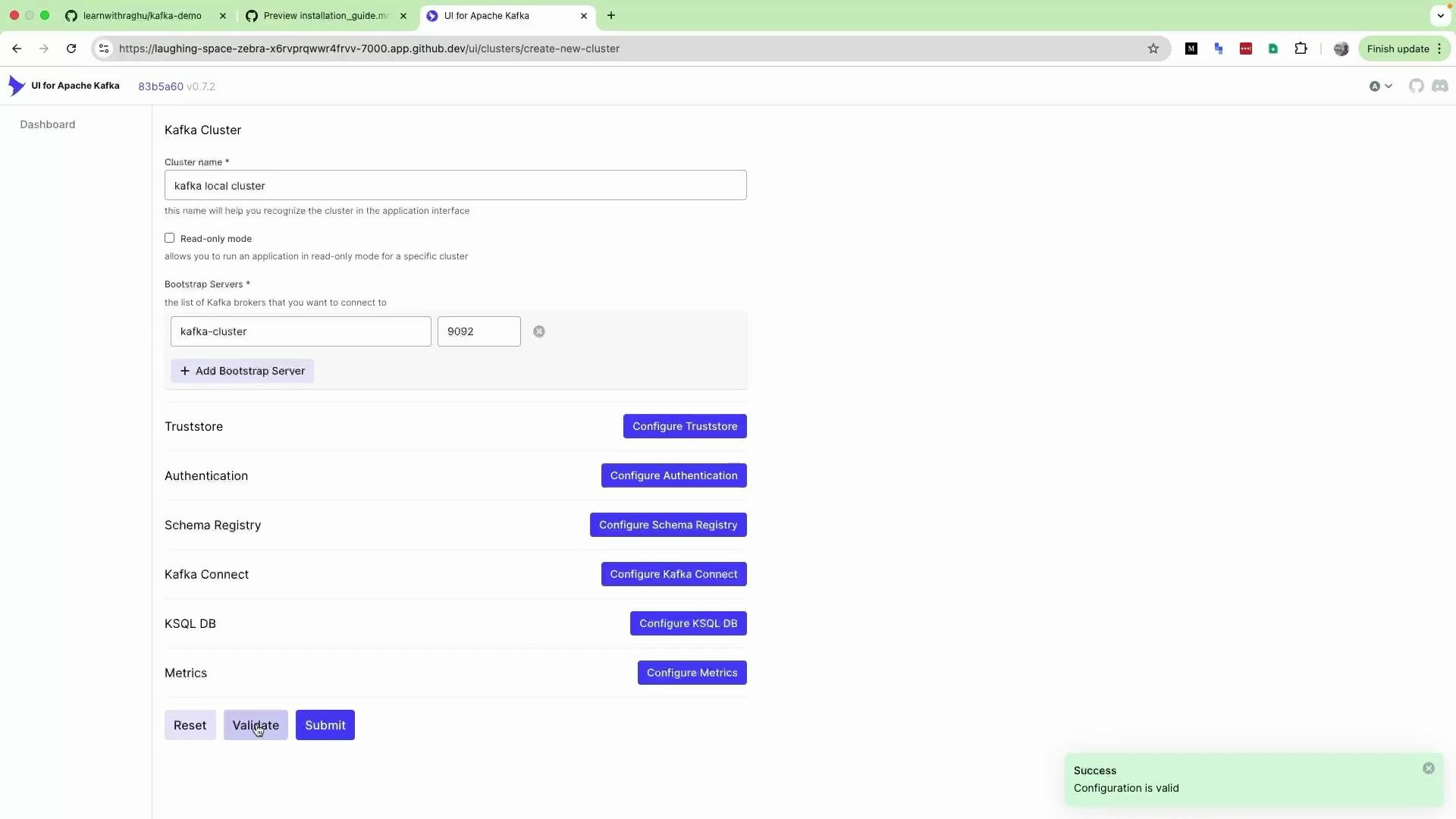
Open [http://localhost:7000](http://localhost:7000) in your browser. The Kafka UI will prompt you to add a cluster. Use the configuration below:
* Cluster name: Kafka local cluster
* Bootstrap servers / Host: `kafka-cluster:9092`
Because both containers are on `kafka-net`, the UI can reach the broker using the container name `kafka-cluster`. Click Validate to test connectivity, then Submit to save.
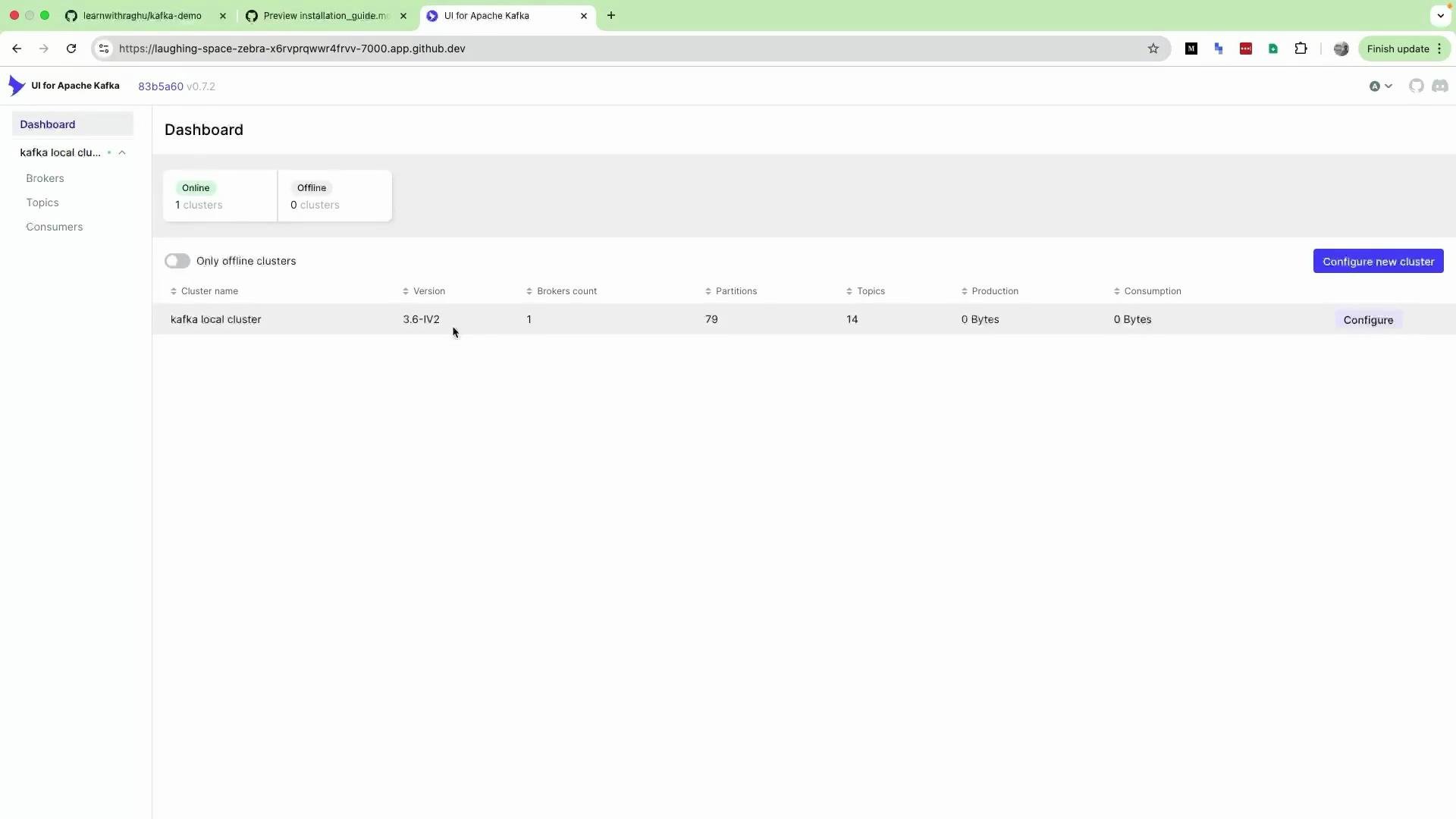
 After adding the cluster and reloading, the UI dashboard should display the configured cluster and basic metrics such as broker count, partitions and throughput.
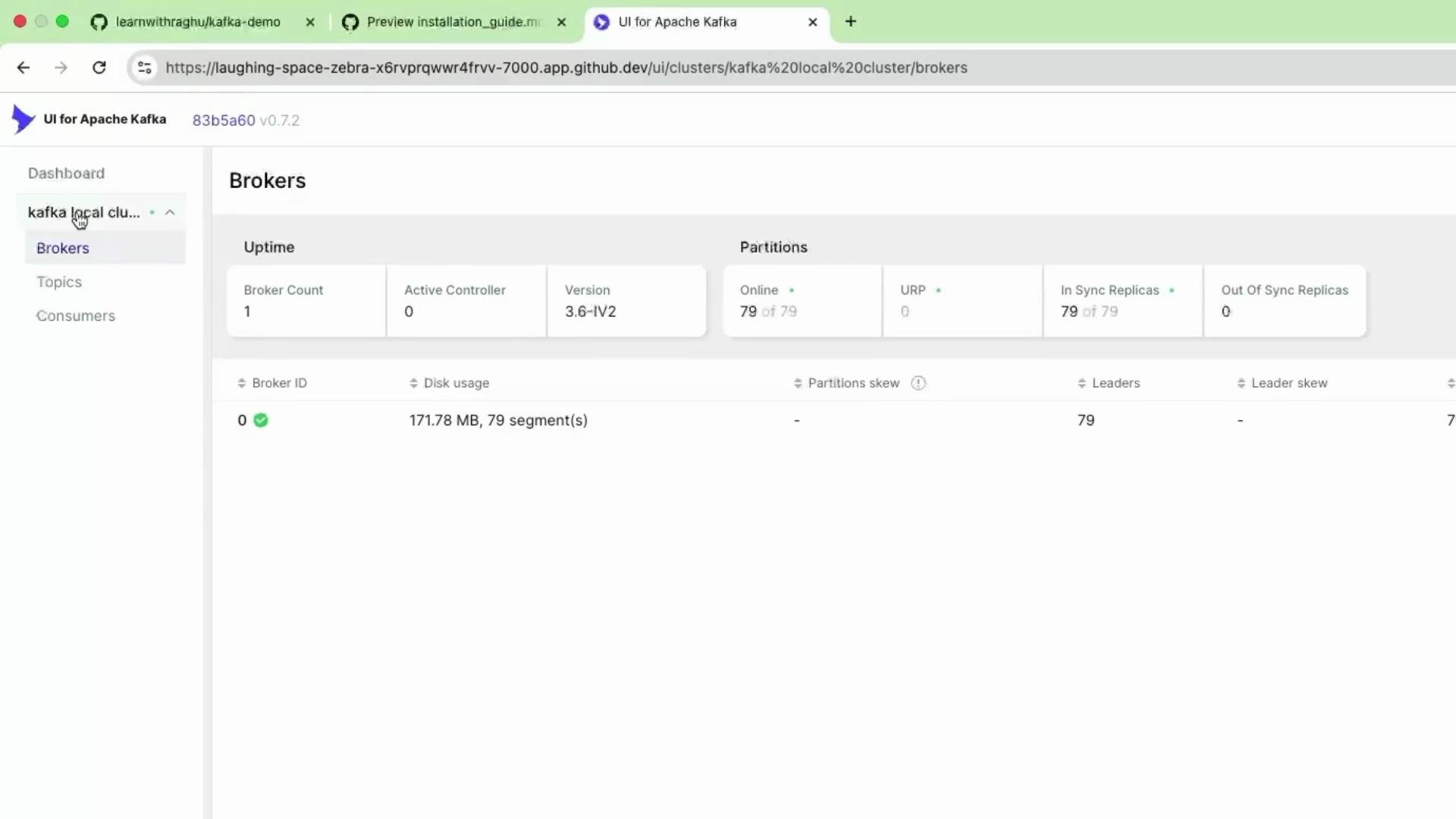
 Viewing brokers and topics
Use the UI to inspect brokers, partitions, topics, producers and consumers. In this bundled local demo you will usually see a single broker and several default or test topics created by the image.
Viewing brokers and topics
Use the UI to inspect brokers, partitions, topics, producers and consumers. In this bundled local demo you will usually see a single broker and several default or test topics created by the image.
 The Kafka web UI is a third‑party tool and not part of the Apache Kafka project. It provides a convenient visual way to explore cluster state (topics, brokers, consumers), but all cluster operations are still performed by Kafka itself.
If host ports (e.g. `7000`, `9092`, `3030`) are already in use on your machine, Docker will fail to bind them. Stop conflicting services or change the published ports (host side) using `-p HOST_PORT:CONTAINER_PORT`.
Wrap-up
This guide provides a quick local Kafka environment: a bundled Kafka image (with Zookeeper and extras) plus an external Kafka UI for browsing cluster state and message flow. Use this environment to practice producing/consuming messages, creating topics, and exploring partitions. For production-like setups, consider multi-broker clusters, external Zookeeper (or KRaft mode), and persistent storage.
Links and references
* Apache Kafka: [https://kafka.apache.org](https://kafka.apache.org)
* Docker: [https://www.docker.com](https://www.docker.com)
* Docker networking: [https://docs.docker.com/network/](https://docs.docker.com/network/)
* provectus/kafka-ui: [https://github.com/provectus/kafka-ui](https://github.com/provectus/kafka-ui)
* lensesio/fast-data-dev image on Docker Hub: [https://hub.docker.com/r/lensesio/fast-data-dev](https://hub.docker.com/r/lensesio/fast-data-dev)
Common commands for cleanup and troubleshooting
```bash theme={null}
# Stop and remove containers (if running)
docker rm -f kafka-cluster kafka-ui
# Remove the network if you want to clean up
docker network rm kafka-net
```
The Kafka web UI is a third‑party tool and not part of the Apache Kafka project. It provides a convenient visual way to explore cluster state (topics, brokers, consumers), but all cluster operations are still performed by Kafka itself.
If host ports (e.g. `7000`, `9092`, `3030`) are already in use on your machine, Docker will fail to bind them. Stop conflicting services or change the published ports (host side) using `-p HOST_PORT:CONTAINER_PORT`.
Wrap-up
This guide provides a quick local Kafka environment: a bundled Kafka image (with Zookeeper and extras) plus an external Kafka UI for browsing cluster state and message flow. Use this environment to practice producing/consuming messages, creating topics, and exploring partitions. For production-like setups, consider multi-broker clusters, external Zookeeper (or KRaft mode), and persistent storage.
Links and references
* Apache Kafka: [https://kafka.apache.org](https://kafka.apache.org)
* Docker: [https://www.docker.com](https://www.docker.com)
* Docker networking: [https://docs.docker.com/network/](https://docs.docker.com/network/)
* provectus/kafka-ui: [https://github.com/provectus/kafka-ui](https://github.com/provectus/kafka-ui)
* lensesio/fast-data-dev image on Docker Hub: [https://hub.docker.com/r/lensesio/fast-data-dev](https://hub.docker.com/r/lensesio/fast-data-dev)
Common commands for cleanup and troubleshooting
```bash theme={null}
# Stop and remove containers (if running)
docker rm -f kafka-cluster kafka-ui
# Remove the network if you want to clean up
docker network rm kafka-net
```