> ## Documentation Index
> Fetch the complete documentation index at: https://notes.kodekloud.com/llms.txt
> Use this file to discover all available pages before exploring further.
# Demo Kafka Connect in Action
> Demonstration of producing Kafka events to a topic and using Kafka Connect S3 sink to write those events as JSON files into an S3 bucket.
Welcome back. In this lesson you'll produce events into the `cartevent` Kafka topic and observe how a Kafka Connect S3 sink moves those events into an S3 bucket. This walkthrough covers the producer commands, example events, and what to expect in S3 once the sink flushes data.
## Prerequisites
* A running Kafka broker accessible from the EC2 instance (example uses `98.81.233.254:9092`).
* Kafka Connect configured with an S3 sink connector that writes to your target bucket.
* Access to the EC2 instance that hosts Kafka Connect and Kafka client tools.
## Step 1 — Start a console producer
Open a terminal on the EC2 instance where Kafka is installed, become root, and change directory to the Kafka installation (the folder that contains the `bin` directory). Then start the Kafka console producer and point it at the `cartevent` topic:
```bash theme={null}
# become root and change to your Kafka installation folder (the folder that contains "bin")
sudo su
cd /path/to/kafka # change this to your Kafka install path
# start a console producer that writes to the "cartevent" topic
bin/kafka-console-producer.sh --bootstrap-server 98.81.233.254:9092 --topic cartevent
```
The console producer accepts one message per line. Each line you enter becomes a single Kafka record.
## Step 2 — Produce sample JSON events
Paste or type the following JSON events into the console producer (each line is a separate Kafka record):
```json theme={null}
{"eventId": "1", "carId": "CAR001", "eventType": "ENGINE_START", "timestamp": "2025-02-11T10:00:02Z"}
{"eventId": "2", "carId": "CAR001", "eventType": "SPEED_CHANGE", "speed": 65, "timestamp": "2025-02-11T10:00:02Z"}
{"eventId": "3", "carId": "CAR002", "eventType": "LOW_FUEL", "fuelLevel": 15, "timestamp": "2025-02-11T10:01:30Z"}
{"eventId": "4", "carId": "CAR002", "eventType": "ENGINE_START", "timestamp": "2025-02-11T10:02:10Z"}
{"eventId": "5", "carId": "CAR003", "eventType": "LOW_FUEL", "fuelLevel": 12, "timestamp": "2025-02-11T10:05:20Z"}
{"eventId": "6", "carId": "CAR004", "eventType": "LOW_FUEL", "fuelLevel": 15, "timestamp": "2025-02-11T10:06:30Z"}
{"eventId": "7", "carId": "CAR008", "eventType": "LOW_FUEL", "fuelLevel": 1, "timestamp": "2025-02-11T10:07:01Z"}
{"eventId": "8", "carId": "CAR008", "eventType": "LOW_FUEL", "fuelLevel": 1, "timestamp": "2025-02-11T10:07:15Z"}
```
Produce enough events to exceed the sink connector's configured `flush.size` (or wait for a time-based rotation) so the sink will flush records to S3.
## What you should see in S3
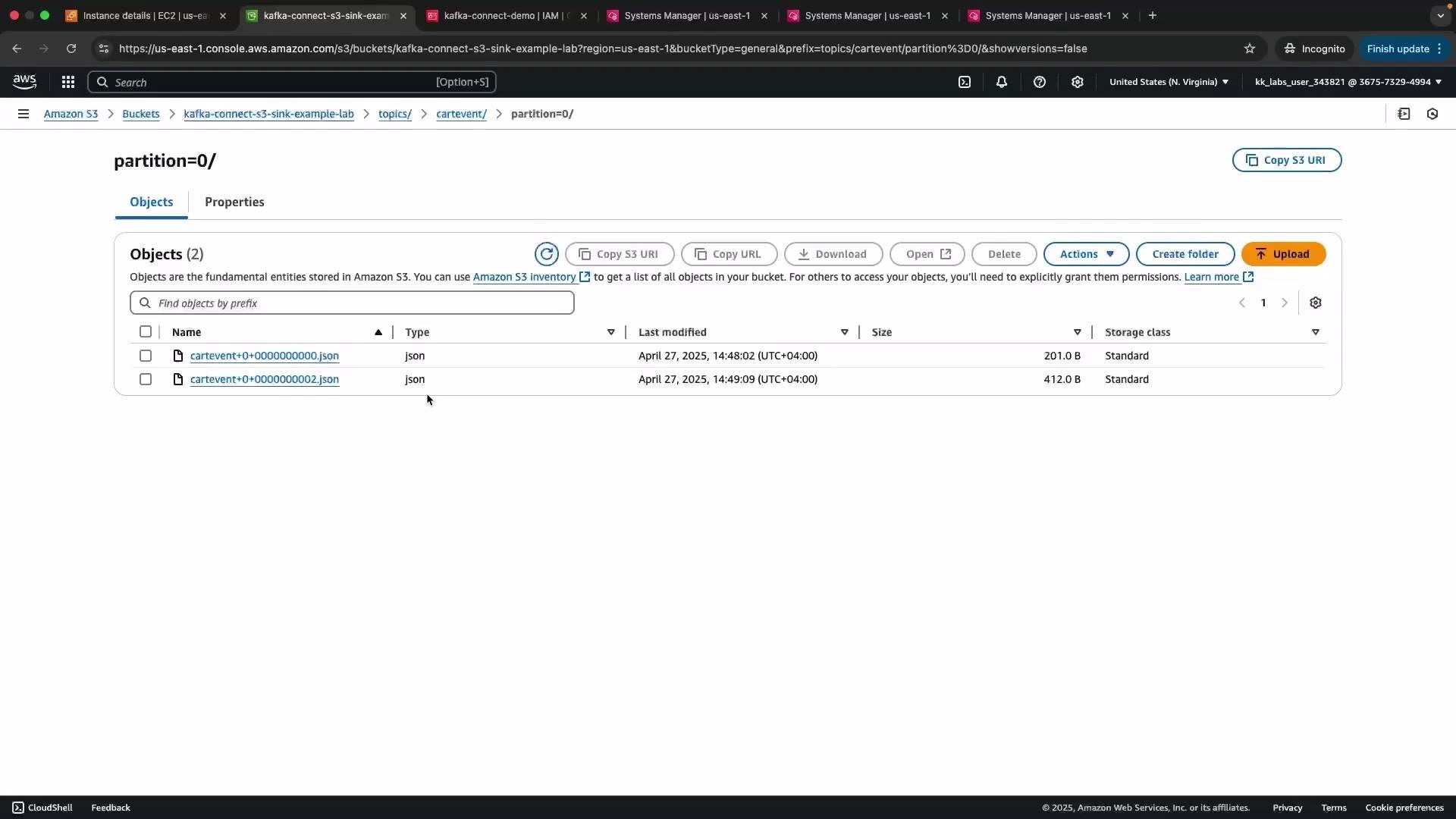
After the connector flushes, the records are written as files into the configured S3 bucket under the topic's folder (for example `cartevent/partition=0/`). Example object names generated by the S3 sink look like:
* `cartevent+0+0000000000.json`
* `cartevent+0+0000000002.json`
Open or download those JSON objects from the S3 console and you'll find the same events you produced to Kafka.
 ## How this flow works
* Producers (the console producer in this demo) send events to the Kafka topic (`cartevent`).
* The Kafka Connect S3 sink connector subscribes to that topic and buffers records in memory.
* When connector thresholds are reached (for example, `flush.size`, `rotate.interval.ms`, or file-size-based rotation), the connector writes a file to S3 containing the buffered records.
* The original topic data remains intact — the sink reads and copies data; it does not delete messages from Kafka. Other consumers can still read the same topic.
Kafka Connect removes the need to write and maintain custom consumers for many common integrations. S3 is one of many available sinks (others include GCS, Redis, Elasticsearch, and various databases). The connector acts as a downstream service that pulls data from Kafka and writes it to the external system.
## Practical notes and tuning
* If new S3 objects do not appear immediately, refresh the S3 console. There can be slight delays due to connector buffering or eventual consistency in the console.
* Control when files are flushed using connector configuration parameters such as `flush.size`, `rotate.interval.ms`, and `cleanup.policy`.
* You can reverse the flow using source connectors that read from S3 (or other systems) and push data into Kafka.
Connector configuration examples (common settings):
| Setting | Purpose | Example |
| -------------------- | ----------------------------------------------------- | ------------------------------------------------ |
| `flush.size` | Number of records to accumulate before flushing to S3 | `1000` |
| `rotate.interval.ms` | Time-based rotation interval in milliseconds | `600000` (10 minutes) |
| `storage.class` | S3 storage implementation | `io.confluent.connect.s3.storage.S3Storage` |
| `format.class` | Output file format class | `io.confluent.connect.s3.format.json.JsonFormat` |
Use these settings to balance latency, file size, and downstream processing needs.
## Troubleshooting tips
* Verify the connector logs for errors if files are not appearing in S3.
* Confirm S3 permissions (IAM role / credentials) used by Kafka Connect allow PutObject and ListBucket on the target bucket.
* Ensure topic partitions and connector task counts are aligned to your throughput and parallelism requirements.
## Links and references
* [Kafka Connect Overview](https://kafka.apache.org/documentation/#connect)
* [Confluent S3 Sink Connector documentation](https://docs.confluent.io/home/connectors/sink-storage/s3-sink.html)
* [Amazon S3 Documentation](https://docs.aws.amazon.com/s3/index.html)
That concludes this demo where we produced events to a Kafka topic and verified the S3 sink wrote topic events into S3. See you in the next lesson.
## How this flow works
* Producers (the console producer in this demo) send events to the Kafka topic (`cartevent`).
* The Kafka Connect S3 sink connector subscribes to that topic and buffers records in memory.
* When connector thresholds are reached (for example, `flush.size`, `rotate.interval.ms`, or file-size-based rotation), the connector writes a file to S3 containing the buffered records.
* The original topic data remains intact — the sink reads and copies data; it does not delete messages from Kafka. Other consumers can still read the same topic.
Kafka Connect removes the need to write and maintain custom consumers for many common integrations. S3 is one of many available sinks (others include GCS, Redis, Elasticsearch, and various databases). The connector acts as a downstream service that pulls data from Kafka and writes it to the external system.
## Practical notes and tuning
* If new S3 objects do not appear immediately, refresh the S3 console. There can be slight delays due to connector buffering or eventual consistency in the console.
* Control when files are flushed using connector configuration parameters such as `flush.size`, `rotate.interval.ms`, and `cleanup.policy`.
* You can reverse the flow using source connectors that read from S3 (or other systems) and push data into Kafka.
Connector configuration examples (common settings):
| Setting | Purpose | Example |
| -------------------- | ----------------------------------------------------- | ------------------------------------------------ |
| `flush.size` | Number of records to accumulate before flushing to S3 | `1000` |
| `rotate.interval.ms` | Time-based rotation interval in milliseconds | `600000` (10 minutes) |
| `storage.class` | S3 storage implementation | `io.confluent.connect.s3.storage.S3Storage` |
| `format.class` | Output file format class | `io.confluent.connect.s3.format.json.JsonFormat` |
Use these settings to balance latency, file size, and downstream processing needs.
## Troubleshooting tips
* Verify the connector logs for errors if files are not appearing in S3.
* Confirm S3 permissions (IAM role / credentials) used by Kafka Connect allow PutObject and ListBucket on the target bucket.
* Ensure topic partitions and connector task counts are aligned to your throughput and parallelism requirements.
## Links and references
* [Kafka Connect Overview](https://kafka.apache.org/documentation/#connect)
* [Confluent S3 Sink Connector documentation](https://docs.confluent.io/home/connectors/sink-storage/s3-sink.html)
* [Amazon S3 Documentation](https://docs.aws.amazon.com/s3/index.html)
That concludes this demo where we produced events to a Kafka topic and verified the S3 sink wrote topic events into S3. See you in the next lesson.