> ## Documentation Index
> Fetch the complete documentation index at: https://notes.kodekloud.com/llms.txt
> Use this file to discover all available pages before exploring further.
# Demo Kafka Producers
> Demonstrates creating a multi-partition Kafka topic and producing messages with a Python kafka-python producer, showing partitioning, message delivery, and Kafdrop inspection.
Hello, and welcome back.
In this lesson we'll set up a Kafka producer and produce messages to a topic. The walkthrough uses a local Kafka broker, the `kafka-python` client, and the Kafdrop UI to inspect messages and partitions. Follow the steps in order to reproduce the demo in your lab environment.
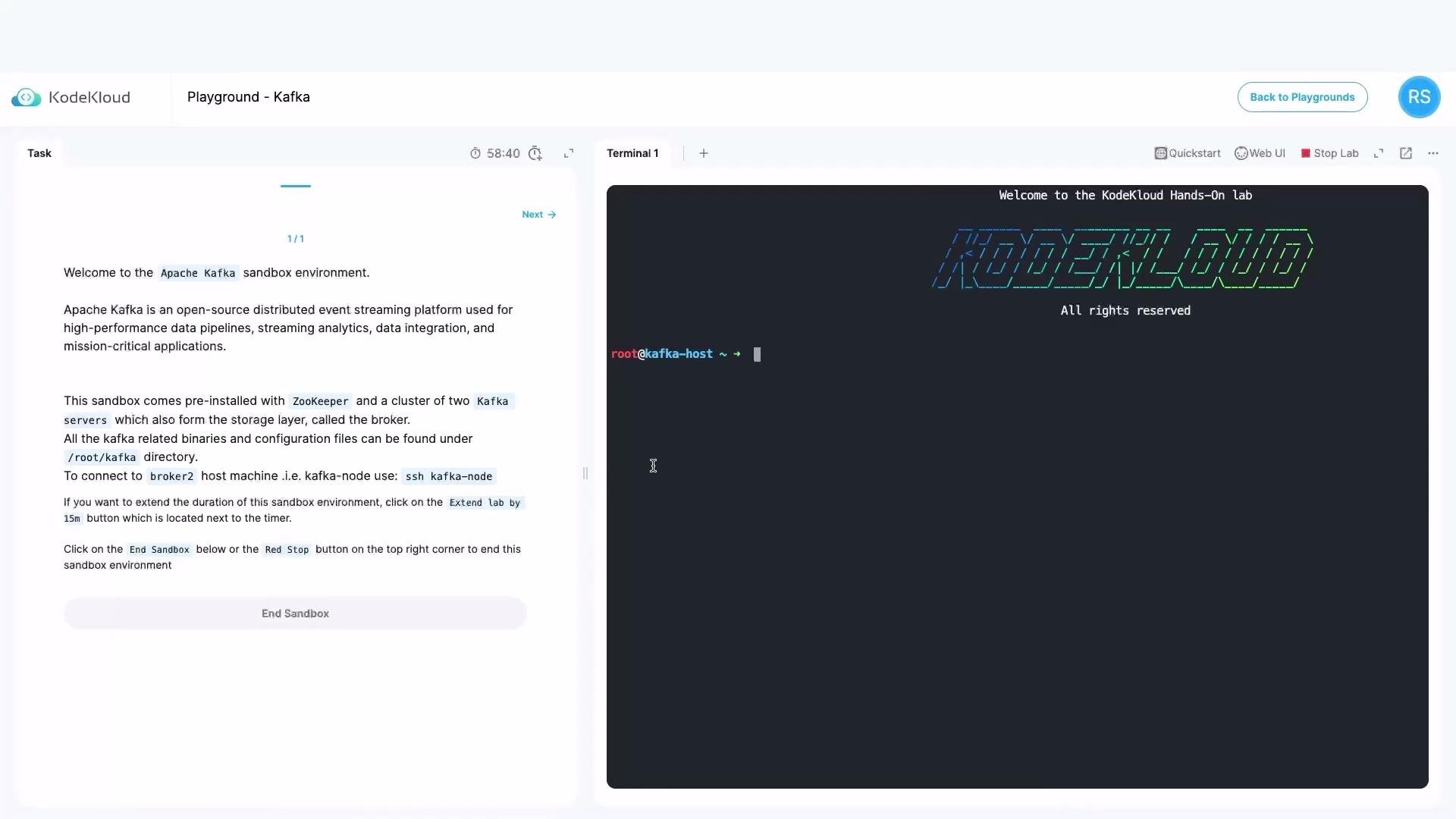
We are in our lab environment, where Apache Kafka is already up and running.
 ## Prerequisites
* Kafka broker running on `localhost:9092`
* Access to the Kafka installation directory (scripts live under `bin/`)
* Python 3 with `venv` support (we'll create an isolated virtual environment)
* `kafka-python` client library (installed into the venv)
* Optional: Kafdrop or another Kafka UI to inspect topics and messages
## 1) Inspect the Kafka CLI utilities
From the Kafka installation `bin` directory you can list the available CLI scripts. Example truncated output:
```bash theme={null}
root@kafka-host ~ ➜ cd /root/
total 160
-rwxr-xr-x 1 root root 1019 Sep 13 2022 zookeeper-shell.sh
-rwxr-xr-x 1 root root 1366 Sep 13 2022 zookeeper-server-stop.sh
-rwxr-xr-x 1 root root 1393 Sep 13 2022 zookeeper-server-start.sh
...
-rwxr-xr-x 1 root root 1068 Sep 13 2022 kafka-console-producer.sh
-rwxr-xr-x 1 root root 870 Sep 13 2022 kafka-configs.sh
-rwxr-xr-x 1 root root 893 Sep 13 2022 kafka-cluster.sh
...
```
You will use `kafka-topics.sh` to create and manage topics in the next step.
## 2) Create a topic with multiple partitions
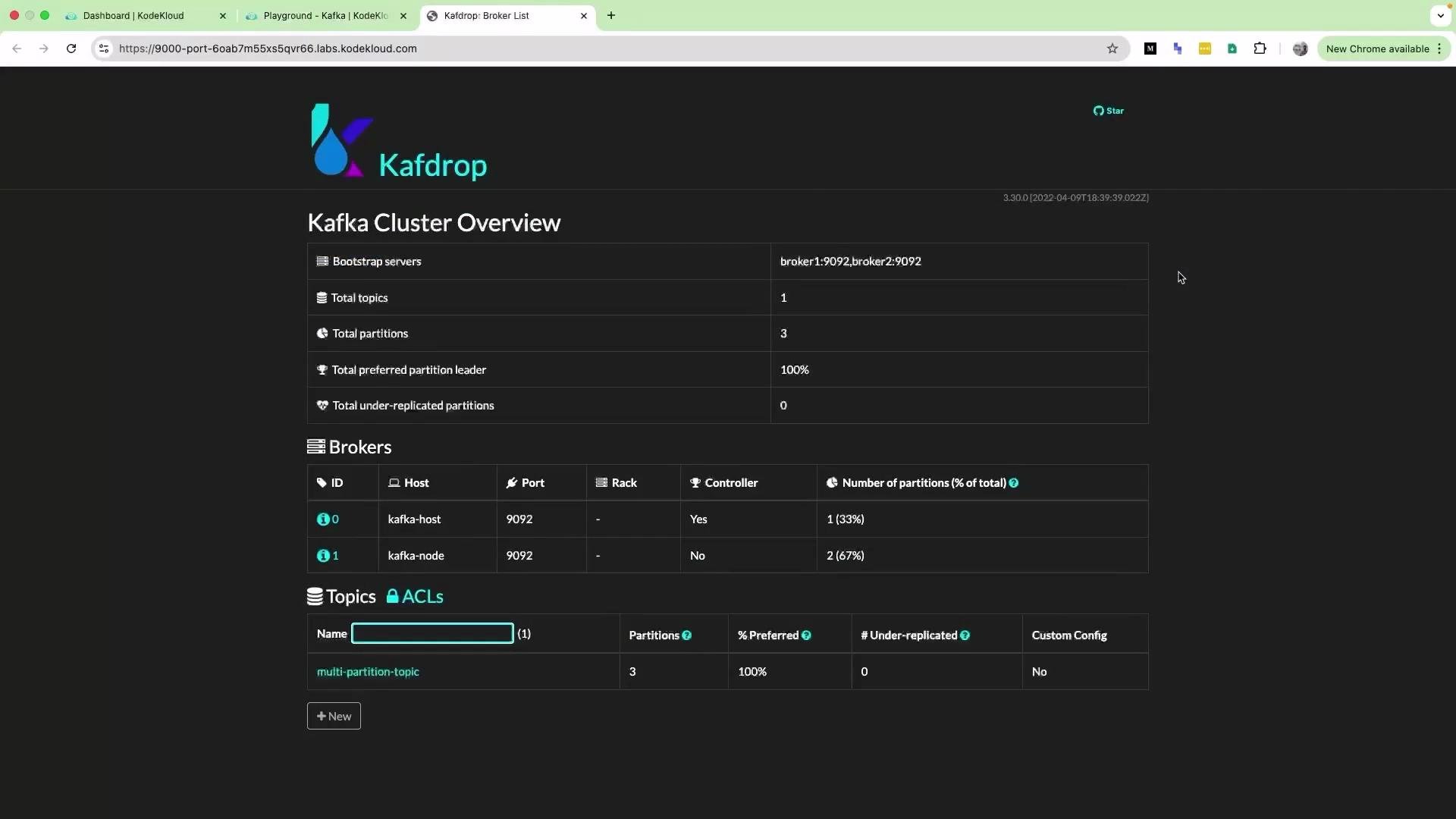
Create a topic named `multi-partition-topic` with 3 partitions and a replication factor of 1:
```bash theme={null}
./kafka-topics.sh --create \
--topic multi-partition-topic \
--bootstrap-server localhost:9092 \
--partitions 3 \
--replication-factor 1
```
Tip: Once the topic is created, you can verify its configuration using `kafka-topics.sh --describe --topic multi-partition-topic --bootstrap-server localhost:9092` or inspect it visually with Kafdrop.
## Prerequisites
* Kafka broker running on `localhost:9092`
* Access to the Kafka installation directory (scripts live under `bin/`)
* Python 3 with `venv` support (we'll create an isolated virtual environment)
* `kafka-python` client library (installed into the venv)
* Optional: Kafdrop or another Kafka UI to inspect topics and messages
## 1) Inspect the Kafka CLI utilities
From the Kafka installation `bin` directory you can list the available CLI scripts. Example truncated output:
```bash theme={null}
root@kafka-host ~ ➜ cd /root/
total 160
-rwxr-xr-x 1 root root 1019 Sep 13 2022 zookeeper-shell.sh
-rwxr-xr-x 1 root root 1366 Sep 13 2022 zookeeper-server-stop.sh
-rwxr-xr-x 1 root root 1393 Sep 13 2022 zookeeper-server-start.sh
...
-rwxr-xr-x 1 root root 1068 Sep 13 2022 kafka-console-producer.sh
-rwxr-xr-x 1 root root 870 Sep 13 2022 kafka-configs.sh
-rwxr-xr-x 1 root root 893 Sep 13 2022 kafka-cluster.sh
...
```
You will use `kafka-topics.sh` to create and manage topics in the next step.
## 2) Create a topic with multiple partitions
Create a topic named `multi-partition-topic` with 3 partitions and a replication factor of 1:
```bash theme={null}
./kafka-topics.sh --create \
--topic multi-partition-topic \
--bootstrap-server localhost:9092 \
--partitions 3 \
--replication-factor 1
```
Tip: Once the topic is created, you can verify its configuration using `kafka-topics.sh --describe --topic multi-partition-topic --bootstrap-server localhost:9092` or inspect it visually with Kafdrop.
 ## 3) Prepare a Python virtual environment and install the client
To avoid modifying the system Python, create and activate a virtual environment and install `kafka-python`:
Update package lists (example):
```bash theme={null}
sudo apt update
```
Create and activate the venv, then install the client:
```bash theme={null}
python3 -m venv kafka-env
source kafka-env/bin/activate
pip install kafka-python
```
Example pip output:
```text theme={null}
Collecting kafka-python
Downloading kafka_python-2.1.5-py2.py3-none-any.whl (285 kB)
Installing collected packages: kafka-python
Successfully installed kafka-python-2.1.5
```
## 4) Example Python producer script
Create `kafka-producer-example.py`. The script below:
* configures logging,
* creates a `KafkaProducer` connected to `localhost:9092`,
* composes sample "coffee shop" messages,
* sends 10 messages to `multi-partition-topic` with an explicit key (so partitioning is deterministic for identical keys),
* waits for each send to complete and flushes before exit.
```python theme={null}
import random
import logging
from kafka import KafkaProducer
# Configure logging
logging.basicConfig(level=logging.INFO, format="%(asctime)s - %(levelname)s - %(message)s")
# Kafka configuration
producer = KafkaProducer(bootstrap_servers='localhost:9092')
# Define some sample coffee shop data
coffee_shops = [
{"name": "Espresso Bliss", "location": "Downtown", "rating": 4.5},
{"name": "Cappuccino Corner", "location": "Uptown", "rating": 4.2},
{"name": "Latte Lounge", "location": "Suburbs", "rating": 4.8},
{"name": "Mocha Magic", "location": "City Center", "rating": 4.6},
{"name": "Coffee Haven", "location": "East Side", "rating": 4.3},
]
# Generate and send 10 messages
for i in range(10):
coffee_shop = random.choice(coffee_shops)
message = f"Coffee Shop: {coffee_shop['name']}, Location: {coffee_shop['location']}, Rating: {coffee_shop['rating']}"
try:
future = producer.send(
'multi-partition-topic',
key=str(i).encode('utf-8'),
value=message.encode('utf-8')
)
record_metadata = future.get(timeout=10)
logging.info("Message delivered to %s [%d]", record_metadata.topic, record_metadata.partition)
except Exception as e:
logging.error("Message delivery failed: %s", e)
producer.flush()
logging.info("Finished sending messages")
```
Note: When you provide a message `key`, Kafka's partitioner uses it to determine the target partition. Messages with the same key are guaranteed to go to the same partition. Without a key, the producer distributes messages across partitions (modern producers may use sticky batching for throughput).
## 5) Run the producer and observe delivery
Run the script from the activated virtual environment:
```bash theme={null}
(kafka-env) root@kafka-host ~/kafka/bin ➜ python3 kafka-producer-example.py
```
Example logs:
```text theme={null}
2025-04-13 02:44:46,443 - INFO - [IPv4 ('127.0.0.1', 9092)]>
2025-04-13 02:44:46,451 - INFO - [IPv4 ('192.2.52.10', 9092)]>
2025-04-13 02:44:46,606 - INFO - Message delivered to multi-partition-topic [2]
2025-04-13 02:44:46,610 - INFO - Message delivered to multi-partition-topic [0]
...
```
The logs indicate successful deliveries and the partition targets for each message.
## 3) Prepare a Python virtual environment and install the client
To avoid modifying the system Python, create and activate a virtual environment and install `kafka-python`:
Update package lists (example):
```bash theme={null}
sudo apt update
```
Create and activate the venv, then install the client:
```bash theme={null}
python3 -m venv kafka-env
source kafka-env/bin/activate
pip install kafka-python
```
Example pip output:
```text theme={null}
Collecting kafka-python
Downloading kafka_python-2.1.5-py2.py3-none-any.whl (285 kB)
Installing collected packages: kafka-python
Successfully installed kafka-python-2.1.5
```
## 4) Example Python producer script
Create `kafka-producer-example.py`. The script below:
* configures logging,
* creates a `KafkaProducer` connected to `localhost:9092`,
* composes sample "coffee shop" messages,
* sends 10 messages to `multi-partition-topic` with an explicit key (so partitioning is deterministic for identical keys),
* waits for each send to complete and flushes before exit.
```python theme={null}
import random
import logging
from kafka import KafkaProducer
# Configure logging
logging.basicConfig(level=logging.INFO, format="%(asctime)s - %(levelname)s - %(message)s")
# Kafka configuration
producer = KafkaProducer(bootstrap_servers='localhost:9092')
# Define some sample coffee shop data
coffee_shops = [
{"name": "Espresso Bliss", "location": "Downtown", "rating": 4.5},
{"name": "Cappuccino Corner", "location": "Uptown", "rating": 4.2},
{"name": "Latte Lounge", "location": "Suburbs", "rating": 4.8},
{"name": "Mocha Magic", "location": "City Center", "rating": 4.6},
{"name": "Coffee Haven", "location": "East Side", "rating": 4.3},
]
# Generate and send 10 messages
for i in range(10):
coffee_shop = random.choice(coffee_shops)
message = f"Coffee Shop: {coffee_shop['name']}, Location: {coffee_shop['location']}, Rating: {coffee_shop['rating']}"
try:
future = producer.send(
'multi-partition-topic',
key=str(i).encode('utf-8'),
value=message.encode('utf-8')
)
record_metadata = future.get(timeout=10)
logging.info("Message delivered to %s [%d]", record_metadata.topic, record_metadata.partition)
except Exception as e:
logging.error("Message delivery failed: %s", e)
producer.flush()
logging.info("Finished sending messages")
```
Note: When you provide a message `key`, Kafka's partitioner uses it to determine the target partition. Messages with the same key are guaranteed to go to the same partition. Without a key, the producer distributes messages across partitions (modern producers may use sticky batching for throughput).
## 5) Run the producer and observe delivery
Run the script from the activated virtual environment:
```bash theme={null}
(kafka-env) root@kafka-host ~/kafka/bin ➜ python3 kafka-producer-example.py
```
Example logs:
```text theme={null}
2025-04-13 02:44:46,443 - INFO - [IPv4 ('127.0.0.1', 9092)]>
2025-04-13 02:44:46,451 - INFO - [IPv4 ('192.2.52.10', 9092)]>
2025-04-13 02:44:46,606 - INFO - Message delivered to multi-partition-topic [2]
2025-04-13 02:44:46,610 - INFO - Message delivered to multi-partition-topic [0]
...
```
The logs indicate successful deliveries and the partition targets for each message.
 ## 6) Verify messages in Kafdrop
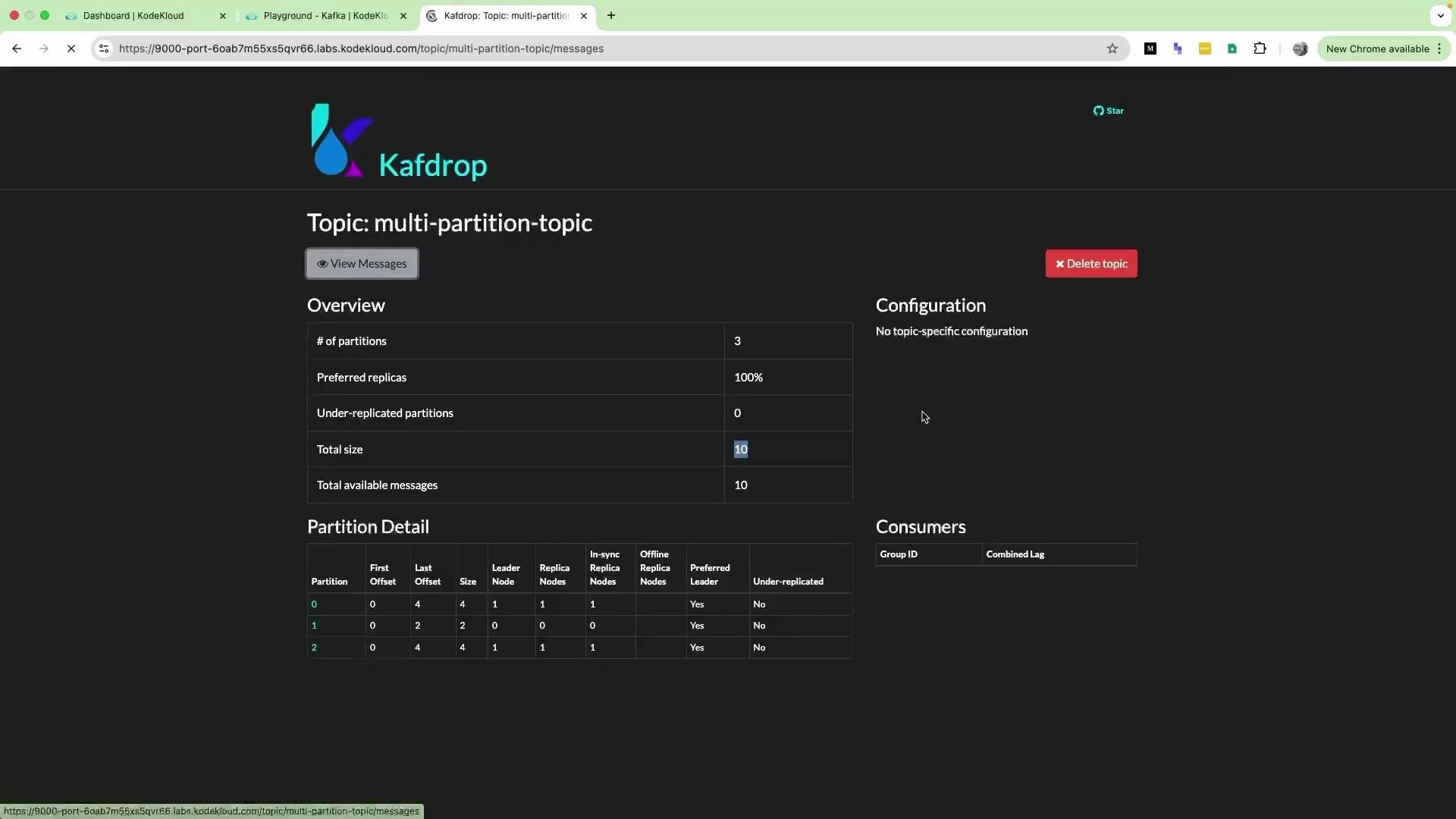
Refresh the Kafdrop UI and inspect `multi-partition-topic`. The message count should reflect the number of messages you sent (10 in this demo). Click "View Messages" to inspect message contents.
## 6) Verify messages in Kafdrop
Refresh the Kafdrop UI and inspect `multi-partition-topic`. The message count should reflect the number of messages you sent (10 in this demo). Click "View Messages" to inspect message contents.
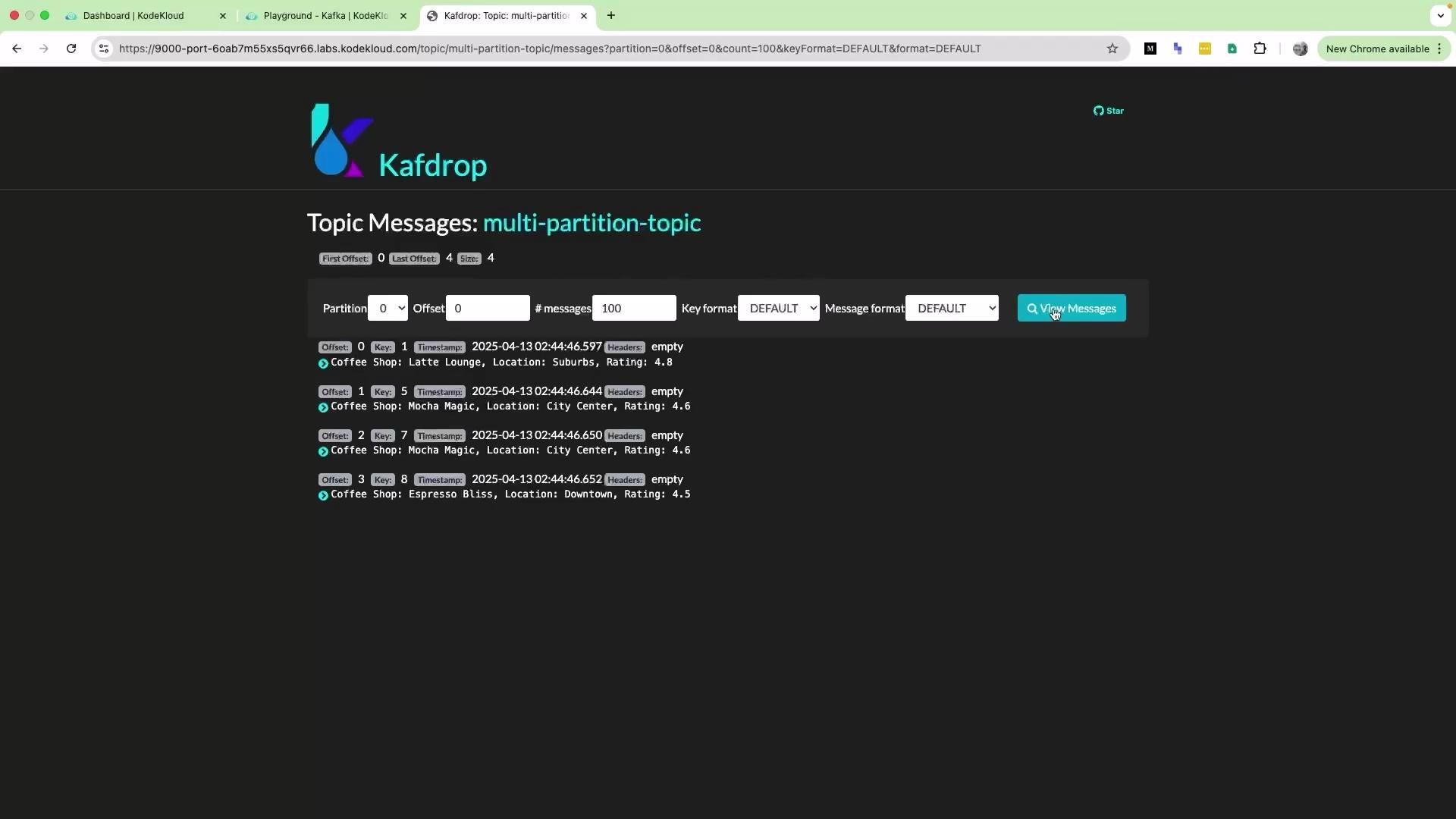 If you initially see messages for only one partition, use the partition selector in Kafdrop to view partitions 0, 1, and 2 individually. The messages will be distributed across partitions (e.g., 4/2/4 or another distribution depending on the keys and partitioner).
## Why partitions matter
* Partitions enable parallelism: multiple consumers in a consumer group can process partitions in parallel.
* Keys ensure ordering per key: records with the same key are written to the same partition and consumed in order.
## Quick reference — Common commands
| Task | Command / Notes |
| ----------------- | ---------------------------------------------------------------------------------------------------------------------------------- |
| Create topic | `./kafka-topics.sh --create --topic multi-partition-topic --bootstrap-server localhost:9092 --partitions 3 --replication-factor 1` |
| Describe topic | `./kafka-topics.sh --describe --topic multi-partition-topic --bootstrap-server localhost:9092` |
| Produce (console) | `./kafka-console-producer.sh --topic my-topic --bootstrap-server localhost:9092` |
| Consume (console) | `./kafka-console-consumer.sh --topic my-topic --bootstrap-server localhost:9092 --from-beginning` |
| Python client | `pip install kafka-python` and use `KafkaProducer` / `KafkaConsumer` |
## References
* Kafdrop (UI): [https://github.com/obsidiandynamics/kafdrop](https://github.com/obsidiandynamics/kafdrop)
* kafka-python client: [https://pypi.org/project/kafka-python/](https://pypi.org/project/kafka-python/)
* Kafka documentation: [https://kafka.apache.org/documentation/](https://kafka.apache.org/documentation/)
That concludes this demo on producing messages to Kafka using a Python producer. See you in the next lesson.
If you initially see messages for only one partition, use the partition selector in Kafdrop to view partitions 0, 1, and 2 individually. The messages will be distributed across partitions (e.g., 4/2/4 or another distribution depending on the keys and partitioner).
## Why partitions matter
* Partitions enable parallelism: multiple consumers in a consumer group can process partitions in parallel.
* Keys ensure ordering per key: records with the same key are written to the same partition and consumed in order.
## Quick reference — Common commands
| Task | Command / Notes |
| ----------------- | ---------------------------------------------------------------------------------------------------------------------------------- |
| Create topic | `./kafka-topics.sh --create --topic multi-partition-topic --bootstrap-server localhost:9092 --partitions 3 --replication-factor 1` |
| Describe topic | `./kafka-topics.sh --describe --topic multi-partition-topic --bootstrap-server localhost:9092` |
| Produce (console) | `./kafka-console-producer.sh --topic my-topic --bootstrap-server localhost:9092` |
| Consume (console) | `./kafka-console-consumer.sh --topic my-topic --bootstrap-server localhost:9092 --from-beginning` |
| Python client | `pip install kafka-python` and use `KafkaProducer` / `KafkaConsumer` |
## References
* Kafdrop (UI): [https://github.com/obsidiandynamics/kafdrop](https://github.com/obsidiandynamics/kafdrop)
* kafka-python client: [https://pypi.org/project/kafka-python/](https://pypi.org/project/kafka-python/)
* Kafka documentation: [https://kafka.apache.org/documentation/](https://kafka.apache.org/documentation/)
That concludes this demo on producing messages to Kafka using a Python producer. See you in the next lesson.