> ## Documentation Index
> Fetch the complete documentation index at: https://notes.kodekloud.com/llms.txt
> Use this file to discover all available pages before exploring further.
# Demo Running a Simple C application in Browser
> This tutorial teaches how to compile and run a basic C program in the browser using WebAssembly.
In this tutorial, you'll learn how to compile and execute a basic C program directly in your browser using WebAssembly. By following these steps, you can seamlessly port native C code to the web.
* [Emscripten SDK][emscripten] installed and configured
* [Visual Studio Code][vscode] (or any code editor)
* A modern browser (e.g., [Google Chrome][chrome])
## 1. Create the C Source File
1. Open your project folder (e.g., `WASM`) in Visual Studio Code.
2. Create a file named `hello.c` with the following content:
```c theme={null}
#include
int main() {
printf("Hello, WebAssembly!\n");
return 0;
}
```
## 2. Compile to WebAssembly
In the integrated terminal, run:
```bash theme={null}
emcc hello.c -o hello.html
```
This command produces three output files:
| Filename | Description |
| ---------- | --------------------------------------------- |
| hello.html | HTML shell to load and run the WASM module |
| hello.js | JavaScript loader and glue code |
| hello.wasm | WebAssembly binary containing compiled C code |
Verify the files:
```bash theme={null}
ls
# hello.c hello.html hello.js hello.wasm
```
Ignore any `cache:INFO` messages during compilation—they’re just Emscripten diagnostics.
## 3. Run in the Browser
Serve the folder with a static server (for example, Live Server in VS Code) and open `hello.html`. You should see:
```text theme={null}
Hello, WebAssembly!
```
## 4. Explore the Generated Loader
Open `hello.html` to inspect how it integrates the loader:
```html theme={null}
```
Next, examine the key loader function in `hello.js`:
```javascript theme={null}
function instantiateAsync(binary, binaryFile, imports, callback) {
if (!binary &&
typeof WebAssembly.instantiateStreaming === 'function' &&
isDataUri(binaryFile) &&
!isFileURI(binaryFile)) {
return fetch(binaryFile, { credentials: 'same-origin' })
.then(response => {
// Handle WebAssembly.instantiateStreaming response
});
}
}
```
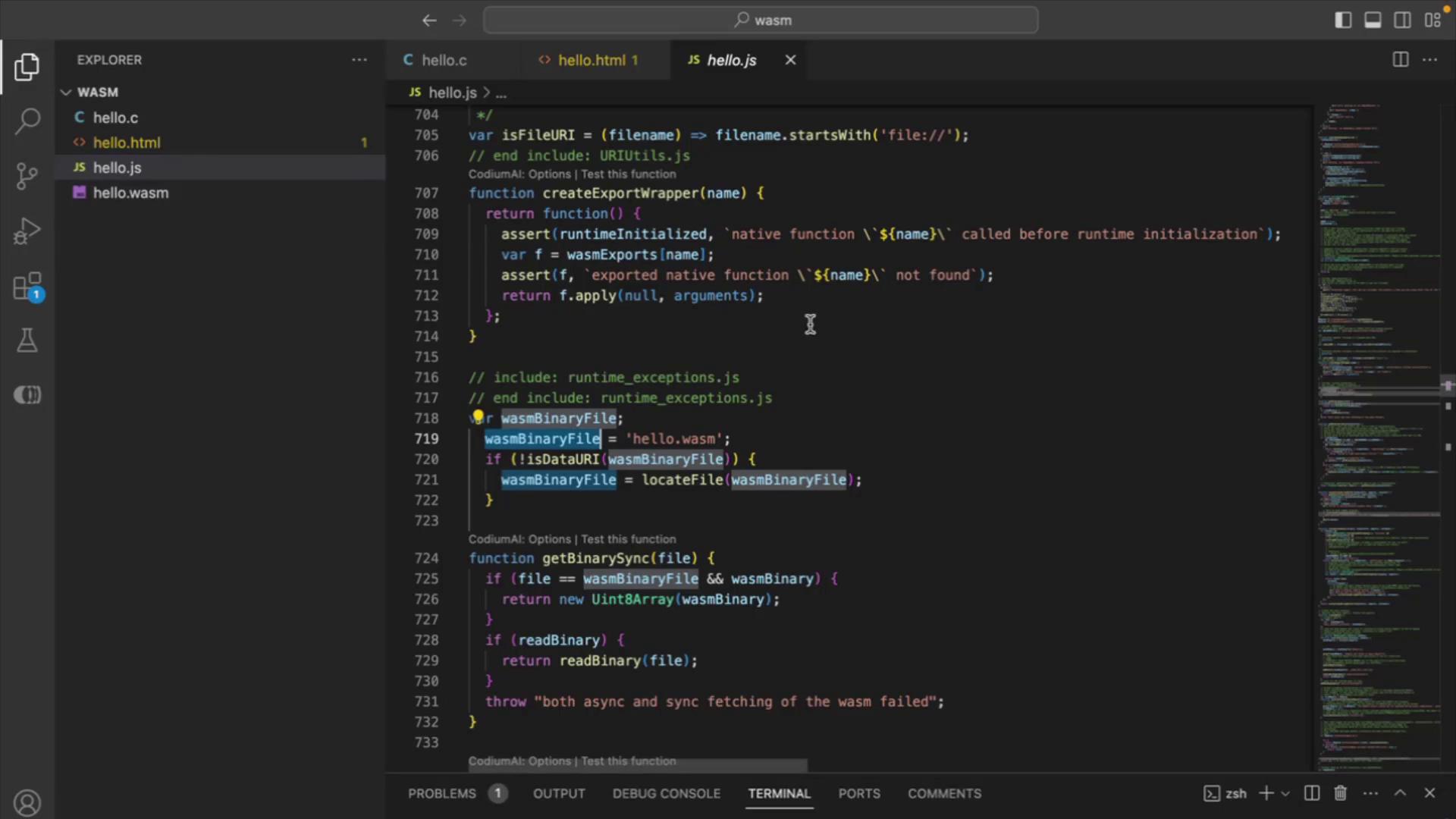
This snippet demonstrates how the `.wasm` binary is fetched and instantiated, completing the path from C source to browser execution.
## References
* [WebAssembly][webassembly]
* [Emscripten SDK][emscripten]
* [Visual Studio Code][vscode]
* [Google Chrome][chrome]
[webassembly]: https://webassembly.org
[emscripten]: https://emscripten.org
[vscode]: https://code.visualstudio.com
[chrome]: https://www.google.com/chrome