> ## Documentation Index
> Fetch the complete documentation index at: https://notes.kodekloud.com/llms.txt
> Use this file to discover all available pages before exploring further.
# Demo Setup Github repo according to DevOps best practice 02
> This lesson covers enabling branch protection on GitHub and establishing a workflow using feature branches and pull requests.
Welcome back! In this lesson, we'll walk through enabling branch protection on GitHub and establish a workflow using feature branches and pull requests.
## Enabling Branch Protection
Enabling branch protection helps maintain code quality and prevents direct pushes to critical branches.
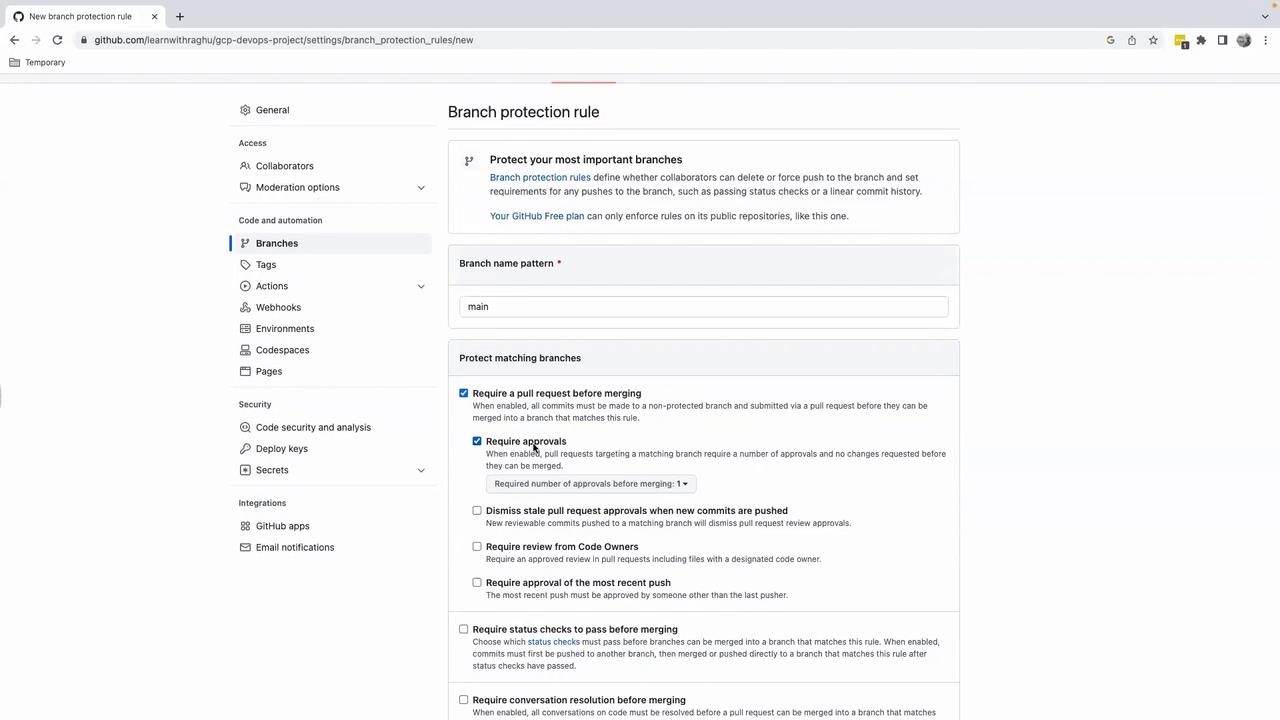
1. In your repository, navigate to **Settings** > **Branches**.
2. Click **Add branch protection rule**.
3. Set **Branch name pattern** to `main`.
4. Enable **Require a pull request before merging**.
5. Uncheck **Require approvals** if you're working solo.
6. Scroll down and click **Create**.
| Branch Protection Option | Description | Status |
| ----------------------------------- | ------------------------------------------------ | -------- |
| Require pull request before merging | Enforce all changes to go through a pull request | Enabled |
| Require approvals | Mandate review approvals before merging | Disabled |
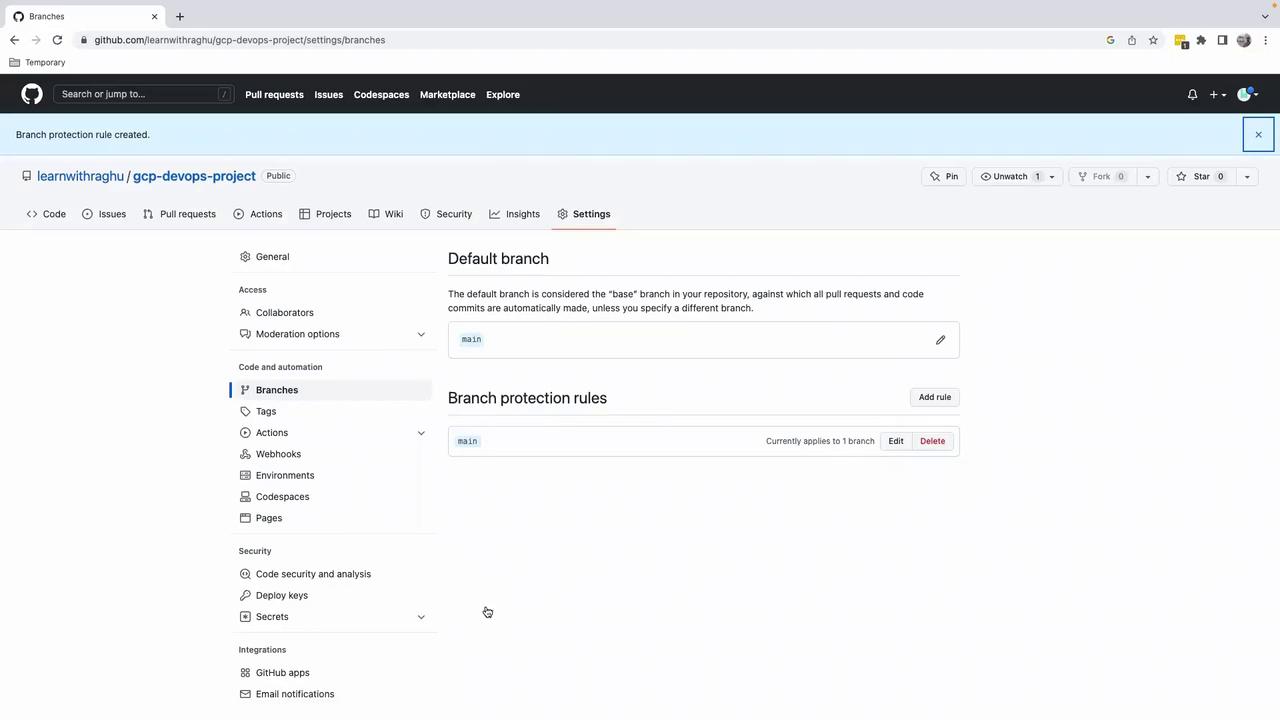
Once created, your protected rule appears in the list:
## Working with Feature Branches
Avoid committing directly to `main`. Always use a dedicated feature branch for your changes.
First, verify your current branch in VS Code:
```bash theme={null}
git branch
* main
```
### Creating a Feature Branch
Switch to a new branch for your task:
```bash theme={null}
git checkout -b feature/task-02
git branch
* feature/task-02
main
```
### Updating the README
1. Open `README.md`.
2. Change the heading from `####` to `#` for an H1 title.
3. Preview your changes to confirm the update.
### Staging and Committing
Stage and commit the revision:
```bash theme={null}
git add README.md
git status
# On branch feature/task-02
# Changes to be committed:
git commit -m "Update README.md to use H1 heading"
```
### Pushing the Feature Branch
Push your branch to GitHub:
```bash theme={null}
git push origin feature/task-02
```
You should see a message prompting you to create a pull request:
```bash theme={null}
remote: Create a pull request for 'feature/task-02' on GitHub by visiting:
remote: https://github.com/learnwithraghu/gcp-devops-project/pull/new/feature/task-02
```
## Creating and Merging a Pull Request
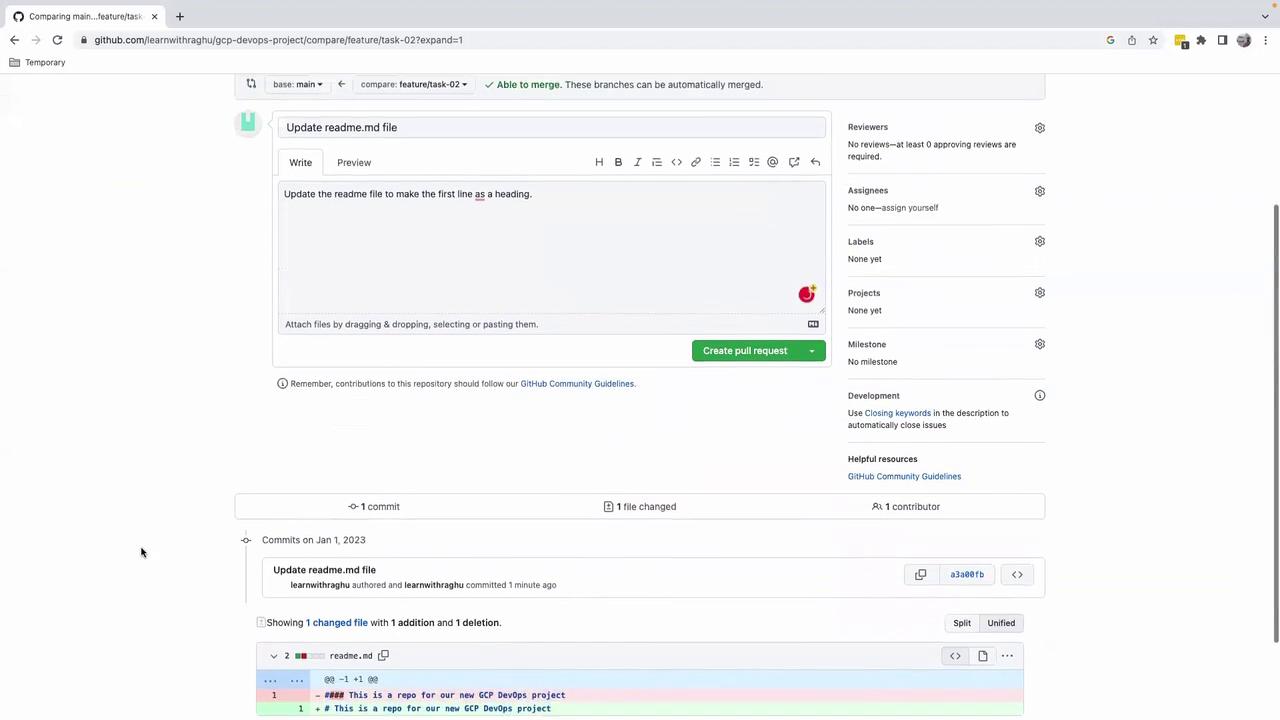
1. Click **Compare & pull request** in the GitHub banner.
2. On the **Open a pull request** page:
* **Title**: Update README.md to use H1 heading
* **Description**: Update the README file to make the first line a heading
3. Review your changes and click **Create pull request**.
4. Click **Merge pull request**, then **Confirm merge** (approvals are not required for solo projects).
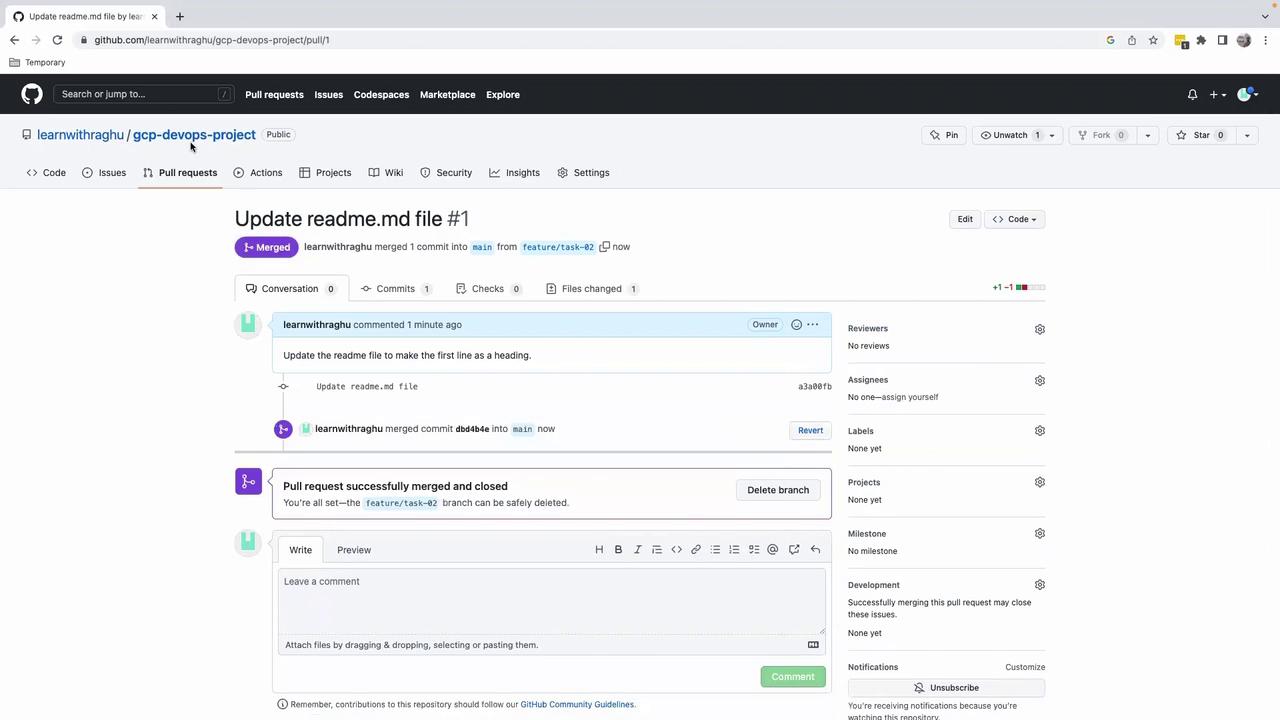
After merging, your `main` branch includes the change. This clear, repeatable process scales with team size and project complexity.
## Links and References
* [GitHub Branch Protection Rules](https://docs.github.com/en/repositories/configuring-branches-and-merges-in-your-repository/configuring-protected-branches)
* [Git Branching Basics](https://git-scm.com/book/en/v2/Git-Branching-Basic-Branching-and-Merging)
* [GitHub Pull Requests](https://docs.github.com/en/pull-requests)
That's it for this lesson. See you in the next one!