> ## Documentation Index
> Fetch the complete documentation index at: https://notes.kodekloud.com/llms.txt
> Use this file to discover all available pages before exploring further.
# Task 2 Clone the repo and setup our Editor
> This article guides you through cloning a GitHub repository, setting up your editor, and pushing changes back to GitHub.
In this lesson, we’ll walk through cloning your GitHub repository locally, configuring your editor, creating a simple `README.md`, and pushing changes back to GitHub. By the end, you’ll have a live repository ready for your GCP DevOps workflow.
## Prerequisites
Ensure you have the following tools installed:
| Tool | Purpose | Installation Guide |
| ------------------ | ------------------------------------------------- | -------------------------------------------------- |
| Git | Version control and repository cloning | [Install Git](https://git-scm.com/downloads) |
| Visual Studio Code | Code editor with integrated terminal & extensions | [Download VS Code](https://code.visualstudio.com/) |
You can use any code editor of your choice, but this guide uses VS Code for its built-in terminal and Markdown preview features.
***
## 1. Clone the GitHub Repository
1. Open your terminal and navigate to your workspace directory, for example:
```bash theme={null}
cd ~/Desktop
mkdir gcp-project
cd gcp-project
```
2. On your GitHub repository page, click **Code**, copy the HTTPS URL, then run:
```bash theme={null}
git clone https://github.com/learnwithraghu/gcp-devops-project.git
```
3. If the repo is empty, you’ll see:
```bash theme={null}
warning: You appear to have cloned an empty repository.
```
An empty repo warning simply means no files are in the remote yet.
4. List the contents and enter the repository folder:
```bash theme={null}
ls -lrt
cd gcp-devops-project
```
***
## 2. Open the Project in VS Code
Launch VS Code in the current directory:
```bash theme={null}
code .
```
You should see the VS Code welcome screen:
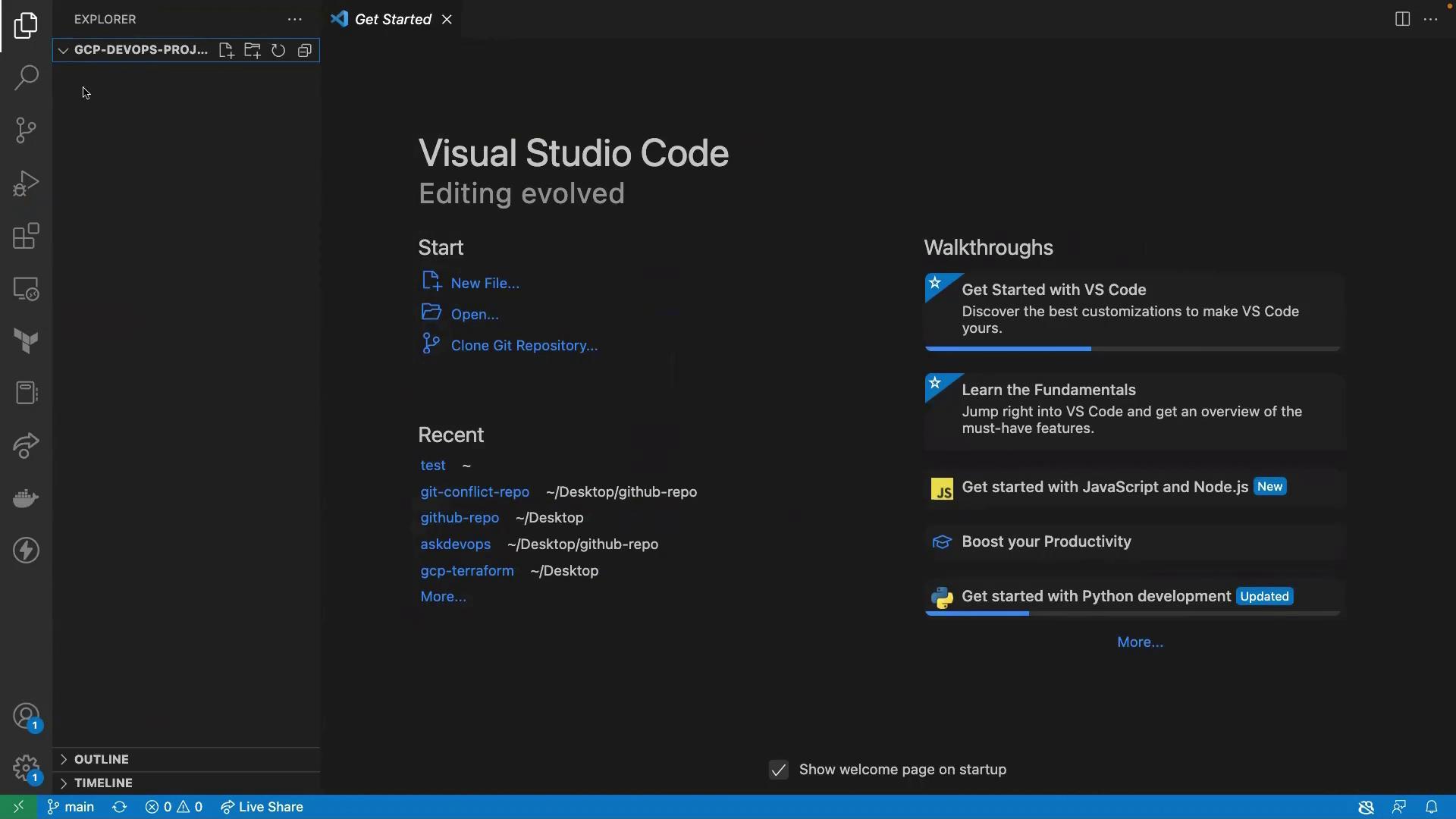
Since the project folder is empty, open an integrated terminal (**Terminal → New Terminal**) and create a new `README.md` file:
```bash theme={null}
touch README.md
```
In the Explorer panel, open `README.md` and add:
```markdown theme={null}
### This is a repo for our new GCP DevOps project
```
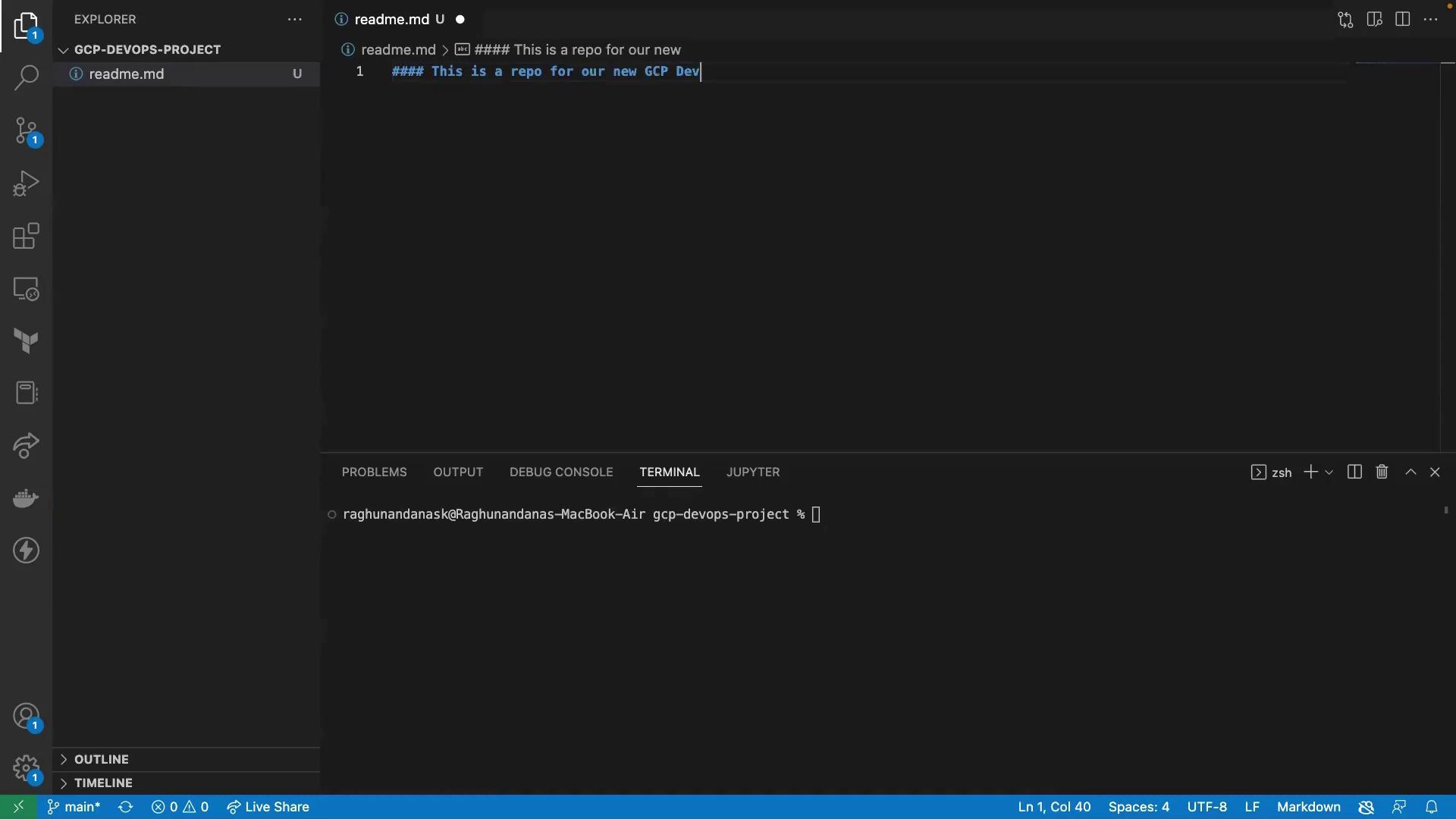
To preview the Markdown, click the **Open Preview** icon in the top-right of the editor.
***
## 3. Stage, Commit, and Push Changes
In the integrated terminal, run:
```bash theme={null}
git add README.md
git commit -m "Add README for GCP DevOps project"
```
Confirm you’re on the main branch:
```bash theme={null}
git branch
```
Push your commit to GitHub:
```bash theme={null}
git push origin main
```
You should see:
```bash theme={null}
Everything up-to-date
```
***
## 4. Verify on GitHub
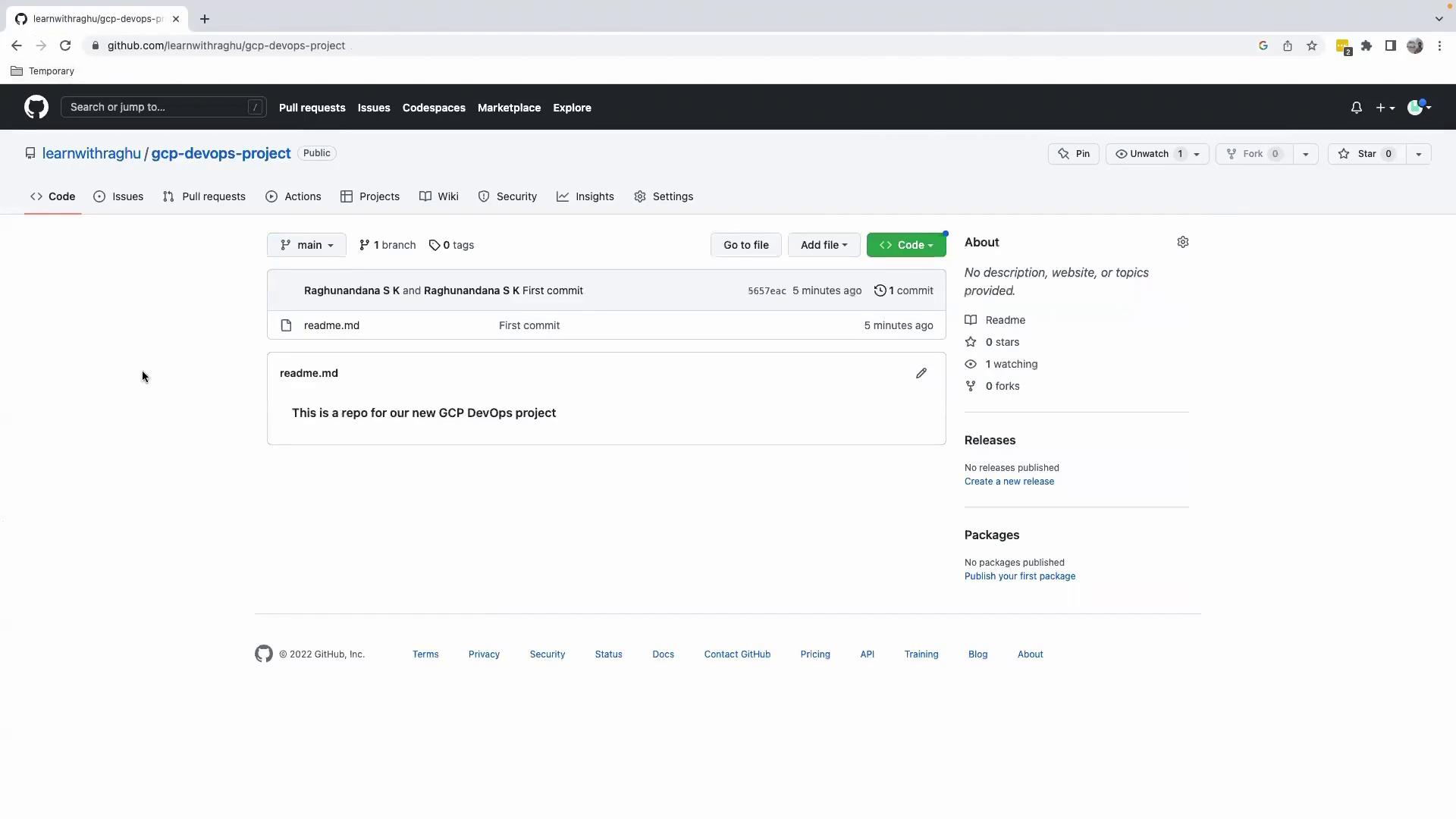
Refresh your repository page on GitHub. You’ll now see the `README.md` with your heading:
***
## Summary
1. Cloned the empty GitHub repository to your local machine.
2. Opened and initialized the project in VS Code.
3. Created and previewed a Markdown file.
4. Committed and pushed changes back to GitHub.
***
## References
* [Git Documentation](https://git-scm.com/doc)
* [VS Code User Guide](https://code.visualstudio.com/docs)
* [GitHub Basics](https://docs.github.com/en/get-started/quickstart)