> ## Documentation Index
> Fetch the complete documentation index at: https://notes.kodekloud.com/llms.txt
> Use this file to discover all available pages before exploring further.
# Setting up Budget and Alerting in GCP account
> This guide explains how to create budgets and set alerts in Google Cloud Platform for effective cost management.
Effective cost management in Google Cloud Platform (GCP) starts with creating budgets and defining alert thresholds. This guide walks you through every step— from initial setup to creating both project-level and service-specific budgets—so you can prevent unexpected charges.
## Prerequisites
* You are signed in to the GCP Console with your target project selected.
* Billing is enabled for that project.
Setting budgets and alerts helps you stay within expected costs, especially when idle resources or sudden usage spikes can lead to unexpected charges.
***
## 1. Access the Billing Dashboard
1. Go to the [GCP Console](https://console.cloud.google.com/).
2. Confirm the correct project is selected in the top toolbar.
3. Search for **Billing** in the navigation bar and click **Billing**.
You will land on the Billing dashboard, where all cost-management tools are available.
***
## 2. Open Budgets & Alerts
In the left-hand menu, click **Budgets & alerts**. Since you haven’t created any budgets yet, the list will be blank.
***
## 3. Create Your First Budget
1. Click **CREATE BUDGET**.
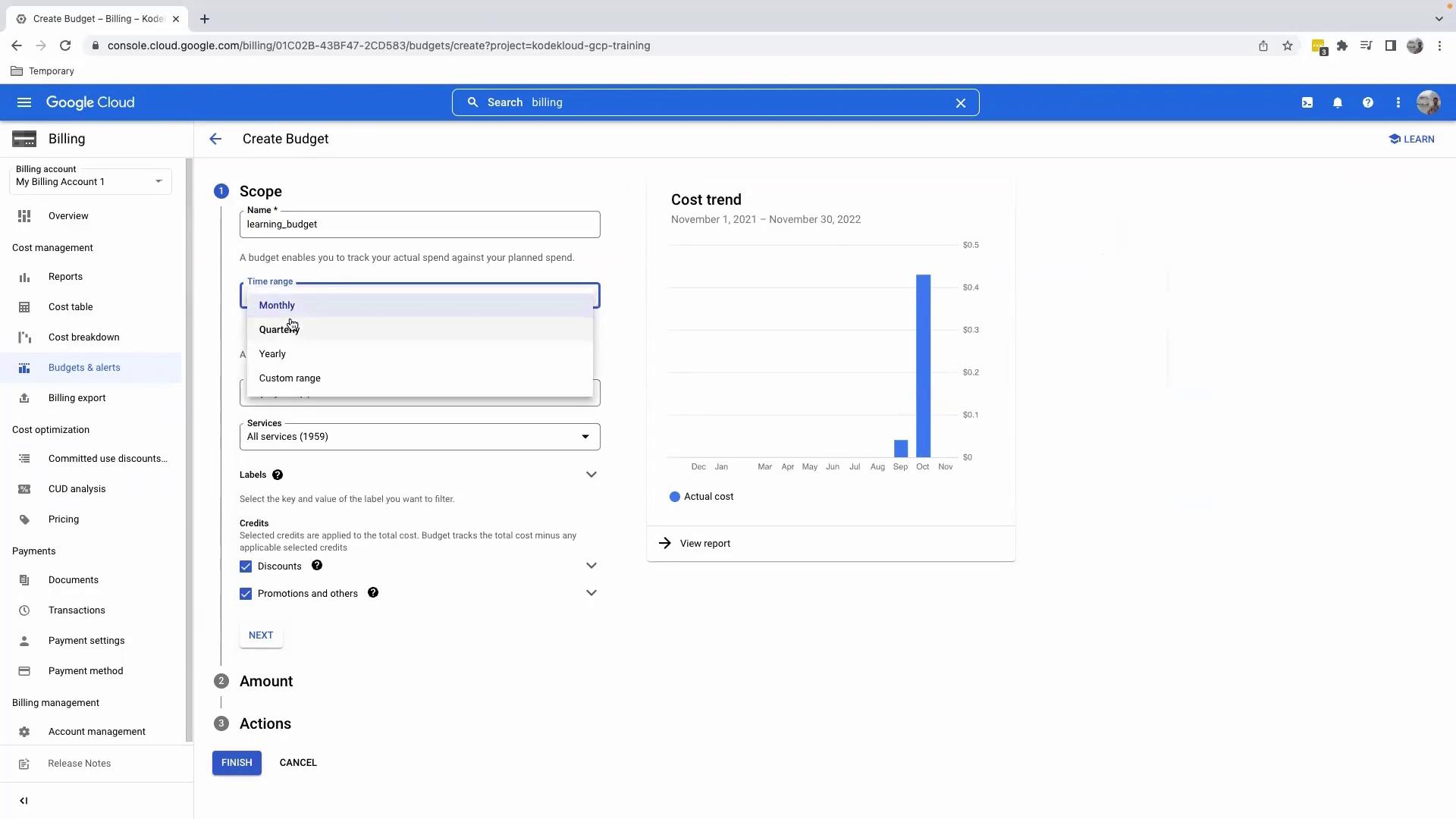
2. **Name** your budget, for example `learning_budget`.
3. Under **Budget scope**:
* **Time range**: Select **Monthly**.
* **Projects**: Pick your current project.
* **Services**: Leave **All services** to monitor total spend.
4. Click **Next**.
***
## 4. Set Your Budget Amount
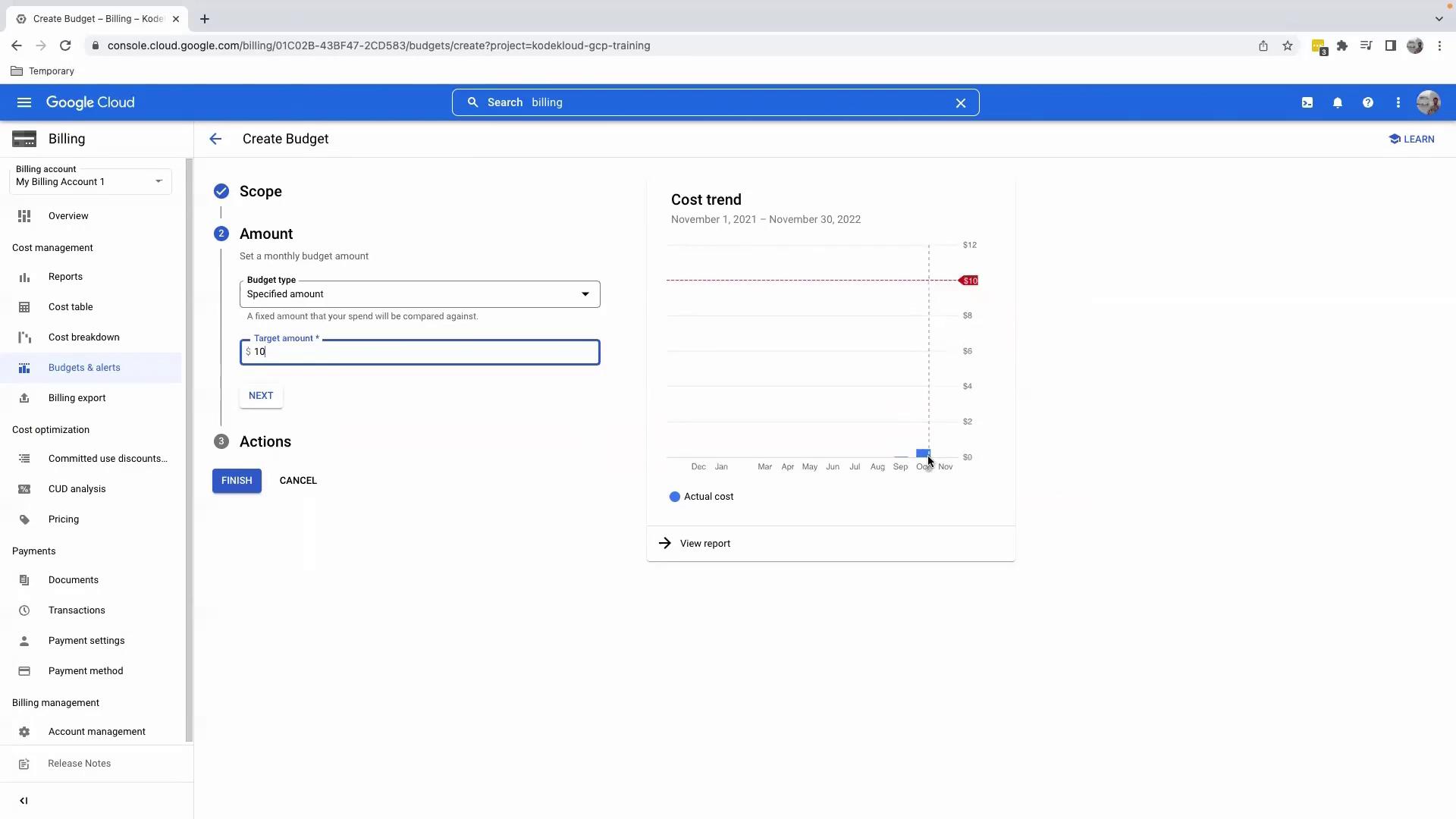
1. In **Budget amount**, type your limit (e.g., `10` for \$10).
2. Review the cost trend graph on the right—this visual compares historical spend against your chosen threshold.
3. Click **Next** to move on to notification settings.
***
## 5. Configure Alert Thresholds
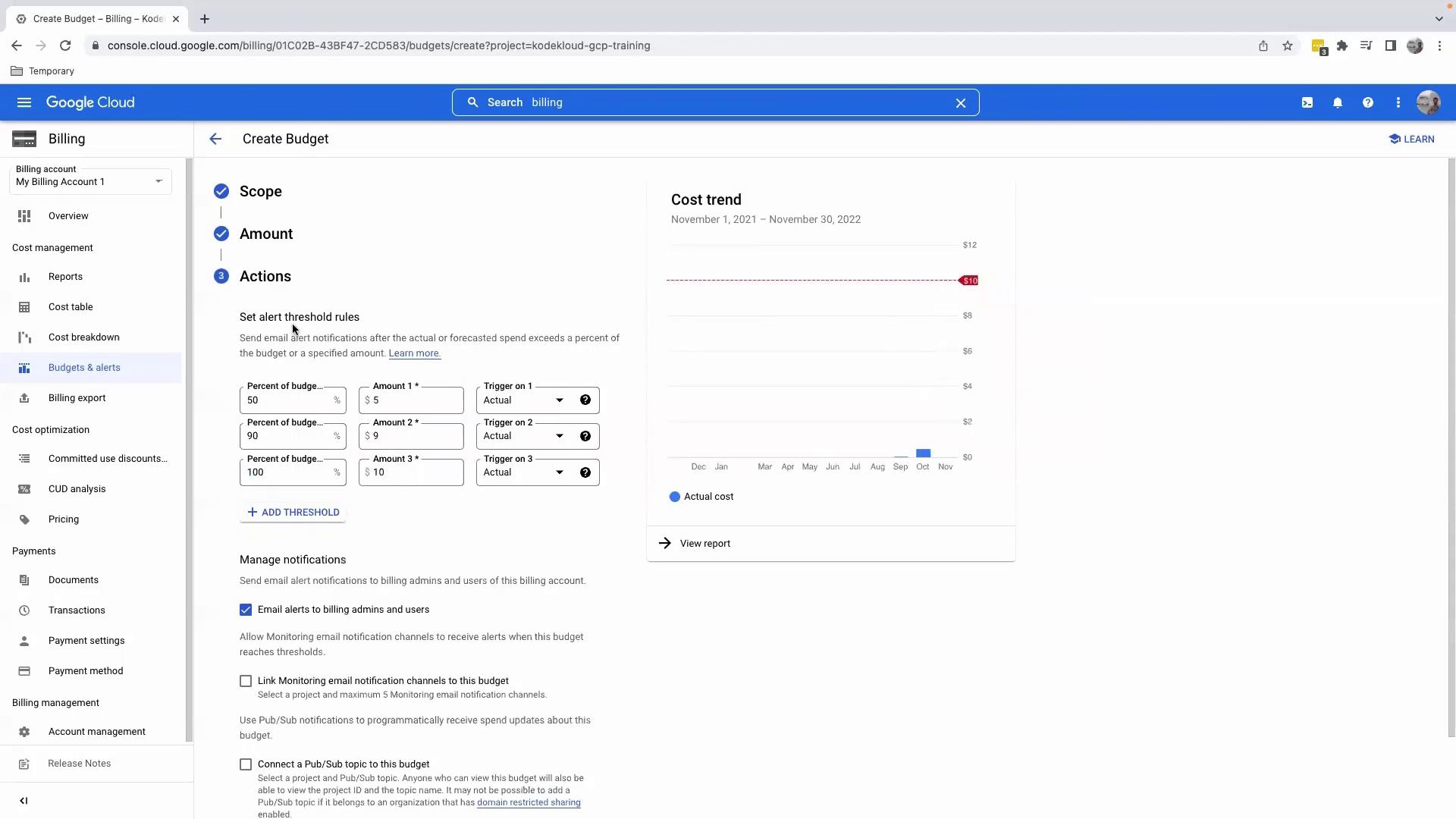
On the **Set threshold rules** page:
1. Remove or adjust default thresholds (50%, 90%, 100%) as needed.
2. For example, keep only 90% (`$9`) and 100% (`$10`) alerts.
3. Under **Notifications**, choose **Email**.
4. By default, alerts will go to your account’s primary email.
5. Click **Finish**.
***
## 6. Verify Your Budget
After creating the budget, you will see it listed on the **Budgets & alerts** page:
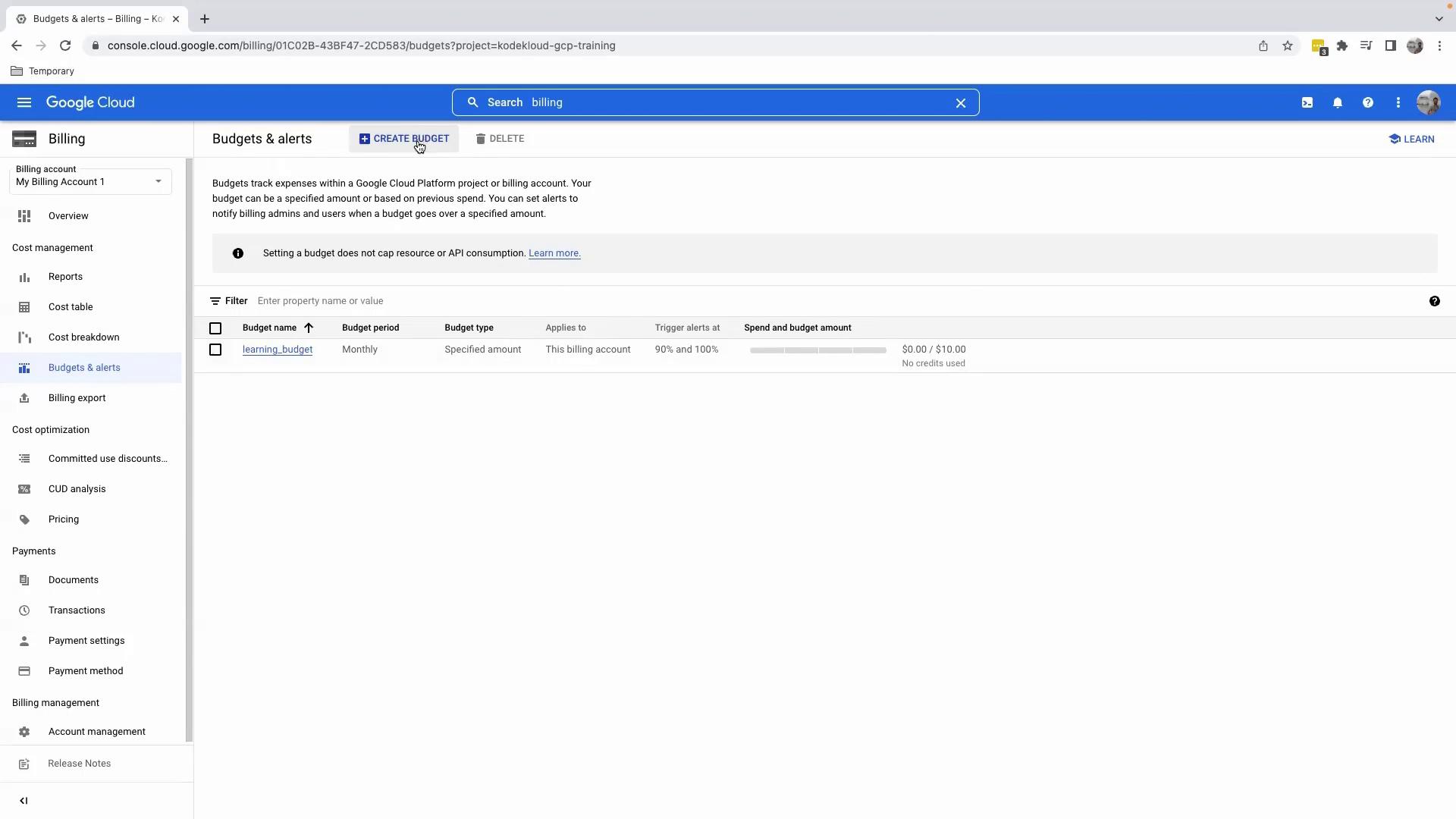
This confirms your project-level budget is active and will send email alerts as thresholds are reached.
***
## 7. Create a Service-Specific Budget
To monitor spending for a single service, such as Compute Engine:
1. Click **CREATE BUDGET** again.
2. Name it (e.g., `compute_budget`).
3. Under **Budget scope**:
* **Time range**: Monthly
* **Projects**: Your target project
* **Services**: Select **Compute Engine** from the dropdown
4. Click **Next**, set a **Budget amount** (e.g., `$5`), adjust thresholds, then click **Finish**.
Now you’ll receive alerts for:
* **Project-level budget** monitoring all services.
* **Service-level budget** exclusively for Compute Engine.
***
## Recommended Best Practices
| Best Practice | Description |
| ------------------------------- | ------------------------------------------------------------------------------ |
| Use Multiple Budgets | Combine project-level and resource-level budgets for granular control. |
| Adjust Thresholds Strategically | Set early alerts (e.g., 50%) to diagnose cost spikes before they grow. |
| Review Alerts Weekly | Regularly review alert emails to identify and clean up idle resources. |
| Integrate with Pub/Sub | Forward budget notifications to Pub/Sub for automated cost-management actions. |
Alerts are not blocking—resources won’t stop once you exceed a budget. Regularly review and clean up unused resources to control costs.
***
## References
* [GCP Billing Documentation](https://cloud.google.com/billing/docs)
* [Manage GCP Budgets and Alerts](https://cloud.google.com/billing/docs/how-to/budgets)
* [Compute Engine Pricing](https://cloud.google.com/compute/pricing)