> ## Documentation Index
> Fetch the complete documentation index at: https://notes.kodekloud.com/llms.txt
> Use this file to discover all available pages before exploring further.
# CICD Design Discussion
> This guide covers designing a CI/CD pipeline for automating Docker image builds, storage, and deployment to Google Kubernetes Engine.
Streamlining your software delivery with a robust CI/CD pipeline ensures that every code change in GitHub is automatically built, tested, and deployed to Google Kubernetes Engine (GKE). This guide walks through planning, building, storing, and deploying Docker images to GKE using Kubernetes manifests.
## Key Pipeline Questions
1. **How do we automate Docker image builds?**
2. **Where should we store Docker images?**
3. **How do we deploy images to GKE with Kubernetes manifests?**
***
## 1. Automating Docker Image Builds
Manual Docker builds after each commit are not scalable. We need an automated build system that triggers on every Git push.
Popular CI/CD tools for GitHub integrations include [GitHub Actions](https://docs.github.com/en/actions) and [Google Cloud Build](https://cloud.google.com/build).
Example snippet for a Cloud Build trigger (cloudbuild.yaml):
```yaml theme={null}
steps:
- name: 'gcr.io/cloud-builders/docker'
args: ['build', '-t', 'gcr.io/$PROJECT_ID/my-app:$SHORT_SHA', '.']
images:
- 'gcr.io/$PROJECT_ID/my-app:$SHORT_SHA'
```
***
## 2. Storing Docker Images
After building, push your image to a registry. Below is a comparison of popular options:
| Registry Type | Use Case | Example Push Command |
| --------------------------------- | ----------------------------- | -------------------------------------------------- |
| Docker Hub | Public/Open Source projects | `docker push myuser/my-app:latest` |
| Google Artifact Registry/Registry | Private GCP workloads | `docker push gcr.io/my-project/my-app:latest` |
| Self-hosted Registry | On-prem or hybrid deployments | `docker push registry.mycompany.com/my-app:stable` |
Ensure proper IAM roles or credentials are configured before pushing images. Avoid embedding credentials in your repository.
***
## 3. Deploying to GKE with Kubernetes Manifests
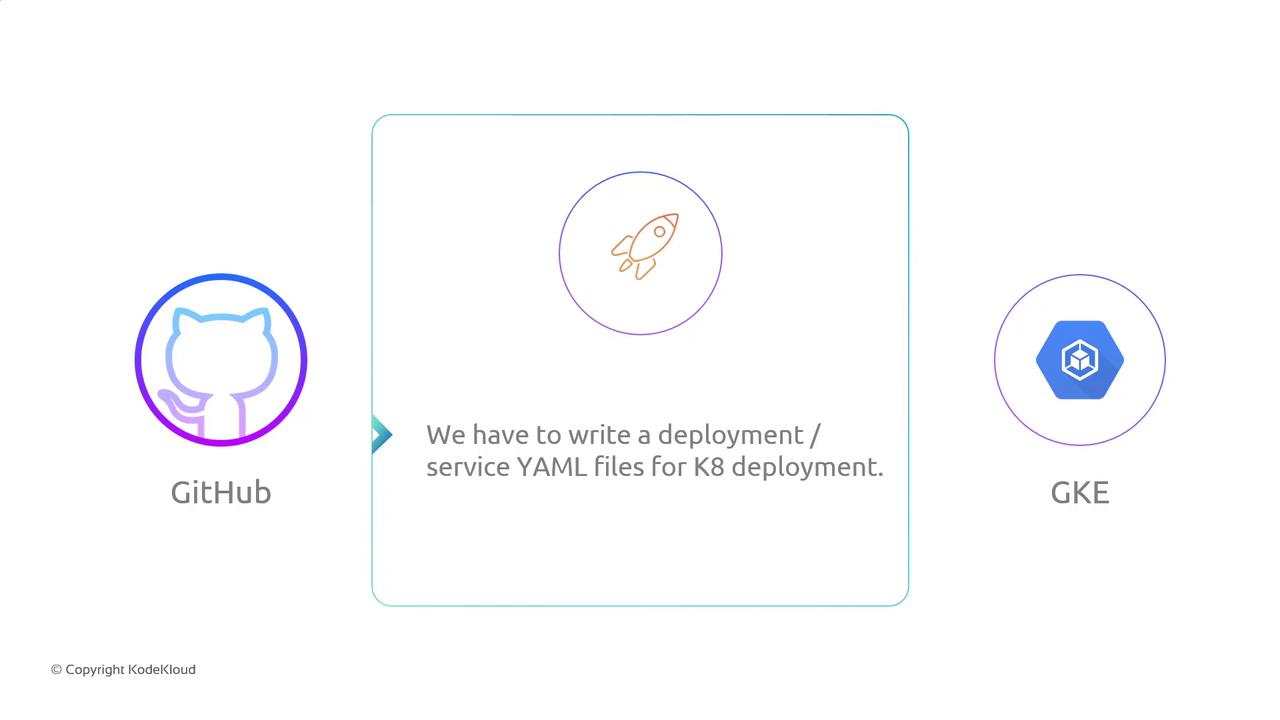
Kubernetes manifests define how your application runs in GKE. At minimum, you need:
* **Deployment**: Manages pods and updates
* **Service**: Exposes pods inside/outside the cluster
### Common Kubernetes Resources
| Resource Type | Description | Example CLI |
| ------------------------------- | ------------------------------------- | ---------------------------------- |
| Deployment | Declarative update for Pods | `kubectl apply -f deployment.yaml` |
| Service | Stable network endpoint for Pods | `kubectl apply -f service.yaml` |
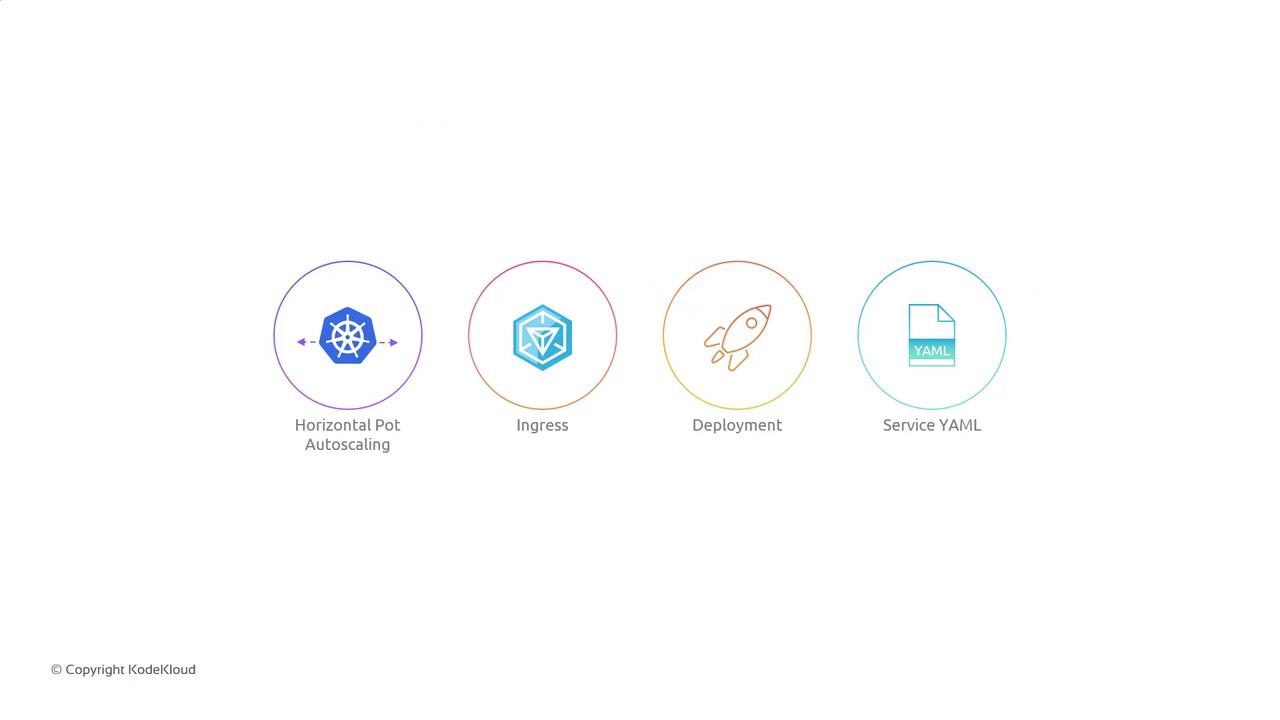
| Horizontal Pod Autoscaler (HPA) | Automatic scaling based on CPU/memory | `kubectl apply -f hpa.yaml` |
| Ingress | HTTP routing into the cluster | `kubectl apply -f ingress.yaml` |
Beyond the basics, you can add:
***
## 4. End-to-End CI/CD Workflow
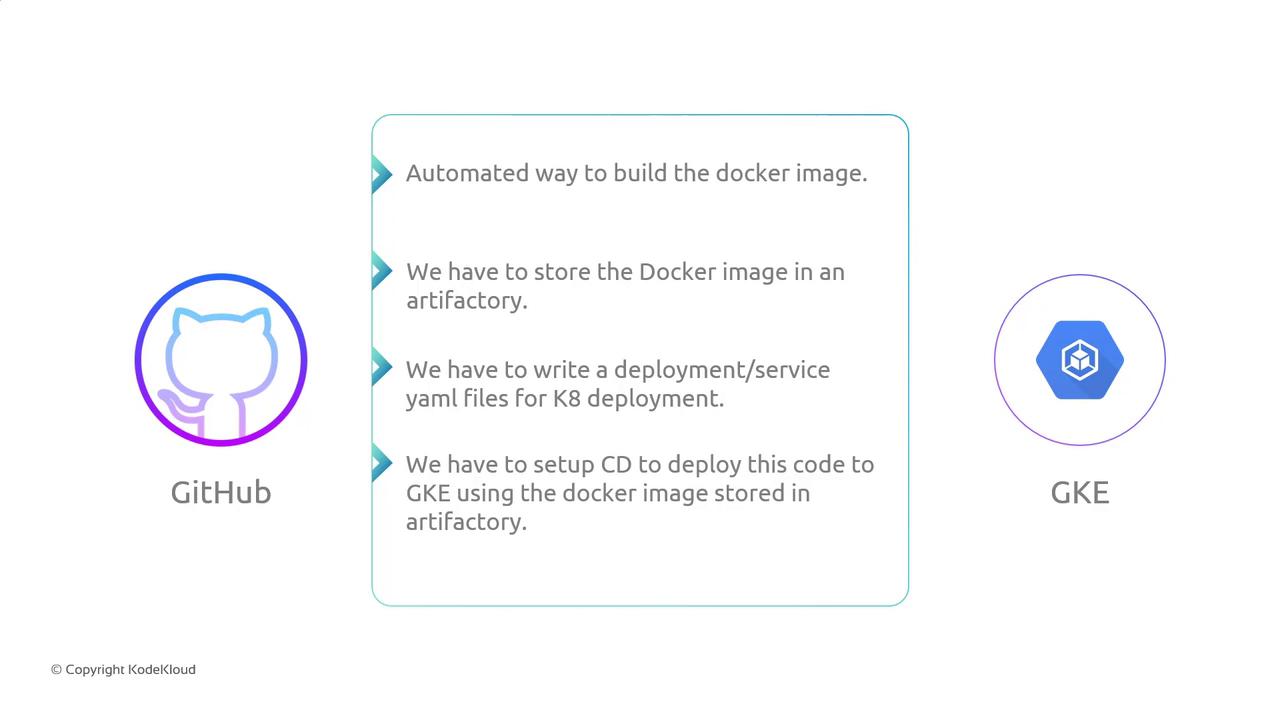
Combine build, storage, and deployment into a single automated flow:
1. **Detect changes** in the GitHub repository (e.g., on `main` branch).
2. **Trigger build**: Run Docker build, run tests, and tag the image.
3. **Push image** to the artifact registry.
4. **Deploy to GKE**: `kubectl apply -f` the updated YAML manifests.
***
## 5. Research and Collaboration
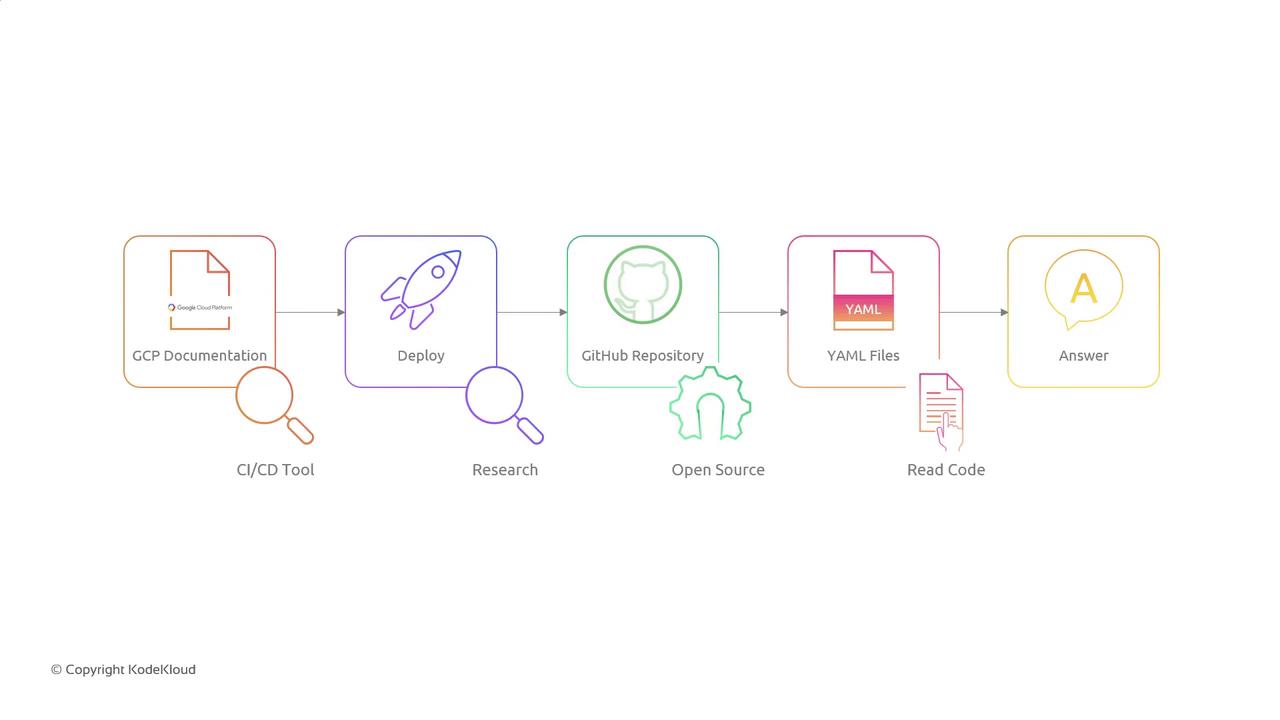
Before implementation, perform a research phase to refine your CI/CD strategy:
* Review [Google Cloud Build documentation](https://cloud.google.com/build) for CI/CD best practices.
* Explore open-source pipeline examples on GitHub.
* Audit existing Kubernetes YAML files to learn naming conventions and labels.
* Collaborate with senior engineers to validate security and scalability requirements.
***
## Links and References
* [Kubernetes Concepts](https://kubernetes.io/docs/concepts/overview/what-is-kubernetes/)
* [Google Cloud Artifact Registry](https://cloud.google.com/artifact-registry)
* [GitHub Actions Documentation](https://docs.github.com/en/actions)
* [Terraform Registry](https://registry.terraform.io/)
With these design considerations, you’re ready to implement a fully automated CI/CD pipeline that builds, stores, and deploys Docker images to GKE. Good luck!