> ## Documentation Index
> Fetch the complete documentation index at: https://notes.kodekloud.com/llms.txt
> Use this file to discover all available pages before exploring further.
# Automate Docker build using Cloud Build
> Streamline Docker image builds using Google Cloud Build and Artifact Registry through automated configurations and monitoring.
Effortlessly streamline your Docker image builds by leveraging Google Cloud Build and storing the results in Google Artifact Registry. In this tutorial, you'll learn how to:
* Create a feature branch for isolation
* Configure a `cloudbuild.yaml` for automated builds
* Set up and verify a Cloud Build trigger
* Monitor builds in the Cloud Build dashboard
* Inspect Docker images in Artifact Registry
***
## 1. Create a New Git Branch
First, ensure you’re working in a dedicated feature branch. This keeps your `main` branch clean and allows safe testing of CI/CD changes.
```bash theme={null}
# Check your current branch
git branch
# Example output:
# Create and switch to a new feature branch
git checkout -b minor/cloudbuild
# Example output:
# Verify you’re on the new branch
git branch
# Example output:
# * minor/cloudbuild
# main
```
***
## 2. Add the Cloud Build Configuration
In the root of your repository, create a `cloudbuild.yaml` file. Cloud Build uses this file to define build steps, images to push, and other options.
```yaml theme={null}
steps:
- name: 'docker'
args:
- build
- '-t'
- 'gcr.io/$PROJECT_ID/gcpdevops'
- '.'
images:
- 'gcr.io/$PROJECT_ID/gcpdevops'
```
| Field | Description |
| ---------- | ------------------------------------------------------------- |
| steps.name | Docker builder image used for the build |
| steps.args | Arguments passed to `docker build` (tagging and context path) |
| images | Destination(s) in Container/Artifact Registry to push to |
Ensure the **Cloud Build API** and **Artifact Registry API** are enabled in your Google Cloud project.
***
## 3. Commit and Push Changes
Once your `cloudbuild.yaml` is in place, commit and push your changes:
```bash theme={null}
git add cloudbuild.yaml
git commit -m "Add Cloud Build configuration for Docker images"
git push origin minor/cloudbuild
```
Then open a pull request targeting the `main` branch and merge it once approved.
***
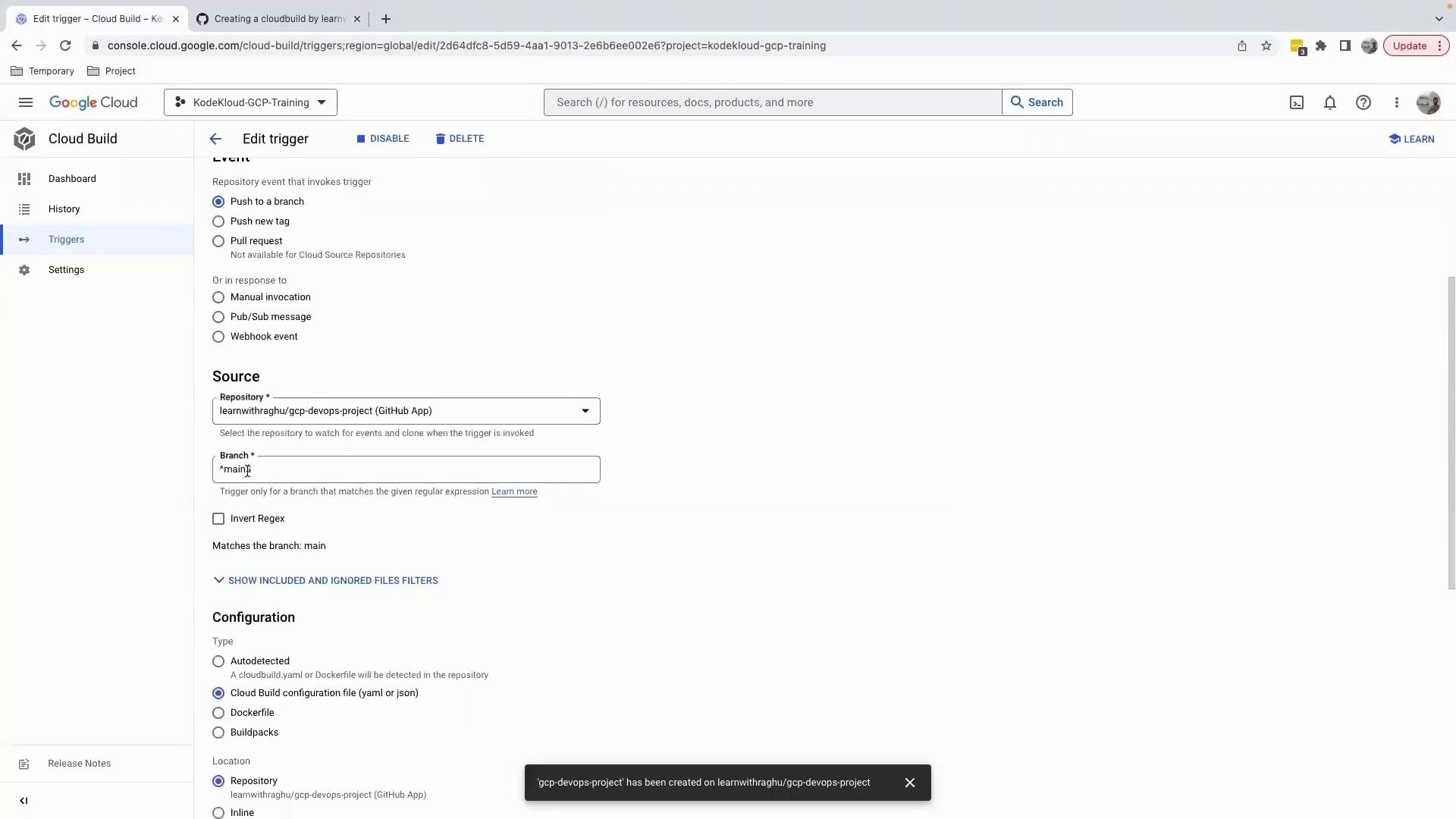
## 4. Configure and Verify Your Cloud Build Trigger
In the [Google Cloud Console](https://console.cloud.google.com/), navigate to **Cloud Build › Triggers** and confirm:
* **Event**: Push to the `main` branch
* **Source**: Your repository
* **Build Configuration**: Use `cloudbuild.yaml` in the root of the repository
***
## 5. Merge and Monitor the Build
After merging your PR, Cloud Build will automatically start a build. To track progress:
1. Go to **Cloud Build › Dashboard**.
2. Click on the latest build in **History** to view real-time logs.
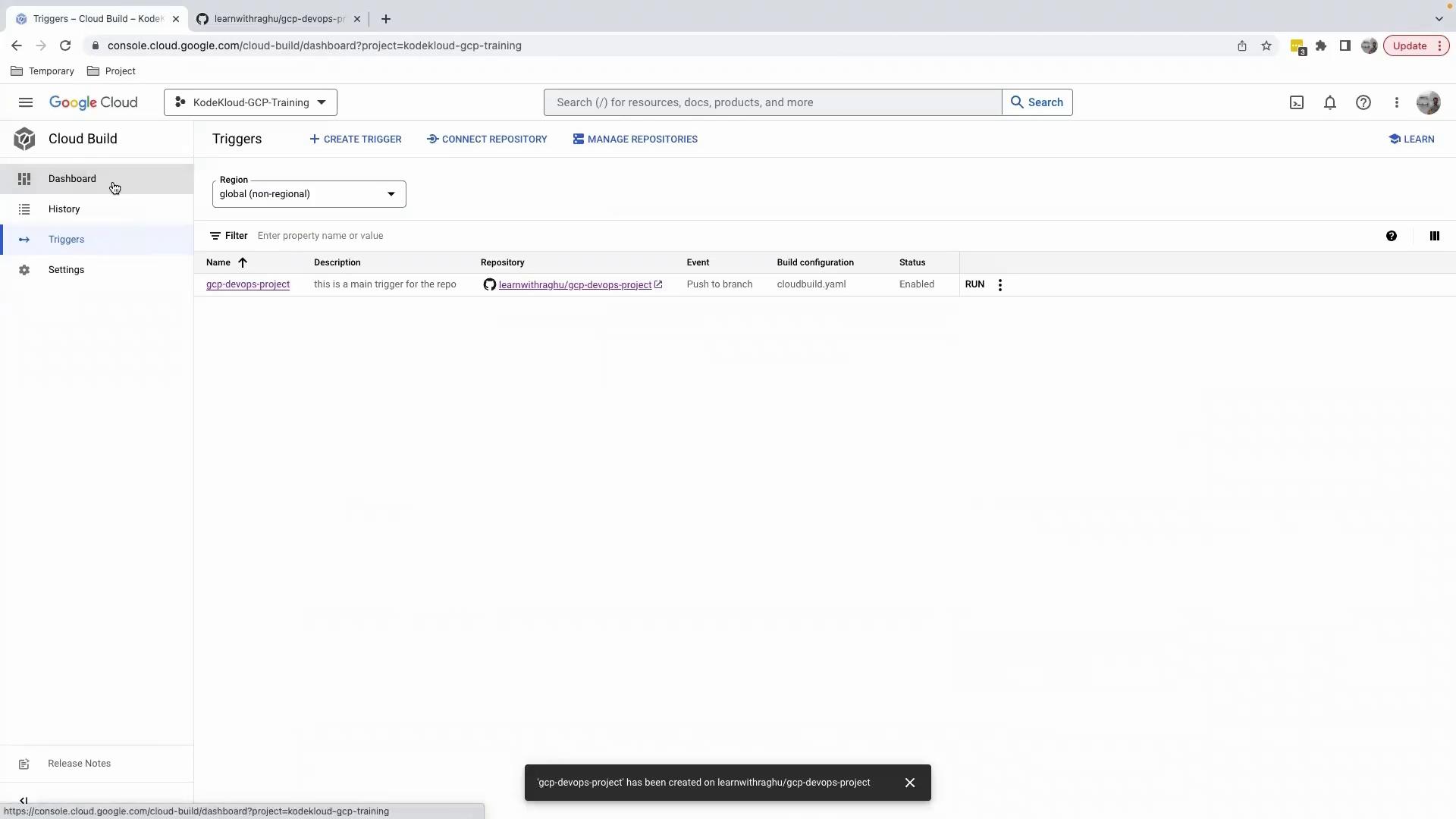
Example log output:
```text theme={null}
FETCHSOURCE
hint: Using 'main' as the name of the initial branch...
BUILD
Pulling image: docker
Starting build...
Building default tag: latest
...
PUSH
Pushing gcr.io/...
```
Merging directly to `main` triggers a build. Make sure your `cloudbuild.yaml` is correct to avoid broken pipelines.
***
## 6. Inspect Your Artifacts
Once the build completes, open **Artifact Registry**:
1. Enable Artifact Registry if prompted (may take a minute).
2. Click **Container Registry** to view your `gcr.io` repositories.
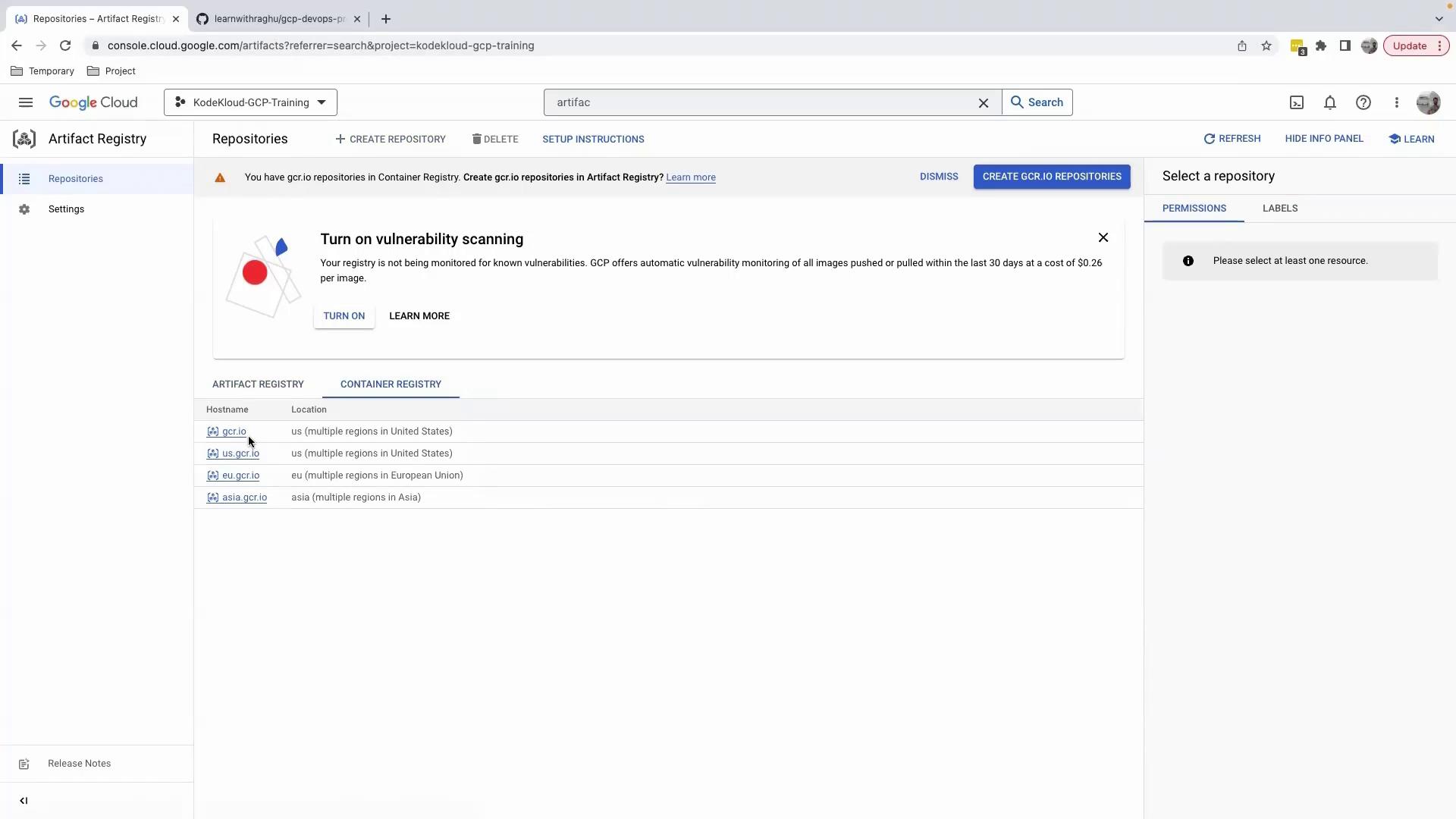
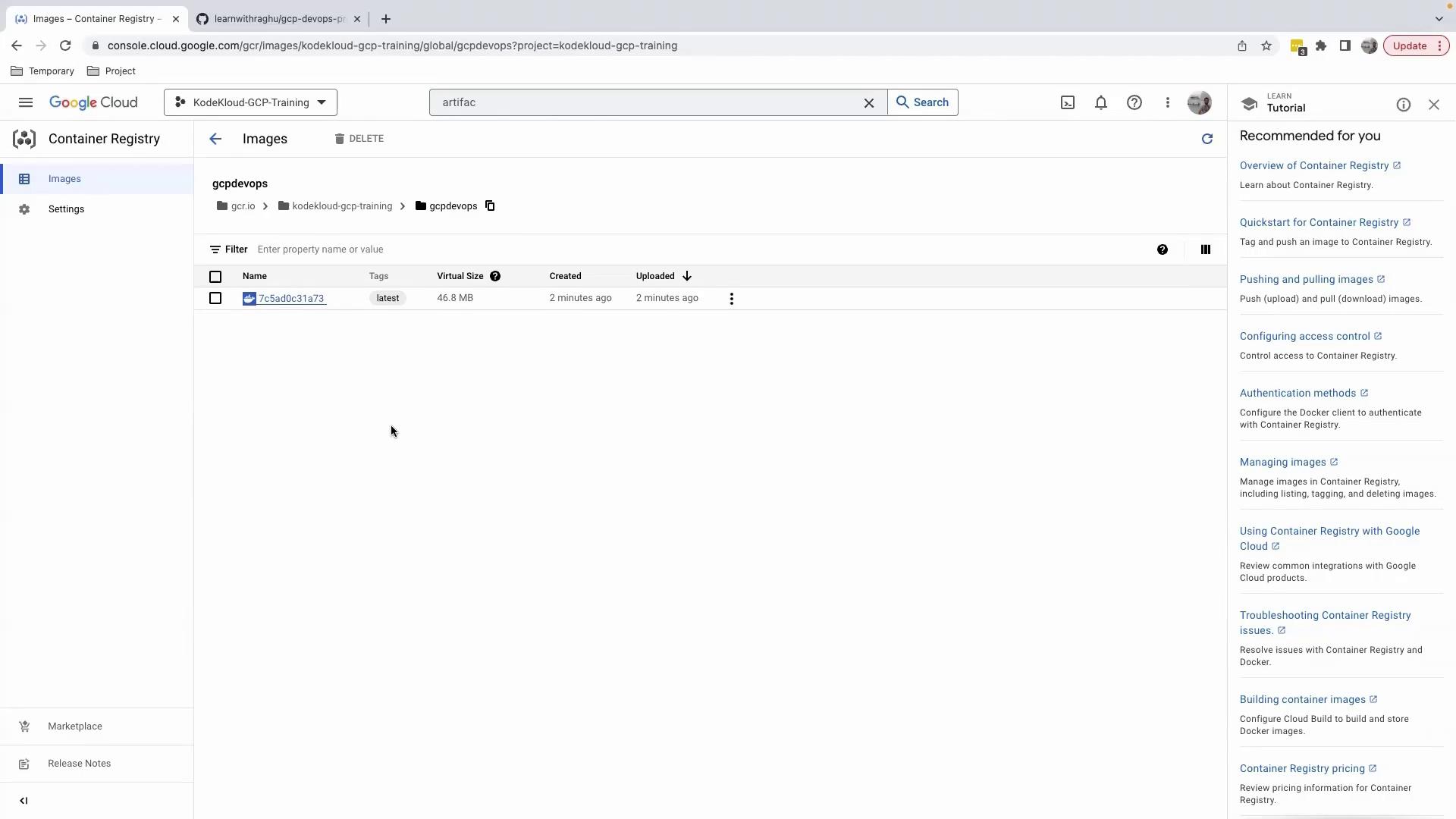
You should see a `gcpdevops` repository:
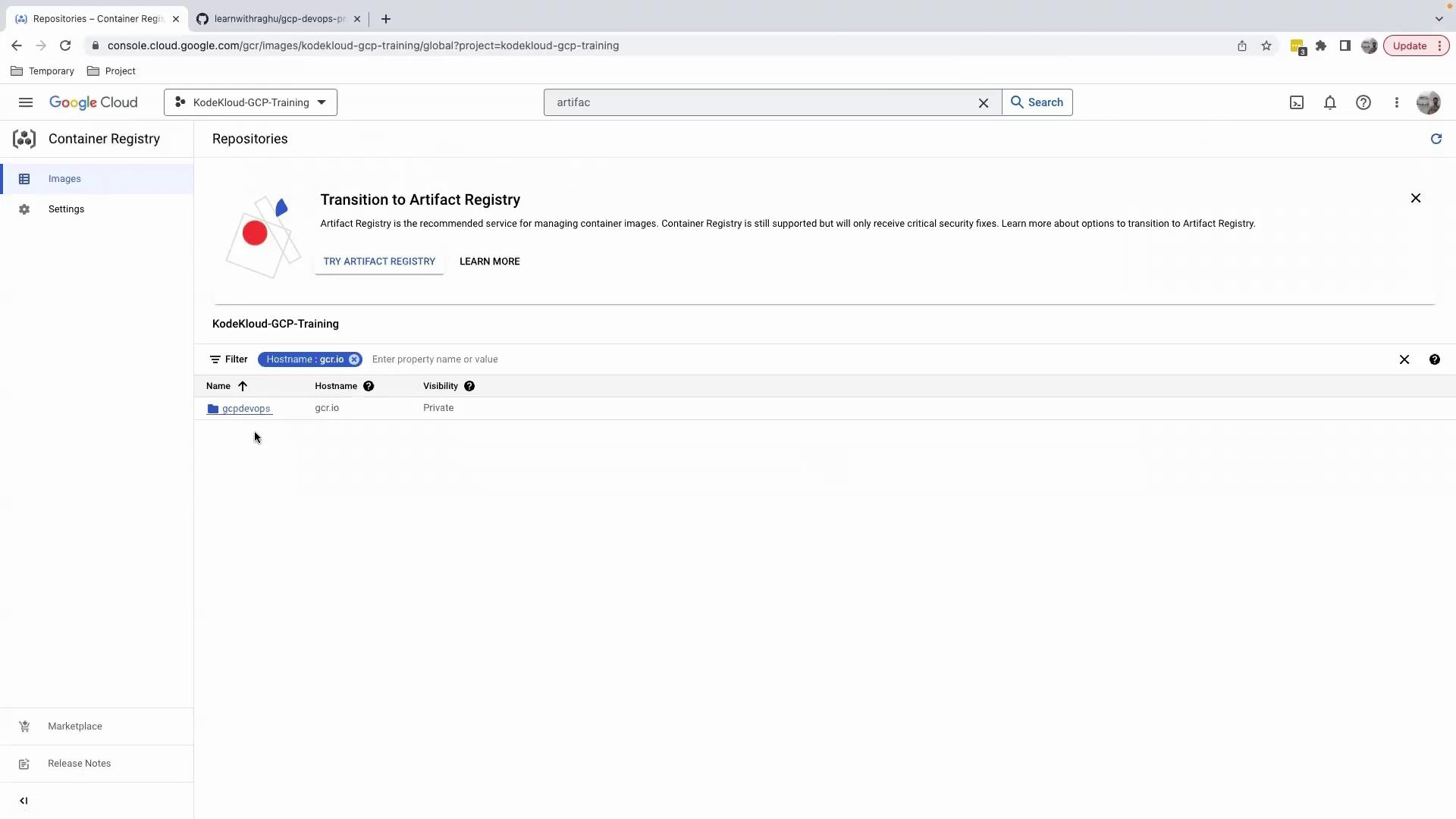
Drill into the repository to view tags, sizes, and timestamps:
***
## Recap and Next Steps
You’ve now:
* Set up a feature branch and added `cloudbuild.yaml`
* Configured a Cloud Build trigger on pushes to `main`
* Monitored build logs and verified successful pushes to Artifact Registry
In the next lesson, we’ll integrate testing steps and deploy these images to a Kubernetes cluster as part of a full CI/CD pipeline.
***
## Further Reading
* [Cloud Build Documentation](https://cloud.google.com/build/docs/)
* [Artifact Registry Overview](https://cloud.google.com/artifact-registry/docs)
* [Docker Official Images](https://hub.docker.com/_/docker)
* [Kubernetes CI/CD Best Practices](https://kubernetes.io/docs/concepts/cluster-administration/cloud-controller-manager/)