> ## Documentation Index
> Fetch the complete documentation index at: https://notes.kodekloud.com/llms.txt
> Use this file to discover all available pages before exploring further.

# Connecting Github repo to cloudbuild

> Automate your CI/CD pipeline by linking GitHub with Google Cloud Build for seamless build and deployment processes.

Automate your CI/CD pipeline by linking GitHub with Google Cloud Build. Whenever you push code, Cloud Build can kick off your build and deployment processes without manual intervention.

<Callout icon="triangle-alert" color="#FF6B6B">
  Make sure billing is **enabled** on your Google Cloud project. Builds will fail if billing isn’t set up.
</Callout>

## Prerequisites

| Requirement          | Details                                            |
| -------------------- | -------------------------------------------------- |
| Google Cloud Project | Active project with billing enabled                |
| IAM Role             | `roles/editor` or `roles/cloudbuild.builds.editor` |
| GitHub Account       | Owner or admin access to the target repository     |

***

## 1. Verify Your GCP Project

1. Sign in to the [Google Cloud Console](https://console.cloud.google.com/).
2. Confirm you’re working in the correct project.
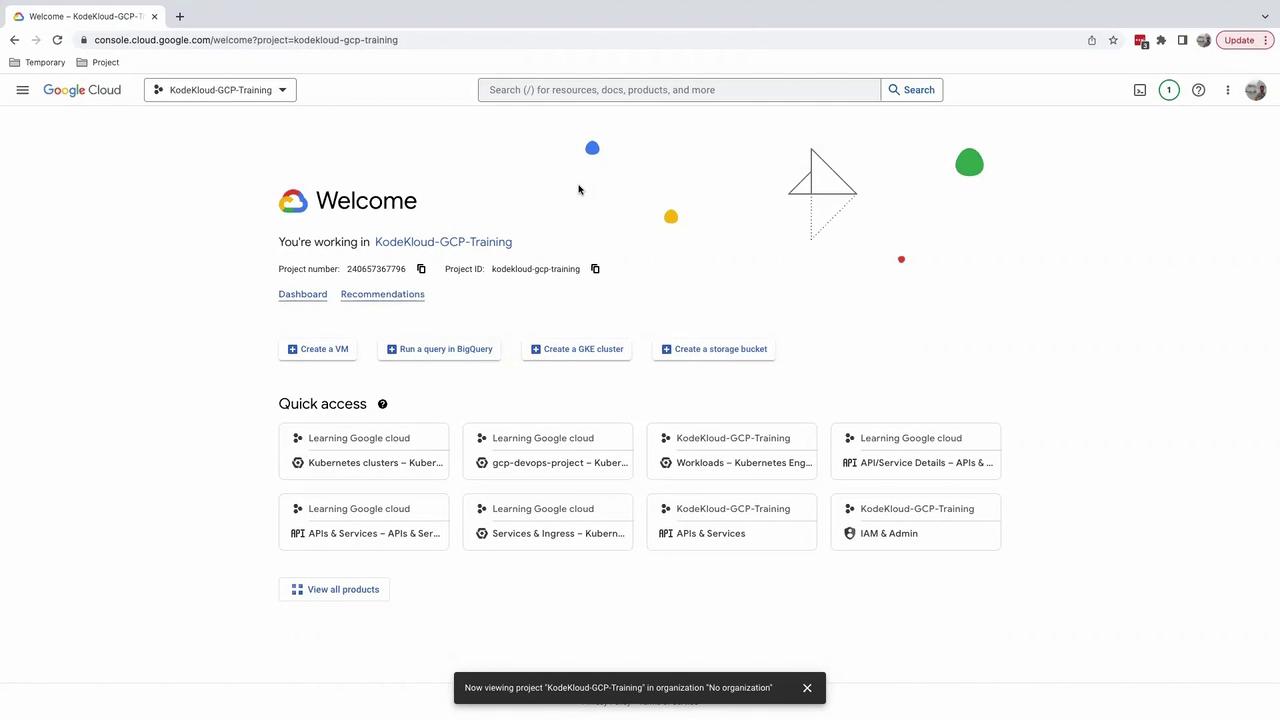
<Frame>
  ![The image shows a Google Cloud Platform (GCP) console dashboard for a project named "KodeKloud-GCP-Training," featuring options for creating virtual machines, running queries, and accessing various services.](https://kodekloud.com/kk-media/image/upload/v1752875474/notes-assets/images/GCP-DevOps-Project-Connecting-Github-repo-to-cloudbuild/gcp-console-dashboard-kodekloud-training.jpg)
</Frame>

***

## 2. Enable the Cloud Build API

1. In the top search bar, type **Cloud Build** and select it.
2. If you haven’t used Cloud Build here before, click **Enable**.
3. Wait a minute for the API to be provisioned, then navigate back to **Cloud Build**.

***

## 3. Explore the Cloud Build Dashboard

1. From the left-hand menu, choose **Dashboard**.
2. You’ll see that no builds have run yet.
3. Optionally, set your build region; otherwise leave the default **global**.
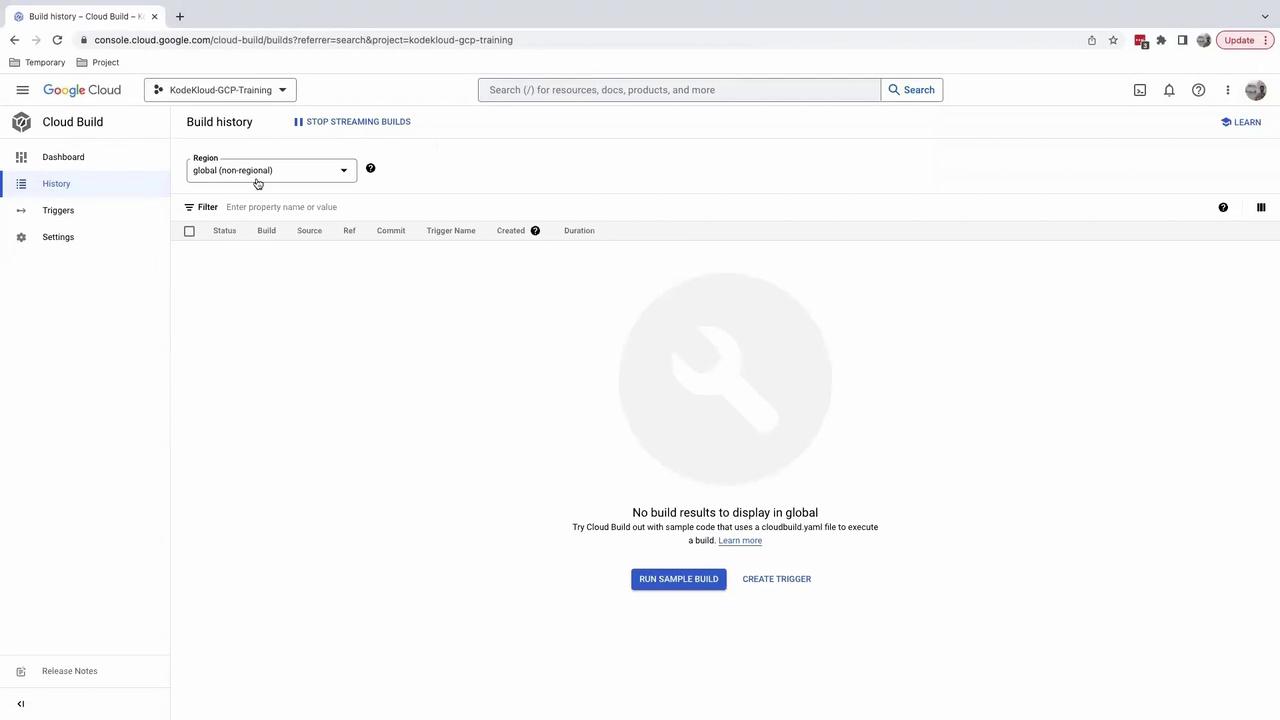
<Frame>
  ![The image shows a Google Cloud Build interface with no build results displayed. It includes options to run a sample build or create a trigger.](https://kodekloud.com/kk-media/image/upload/v1752875475/notes-assets/images/GCP-DevOps-Project-Connecting-Github-repo-to-cloudbuild/google-cloud-build-interface-no-results.jpg)
</Frame>

***

## 4. Create a Build Trigger

Cloud Build triggers start builds automatically on repository events.

1. In the left navigation pane, click **Triggers**.
2. Select **Manage repositories** to view connected source repositories (initially empty).
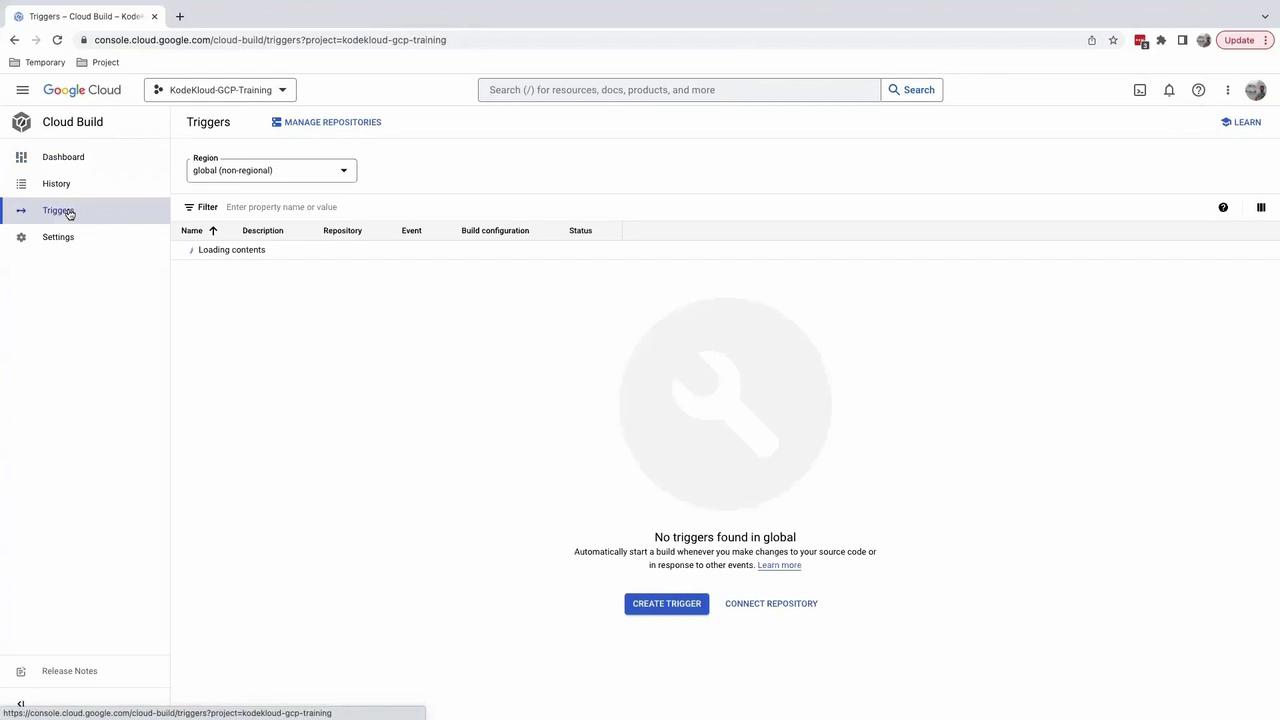
<Frame>
  ![The image shows a Google Cloud Build interface with a "Triggers" section open, indicating no triggers are found and options to create a trigger or connect a repository.](https://kodekloud.com/kk-media/image/upload/v1752875476/notes-assets/images/GCP-DevOps-Project-Connecting-Github-repo-to-cloudbuild/google-cloud-build-triggers-interface.jpg)
</Frame>

***

## 5. Connect Your GitHub Repository

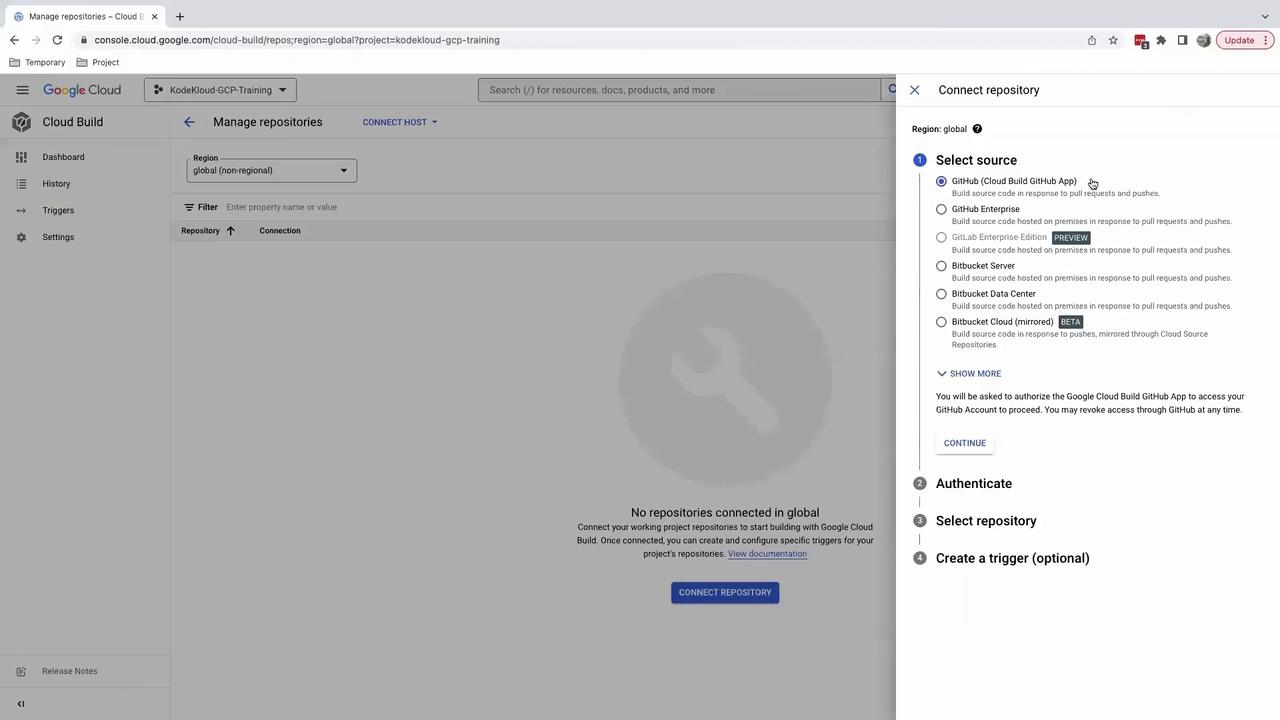
1. On **Manage repositories**, click **Connect repository**.
2. Choose **GitHub** and press **Continue**—you’ll be redirected to GitHub for authentication.
<Frame>
  ![The image shows a Google Cloud Build interface for managing repositories, with a sidebar for navigation and a panel for connecting a repository, including options for selecting a source like GitHub or Bitbucket.](https://kodekloud.com/kk-media/image/upload/v1752875478/notes-assets/images/GCP-DevOps-Project-Connecting-Github-repo-to-cloudbuild/google-cloud-build-repository-management.jpg)
</Frame>

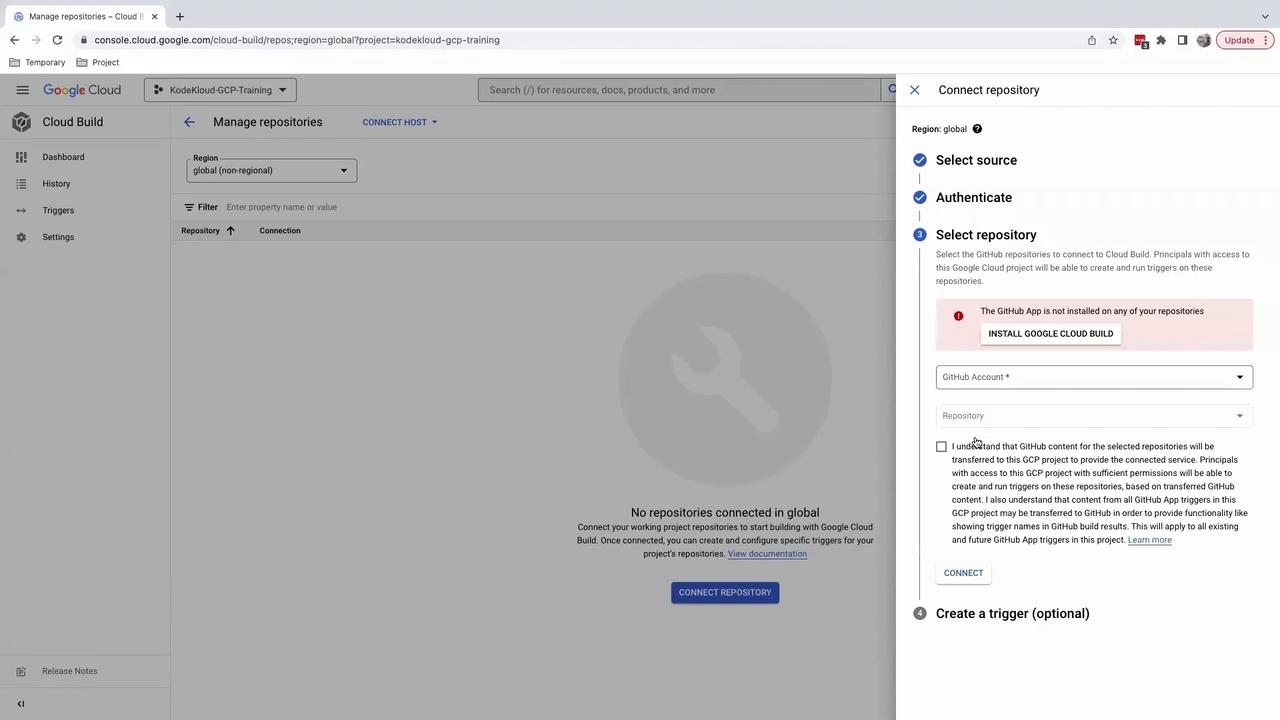
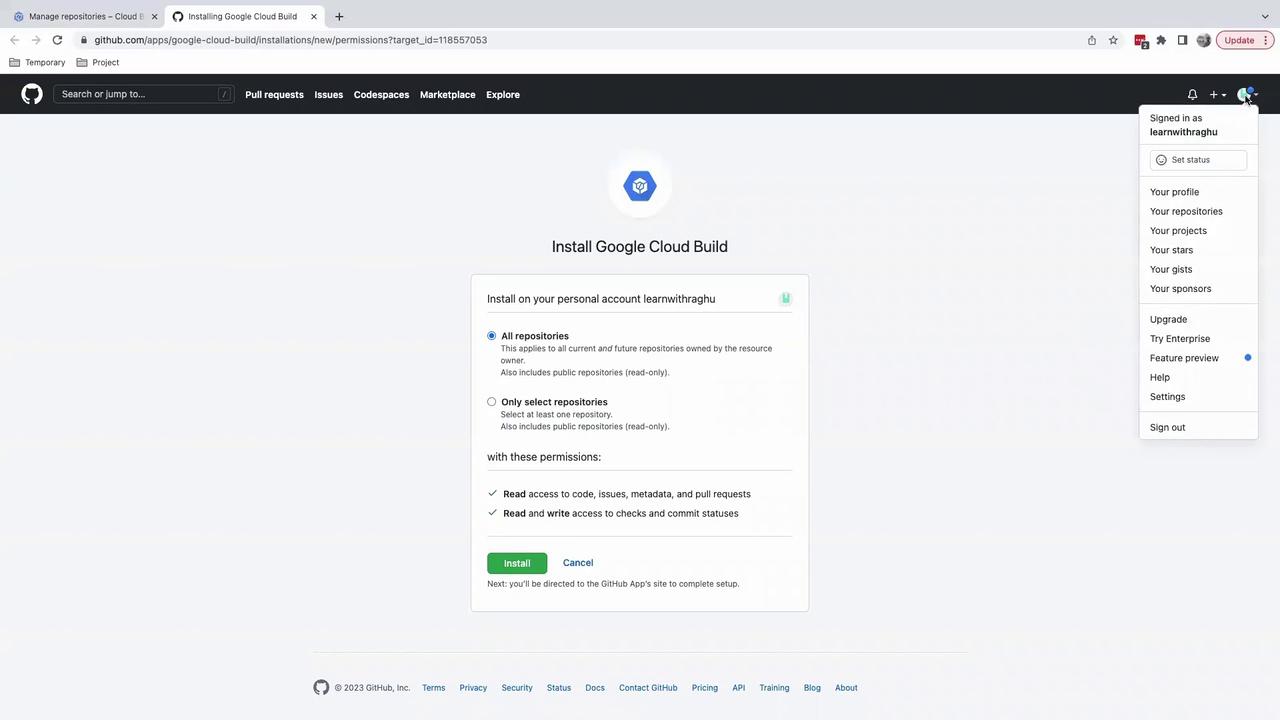
3. On GitHub:
   * Install the **Google Cloud Build** app.
   * Select **Only select repositories** and pick your repo (e.g., `GCP DevOps project`).
   * Click **Install** and authorize.
<Frame>
  ![The image shows a Google Cloud Build interface for managing repositories, with a sidebar for navigation and a panel for connecting a GitHub repository. The panel includes options to select a source, authenticate, and select a repository, with a prompt to install Google Cloud Build on GitHub.](https://kodekloud.com/kk-media/image/upload/v1752875479/notes-assets/images/GCP-DevOps-Project-Connecting-Github-repo-to-cloudbuild/google-cloud-build-interface-repositories.jpg)
</Frame>

4. Return to the Cloud Console:
   * Verify your GitHub account and repository selection.
   * Accept terms and click **Connect**.
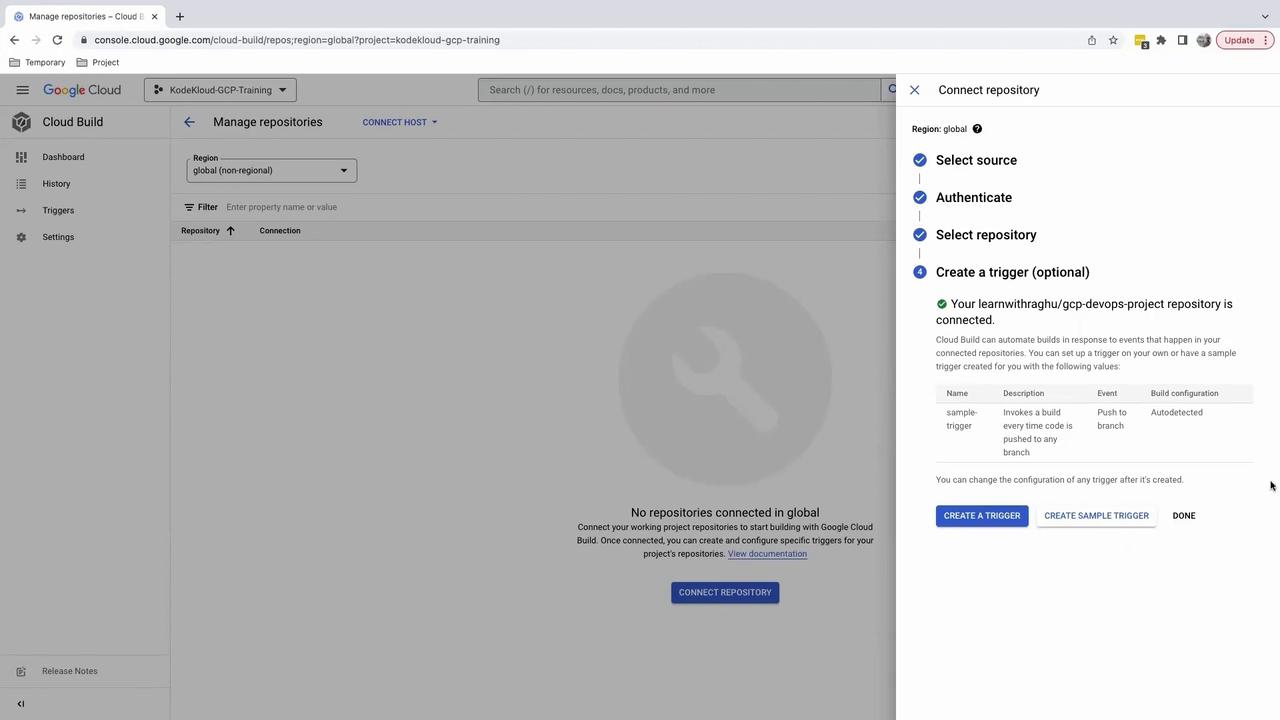
   * Optionally, skip trigger creation by clicking **Done** for now.
<Frame>
  ![The image shows a GitHub page for installing Google Cloud Build, with options to select repository access and permissions. A dropdown menu is visible on the right, showing account options for the user.](https://kodekloud.com/kk-media/image/upload/v1752875480/notes-assets/images/GCP-DevOps-Project-Connecting-Github-repo-to-cloudbuild/github-google-cloud-build-installation.jpg)
</Frame>

<Frame>
  ![The image shows a Google Cloud Build interface where a repository connection process is being completed, with options to create triggers for automated builds. The right panel confirms a repository connection and provides trigger configuration options.](https://kodekloud.com/kk-media/image/upload/v1752875482/notes-assets/images/GCP-DevOps-Project-Connecting-Github-repo-to-cloudbuild/google-cloud-build-repository-connection.jpg)
</Frame>

***

## 6. Verify the Connection

Back on **Manage repositories**, your GitHub repo should now appear. This confirms Cloud Build is linked and ready for triggers.

***

Next, you’ll create a `cloudbuild.yaml` file to define your build steps—compiling code, running tests, and pushing Docker images automatically.

## Further Reading

* [Cloud Build Triggers](https://cloud.google.com/build/docs/automating-builds/create-manage-triggers)
* [Google Cloud Build Documentation](https://cloud.google.com/build/docs)
* [GitHub Cloud Build App on GitHub](https://github.com/apps/google-cloud-build)

<CardGroup>
  <Card title="Watch Video" icon="video" cta="Learn more" href="https://learn.kodekloud.com/user/courses/gcp-devops-project/module/f84d8c20-935f-462e-9503-94408617064a/lesson/e780007c-e49d-42ea-9797-7063cb9450ed" />
</CardGroup>