> ## Documentation Index
> Fetch the complete documentation index at: https://notes.kodekloud.com/llms.txt
> Use this file to discover all available pages before exploring further.
# Setting up cloudbuild trigger
> This guide explains how to verify a GitHub repository connection and configure a Cloud Build trigger for automatic builds.
Hello, and welcome back! You’ve successfully connected Cloud Build to your GitHub repository. In this guide, we’ll verify the connection and configure a trigger that automatically runs builds on pushes to your main (or master) branch.
## 1. Verify Your Repository Connection
1. Open the [Google Cloud Console](https://console.cloud.google.com).
2. Navigate to **Build** > **Triggers** > **Manage repositories**.
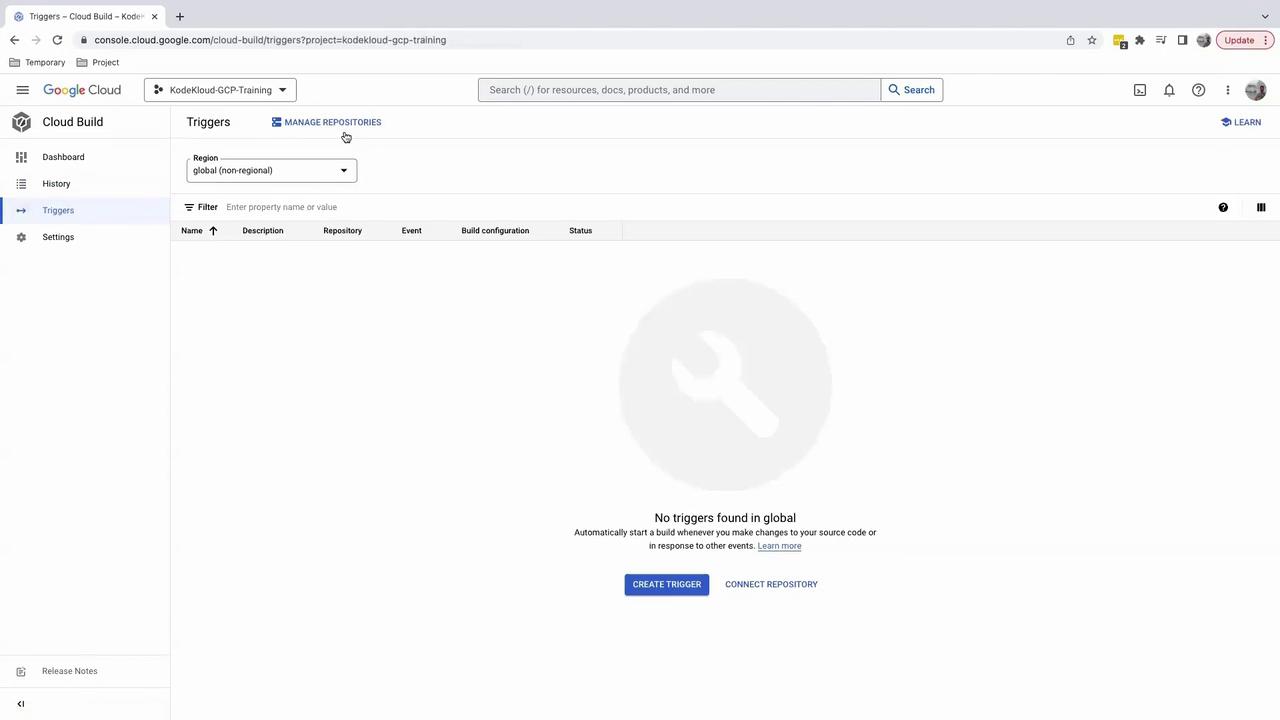
If your repository appears in the list, the integration succeeded. Otherwise, connect it via the Cloud Build GitHub App.
## 2. Understand Trigger Events
Cloud Build can start builds automatically based on various events. The most common trigger is a push or merge to a specific branch:
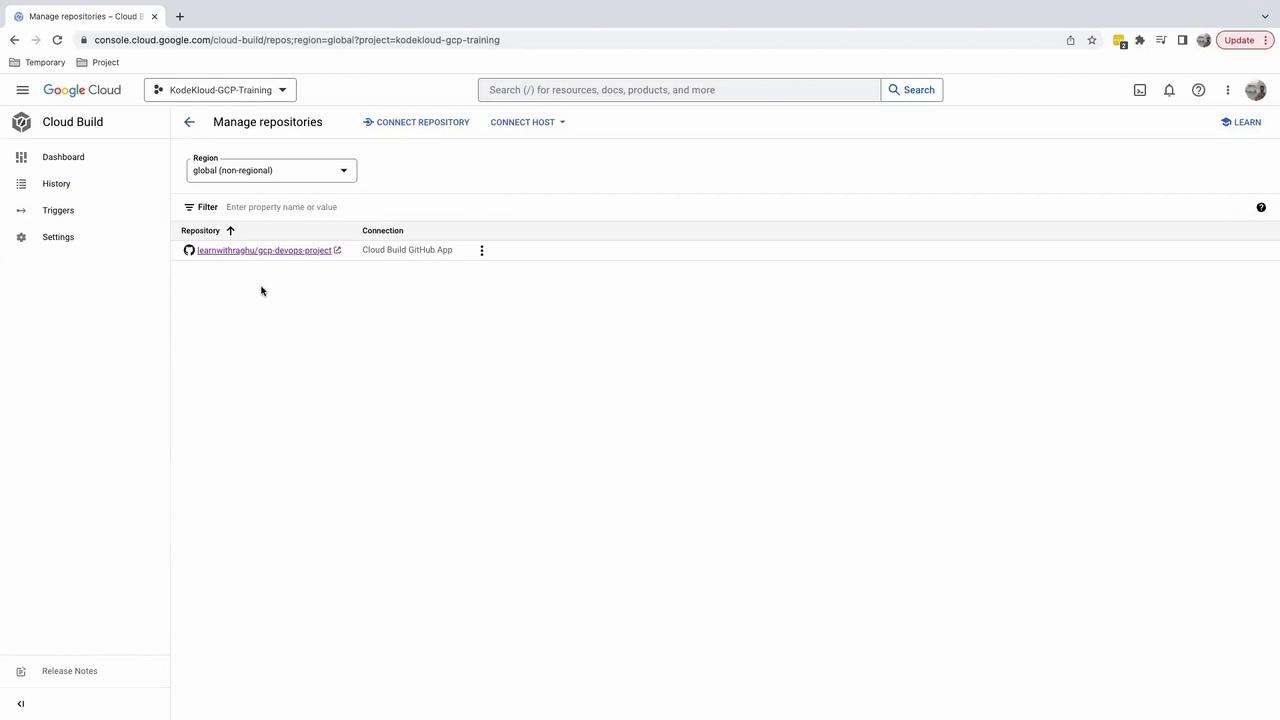
Whenever code is pushed to the target branch, Cloud Build will run your pipeline.
## 3. Create a Build Trigger
1. On the **Manage repositories** page, click the ••• menu next to your repo and select **Add trigger**.
2. Configure the trigger settings:
| Field | Description |
| ------------------ | ----------------------------------------------------------- |
| **Trigger name** | Friendly name, e.g., `GCP DevOps Project` |
| **Event** | Select **Push to a branch** |
| **Repository** | Choose your GitHub repository |
| **Branch (regex)** | Define which branches activate the trigger (see regex note) |
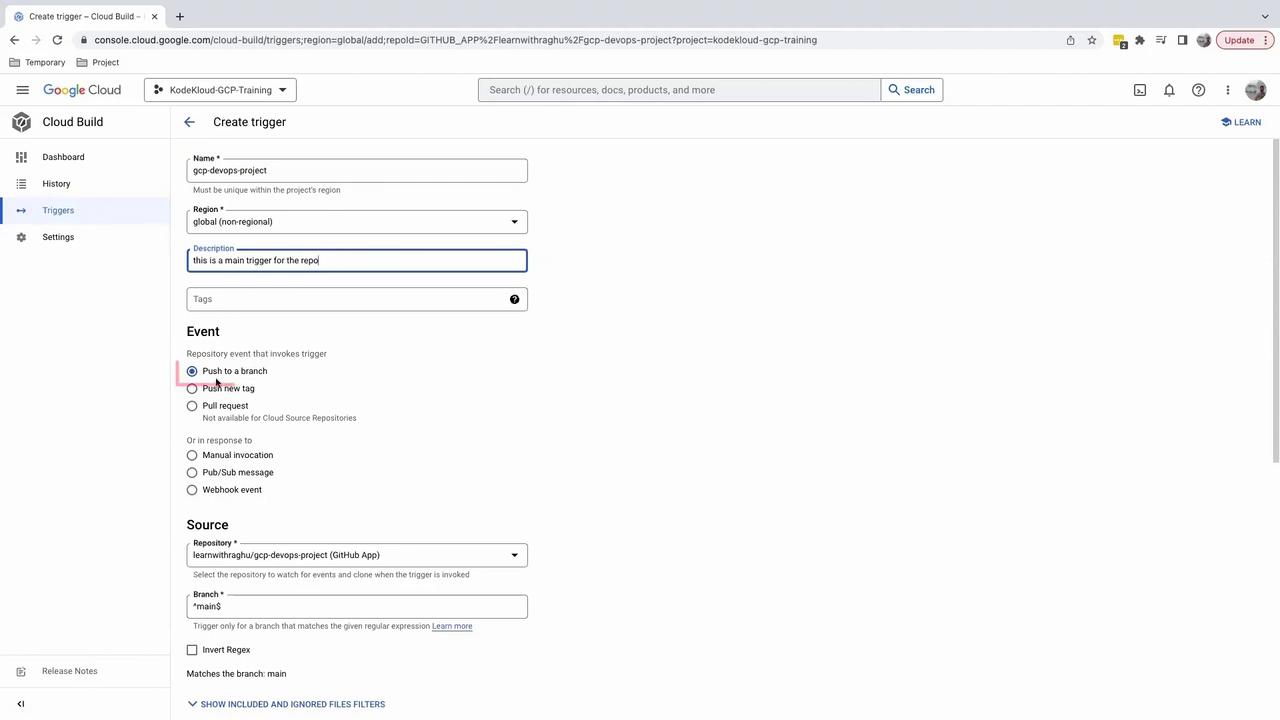
To restrict the trigger to exactly **main** or **master**, use:
```regex theme={null}
^(main|master)$
```
This prevents branches like `feature/main-update` from starting a build.
## 4. Configure Build Settings
Choose how Cloud Build finds your build instructions:
* **Autodetect**: Automatically detects a `cloudbuild.yaml` or `Dockerfile` at the repo root.
* **Cloud Build configuration file**: Manually specify the path to your `cloudbuild.yaml`.
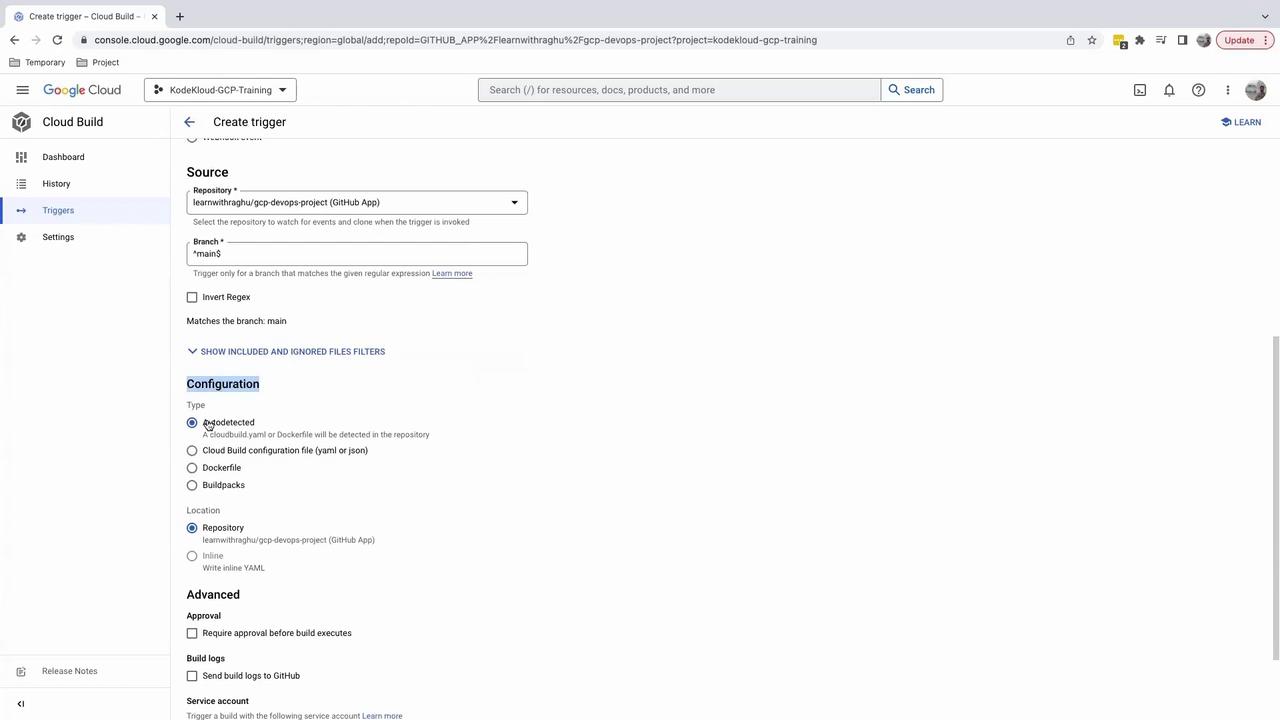
If your repository doesn’t include a `cloudbuild.yaml`, the trigger will fail at runtime.
## 5. Test the Trigger
Click **Run trigger** to verify your setup. Without a `cloudbuild.yaml`, you’ll see an error:
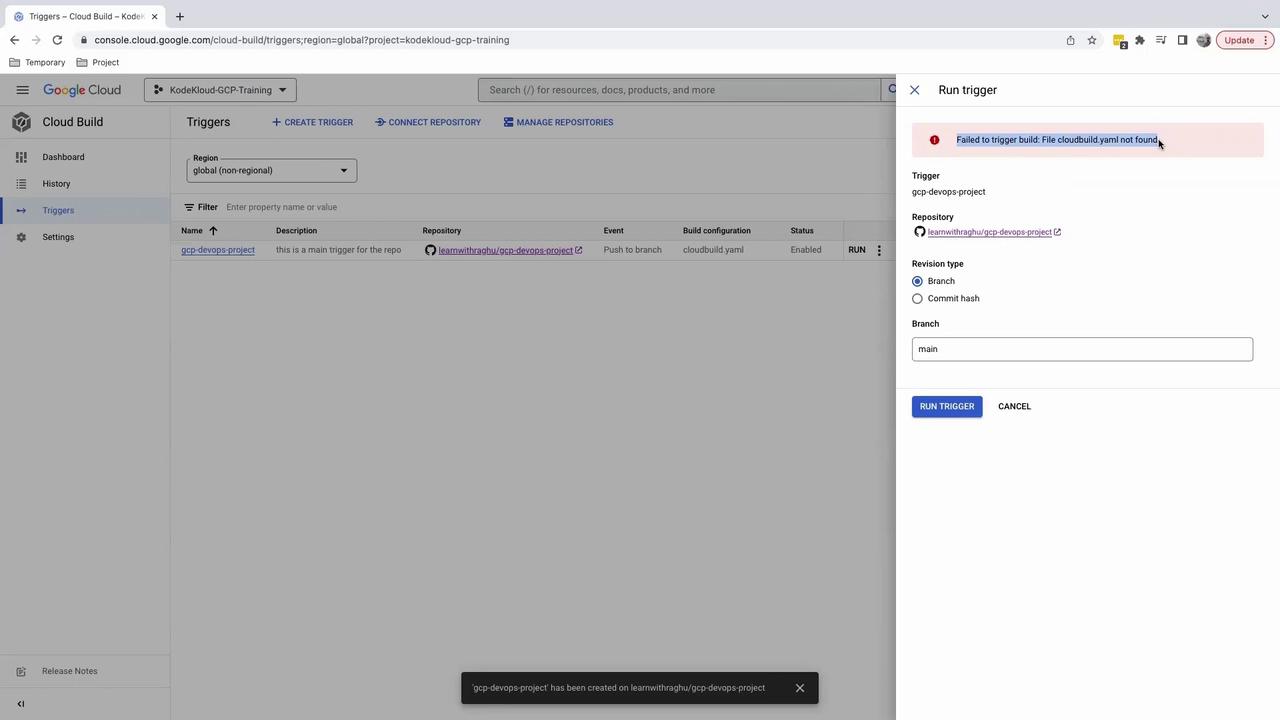
## 6. Next Steps: Add `cloudbuild.yaml`
To resolve the error, add a `cloudbuild.yaml` at your repository’s root. Here’s an example CI/CD pipeline:
```yaml theme={null}
steps:
- name: 'gcr.io/cloud-builders/docker'
args: ['build', '-t', 'gcr.io/$PROJECT_ID/my-app:$COMMIT_SHA', '.']
images:
- 'gcr.io/$PROJECT_ID/my-app:$COMMIT_SHA'
```
Commit and push this file to **main**. Your Cloud Build trigger will then run automatically on each push.
## Links and References
* [Google Cloud Build Triggers](https://cloud.google.com/build/docs/automating-builds/create-manage-triggers)
* [Writing a `cloudbuild.yaml` file](https://cloud.google.com/build/docs/build-config)