> ## Documentation Index
> Fetch the complete documentation index at: https://notes.kodekloud.com/llms.txt
> Use this file to discover all available pages before exploring further.
# Debug and fix cloudbuild error
> This guide helps identify and fix a Cloud Build failure caused by an incorrect GKE cluster name in the configuration.
## Overview
We encountered a Cloud Build failure due to an incorrect GKE cluster name. In this guide, we will:
* Identify the root cause
* Correct the `cloudbuild.yaml` configuration
* Commit and merge the fix
* Monitor the updated build
## 1. Original `cloudbuild.yaml`
The pipeline failed because the cluster name in the `gke-deploy` step didn't match the actual cluster in the console:
```yaml theme={null}
steps:
# build the container image
- name: "gcr.io/cloud-builders/docker"
args: ["build", "--tag", "gcr.io/$PROJECT_ID/gcpdevops", "."]
# push container image
- name: "gcr.io/cloud-builders/docker"
args: ["push", "gcr.io/$PROJECT_ID/gcpdevops"]
# deploy container image to GKE
- name: "gcr.io/cloud-builders/gke-deploy"
args:
- run
- --filename=gke.yaml
- --image=gcr.io/$PROJECT_ID/gcpdevops
- --location=us-central1-c
- --cluster=gke-gcp-devops
- --namespace=gcp-devops-prod
```
Always verify resource names in the [Google Cloud Console](https://console.cloud.google.com/). A mismatch will cause your build to fail.
## 2. Verify the Cluster Name
Navigate to the **Kubernetes clusters** section in the console. You'll see the actual name: **GCP DevOps Project**.
## 3. Updated `cloudbuild.yaml`
Replace the incorrect cluster reference (`gke-gcp-devops`) with the correct one (`gcp-devops-project`) and adjust the location flag:
```yaml theme={null}
steps:
- id: "build the container image"
name: "gcr.io/cloud-builders/docker"
args: ["build", "-t", "gcr.io/$PROJECT_ID/gcpdevops", "."]
- id: "push container image"
name: "gcr.io/cloud-builders/docker"
args: ["push", "gcr.io/$PROJECT_ID/gcpdevops"]
- id: "deploy container image to GKE"
name: "gcr.io/cloud-builders/gke-deploy"
args:
- "--filename=gke.yaml"
- "--image=gcr.io/$PROJECT_ID/gcpdevops"
- "--location=us-central1"
- "--cluster=gcp-devops-project"
- "--namespace=gcp-devops-prod"
```
## 4. Commit and Push the Fix
```bash theme={null}
git commit --amend --reset-author
# Output: 2 files changed, 37 insertions(+), 4 deletions(-)
git push origin minor/deployment-file
```
Open a pull request titled **Update cluster name** on the `minor/deployment-file` branch and merge it. This triggers the Cloud Build pipeline on `main`.
## 5. Monitor the Build
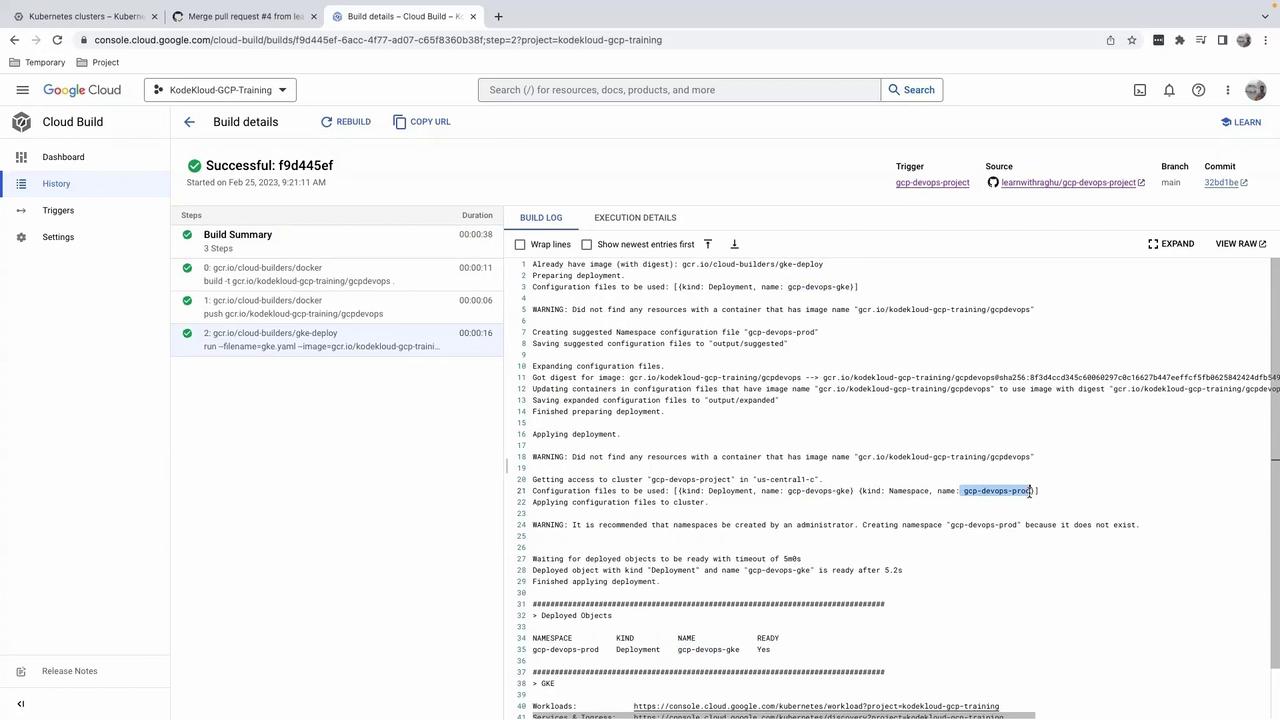
After merging, you’ll see a green dot next to your repository. Click **Details** → **View more details on Google Cloud Build**.
| Step | Description |
| -------------------------- | -------------------------------------- |
| Build Docker image | `gcr.io/cloud-builders/docker` |
| Push to Container Registry | `gcr.io/cloud-builders/docker push` |
| Deploy to GKE | `gcr.io/cloud-builders/gke-deploy run` |
Cloud Build will:
1. Build the Docker image
2. Push it to Container Registry
3. Deploy to the GKE cluster with the corrected name
If the specified namespace (`gcp-devops-prod`) doesn't exist, the deployment will fail at the **gke-deploy** step. Ensure namespaces are created in advance.
## 6. Next Steps
The pipeline completes successfully, and your container is now running in the `gcp-devops-prod` namespace. In the next lesson, we'll explore how to verify running pods from the GCP console.
***
## Links and References
* [Cloud Build Triggers](https://cloud.google.com/build/docs/automating-builds/create-build-trigger)
* [gke-deploy Documentation](https://cloud.google.com/cloud-build/docs/gke-deploy)
* [Kubernetes Namespace Concepts](https://kubernetes.io/docs/concepts/overview/working-with-objects/namespaces/)