> ## Documentation Index
> Fetch the complete documentation index at: https://notes.kodekloud.com/llms.txt
> Use this file to discover all available pages before exploring further.
# Understanding GIT
> This article explains Gits internal mechanisms, focusing on its key-value store model, command types, and object types for effective version control.
In this lesson, we dive into Git's internal mechanisms, explaining how Git uses a key-value store model to manage files. Each file added to a commit is hashed using the SHA-1 algorithm, and the resulting hash uniquely identifies the folder where the file's contents are stored.
Git commands are divided into two main categories:
* **Porcelain Commands:** These are user-friendly commands such as `git add`, `git status`, `git commit`, and `git stash`.
* **Plumbing Commands:** These commands, including `git hash-object` and `git cat-file`, allow you to interact directly with Git's internal data structures.
Below is an overview of these commands:
```text theme={null}
# Porcelain Commands
git add
git status
git commit
git stash
…
# Plumbing Commands
git hash-object
```
Using plumbing commands, you can compute the hash that Git uses internally. This process is similar to what happens when you run `git commit`. For example, suppose you have a file named `first_story.txt` containing a short sentence. First, add some content to the file:
```bash theme={null}
$ echo "This is my first story" >> first_story.txt
```
Next, generate a SHA-1 hash for this file using the following command. Notice how Git returns a hash value where the first two characters indicate the folder in which the content is stored:
```bash theme={null}
$ git hash-object first_story.txt
bea8d7fee8e7b11c2235ca623935e6ccccd8bac3
```
If you commit the `first_story.txt` file, Git will generate the same hash:
```bash theme={null}
$ git hash-object first_story.txt
bea8d7fee8e7b11c2235ca623935e6ccccd8bac3
```
Git then creates a folder using the first two characters of the hash—in this case, "be". You can inspect the internal Git structure by navigating to the `.git` folder, which is created when you run `git init`. For instance, after adding and committing the file, you might see:
```bash theme={null}
$ git add first_story.txt
$ git commit -m "First story"
$ ls .git/objects
26 be a0 info pack
$ ls .git/objects/be
a8d7fee8e7b11c2235ca623935e6ccccd8bac3
```
To view the content corresponding to a particular hash, use the plumbing command `git cat-file` with the `-p` flag for pretty-printing:
For example, using the first part of the hash:
```bash theme={null}
$ git cat-file -p bea8d7
"This is my first story"
```
When you inspect a commit object, Git includes additional metadata along with the file content. Consider the following example:
```bash theme={null}
$ git cat-file -p 4cdf4
tree 2ea7de7ff3bd48cbb020b215b36feb67ee7f9a30
parent f4e830485cc852686cf115e75a79cbb41a0de713
author Lydia Hallie 1594547678 +0200
committer Lydia Hallie 1594547678 +0200
First story
```
This commit object contains:
* A tree reference that points to the repository's folder structure.
* A parent commit reference.
* Author information indicating who made the changes.
* Committer details showing who committed the changes.
Next, let's discuss Git's object types. Git organizes its internal storage into three primary object types:
| Object Type | Description | Example Use Case |
| ----------- | ---------------------------------------------------------------------------------------------------------- | --------------------------- |
| Commit | Represents a snapshot of your repository at a given time, recording metadata and pointers to tree objects. | Storing commit history |
| Tree | Represents a directory structure and links to blobs or subtrees. | Organizing folder hierarchy |
| Blob | Contains file data such as the contents of `first_story.txt`. | Storing actual file content |
When you make multiple commits, Git builds a structure where each commit points to its parent. Each commit references trees (representing directory structures) and blobs (file data). For example, the first commit might reference a blob for `first_story.txt`, and a subsequent commit might reference both the previous blob and a new blob for another file.
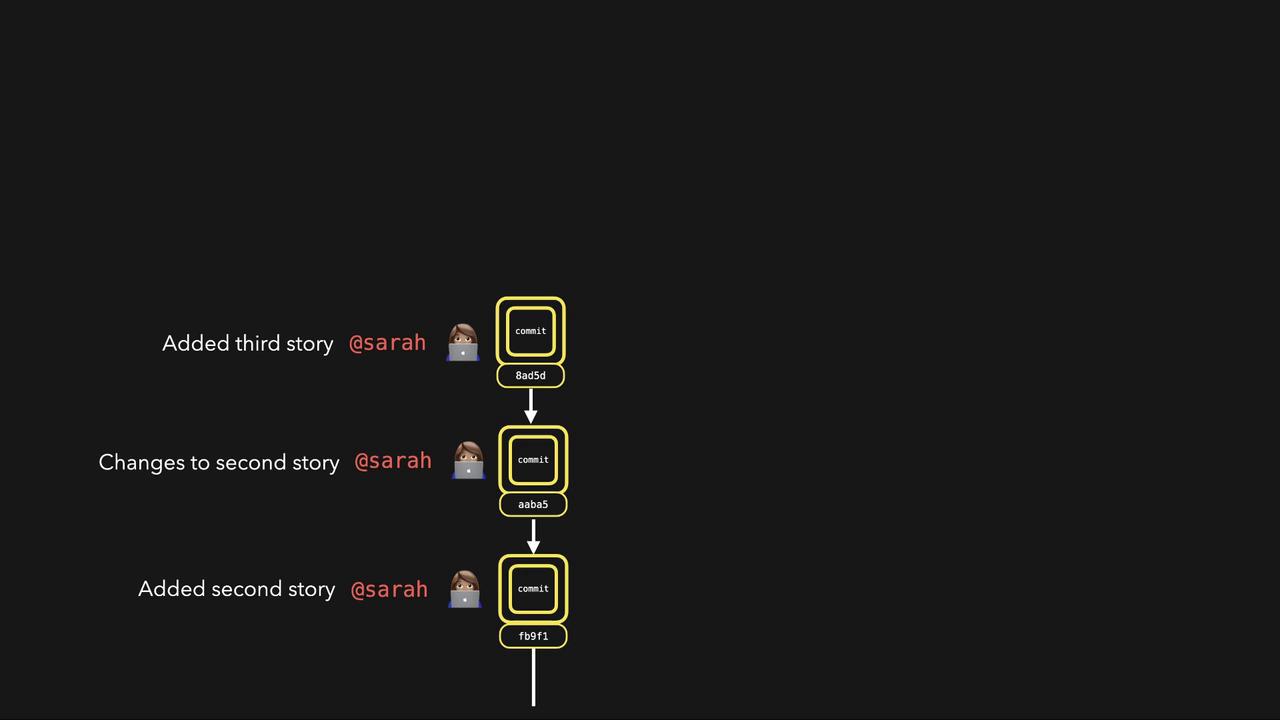
Every commit acts as a snapshot of the repository, linking together trees and blobs to facilitate powerful version control features.
That concludes our lesson on how Git works internally. Stay tuned for the next lesson as we continue to explore Git's capabilities and best practices!