> ## Documentation Index
> Fetch the complete documentation index at: https://notes.kodekloud.com/llms.txt
> Use this file to discover all available pages before exploring further.
# General Instructions GKE Playground
> This guide shows how to access the GCP Sandbox environment for Google Kubernetes Engine labs.
This guide shows you how to access the Google Cloud Platform (GCP) Sandbox environment for your Google Kubernetes Engine (GKE) labs. Follow these steps to launch the sandbox, accept all terms, and enable the Kubernetes Engine API.
## 1. Launch the GCP Sandbox
1. In Qwiklabs, select the **Playgrounds** tab.
2. Scroll down to **Cloud Playgrounds** and click **Google Cloud Platform**.
3. Review the quick start guide on the homepage to understand the sandbox limits.
4. Click **Launch Now** to provision a temporary environment. You’ll see a console link, username, and password.
Your sandbox credentials are valid for 60 minutes. Copy them immediately and store them securely.
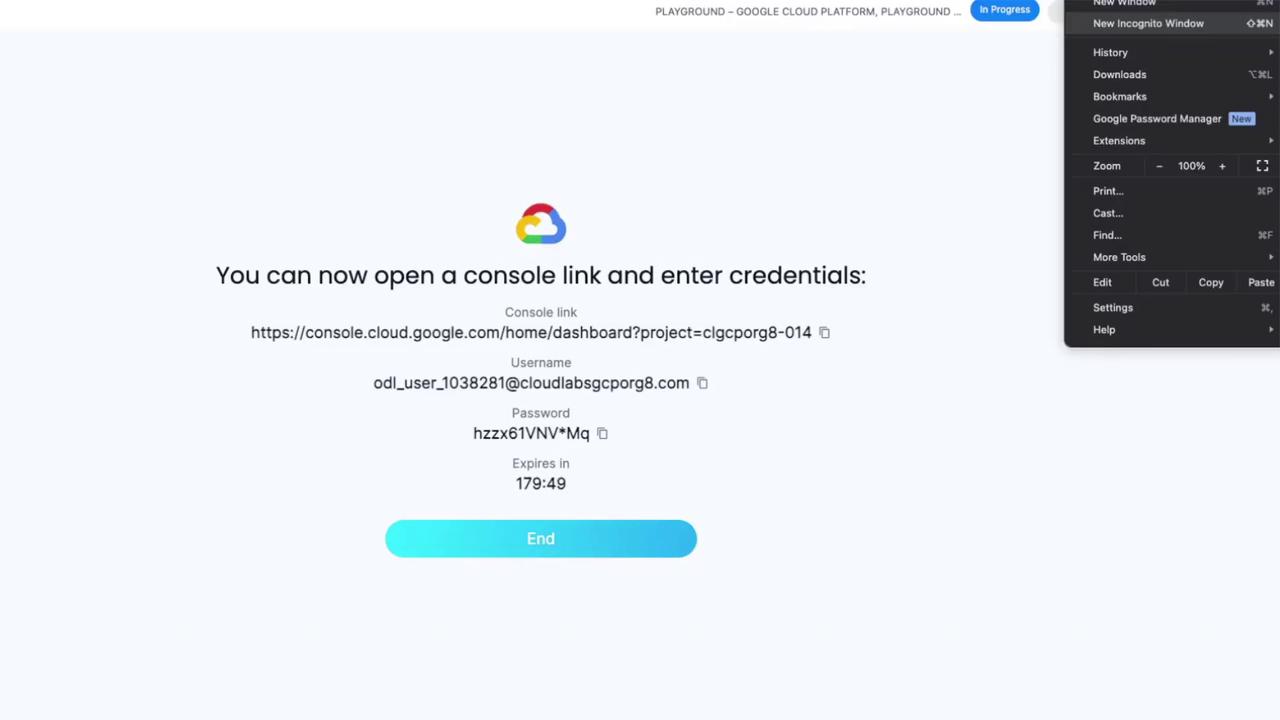
> Open the console link in an incognito/private window to avoid conflicts with existing Google credentials.
## 2. Accept Terms and Conditions
When the console opens:
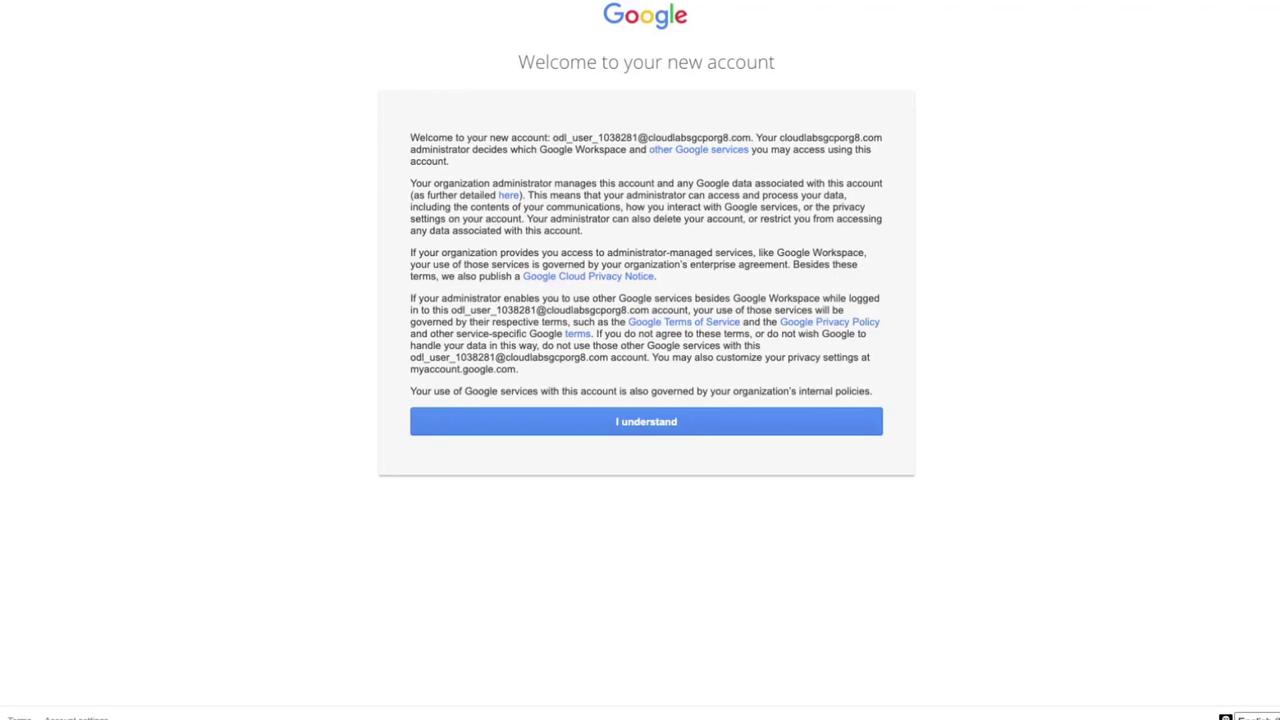
1. A Google account welcome page appears—click **I understand** to acknowledge management and privacy policies.
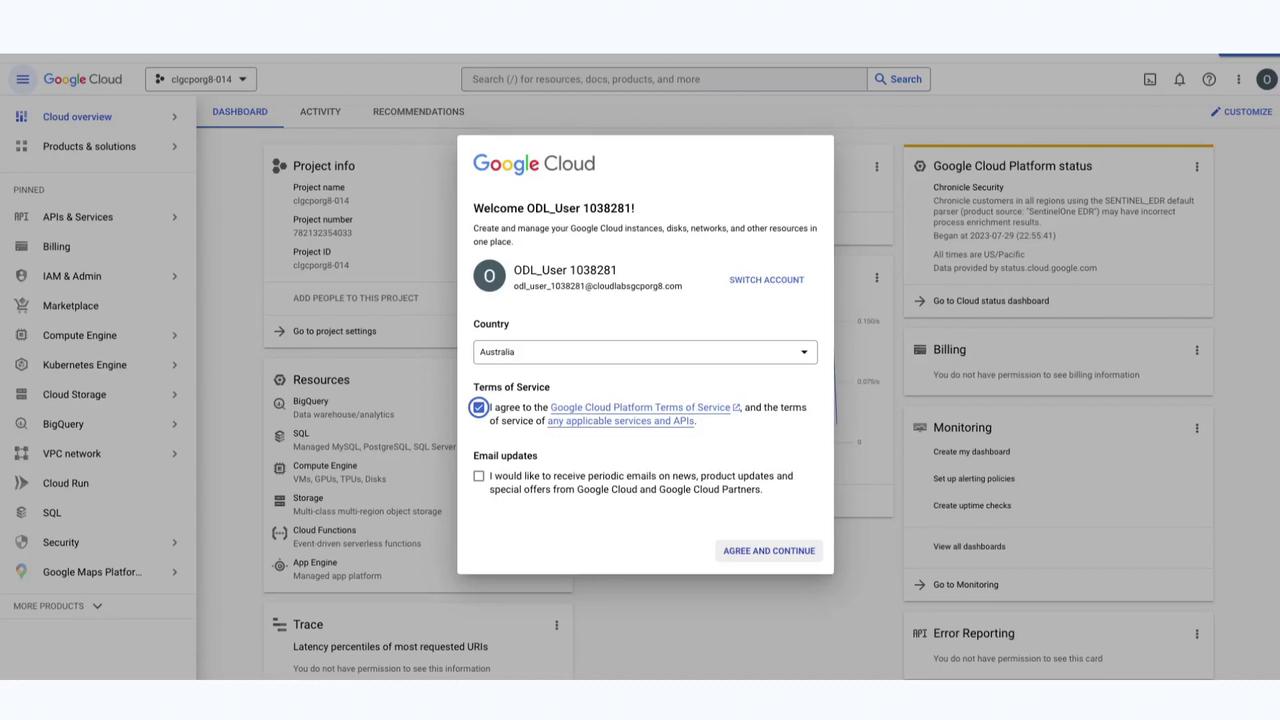
2. Read and accept the GCP Terms of Service, then click **Agree and Continue**.
3. You may leave the email updates option unchecked.
## 3. Enable the Kubernetes Engine API
Before starting any GKE lab, ensure the Kubernetes Engine API is active:
1. In the GCP Console navigation menu, go to **APIs & Services** → **Enabled APIs & Services**.
2. Click **+ ENABLE APIS AND SERVICES** at the top.
3. Search for **Kubernetes Engine API** and select it.
4. If you see a **Disable API** button, the API is already enabled.
| Menu Path | Purpose |
| ----------------------------------------- | ------------------------------- |
| APIs & Services → Enabled APIs & Services | View currently enabled services |
| APIs & Services → Library | Browse and enable new APIs |
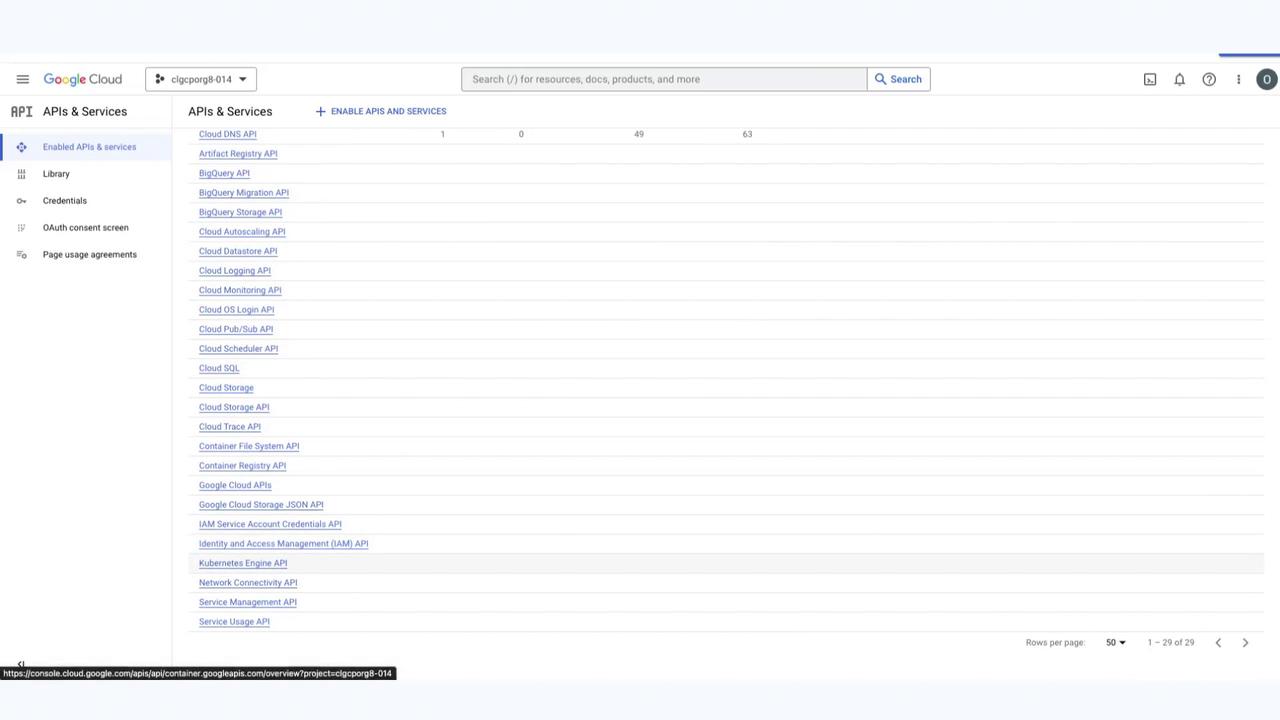
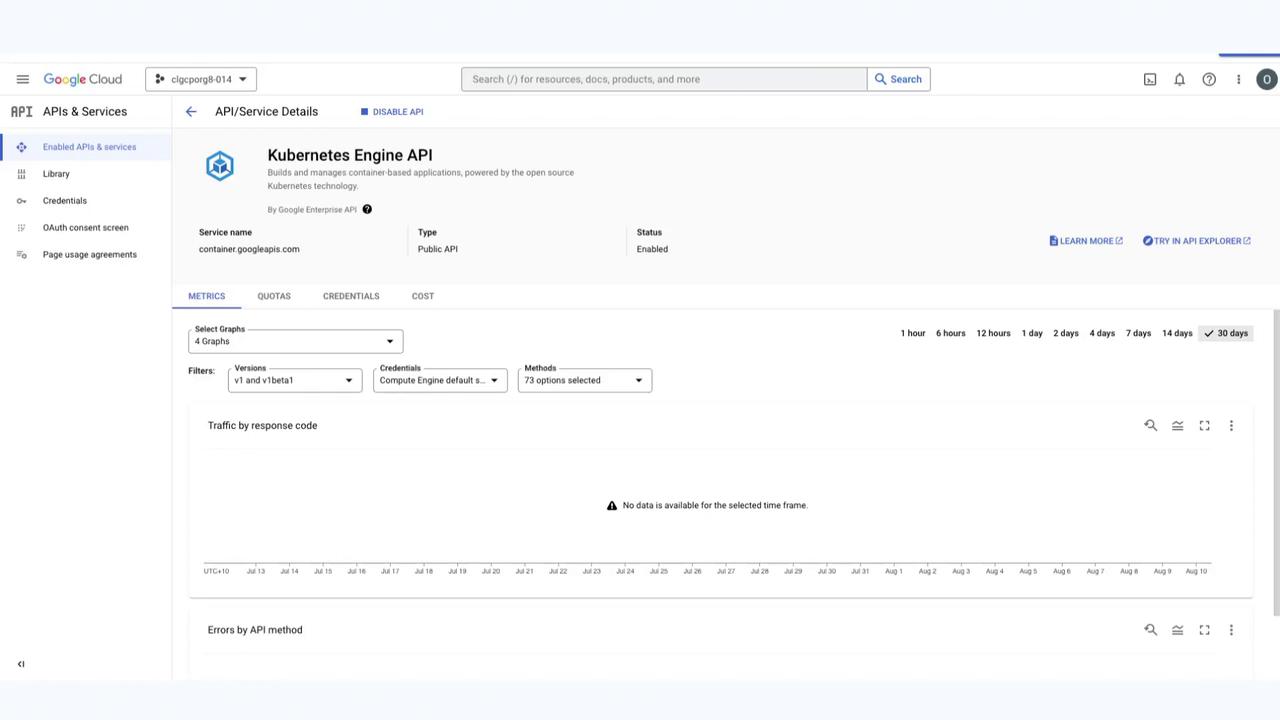
With the Kubernetes Engine API enabled, you are now ready to begin your GKE labs.
## Links and References
* [Google Cloud Console](https://console.cloud.google.com/)
* [Kubernetes Engine API Documentation](https://cloud.google.com/kubernetes-engine/docs/reference/rest)
* [Qwiklabs Playgrounds](https://www.qwiklabs.com/playgrounds)
* [Kubernetes Basics](https://kubernetes.io/docs/concepts/overview/what-is-kubernetes/)