> ## Documentation Index
> Fetch the complete documentation index at: https://notes.kodekloud.com/llms.txt
> Use this file to discover all available pages before exploring further.
# ArchiveStore Unit Test Reports
> This article explains how to archive JUnit-format Mocha test reports in GitHub Actions using actions/upload-artifact.
In this lesson, we’ll archive JUnit-format Mocha test reports in GitHub Actions using `actions/upload-artifact`. Previously, our workflow ran unit tests successfully but didn’t persist the generated XML report:
```bash theme={null}
> Run npm test
> Solar System@6.7.6 test
> mocha app-test.js --timeout 10000 --reporter mocha-junit-reporter --exit
Server successfully running on port - 3000
```
Locally, the `mocha-junit-reporter` creates a `test-results.xml` file in your project root. For example:
```xml theme={null}
```
To archive this file in CI, add a step that uses `actions/upload-artifact@v3`:
```yaml theme={null}
jobs:
unit-testing:
name: Unit Testing
runs-on: ubuntu-latest
steps:
- name: Checkout Repository
uses: actions/checkout@v4
- name: Setup Node.js
uses: actions/setup-node@v3
with:
node-version: 18
- name: Install Dependencies
run: npm install
- name: Run Unit Tests
run: npm test
- name: Archive Test Results
uses: actions/upload-artifact@v3
with:
name: Mocha-Test-Result
path: test-results.xml
```
| Property | Description | Example |
| -------- | -------------------------------------------- | ------------------- |
| name | Artifact identifier displayed in the summary | `Mocha-Test-Result` |
| path | Path or glob pattern to test report file | `test-results.xml` |
The `path` field accepts glob patterns. To archive multiple XML reports, use something like `path: reports/**/*.xml`.
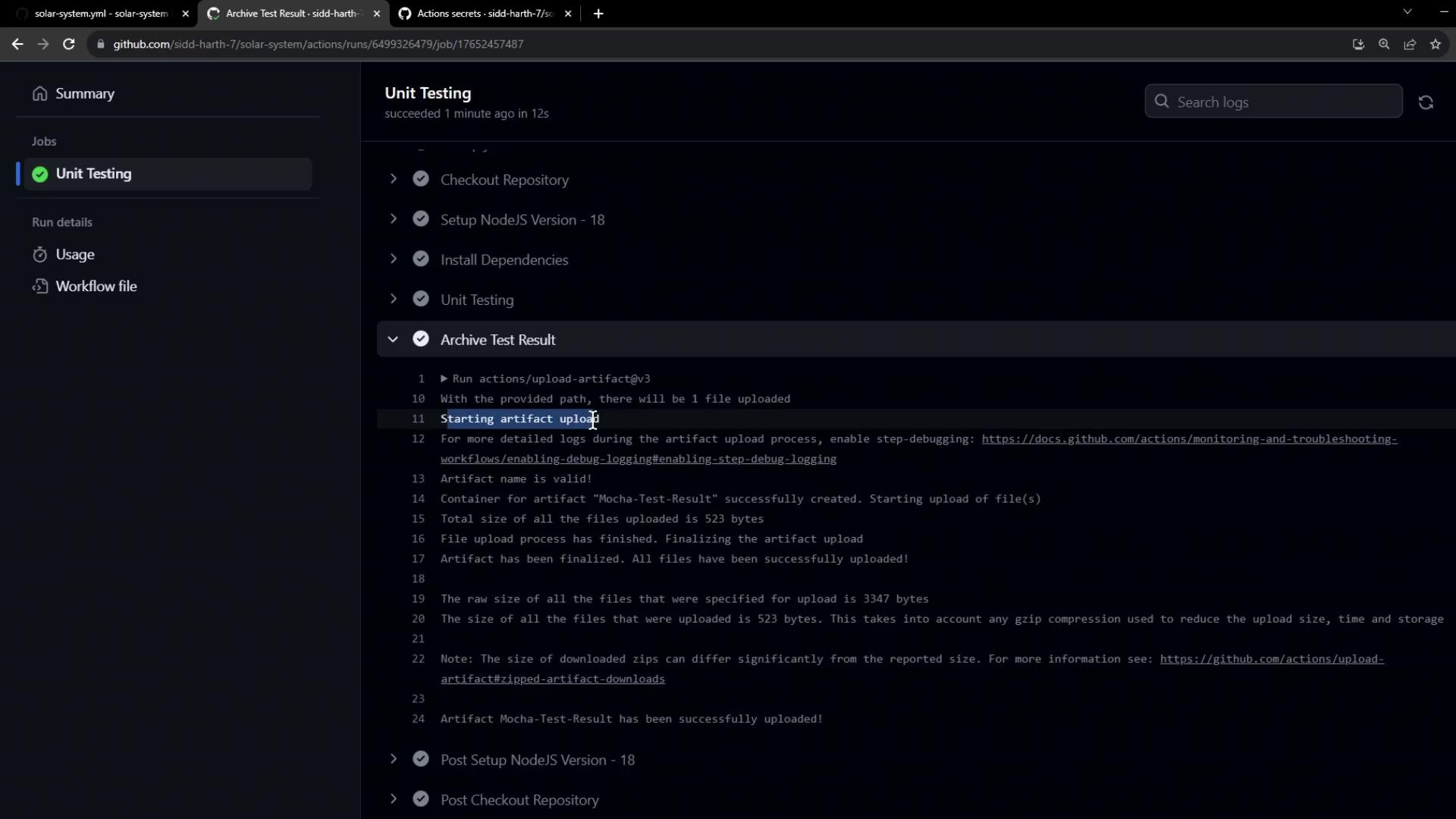
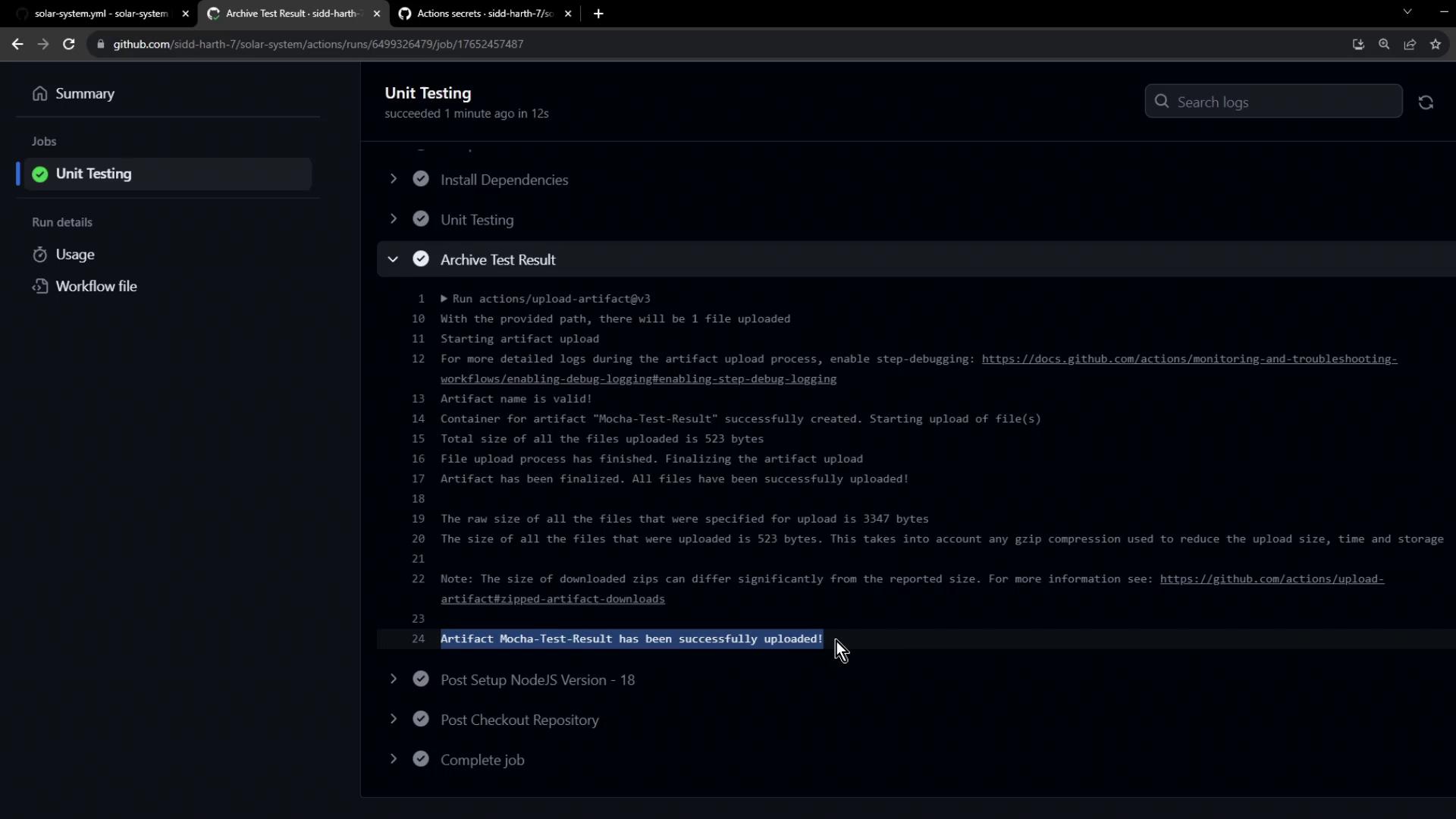
After the workflow runs, open the **Actions** tab to confirm the artifact upload. You’ll see a log entry showing the artifact size and success:
In the workflow summary, the uploaded artifact is listed under the Unit Testing job:
By default, artifacts are retained for 90 days. You can [configure retention](https://docs.github.com/actions/using-workflows/storing-workflow-data-as-artifacts#using-artifacts) or delete them when they’re no longer needed.
Archiving your test reports guarantees that JUnit XML outputs are always available for debugging, reporting, or integration with CI dashboards once your workflow completes.
## Links and References
* [actions/upload-artifact@v3](https://github.com/actions/upload-artifact)
* [mocha-junit-reporter](https://www.npmjs.com/package/mocha-junit-reporter)
* [GitHub Actions Artifacts Documentation](https://docs.github.com/actions/using-workflows/storing-workflow-data-as-artifacts)