> ## Documentation Index
> Fetch the complete documentation index at: https://notes.kodekloud.com/llms.txt
> Use this file to discover all available pages before exploring further.
# Run Code Coverage Job using a Container and Service
> This tutorial explains configuring a GitHub Actions workflow to run a code coverage job in a Docker container with a MongoDB service.
In this tutorial, you’ll learn how to configure a GitHub Actions workflow that runs a code coverage job entirely inside a Docker container and connects to a MongoDB service container. This strategy isolates your test environment and streamlines networking between the job and its service.
## Table of Contents
1. [Job Container Overview](#1-job-container-overview)
2. [Adding a MongoDB Service Container](#2-adding-a-mongodb-service-container)
3. [Defining the Code Coverage Job](#3-defining-the-code-coverage-job)
4. [Workflow Execution and Logs](#4-workflow-execution-and-logs)
5. [Links and References](#5-links-and-references)
***
## 1. Job Container Overview
Specifying a `container` at the job level ensures that all subsequent steps execute inside your chosen Docker image. You no longer need to manually install language runtimes or tools on the runner—the container already includes them.
Basic syntax:
```yaml theme={null}
jobs:
my-job:
runs-on: ubuntu-latest
container:
image: node:18
steps:
# All steps run inside node:18
- name: Run Node.js script
run: node index.js
```
Define additional container properties under the `container` key:
| Property | Description |
| --------- | ------------------------------------------------- |
| `options` | Extra Docker run flags (e.g., `--user`) |
| `env` | Environment variables injected into the container |
| `ports` | Ports to expose from the container |
| `volumes` | Host paths or named volumes to mount |
***
## 2. Adding a MongoDB Service Container
Service containers run alongside your job container on a shared network. Each service is reachable by its service name without specifying ports.
Example with PostgreSQL:
```yaml theme={null}
services:
postgres:
image: postgres:latest
env:
POSTGRES_PASSWORD: mysecretpassword
```
For MongoDB, you’ll configure the service similarly:
```yaml theme={null}
services:
mongo:
image: mongo:6.0
env:
MONGO_INITDB_ROOT_USERNAME: admin
MONGO_INITDB_ROOT_PASSWORD: secret
```
Service containers automatically join a user-defined network. You can ping them by service name (e.g., `mongo`) from within the job container without extra port mappings.
***
## 3. Defining the Code Coverage Job
Below is a complete `code-coverage` job that:
* Runs inside the `node:18` container
* Spins up a MongoDB service container
* Caches and installs dependencies
* Executes the coverage script
* Archives the test reports
```yaml theme={null}
name: CI
on:
push:
branches:
- main
jobs:
code-coverage:
name: Code Coverage
runs-on: ubuntu-latest
container:
image: node:18
services:
mongo:
image: siddharth67/mongo-db:non-prod
options: --name mongo
env:
MONGO_URI: 'mongodb://mongo:27017/superData'
MONGO_USERNAME: non-prod-user
MONGO_PASSWORD: non-prod-password
steps:
- name: Checkout repository
uses: actions/checkout@v4
- name: Cache NPM dependencies
uses: actions/cache@v3
with:
path: node_modules
key: ${{ runner.os }}-node-modules-${{ hashFiles('package-lock.json') }}
- name: Install dependencies
run: npm install
- name: Run coverage
run: npm run coverage
continue-on-error: true
- name: Archive test results
if: always()
uses: actions/upload-artifact@v3
with:
name: Mocha-Test-Result
path: test-results.xml
```
***
## 4. Workflow Execution and Logs
When this workflow runs, GitHub Actions will:
1. Pull and start the `node:18` job container.
2. Pull and start the MongoDB service container (`siddharth67/mongo-db:non-prod`).
3. Automatically join both containers on a shared bridge network.
In the **Run coverage** step, your script can connect to MongoDB at `mongodb://mongo:27017/superData` using the provided credentials.
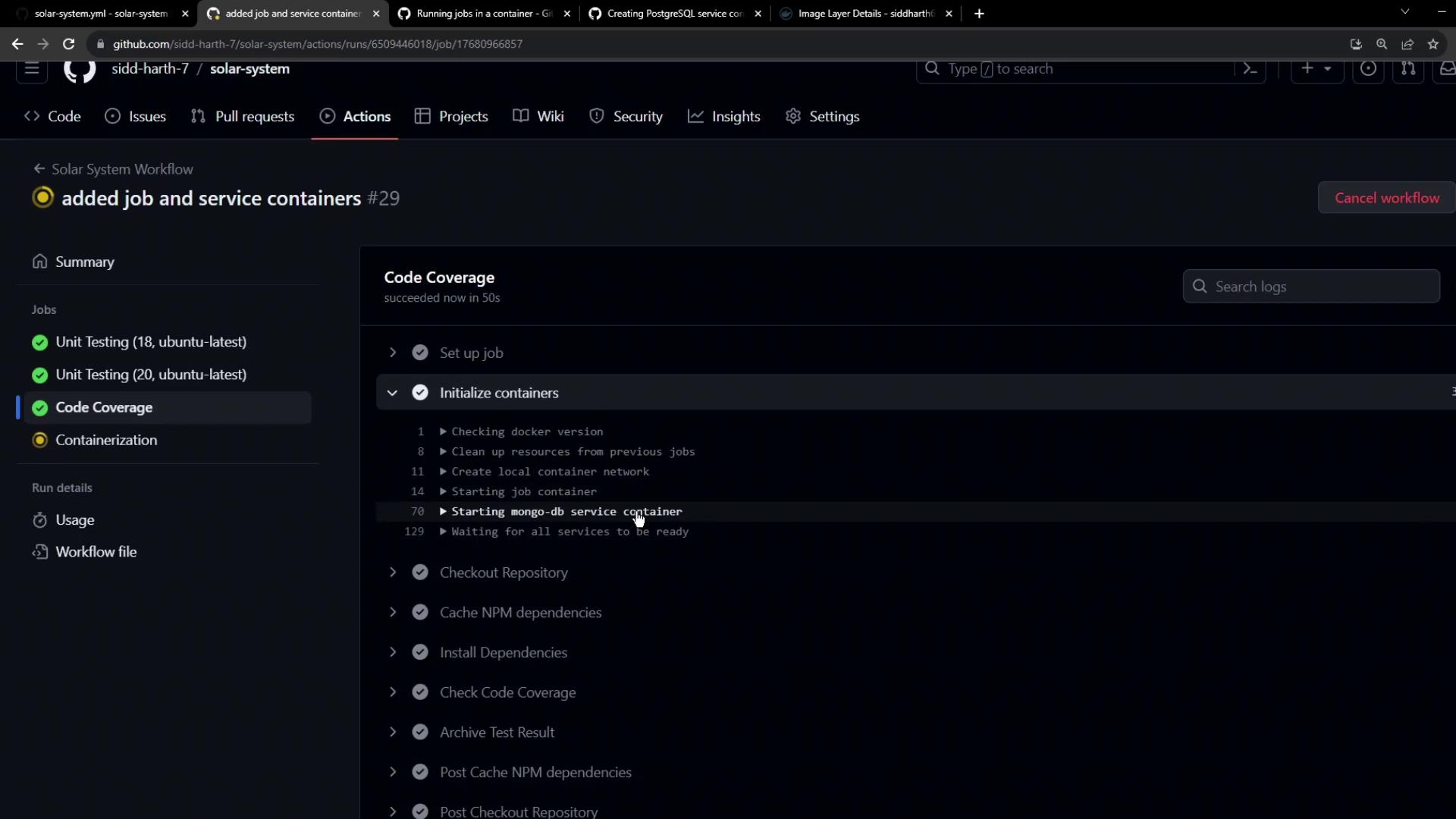
Behind the scenes, the containers use their service label (`mongo`) as the hostname, eliminating explicit port mappings.
***
## 5. Links and References
* [GitHub Actions Documentation](https://docs.github.com/actions)
* [Docker Overview](https://docs.docker.com/get-started/)
* [MongoDB Official Site](https://www.mongodb.com/)
* [GitHub Actions Cache](https://github.com/actions/cache)
* [Upload Artifact Action](https://github.com/actions/upload-artifact)