> ## Documentation Index
> Fetch the complete documentation index at: https://notes.kodekloud.com/llms.txt
> Use this file to discover all available pages before exploring further.
# Workflow Configure Unit Testing
> This tutorial explains how to set up an automated unit testing pipeline for a Node.js application using GitHub Actions.
In this tutorial, you’ll set up an automated unit testing pipeline for your Node.js Solar System application using GitHub Actions. By the end, every push to `main` or any `feature/*` branch will trigger tests, ensuring code quality and reliability.
## 1. Clone the Repository and Create a Feature Branch
First, clone your GitHub repository and explore the project structure.
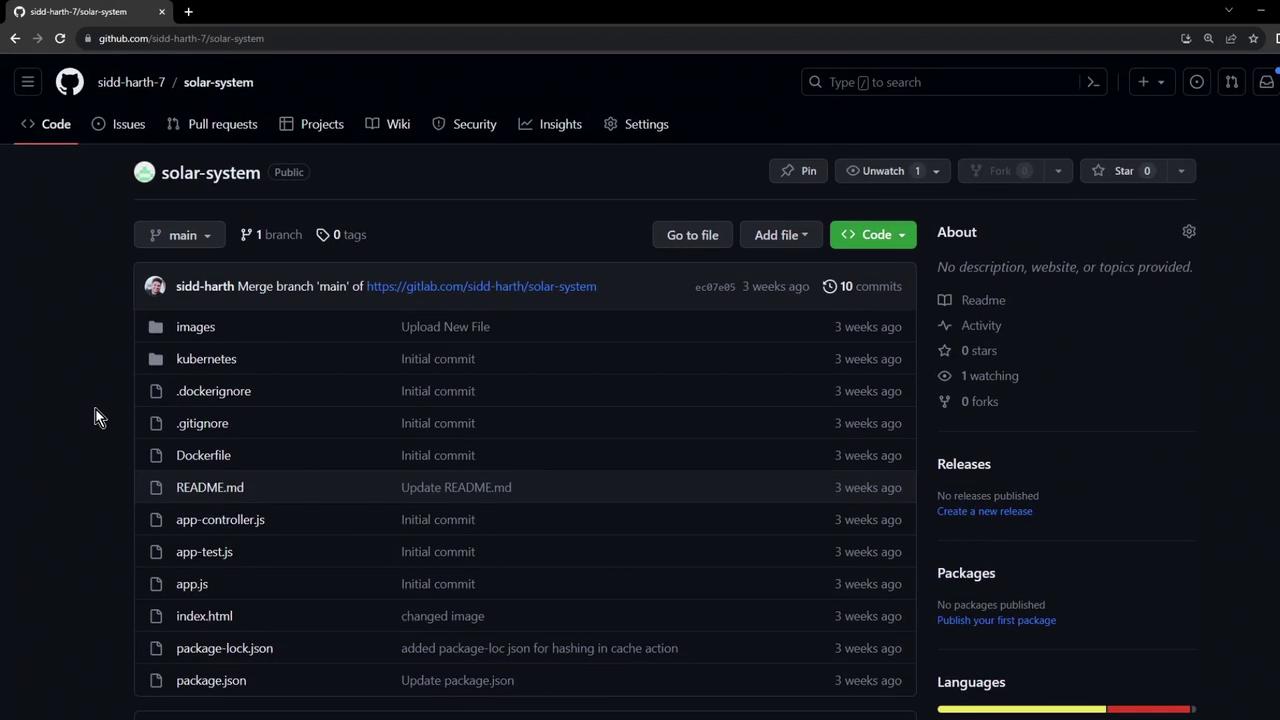
Now, create a feature branch for your workflow changes:
```bash theme={null}
git checkout -b feature/exploring-workflows
```
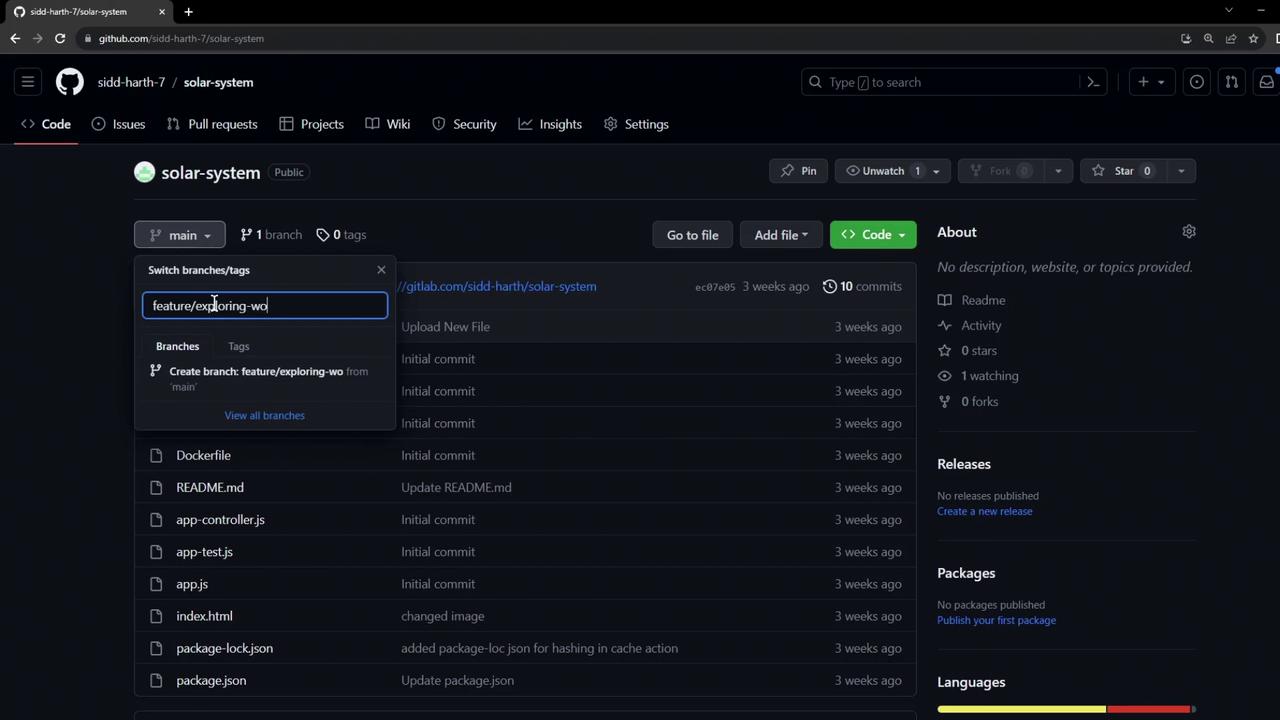
## 2. Open in VS Code and Add Your Workflow
Launch the repository in VS Code (e.g., by editing the URL to `.dev`). Then create a new workflow file at `.github/workflows/solar-system.yml`:
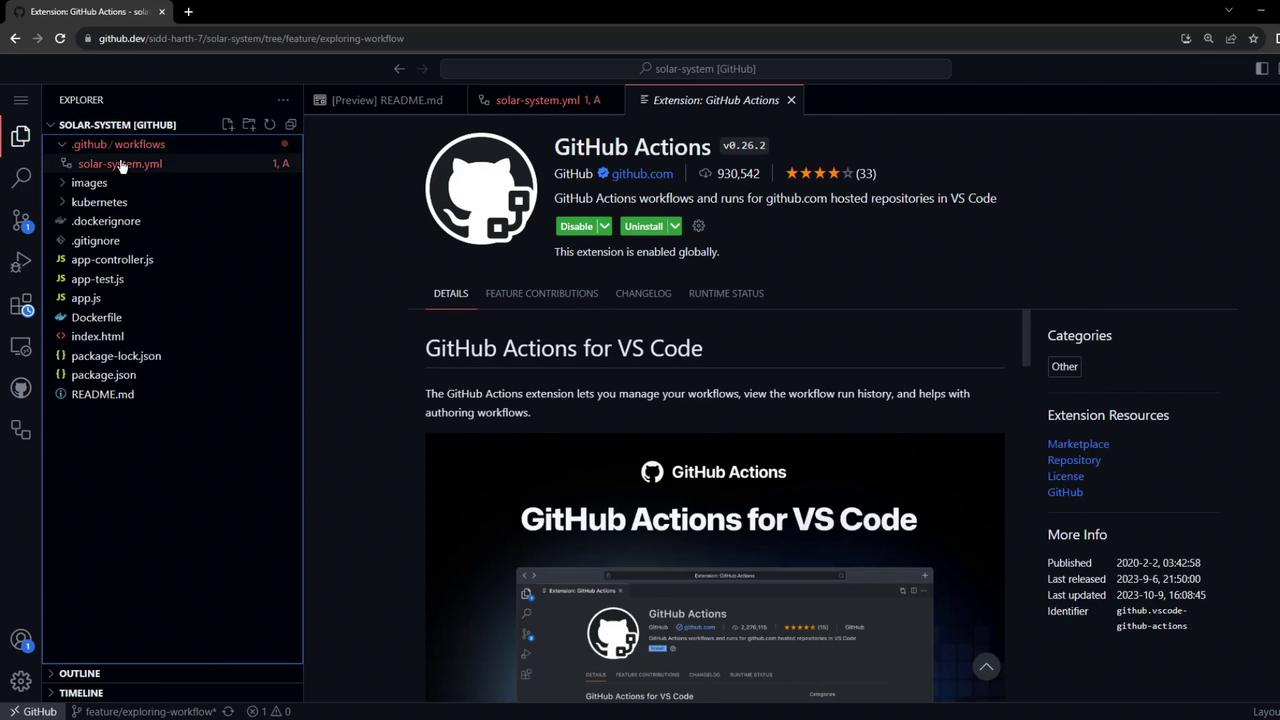
Paste the following YAML to install Node.js, dependencies, and run tests:
```yaml theme={null}
name: Solar System Workflow
on:
workflow_dispatch:
push:
branches:
- main
- 'feature/*'
jobs:
unit-testing:
name: Unit Testing
runs-on: ubuntu-latest
steps:
- name: Checkout Repository
uses: actions/checkout@v4
- name: Setup Node.js
uses: actions/setup-node@v3
with:
node-version: 18
- name: Install Dependencies
run: npm install
- name: Run Unit Tests
run: npm test
```
This workflow triggers manually (`workflow_dispatch`) and on every push to `main` or any `feature/*` branch. It uses `actions/setup-node@v3`, which supports parameters like `node-version`, `check-latest`, and `node-version-file`.
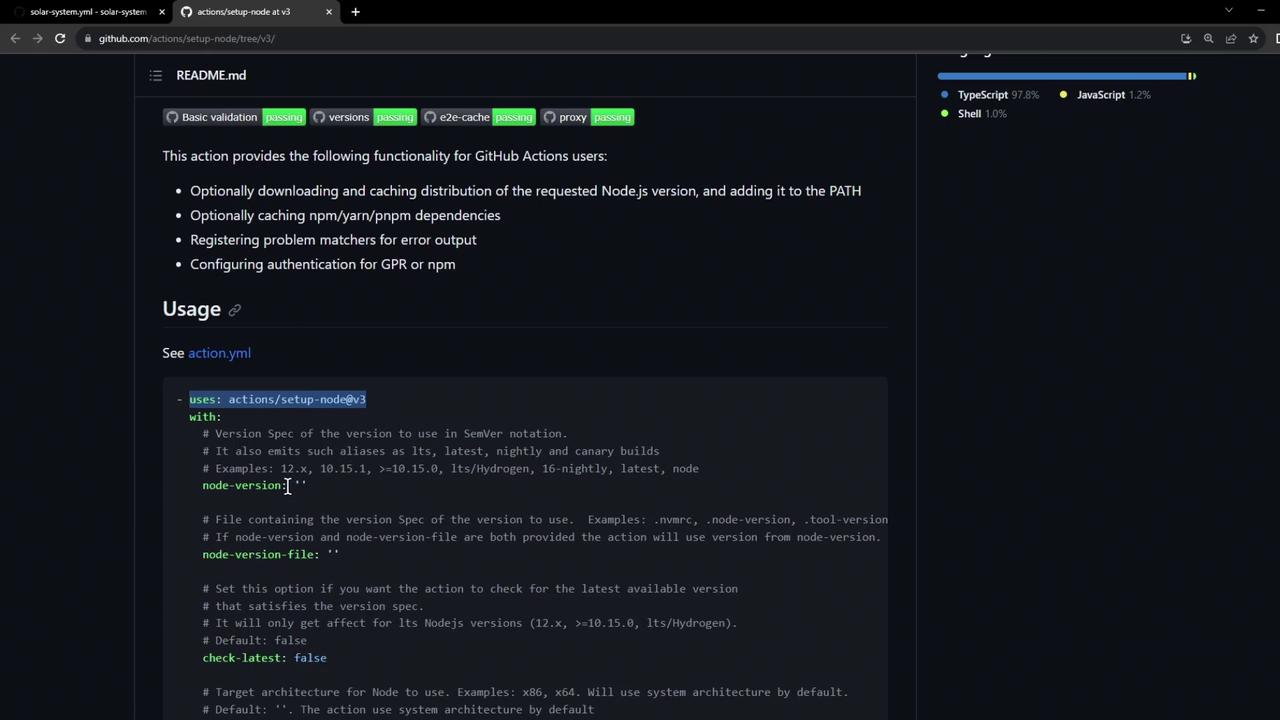
Customize `actions/setup-node` by specifying `check-latest: true` to always fetch the latest patch release.
Commit and push your workflow:
```bash theme={null}
git add .github/workflows/solar-system.yml
git commit -m "Add unit testing workflow"
git push --set-upstream origin feature/exploring-workflows
```
## 3. Enable the Actions Tab in GitHub
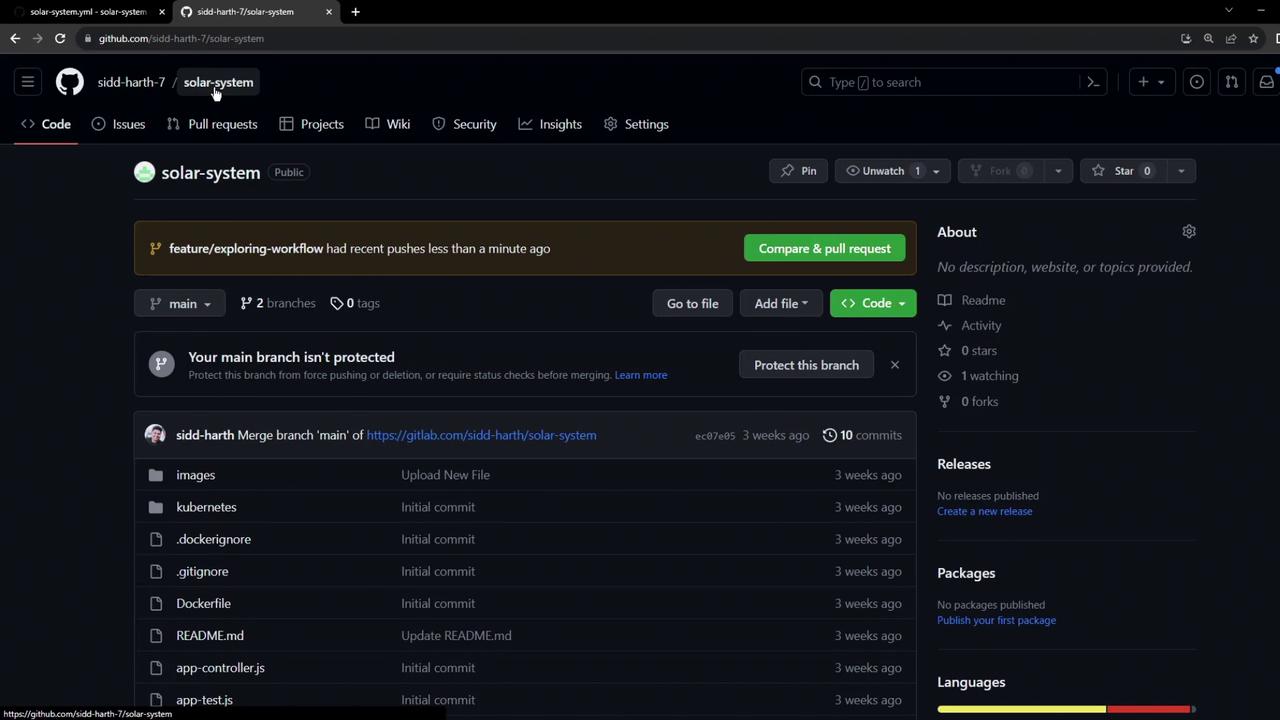
By default, the Actions tab might be hidden. Open the repository page to confirm:
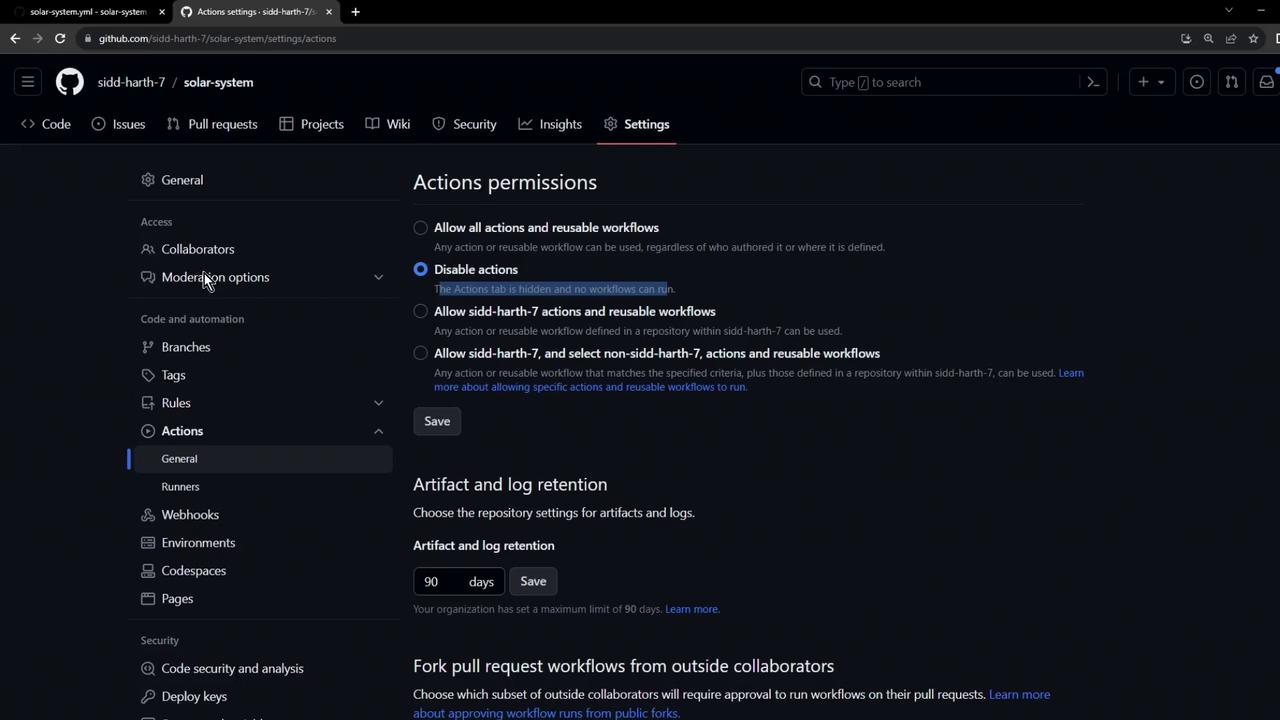
Go to **Settings > Actions > General**, and under **Actions permissions** allow all actions and reusable workflows:
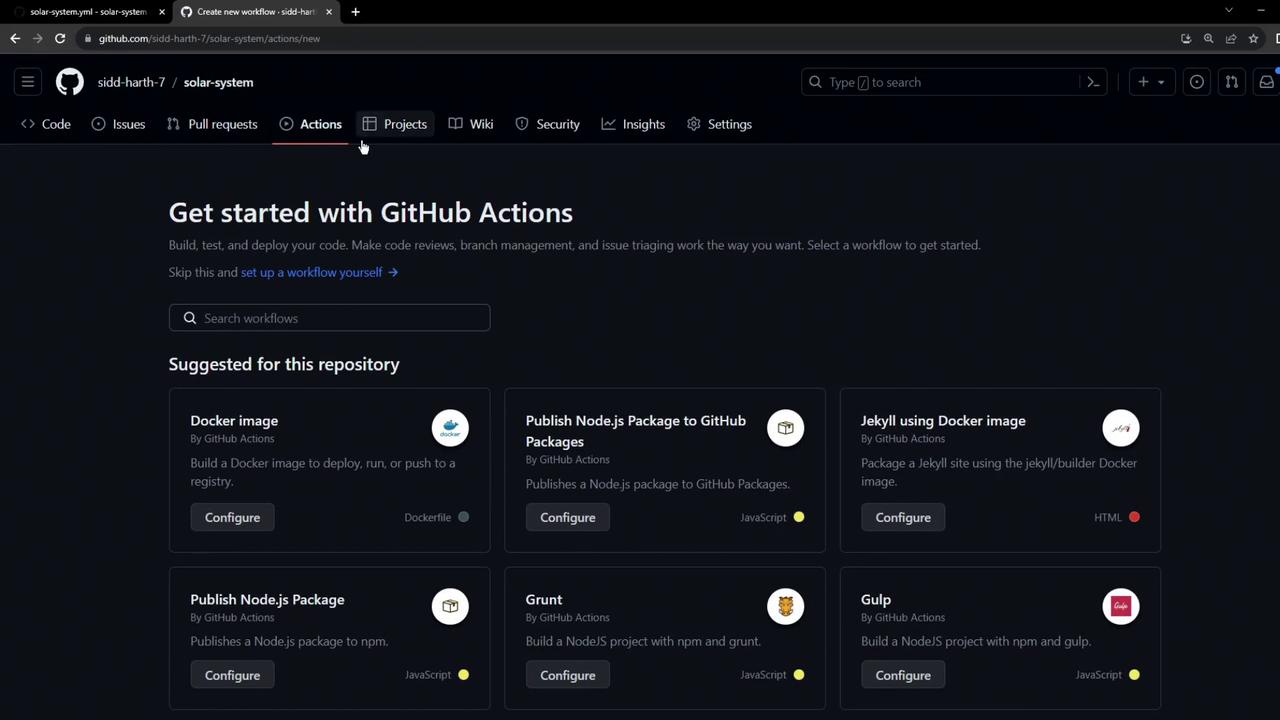
After saving, GitHub suggests available workflows:
Allowing all actions grants workflows broad permissions. Review [GitHub Actions security best practices](https://docs.github.com/actions/learn-github-actions/security-hardening-your-workflow) before enabling.
## 4. Trigger and Inspect the Workflow
Push an empty commit to trigger the CI pipeline on your feature branch:
```bash theme={null}
git commit --allow-empty -m "Trigger CI"
git push
```
In the **Actions** tab, open the **Unit Testing** run and review the logs:
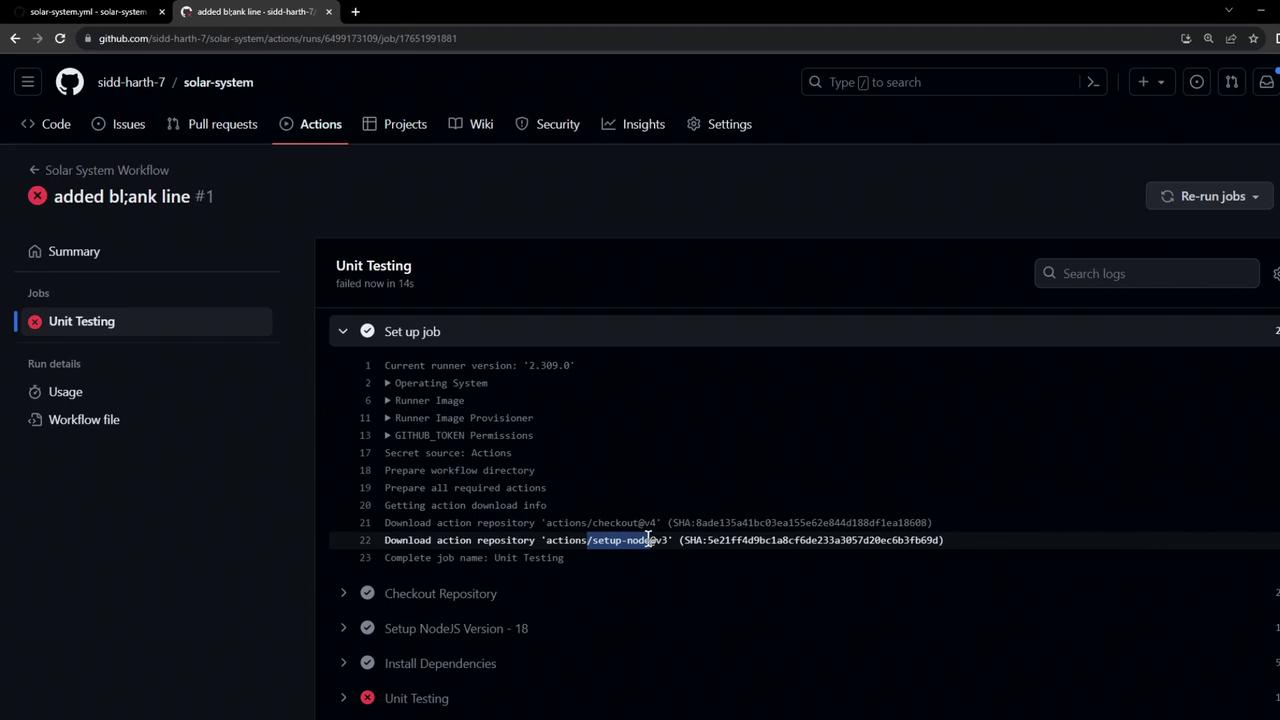
The failure indicates missing MongoDB credentials.
## 5. Configure the Application’s Database Connection
Open `app.js` to see how MongoDB connects:
```javascript theme={null}
const mongoose = require('mongoose');
mongoose.connect(process.env.MONGO_URI, {
user: process.env.MONGO_USERNAME,
pass: process.env.MONGO_PASSWORD,
useNewUrlParser: true,
useUnifiedTopology: true
}, err => {
if (err) {
console.error("MongoDB connection error:", err);
}
});
```
You must supply the `MONGO_URI`, `MONGO_USERNAME`, and `MONGO_PASSWORD` via your workflow.
## 6. Add Environment Variables and Secrets
Update `.github/workflows/solar-system.yml` to define global `env` variables:
```yaml theme={null}
env:
MONGO_URI: 'mongodb+srv://supercluster.d83jj.mongodb.net/superData'
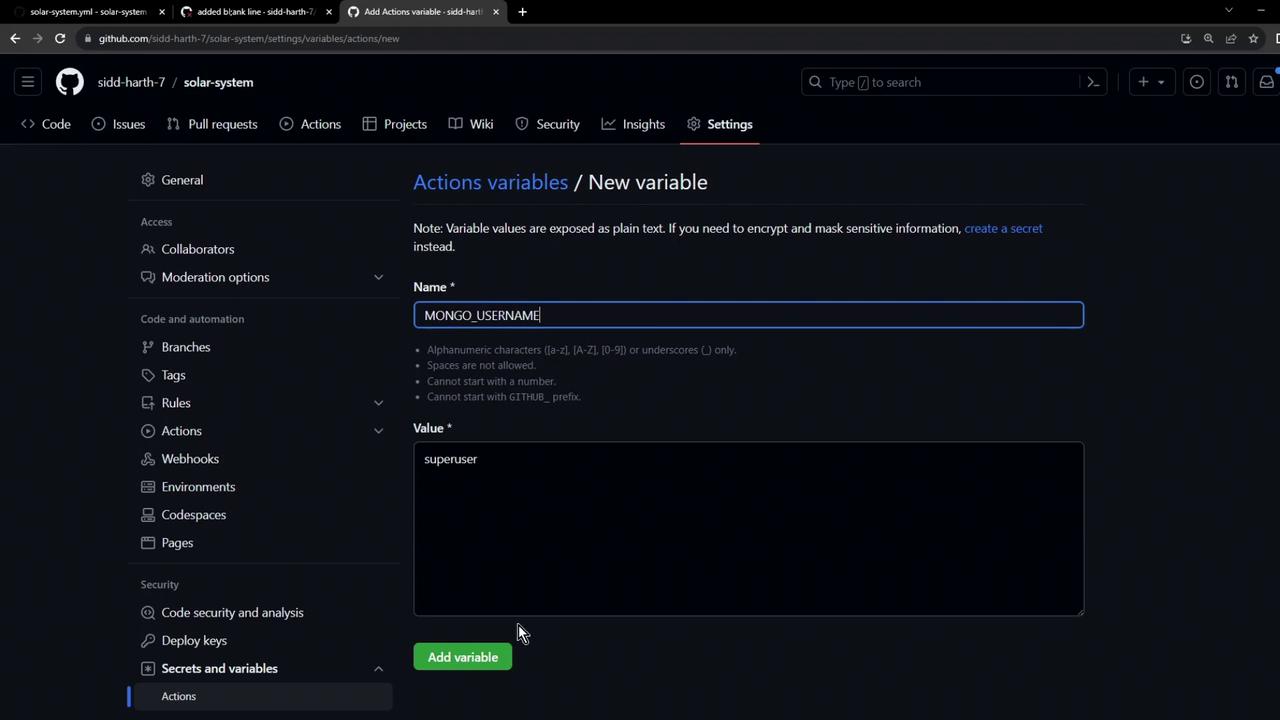
MONGO_USERNAME: ${{ vars.MONGO_USERNAME }}
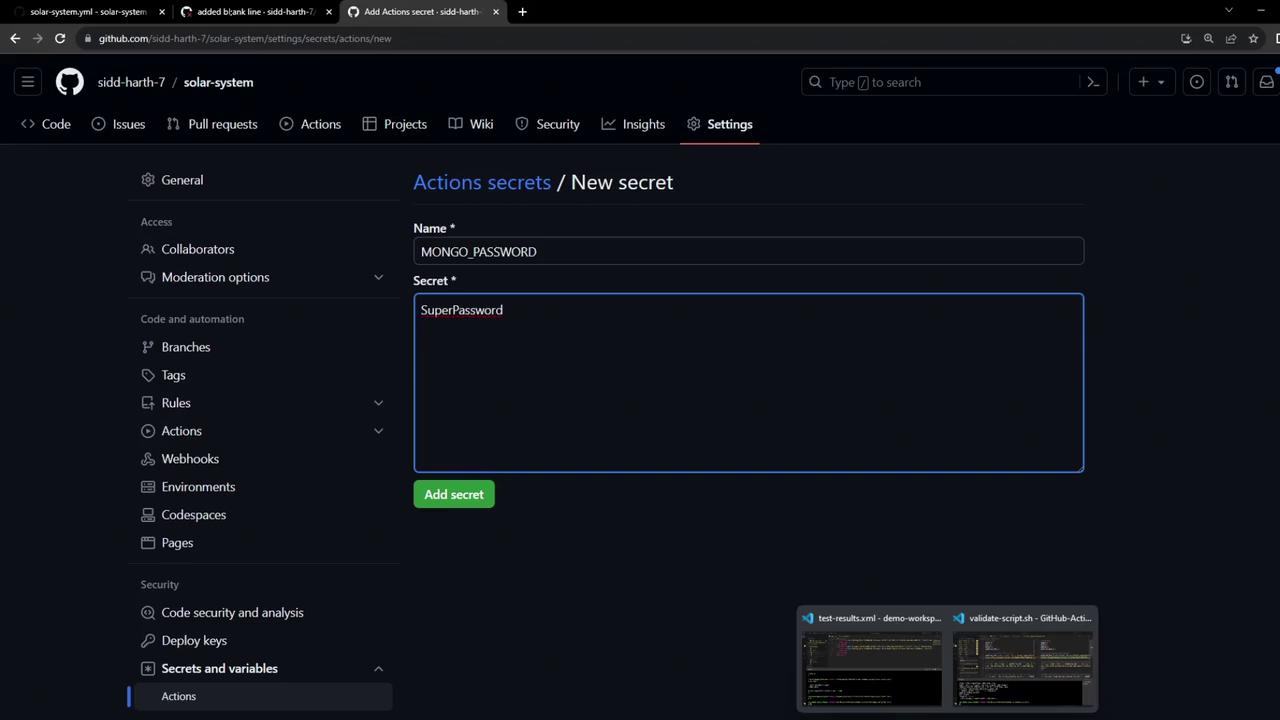
MONGO_PASSWORD: ${{ secrets.MONGO_PASSWORD }}
```
The full workflow becomes:
```yaml theme={null}
name: Solar System Workflow
on:
workflow_dispatch:
push:
branches:
- main
- 'feature/*'
env:
MONGO_URI: 'mongodb+srv://supercluster.d83jj.mongodb.net/superData'
MONGO_USERNAME: ${{ vars.MONGO_USERNAME }}
MONGO_PASSWORD: ${{ secrets.MONGO_PASSWORD }}
jobs:
unit-testing:
name: Unit Testing
runs-on: ubuntu-latest
steps:
- name: Checkout Repository
uses: actions/checkout@v4
- name: Setup Node.js
uses: actions/setup-node@v3
with:
node-version: 18
- name: Install Dependencies
run: npm install
- name: Run Unit Tests
run: npm test
```
### 6.1 Add the `MONGO_PASSWORD` Secret
In **Settings > Secrets and variables > Actions**, click **New repository secret** and add `MONGO_PASSWORD`:
### 6.2 Add the `MONGO_USERNAME` Variable
Under **Settings > Secrets and variables > Actions > Variables**, create `MONGO_USERNAME`:
Commit and push your changes:
```bash theme={null}
git add .github/workflows/solar-system.yml
git commit -m "Define env vars for MongoDB in workflow"
git push
```
## 7. Verify Workflow Success
After pushing, GitHub Actions will rerun the workflow, connect to MongoDB using your provided credentials, and execute unit tests without errors. All steps—including Node.js setup and `npm test`—should pass.
To retain logs and coverage reports after the run completes, consider uploading test artifacts using [actions/upload-artifact](https://github.com/actions/upload-artifact).
***
## Summary of Workflow Steps
| Step | Description | Command / File |
| ---- | ----------------------------- | ------------------------------------------ |
| 1 | Create feature branch | `git checkout -b feature/...` |
| 2 | Add GitHub Actions workflow | `.github/workflows/solar-system.yml` |
| 3 | Enable Actions in repository | **Settings > Actions > General** |
| 4 | Trigger CI run | `git commit --allow-empty -m "Trigger CI"` |
| 5 | Inspect DB config in `app.js` | `mongoose.connect(...)` |
| 6 | Define secrets & variables | GitHub Settings > Secrets and Variables |
| 7 | Confirm passing unit tests | **Actions** tab |
## References
* [GitHub Actions Documentation](https://docs.github.com/actions)
* [actions/setup-node GitHub Repo](https://github.com/actions/setup-node)
* [Mongoose Connection Guide](https://mongoosejs.com/docs/connections.html)