> ## Documentation Index
> Fetch the complete documentation index at: https://notes.kodekloud.com/llms.txt
> Use this file to discover all available pages before exploring further.
# Executing Shell Scripts in Workflow
> This article explains how to execute shell scripts in GitHub Actions workflows to simplify command management and improve readability.
Running multiple commands as separate `run` steps can clutter your GitHub Actions workflow. By bundling them into a single shell script, you simplify maintenance, improve readability, and reduce duplication.
## 1. Why Consolidate `run` Steps?
When you split each command into its own `run`, your workflow becomes long and harder to manage:
```yaml theme={null}
jobs:
ascii_job:
runs-on: ubuntu-latest
steps:
- name: Checkout Repo
uses: actions/checkout@v4
- name: Install Cowsay
run: sudo apt-get install cowsay -y
- name: Generate ASCII Art
run: cowsay -f dragon "Run for cover; I am a DRAGON... RAWR!" >> dragon.txt
- name: Search for "dragon"
run: grep -i "dragon" dragon.txt
- name: Display File Contents
run: cat dragon.txt
- name: List Repo Files
run: ls -ltra
```
| Approach | Pros | Cons |
| ------------------------ | ----------------------------- | ---------------------------- |
| Multiple `run` steps | Easy to read individual steps | Repetitive YAML; longer file |
| Single shell script call | Cleaner workflow; reusability | Must manage external script |
## 2. Create a Reusable Shell Script
Add a file named `ascii-script.sh` at the root of your repository with all commands:
```bash theme={null}
#!/bin/sh
sudo apt-get update
sudo apt-get install cowsay -y
cowsay -f dragon "Run for cover; I am a DRAGON... RAWR!" >> dragon.txt
grep -i "dragon" dragon.txt
cat dragon.txt
ls -ltra
```
Make sure to commit this script:
```bash theme={null}
git add ascii-script.sh
git commit -m "Add ASCII art shell script"
```
You can reference this pattern for any multi-step process—testing, building, or deployment—by swapping commands in your script.
## 3. Refactor Your Workflow to Invoke the Script
Update your workflow to run only the script:
```yaml theme={null}
jobs:
ascii_job:
runs-on: ubuntu-latest
steps:
- name: Checkout Repository
uses: actions/checkout@v4
- name: List Current Files
run: ls -ltra
- name: Run ASCII Art Script
run: ./ascii-script.sh
```
After pushing, navigate to the **Actions** tab to see your new workflow run:

## 4. Troubleshoot “Permission denied”
If you see an exit code 126, it means the script lacks execute permissions:
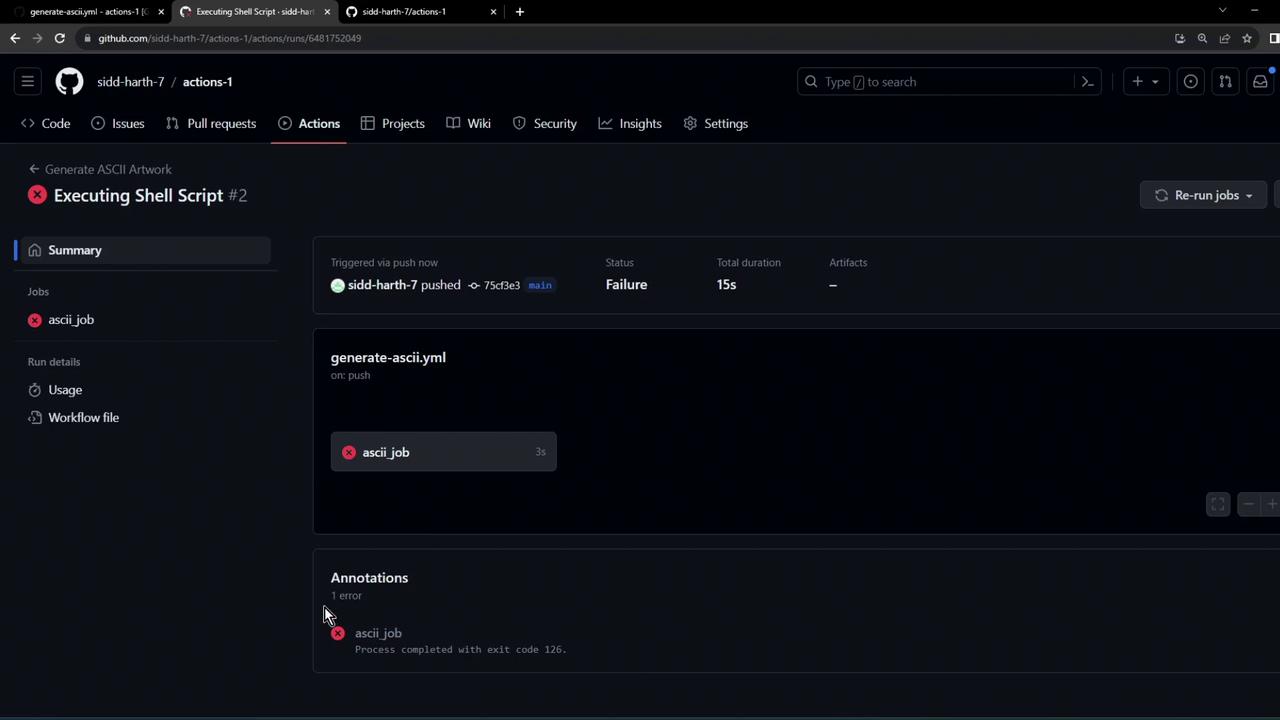
```text theme={null}
/home/runner/work/_temp/.../script.sh: line 1: ./ascii-script.sh: Permission denied
Error: Process completed with exit code 126
```
Always ensure your script is executable. You can either set the permission locally with `chmod +x ascii-script.sh` before committing, or update your workflow to grant permissions at runtime.
## 5. Grant Execute Permissions in the Workflow
Modify the step to add execution rights before running the script:
```yaml theme={null}
jobs:
ascii_job:
runs-on: ubuntu-latest
steps:
- name: Checkout Repository
uses: actions/checkout@v4
- name: List Current Files
run: ls -ltra
- name: Run ASCII Art Script
run: |
chmod +x ascii-script.sh
./ascii-script.sh
```
Commit and push these changes to restart the workflow.
## 6. Verify the Successful Run
When the workflow reruns, you’ll see:
```text theme={null}
Run ls -ltra
total 24
-rw-r--r-- 1 runner docker 161 Oct 11 11:17 ascii-script.sh
-rw-r--r-- 1 runner docker 227 Oct 11 11:17 README.md
...
```
And then:
```bash theme={null}
chmod +x ascii-script.sh
./ascii-script.sh
shell: /usr/bin/bash -e {0}
# [sudo] password for runner:
# Get:1 http://archive.ubuntu.com/ubuntu focal InRelease [265 kB]
# ...
# Code generated by Cowsay
dragon: I'm a DRAGON... RAWR!
# dragon.txt
...
```
Your script installs Cowsay, generates ASCII art, searches and displays content, and lists files—all in one step.
***
## References
* [GitHub Actions Documentation](https://docs.github.com/actions)
* [actions/checkout](https://github.com/actions/checkout)
* [GitHub Actions: Workflow syntax for GitHub Actions](https://docs.github.com/actions/using-workflows/workflow-syntax-for-github-actions)