> ## Documentation Index
> Fetch the complete documentation index at: https://notes.kodekloud.com/llms.txt
> Use this file to discover all available pages before exploring further.
# workflow dispatch Input Options
> Learn to use the workflow_dispatch trigger in GitHub Actions for custom inputs in manual workflows, enhancing usability for team members and contributors.
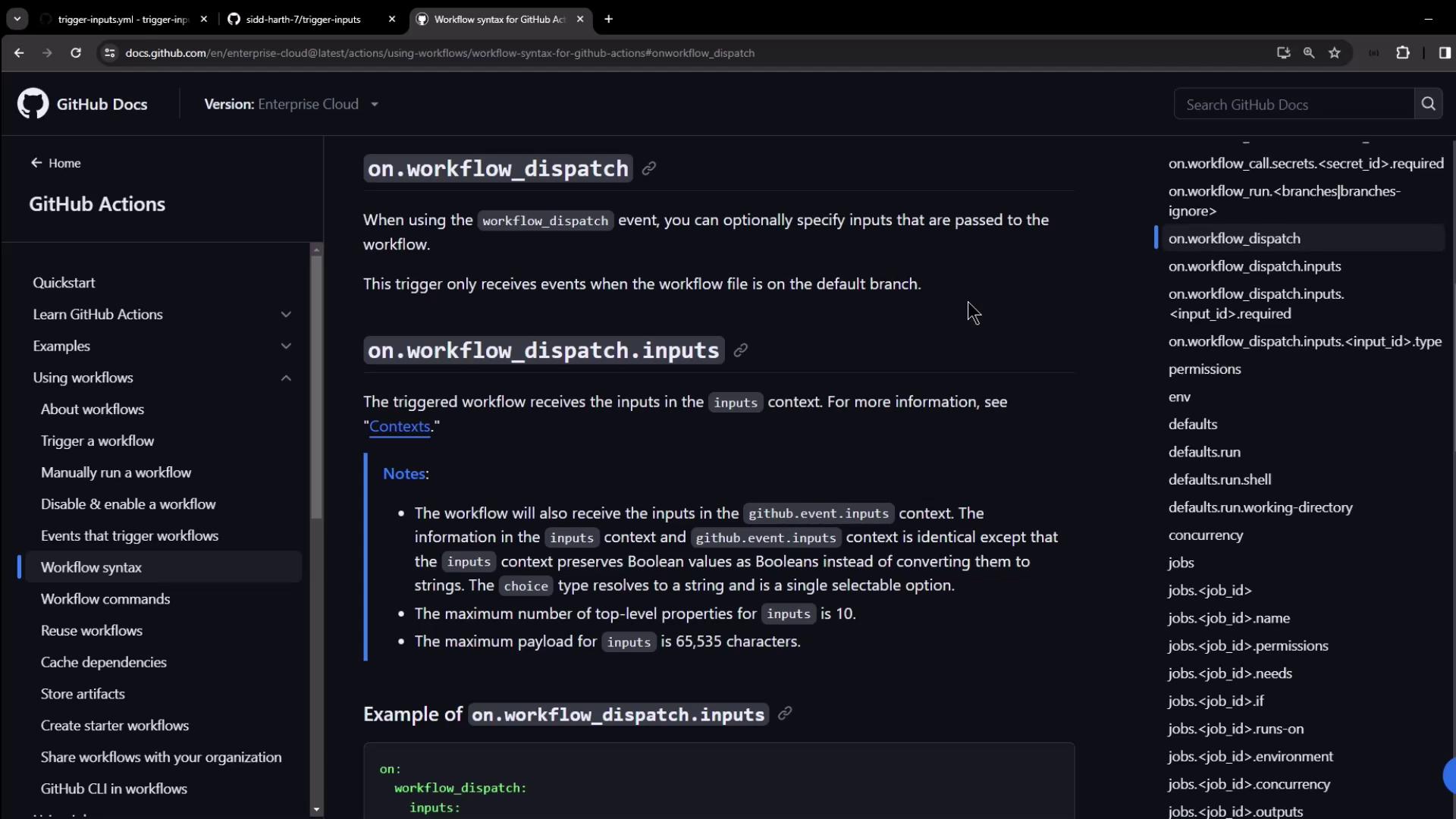
In this guide, you’ll learn how to leverage the `workflow_dispatch` trigger in GitHub Actions to define custom inputs for manual workflows. By specifying parameters, you can create a more intuitive, guided interface for team members and contributors.
GitHub supports up to 10 top-level inputs in a `workflow_dispatch` trigger. Use descriptive names and defaults to simplify the form.\
See the [Workflow Syntax documentation](https://docs.github.com/actions/using-workflows/workflow-syntax-for-github-actions#onworkflow_dispatch) for details.
## Supported Input Types
Use these five input types to collect values in your workflow form:
| Input Type | Description | YAML Example |
| ----------- | ----------------------------------- | --------------------------- |
| boolean | True/false toggle | `type: boolean` |
| choice | Select one option from a list | `type: choice` + `options:` |
| string | Free-form text | `type: string` |
| number | Numeric value | `type: number` |
| environment | Select from repository environments | `type: environment` |
## Basic Input Example
Below is a minimal example showing `choice`, `boolean`, `string`, and `environment` inputs. Access them in steps via `${{ inputs. }}`:
```yaml theme={null}
on:
workflow_dispatch:
inputs:
logLevel:
description: 'Log level'
required: true
default: 'warning'
type: choice
options:
- info
- warning
- debug
print_tags:
description: 'Print tags to STDOUT'
required: true
type: boolean
tags:
description: 'Test scenario tags'
required: true
type: string
environment:
description: 'Environment to run tests against'
required: true
type: environment
jobs:
print-tag:
runs-on: ubuntu-latest
if: ${{ inputs.print_tags }}
steps:
- run: echo "Tags: ${{ inputs.tags }}"
```
***
## Example Repository
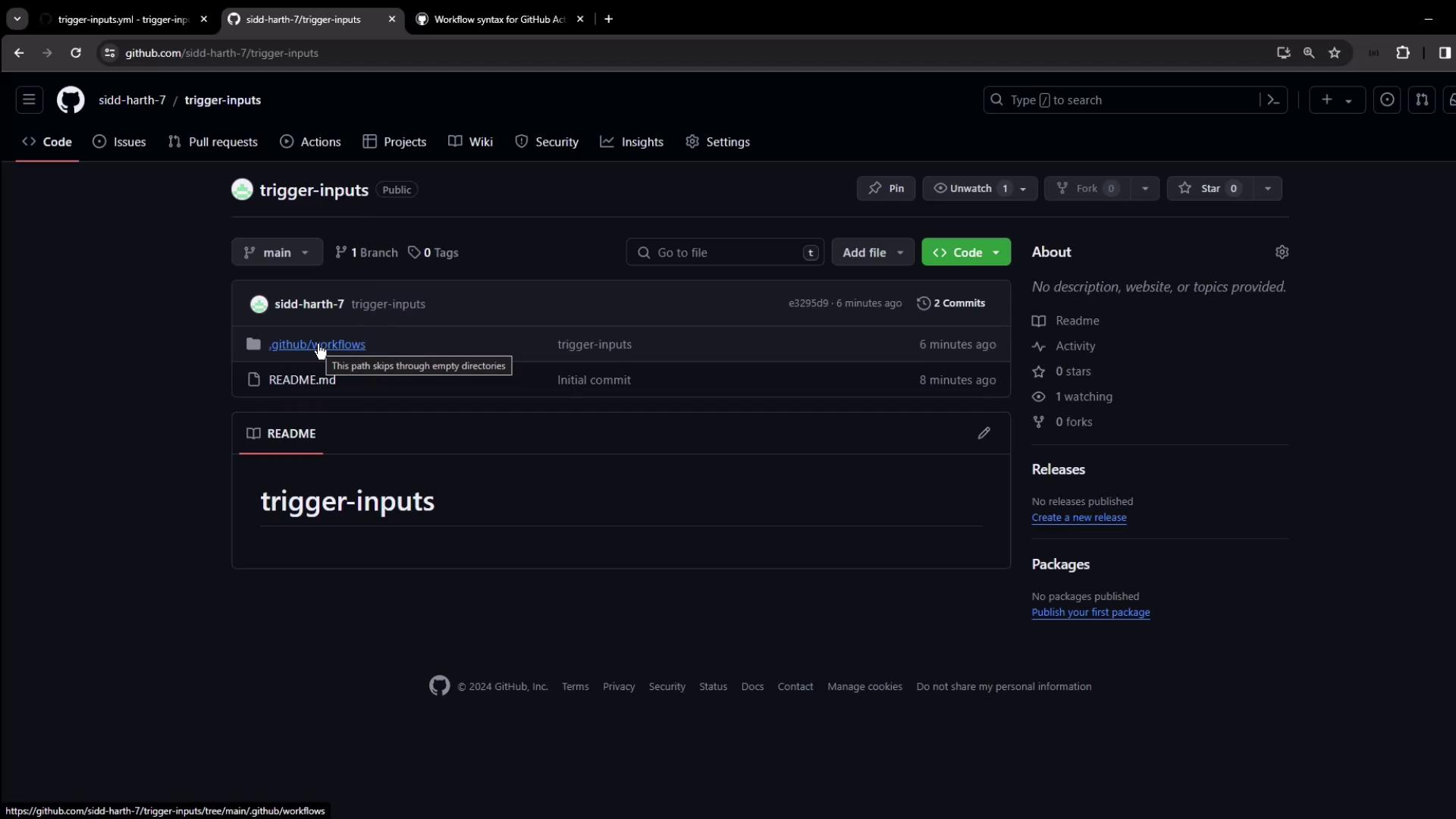
Clone or browse the **trigger-inputs** repository to see these inputs in action. It contains a simple README and one workflow file:
***
## Defining the Workflow
Open `.github/workflows/trigger-inputs.yml` in your editor:
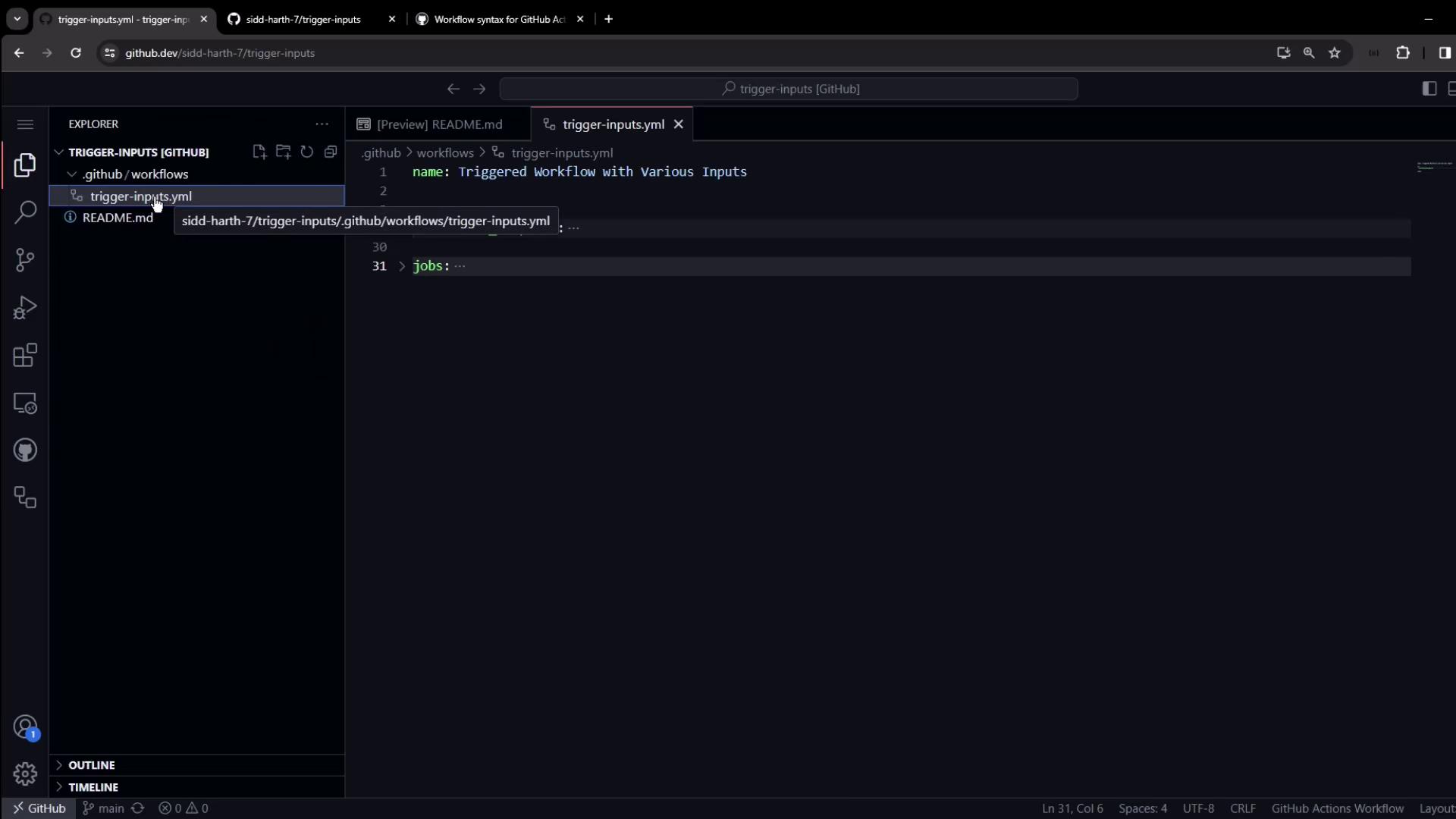
This workflow declares five inputs and a job that prints them:
```yaml theme={null}
name: Triggered Workflow with Various Inputs
on:
workflow_dispatch:
inputs:
run-tests:
description: 'Run unit tests'
required: false
type: boolean
test-type:
description: 'Type of tests to run'
type: choice
options:
- unit
- integration
- all
required: true
environment:
description: 'Deployment target'
type: environment
required: true
build-number:
description: 'Custom build number'
type: number
required: false
message:
description: 'Additional message'
type: string
required: false
jobs:
build-and-deploy:
runs-on: ubuntu-latest
steps:
- name: Print workflow inputs
run: |
echo "Run tests: ${{ inputs.run-tests }}"
echo "Test type: ${{ inputs.test-type }}"
echo "Environment: ${{ inputs.environment }}"
echo "Build number: ${{ inputs.build-number }}"
echo "Message: ${{ inputs.message }}"
- name: Run tests (if selected)
if: ${{ inputs.run-tests }}
run: echo "Running tests..."
# Uncomment to deploy based on the selected environment
# - name: Deploy to ${{ inputs.environment }}
# environment: ${{ inputs.environment }}
# run: echo "Deploying to ${{ inputs.environment }}"
```
***
## Running the Workflow
1. Go to the **Actions** tab, select **Triggered Workflow with Various Inputs**, and click **Run workflow**.
2. GitHub displays a form based on your `inputs` block:
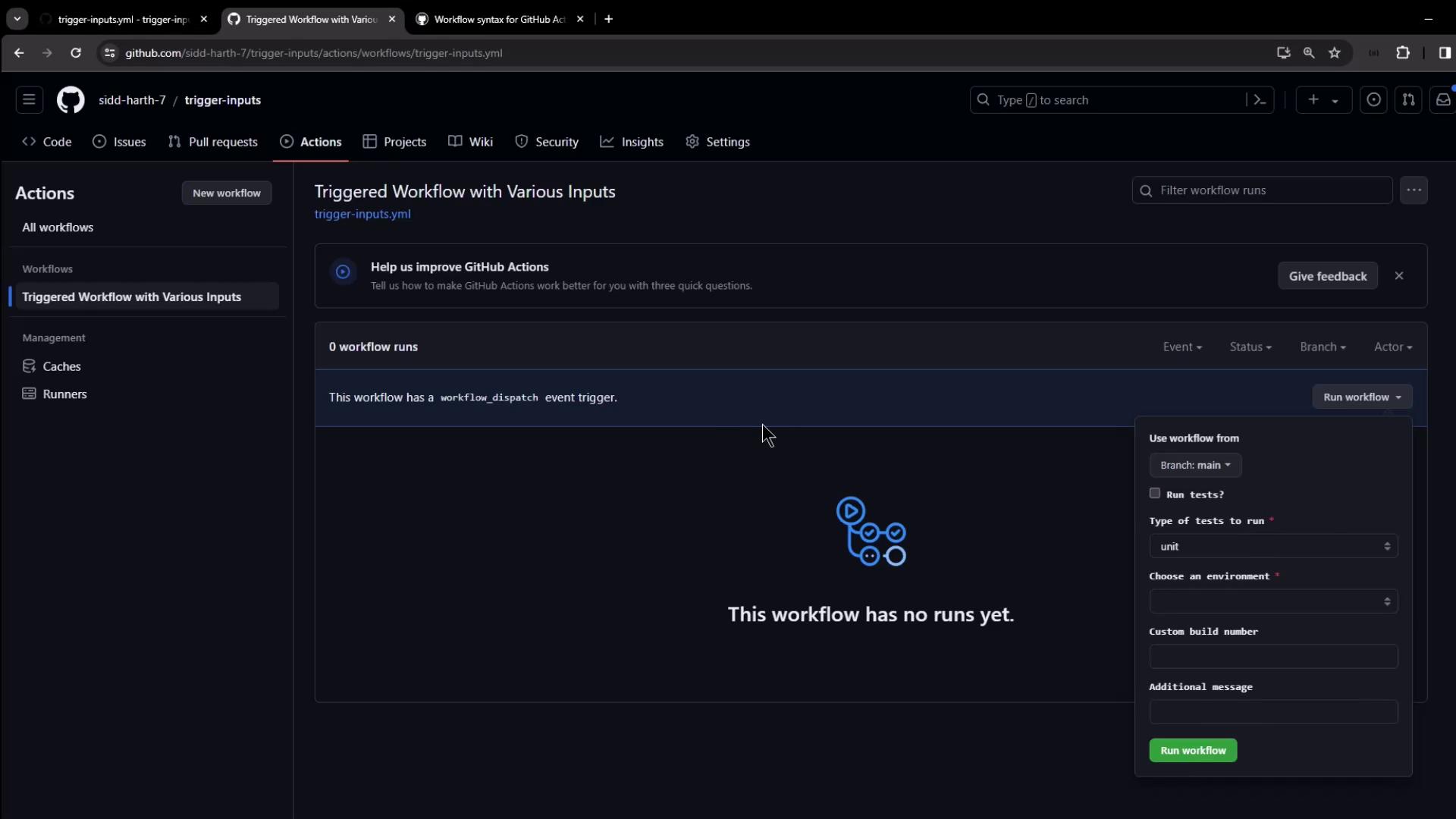
3. Choose the branch, toggle **Run tests**, pick your **Test type**, select an **Environment**, and enter **Build number** or **Message** as needed.
4. Click **Run workflow**.
***
## Creating Environments
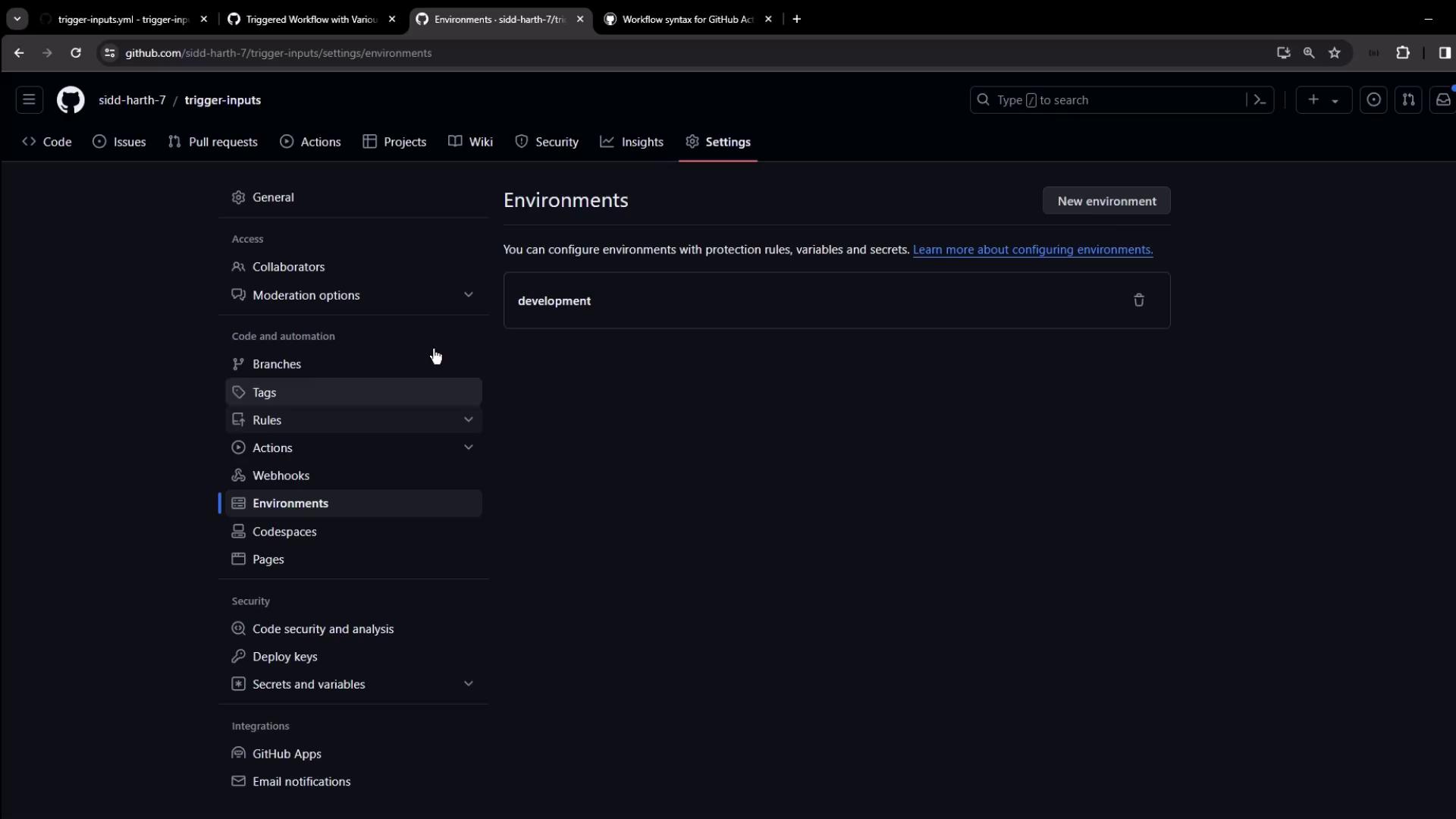
If no environments exist, add them under **Settings** → **Environments**. We created two examples here:
***
## Viewing the Run
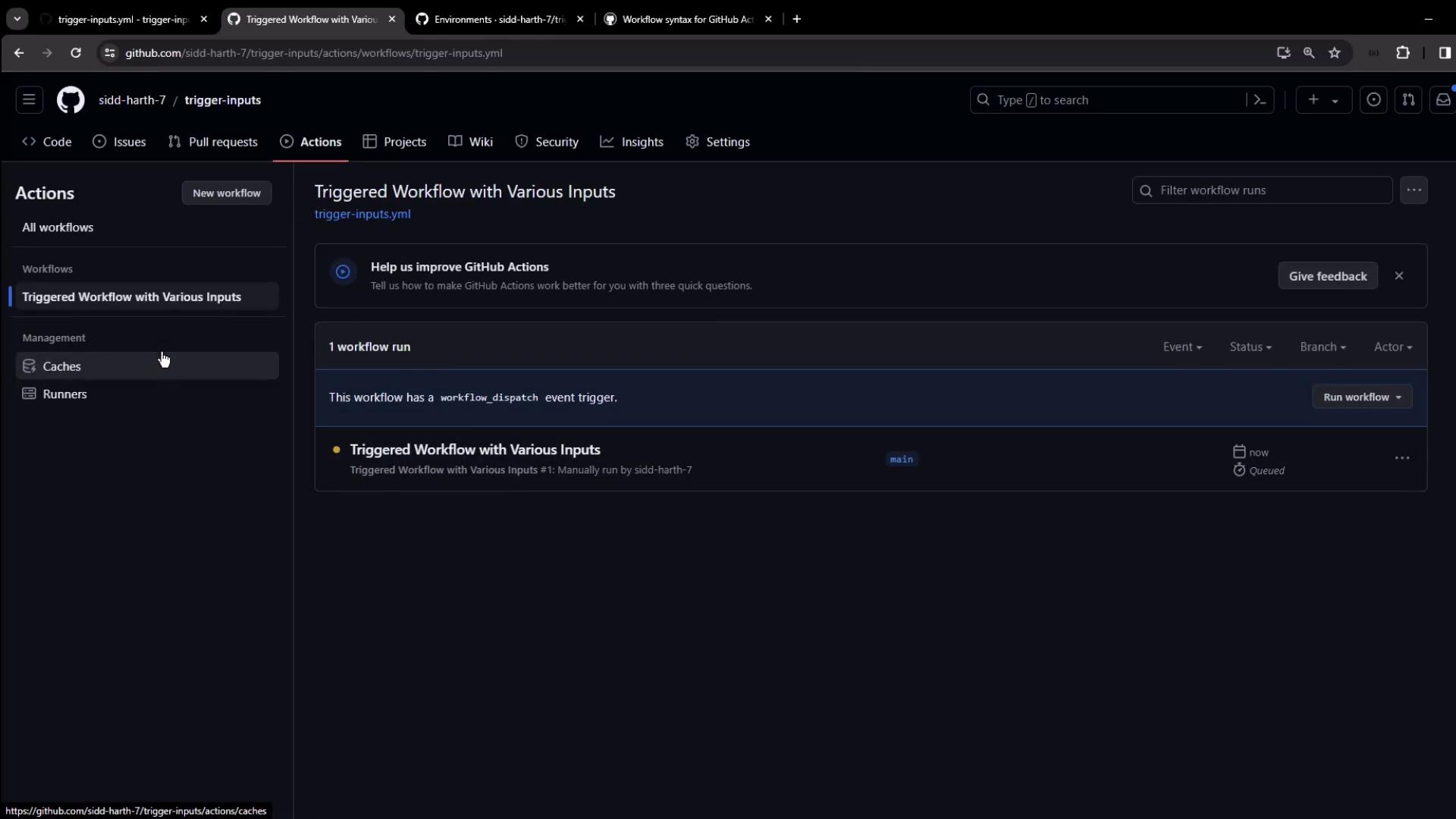
After you submit the form, watch the job start:
Once it finishes, open the logs to confirm your inputs:
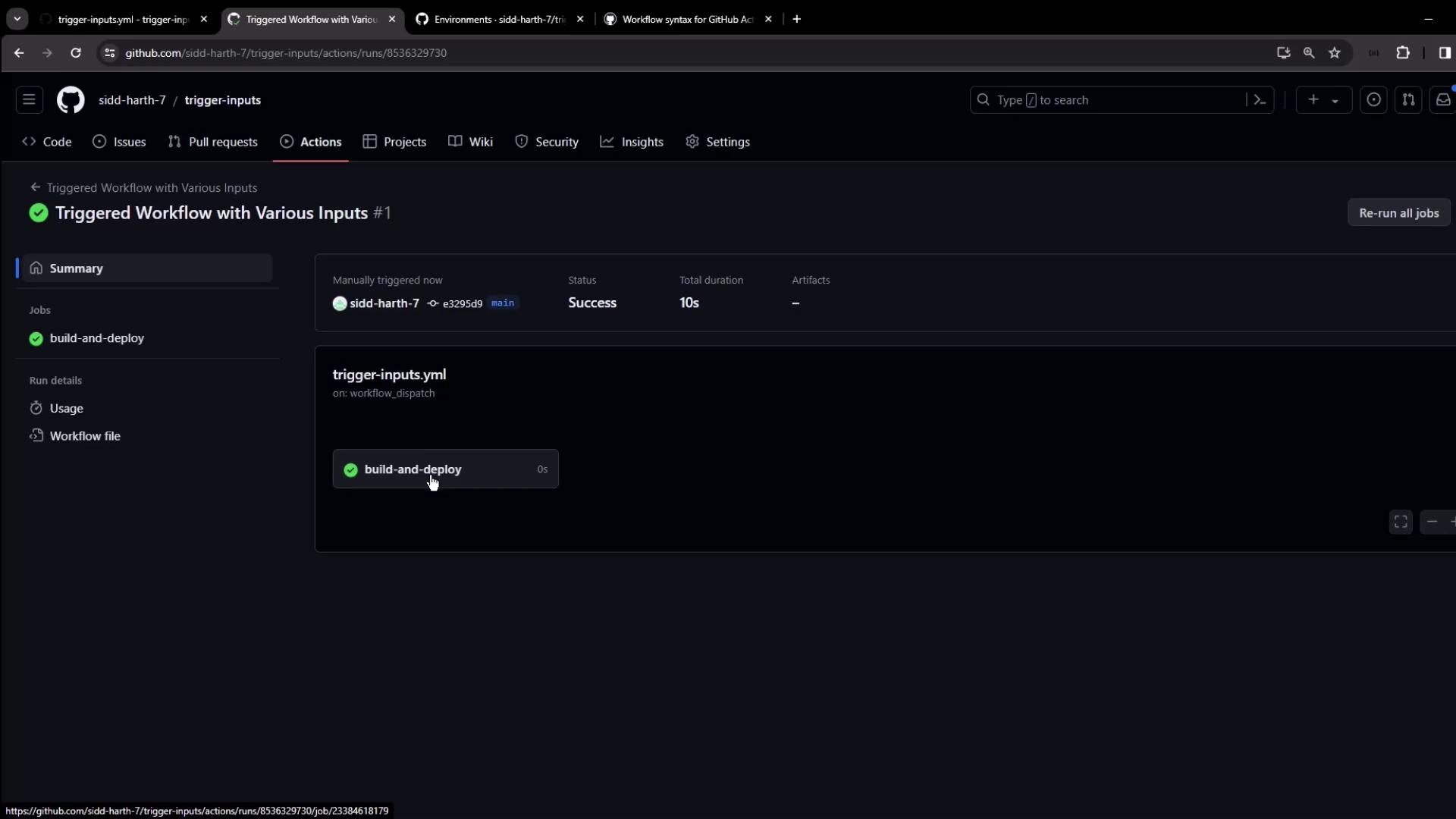
```bash theme={null}
echo "Run tests: true"
echo "Test type: integration"
echo "Environment: production"
echo "Build number: 12345"
echo "Message: testing input options"
```
***
## Conditional Steps and Debugging
When you guard a step with a boolean input, compare directly to a boolean:
```yaml theme={null}
- name: Run tests (if selected)
if: ${{ inputs.run-tests }}
run: echo "Testing..."
```
Avoid comparing a boolean input to a string (`'true'`). That always evaluates to false, as shown in the debug logs below.
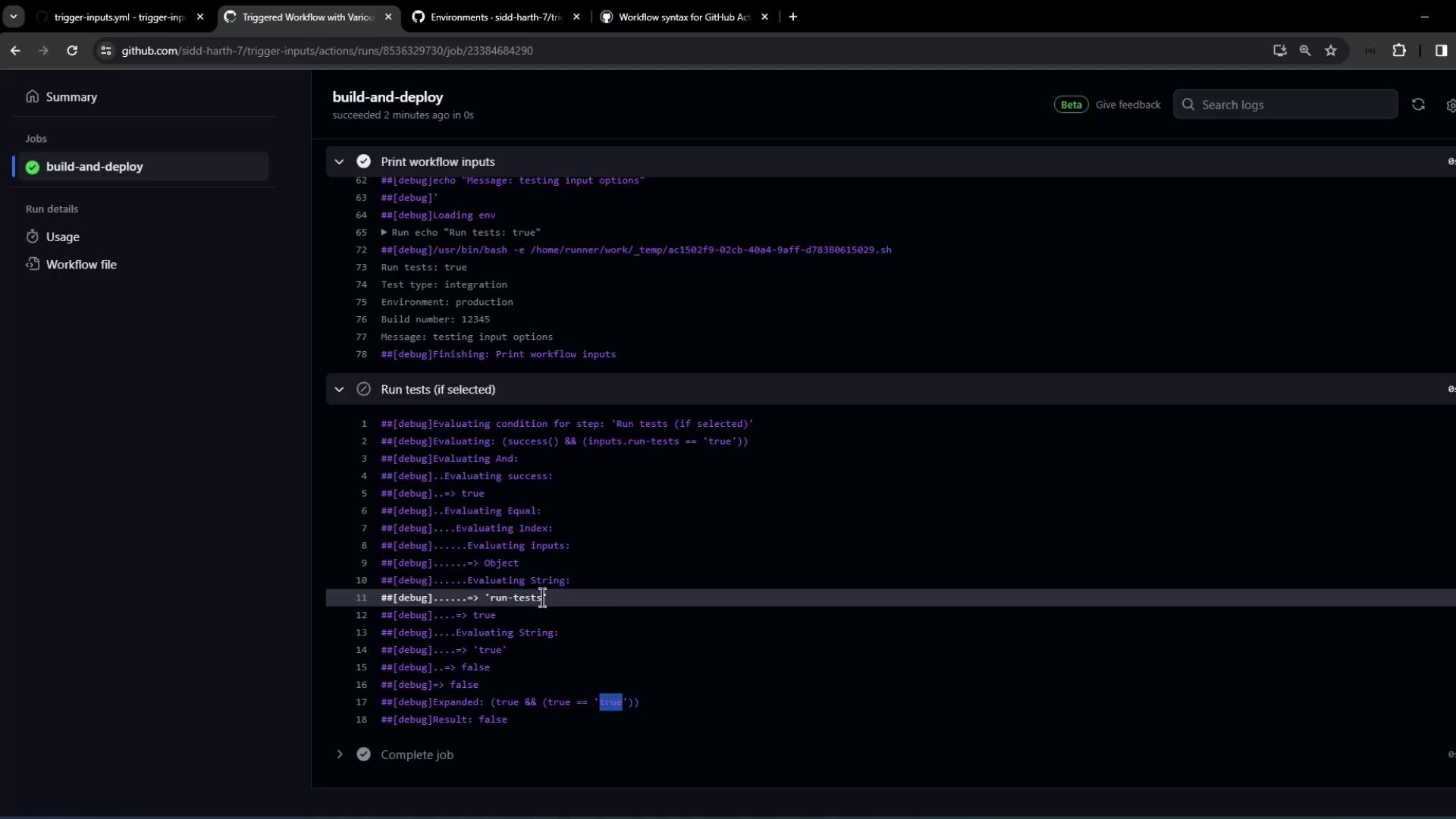
```plaintext theme={null}
##[debug]Evaluating: (success() && (inputs.run-tests == 'true'))
##[debug]=> success: true
##[debug]=> (true == 'true'): false
##[debug]Result: false
```
***
## Summary
* Define up to 10 `workflow_dispatch` inputs (boolean, choice, string, number, environment).
* Access values with `${{ inputs. }}` in your steps.
* Use inputs in `if:` conditional expressions.
* Enable [workflow debug logs](https://docs.github.com/actions/managing-workflow-runs/enabling-debug-logging) to troubleshoot.
With these patterns, you can build flexible, user-friendly GitHub Actions workflows that adapt at run time.