> ## Documentation Index
> Fetch the complete documentation index at: https://notes.kodekloud.com/llms.txt
> Use this file to discover all available pages before exploring further.

# Organizations Templated workflow

> This guide explains how to create and use organization-wide starter workflows for GitHub Actions to enhance consistency and reduce duplication.

In this guide, you’ll discover how to define and consume organization-wide starter workflows for GitHub Actions. By centralizing your CI/CD logic in a special `.github` repository, teams can pick prebuilt workflow templates across all repos—boosting consistency and cutting down duplication.
<Frame>
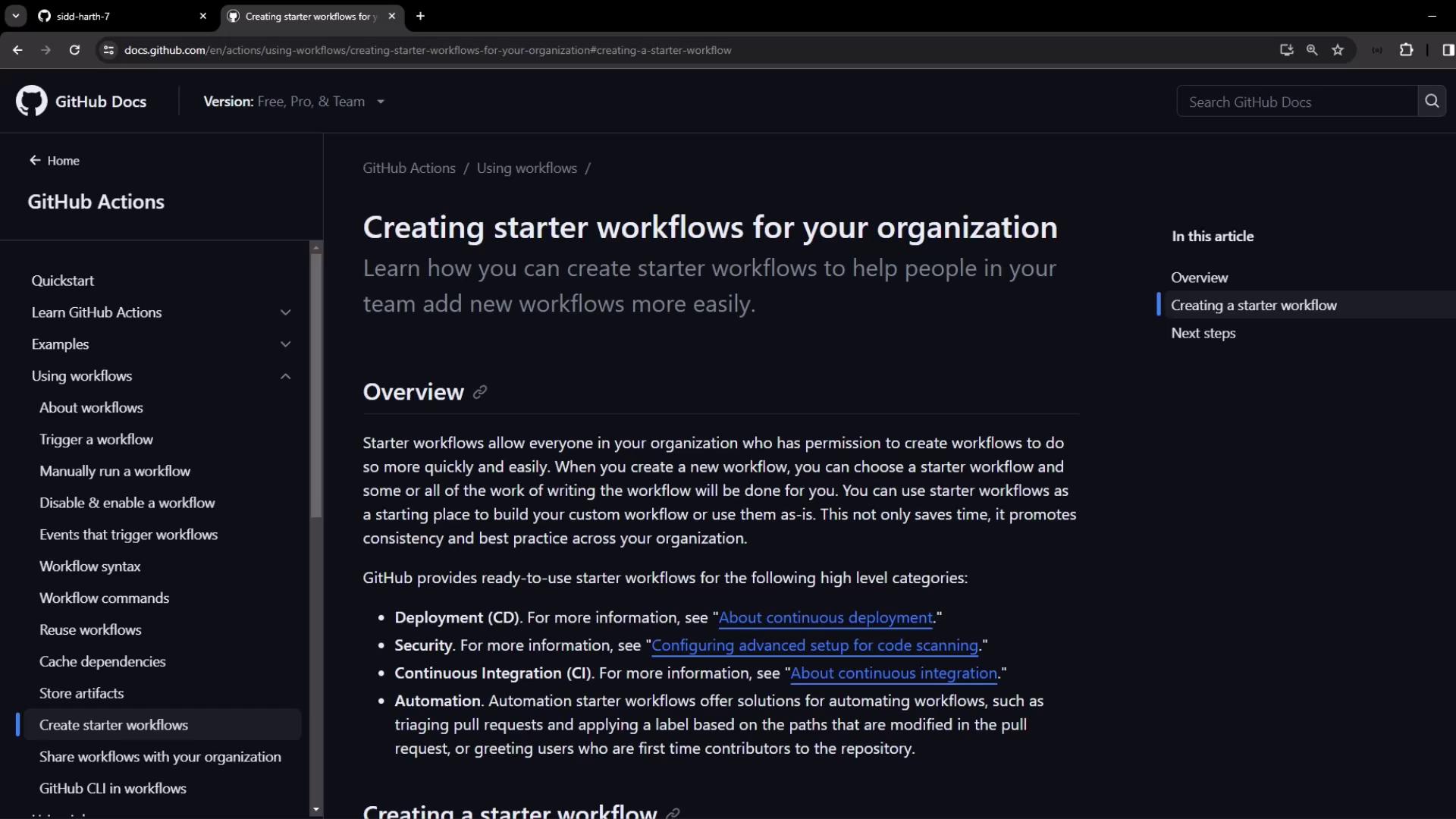
  ![The image shows a GitHub Docs page about creating starter workflows for organizations, with an overview and navigation menu on the left.](https://kodekloud.com/kk-media/image/upload/v1752876311/notes-assets/images/GitHub-Actions-Certification-Organizations-Templated-workflow/github-docs-starter-workflows-overview.jpg)
</Frame>

## 1. Define a Starter Workflow Template

To publish a reusable workflow:

1. Create a **public** repository named `.github` at the root of your organization.
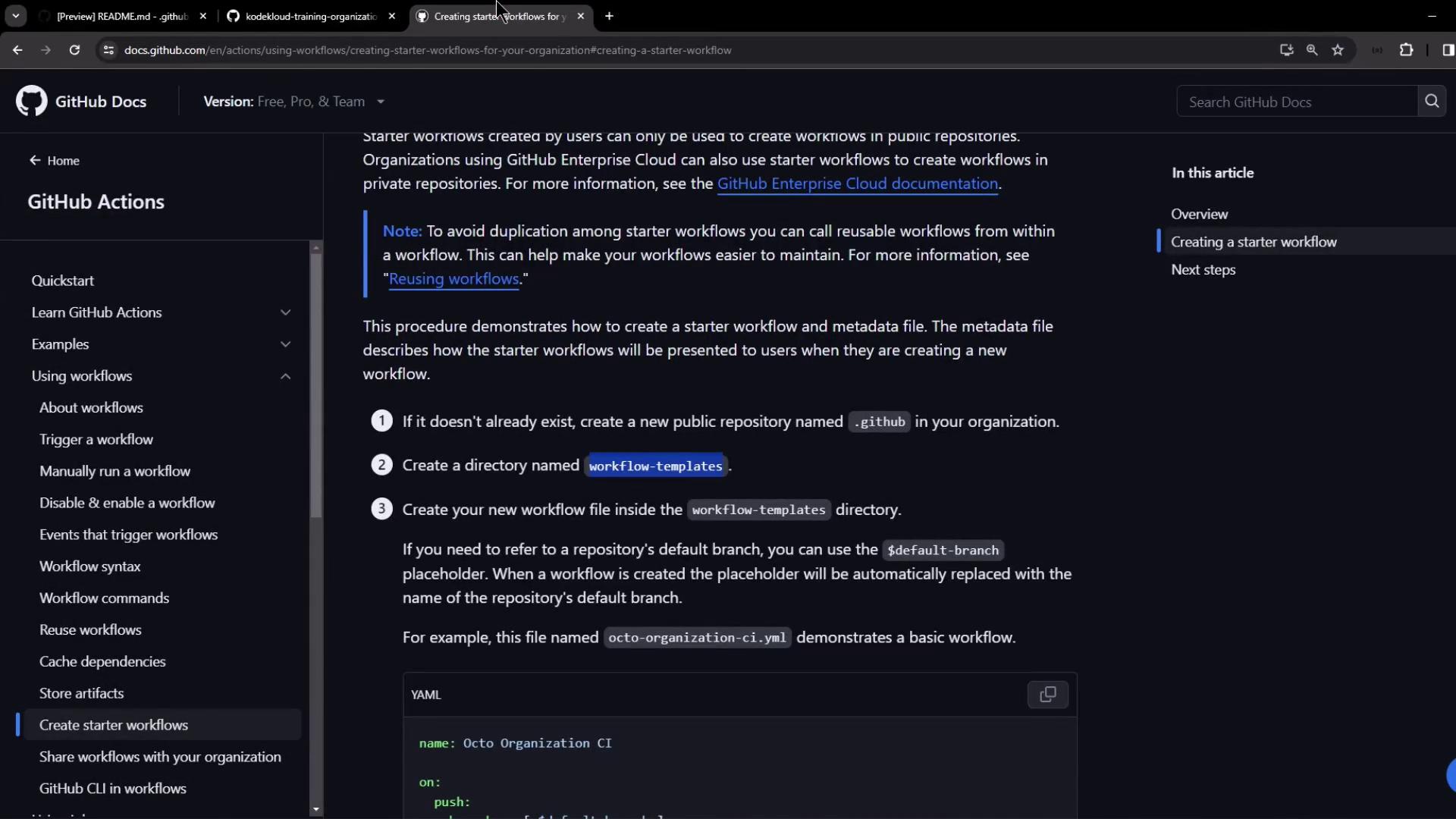
2. Inside `.github`, add a folder called `workflow-templates`.
3. Add a workflow YAML file (for example, `org-ci-starter.yml`).
4. Add a matching metadata file named `org-ci-starter.properties.json`.

<Callout icon="lightbulb" color="#1CB2FE">
  The metadata JSON controls how your template appears in the workflow picker.

  * `name` and `description` define the display text.
  * `iconName` lets you specify an optional SVG icon.
  * `categories` and `filePatterns` help users find the right template.
</Callout>

Table: Starter Template Files

| File Path                                               | Purpose                      | Example Filename                 |
| ------------------------------------------------------- | ---------------------------- | -------------------------------- |
| `.github/workflow-templates/{template}.yml`             | Workflow definition          | `org-ci-starter.yml`             |
| `.github/workflow-templates/{template}.properties.json` | Display metadata             | `org-ci-starter.properties.json` |
| (Optional) `.github/workflow-templates/{icon}.svg`      | Custom icon for the template | `kode-kloud-icon.svg`            |

Example workflow (`.github/workflow-templates/org-ci-starter.yml`):

```yaml theme={null}
name: Octo Organization CI
on:
  push:
    branches: [ $default-branch ]
  pull_request:
    branches: [ $default-branch ]
jobs:
  build:
    runs-on: ubuntu-latest
    steps:
      - name: Checkout code
        uses: actions/checkout@v4
```

Example metadata (`.github/workflow-templates/org-ci-starter.properties.json`):

```json theme={null}
{
  "name": "Octo Organization Workflow",
  "description": "CI starter workflow for Go projects.",
  "iconName": "Example-icon",
  "categories": ["Go"],
  "filePatterns": ["package.json$", "Dockerfile", "\\.md$"]
}
```

***

## 2. Create Your GitHub Organization

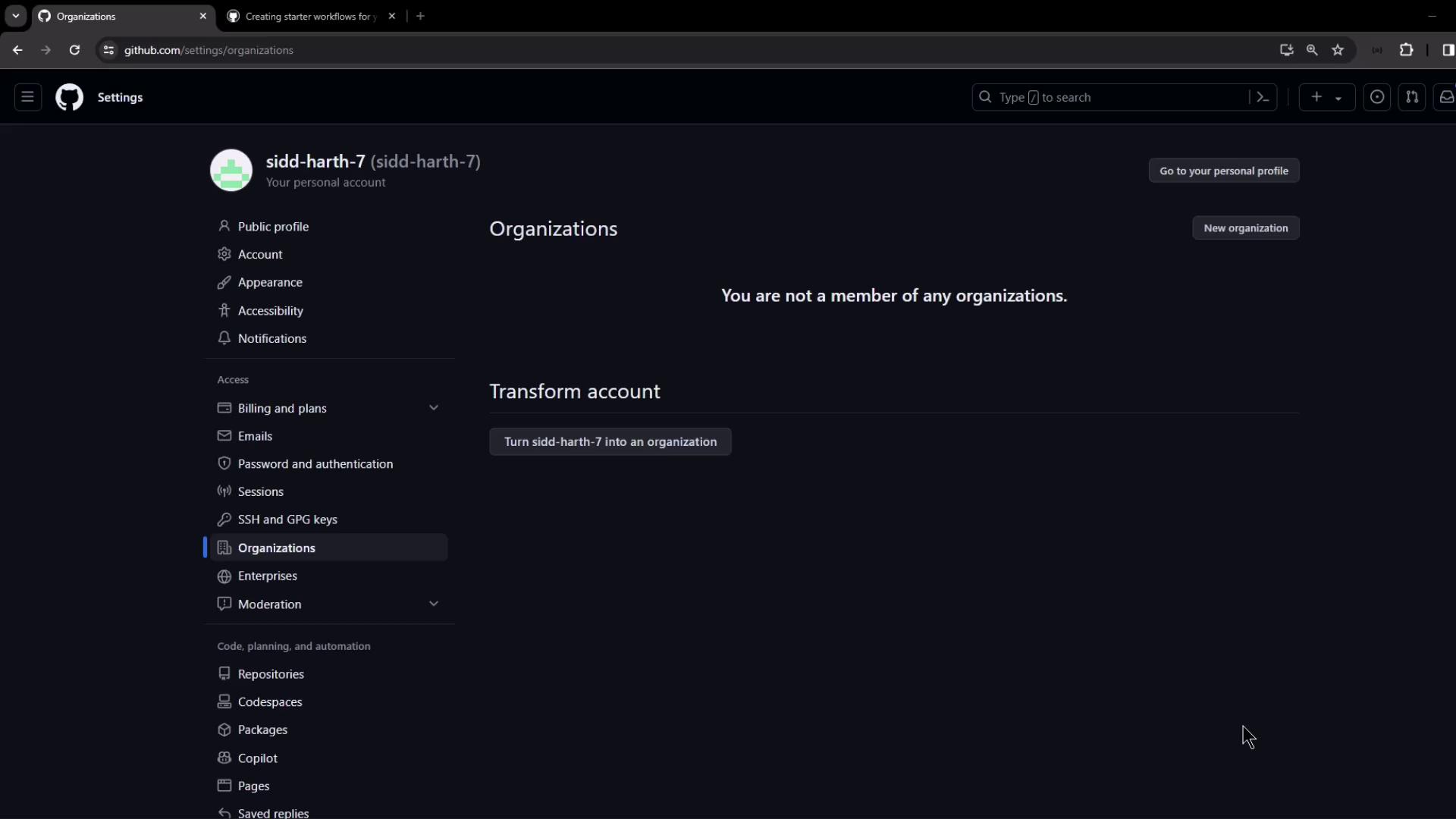
If you don’t already have an organization, set one up:

1. Click your profile photo → **Your organizations**.
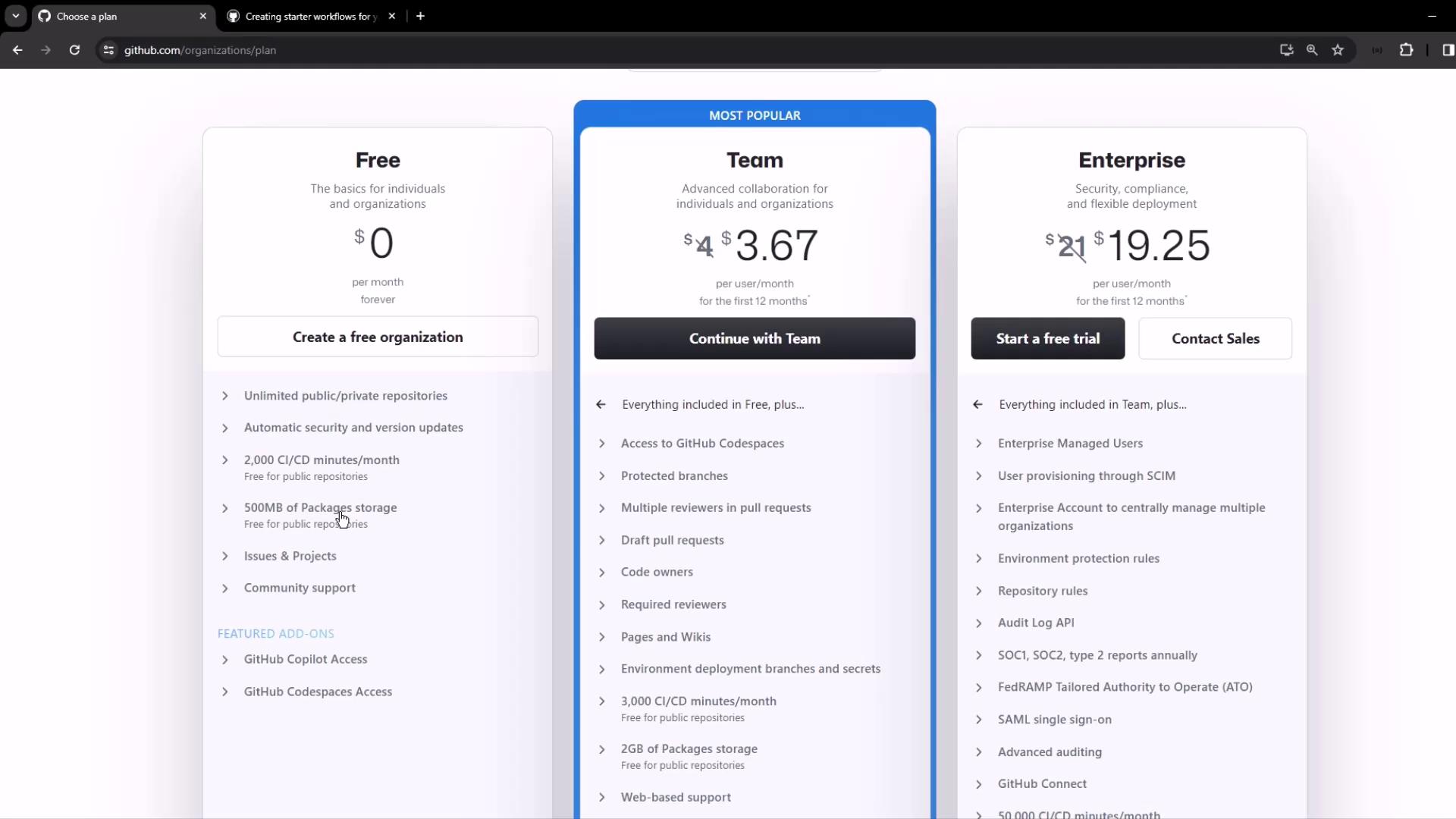
2. Select **New organization**, choose the **Free** plan.
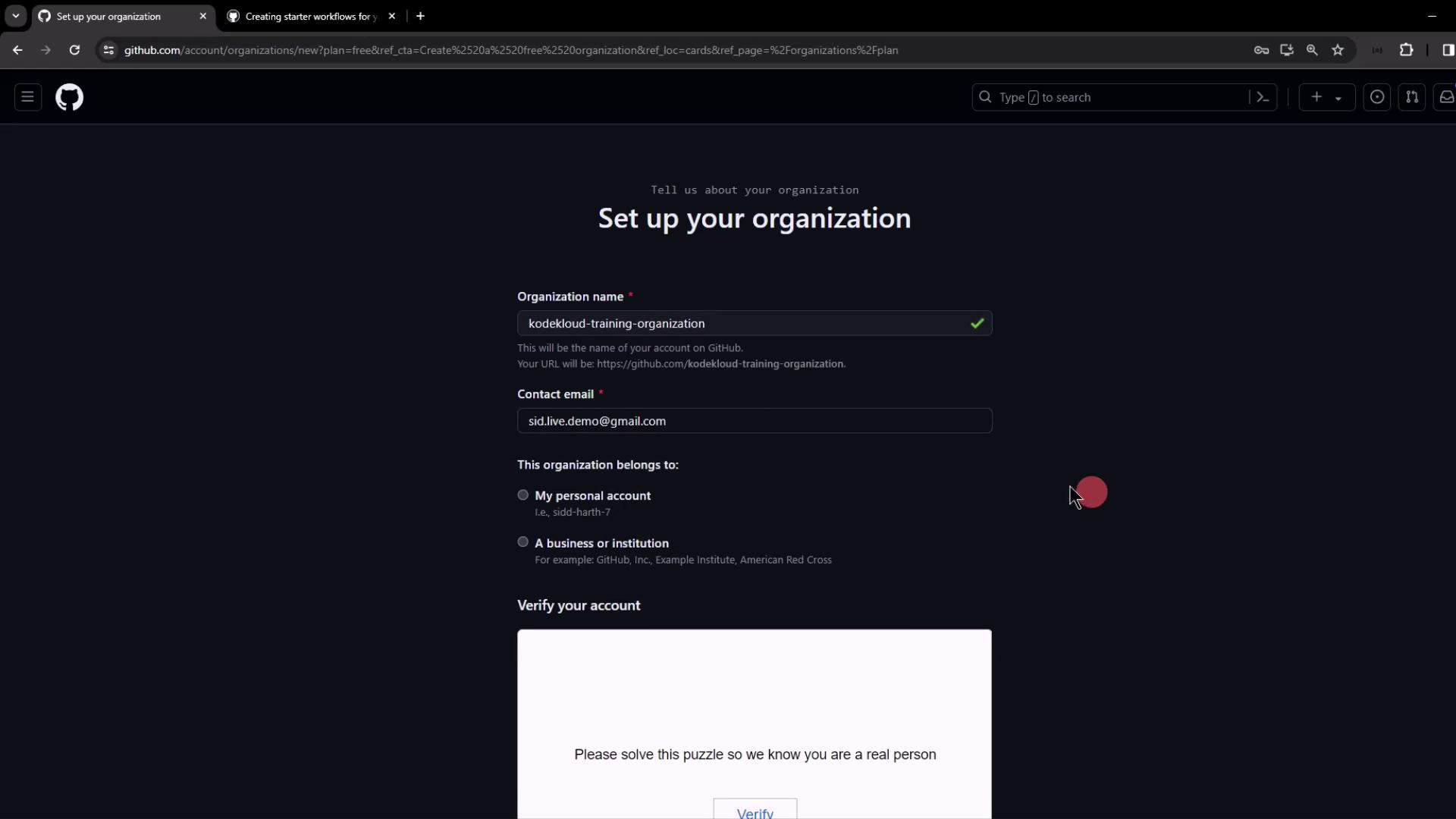
3. Enter an organization name and contact email.
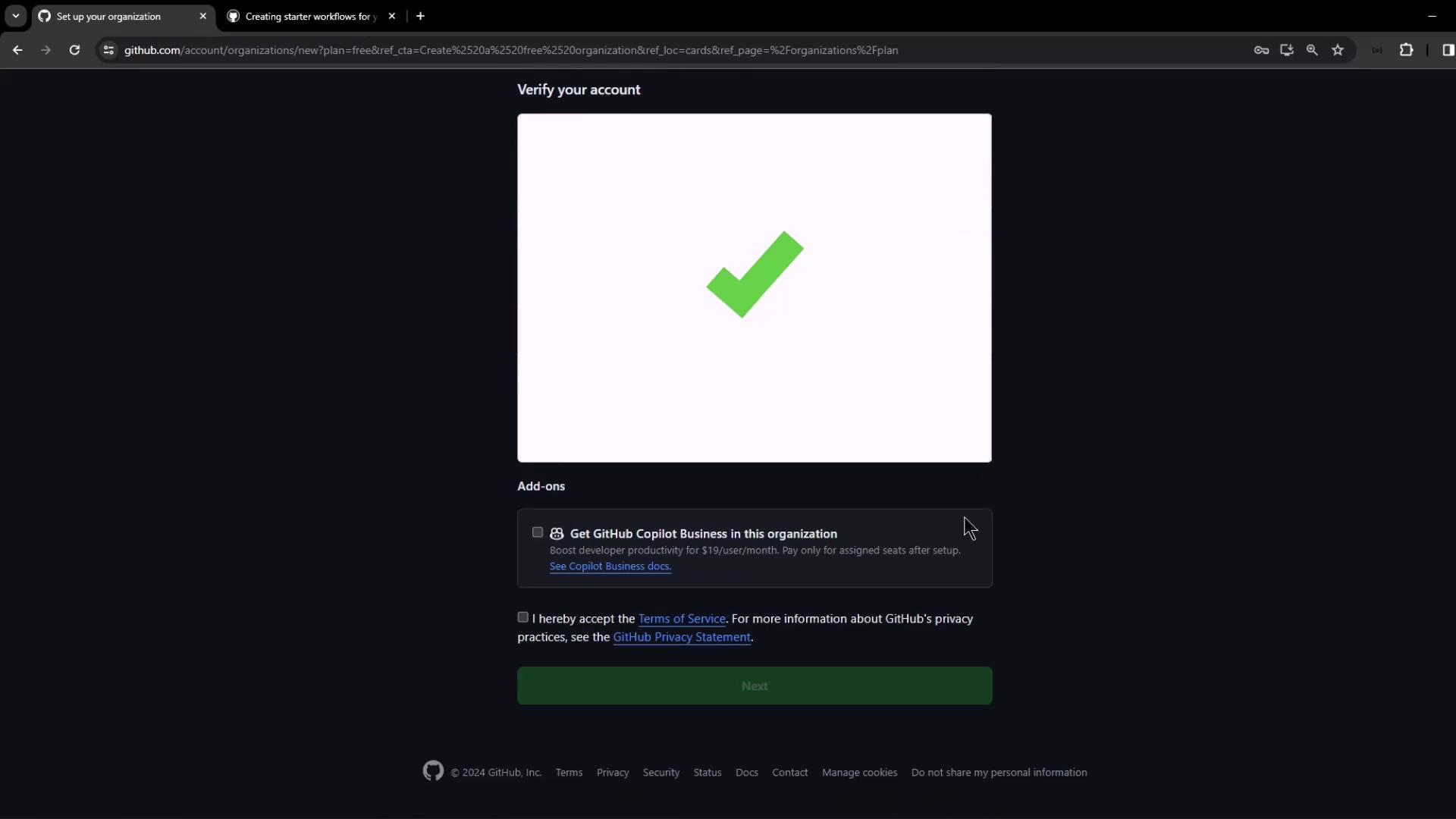
4. Complete account verification and accept the terms.
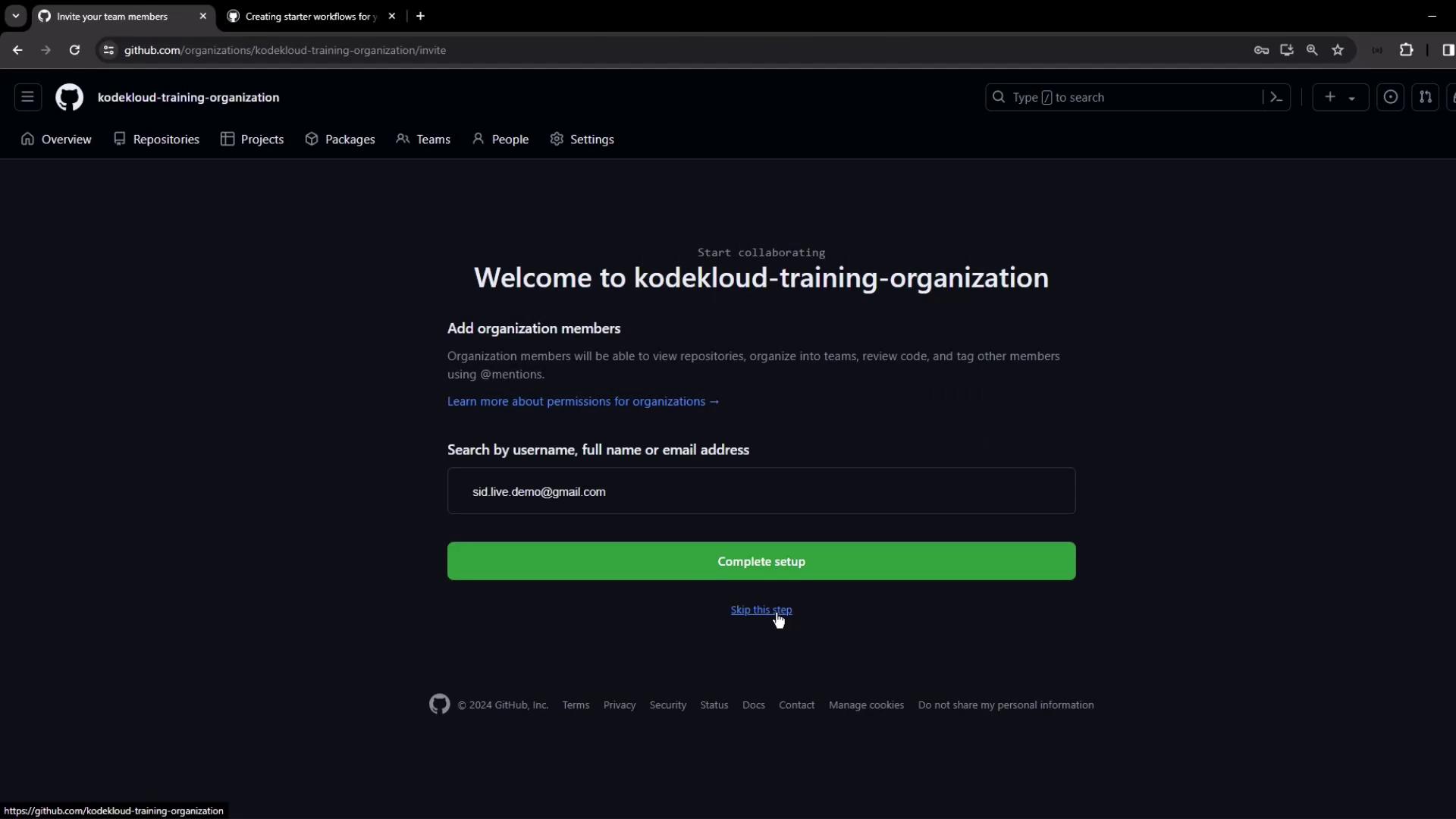
5. Skip adding members initially—you can invite collaborators later.
<Frame>
  ![The image shows a GitHub settings page for a personal account, indicating that the user is not a member of any organizations. There are options for account settings and transforming the account into an organization.](https://kodekloud.com/kk-media/image/upload/v1752876312/notes-assets/images/GitHub-Actions-Certification-Organizations-Templated-workflow/github-settings-personal-account-options.jpg)
</Frame>

<Frame>
  ![The image shows a comparison of three GitHub pricing plans: Free, Team, and Enterprise, detailing their features and costs.](https://kodekloud.com/kk-media/image/upload/v1752876314/notes-assets/images/GitHub-Actions-Certification-Organizations-Templated-workflow/github-pricing-plans-comparison.jpg)
</Frame>

<Frame>
  ![The image shows a GitHub page for setting up an organization, with fields for organization name, contact email, and account verification.](https://kodekloud.com/kk-media/image/upload/v1752876316/notes-assets/images/GitHub-Actions-Certification-Organizations-Templated-workflow/github-organization-setup-page.jpg)
</Frame>

<Frame>
  ![The image shows a GitHub account verification page with a large green checkmark indicating successful verification. Below, there are options for add-ons and terms of service acceptance.](https://kodekloud.com/kk-media/image/upload/v1752876317/notes-assets/images/GitHub-Actions-Certification-Organizations-Templated-workflow/github-account-verification-success-checkmark.jpg)
</Frame>

<Frame>
  ![The image shows a GitHub page for adding members to the "kodekloud-training-organization," with options to search by username or email and buttons to complete setup or skip the step.](https://kodekloud.com/kk-media/image/upload/v1752876319/notes-assets/images/GitHub-Actions-Certification-Organizations-Templated-workflow/github-add-members-kodekloud-training.jpg)
</Frame>

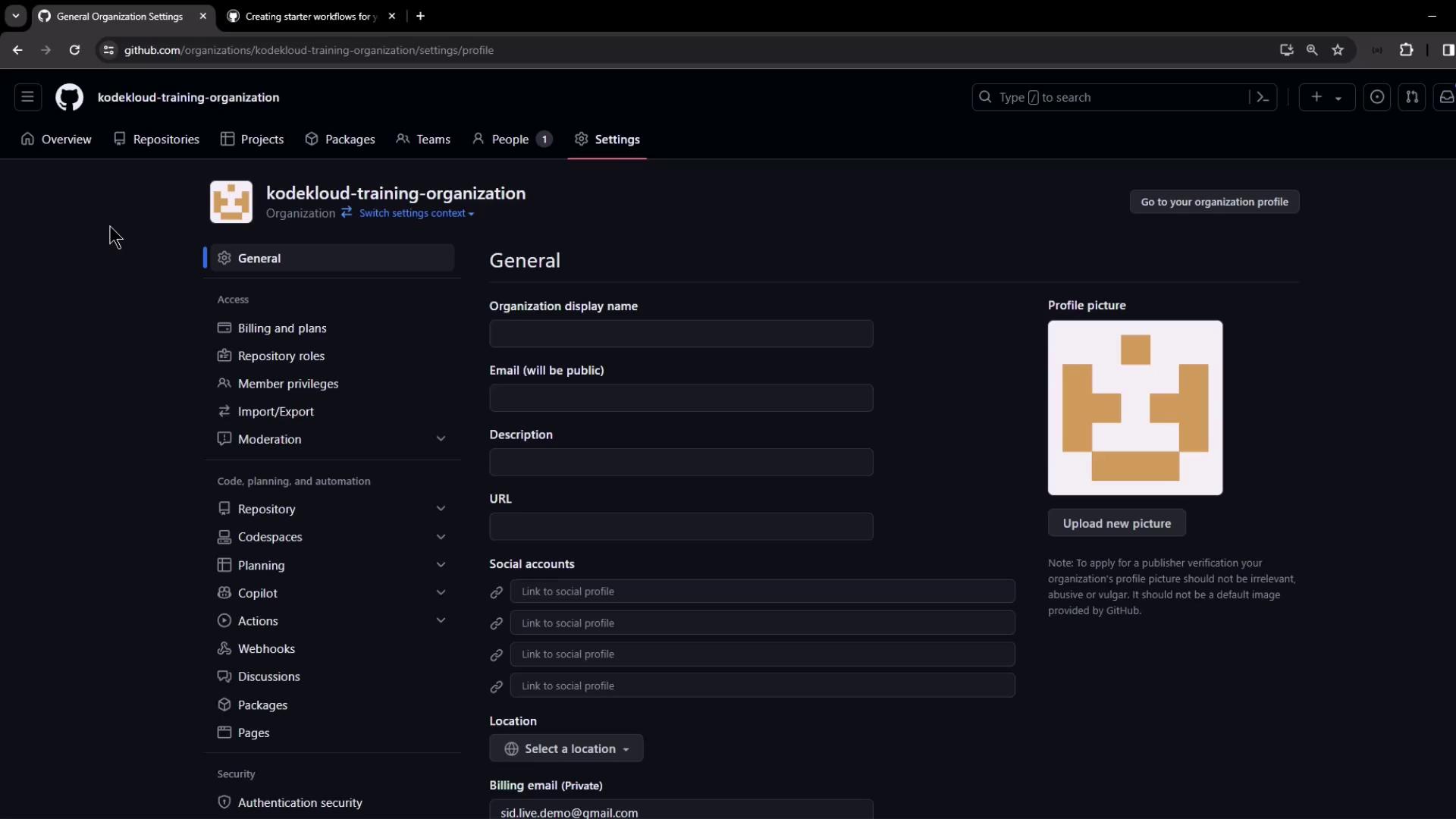
Once your organization is ready, you’ll land on its settings dashboard:
<Frame>
  ![The image shows the settings page of a GitHub organization named "kodekloud-training-organization," displaying options for general settings, profile picture, and social accounts.](https://kodekloud.com/kk-media/image/upload/v1752876320/notes-assets/images/GitHub-Actions-Certification-Organizations-Templated-workflow/kodekloud-training-organization-settings-page.jpg)
</Frame>

***

## 3. Set Up the `.github` Repository

Within your organization:

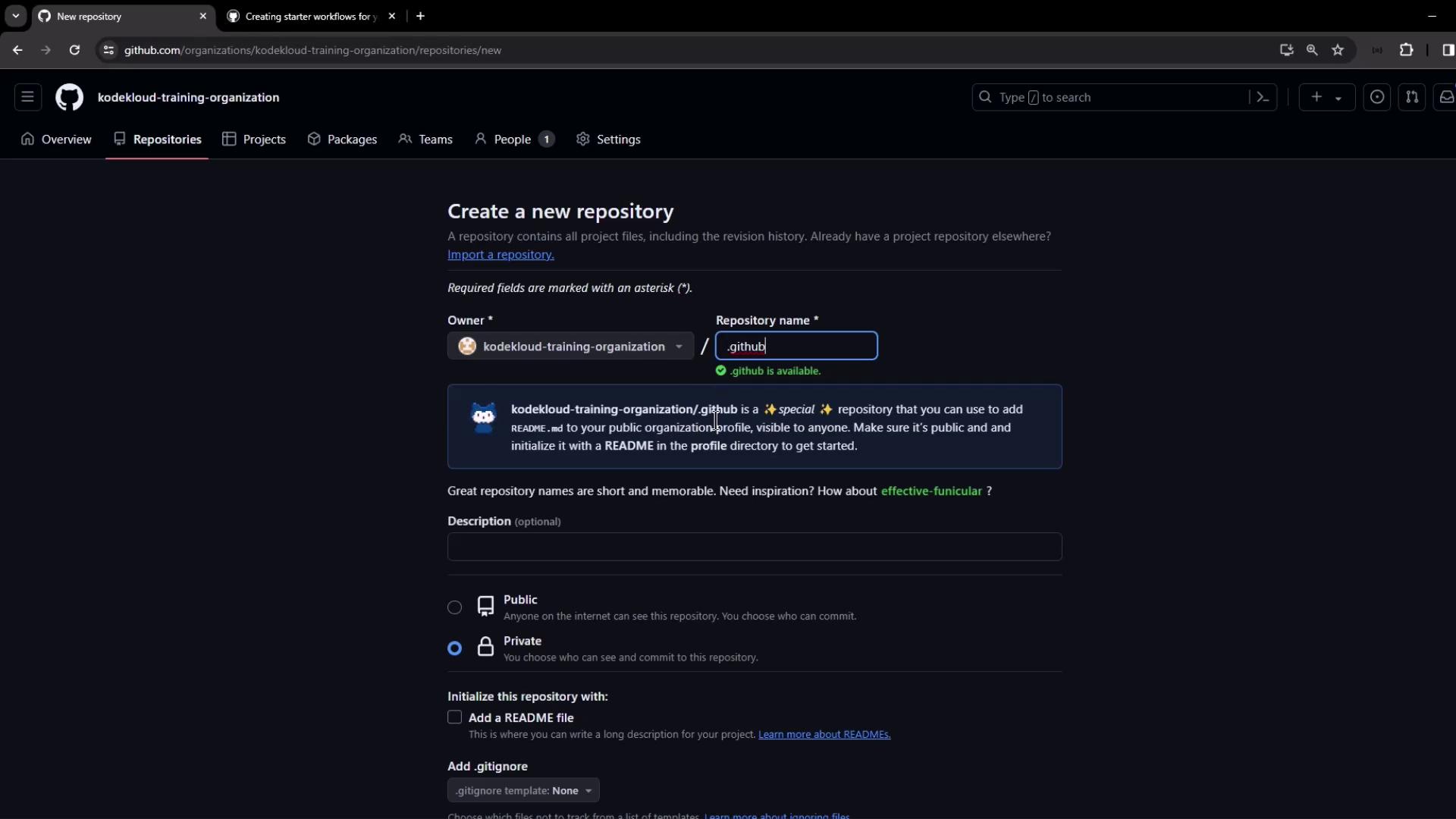
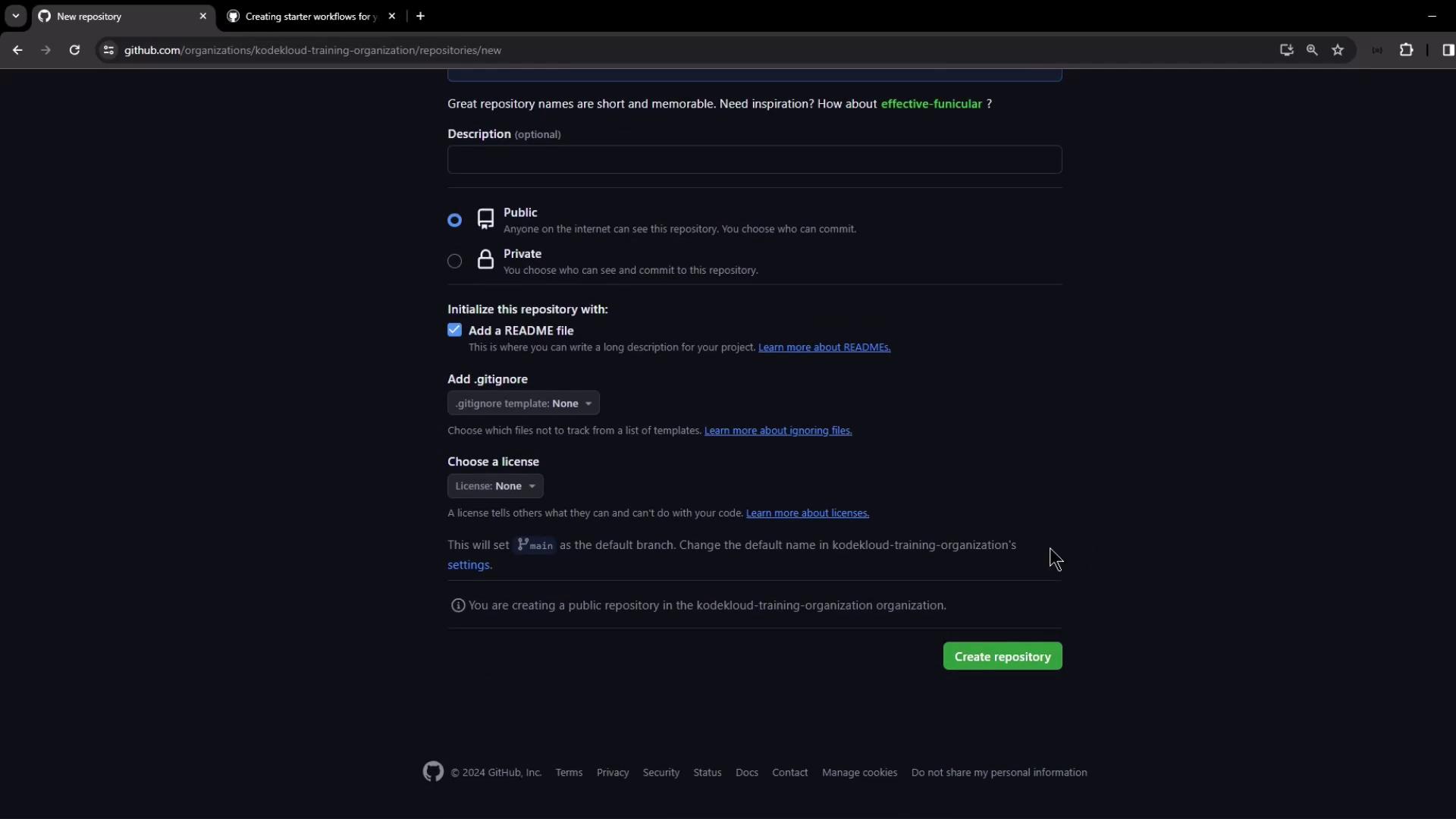
1. Click **New repository** → Enter **.github** as the name.
2. Set **Visibility** to Public.
3. Initialize with a README (optional) and click **Create repository**.
<Frame>
  ![The image shows a GitHub interface for creating a new repository under the "kodekloud-training-organization" with options to set the repository name, description, visibility, and initialization settings.](https://kodekloud.com/kk-media/image/upload/v1752876322/notes-assets/images/GitHub-Actions-Certification-Organizations-Templated-workflow/github-new-repository-kodekloud-training.jpg)
</Frame>

<Frame>
  ![The image shows a GitHub page for creating a new repository, with options to set the repository as public or private, add a README file, and choose a license. The "Create repository" button is visible at the bottom.](https://kodekloud.com/kk-media/image/upload/v1752876323/notes-assets/images/GitHub-Actions-Certification-Organizations-Templated-workflow/github-create-repository-page-options.jpg)
</Frame>

Next, create the `workflow-templates/` folder in the `.github` repo—either via the web editor or locally:
<Frame>
  ![The image shows a GitHub documentation page about creating starter workflows, with instructions and a YAML code snippet.](https://kodekloud.com/kk-media/image/upload/v1752876325/notes-assets/images/GitHub-Actions-Certification-Organizations-Templated-workflow/github-starter-workflows-documentation-yaml.jpg)
</Frame>

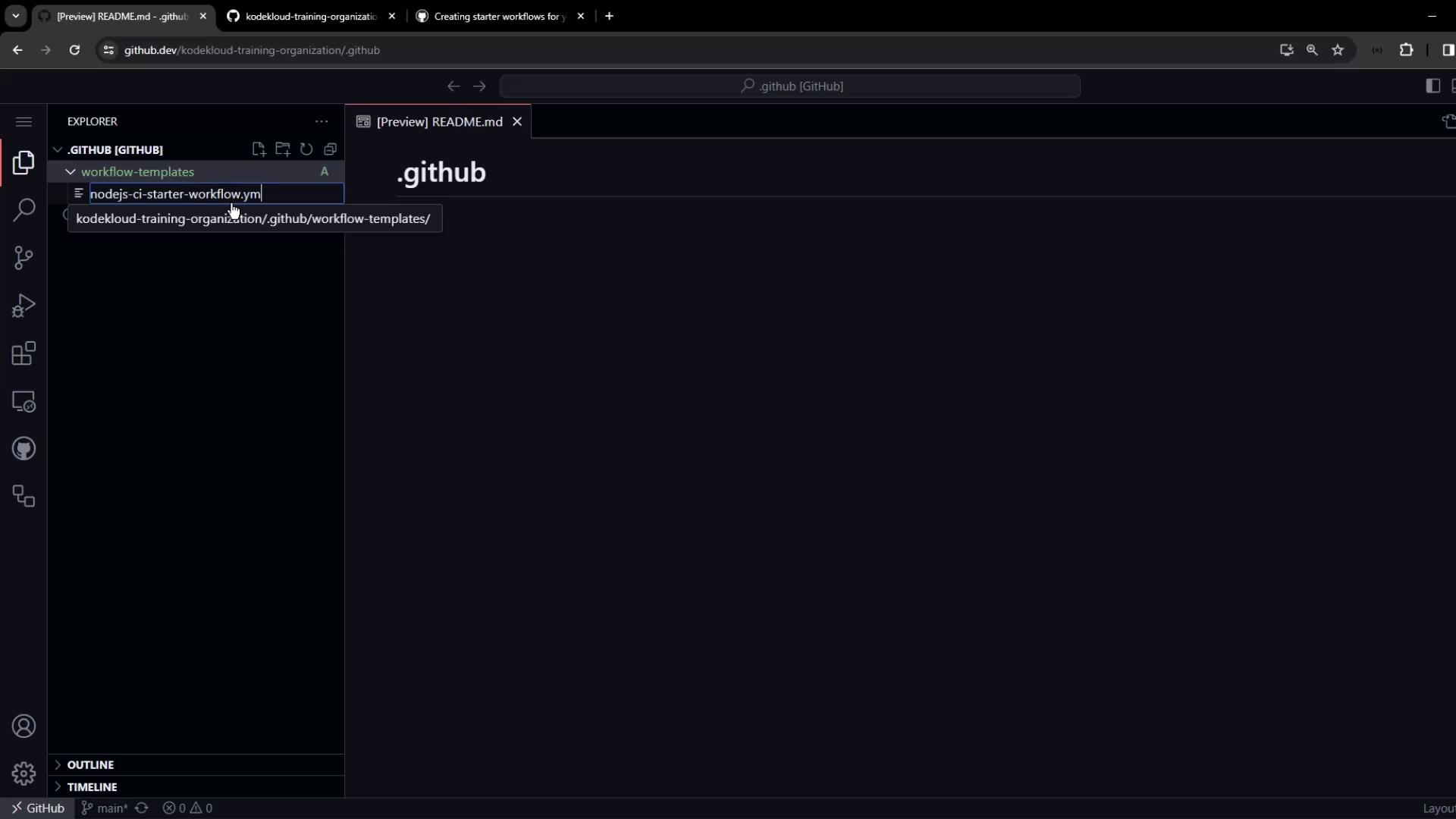
Add your template files, for example:
<Frame>
  ![The image shows a GitHub repository interface in a code editor, displaying a file named "nodejs-ci-starter-workflow.yml" within a ".github" directory.](https://kodekloud.com/kk-media/image/upload/v1752876326/notes-assets/images/GitHub-Actions-Certification-Organizations-Templated-workflow/github-repo-code-editor-nodejs-workflow.jpg)
</Frame>

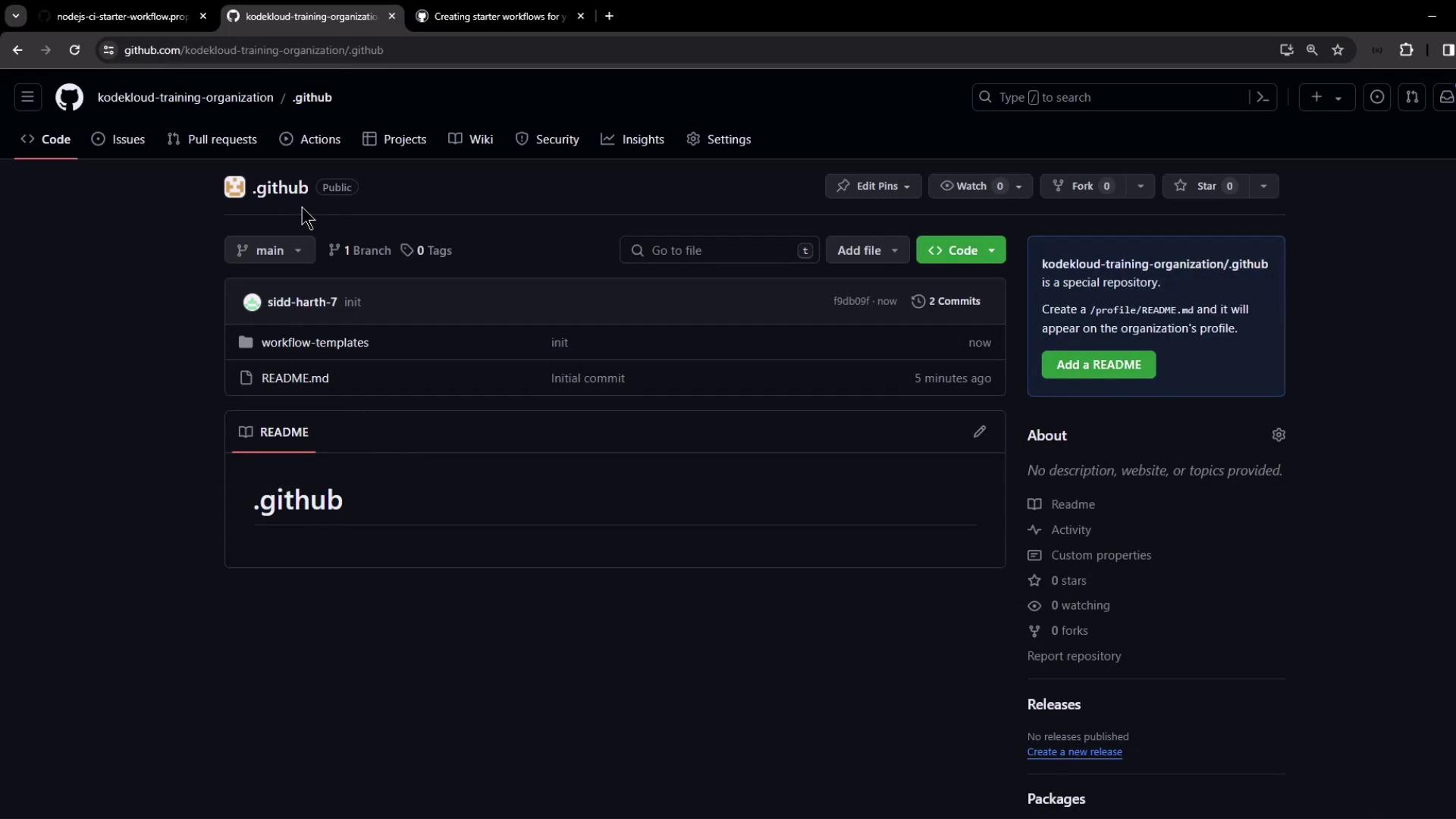
After committing, the repo structure should resemble:
<Frame>
  ![The image shows a GitHub repository page for "kodekloud-training-organization/.github" with folders and files like "workflow-templates" and "README.md" displayed. It also includes options for adding files and viewing repository details.](https://kodekloud.com/kk-media/image/upload/v1752876328/notes-assets/images/GitHub-Actions-Certification-Organizations-Templated-workflow/github-repo-kodekloud-training-files.jpg)
</Frame>

***

## 4. Example: Node.js CI Starter Workflow

Create `.github/workflow-templates/nodejs-ci-starter-workflow.yml`:

```yaml theme={null}
name: KodeKloud Demo Organization NodeJS CI
on:
  push:
    branches: [ $default-branch ]
  pull_request:
    branches: [ $default-branch ]
jobs:
  build:
    runs-on: ubuntu-latest
    steps:
      - name: Checkout Repository
        uses: actions/checkout@v4
      - name: Setup Node.js (20.x)
        uses: actions/setup-node@v4
        with:
          node-version: '20.x'
      - name: Install Dependencies
        run: npm install
      - name: Run Tests
        run: npm test --if-present
      - name: Generate Coverage
        run: npm run coverage --if-present
```

Add metadata at `.github/workflow-templates/nodejs-ci-starter-workflow.properties.json`:

```json theme={null}
{
  "name": "KodeKloud Demo Organization NodeJS CI",
  "description": "Starter workflow for Node.js projects.",
  "iconName": "kode-kloud-icon",
  "categories": ["NPM Config"]
}
```

You may also upload an SVG icon (e.g., `kode-kloud-icon.svg`) to the same folder.

***

## 5. Consume the Starter Workflow

In any new or existing repo under your org:

1. Click **New repository**, initialize with a README if desired.
2. Navigate to the **Actions** tab.
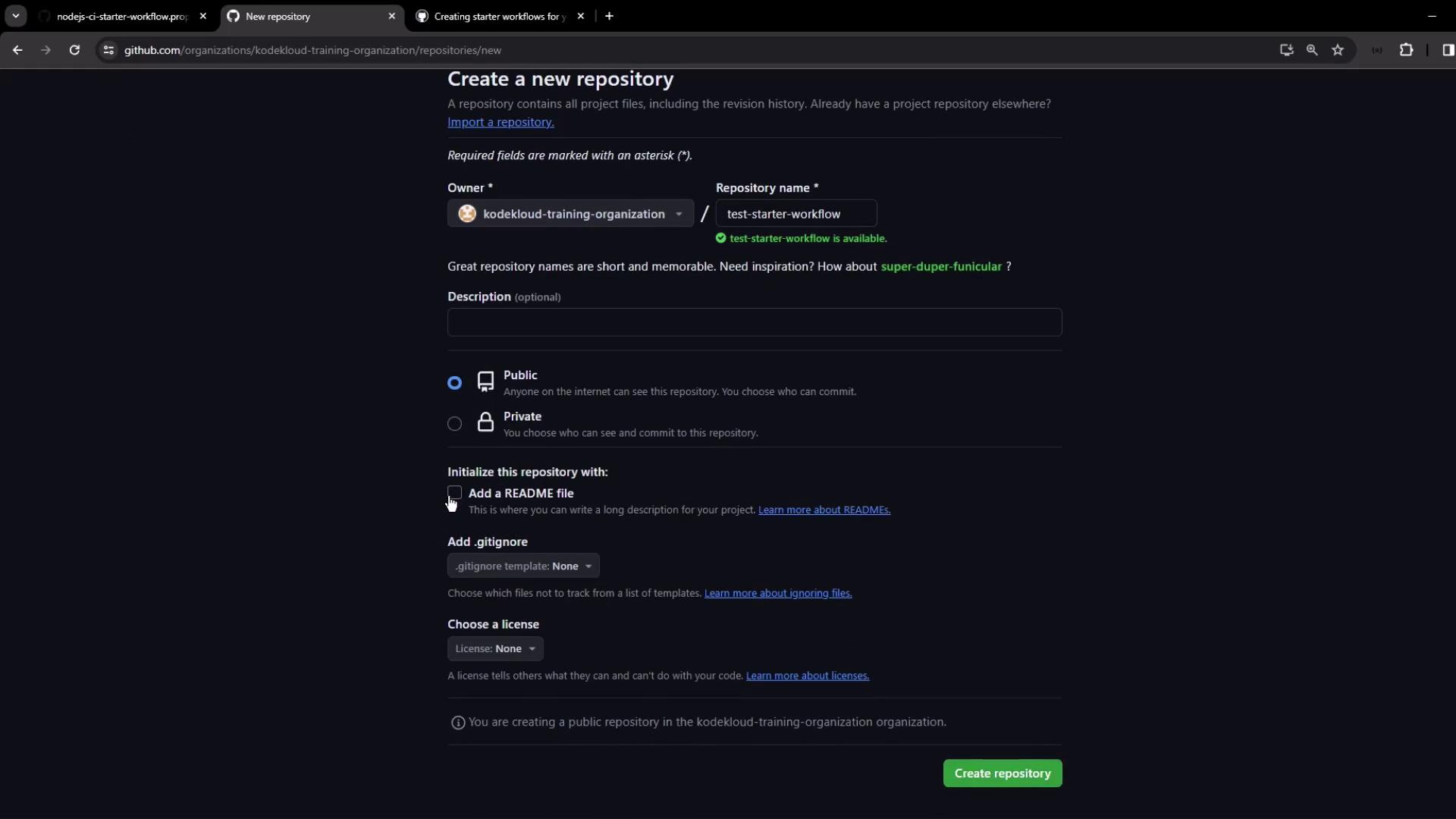
<Frame>
  ![The image shows a GitHub interface for creating a new repository, with options to set the repository name, visibility, and initialize with a README file.](https://kodekloud.com/kk-media/image/upload/v1752876329/notes-assets/images/GitHub-Actions-Certification-Organizations-Templated-workflow/github-new-repository-interface.jpg)
</Frame>

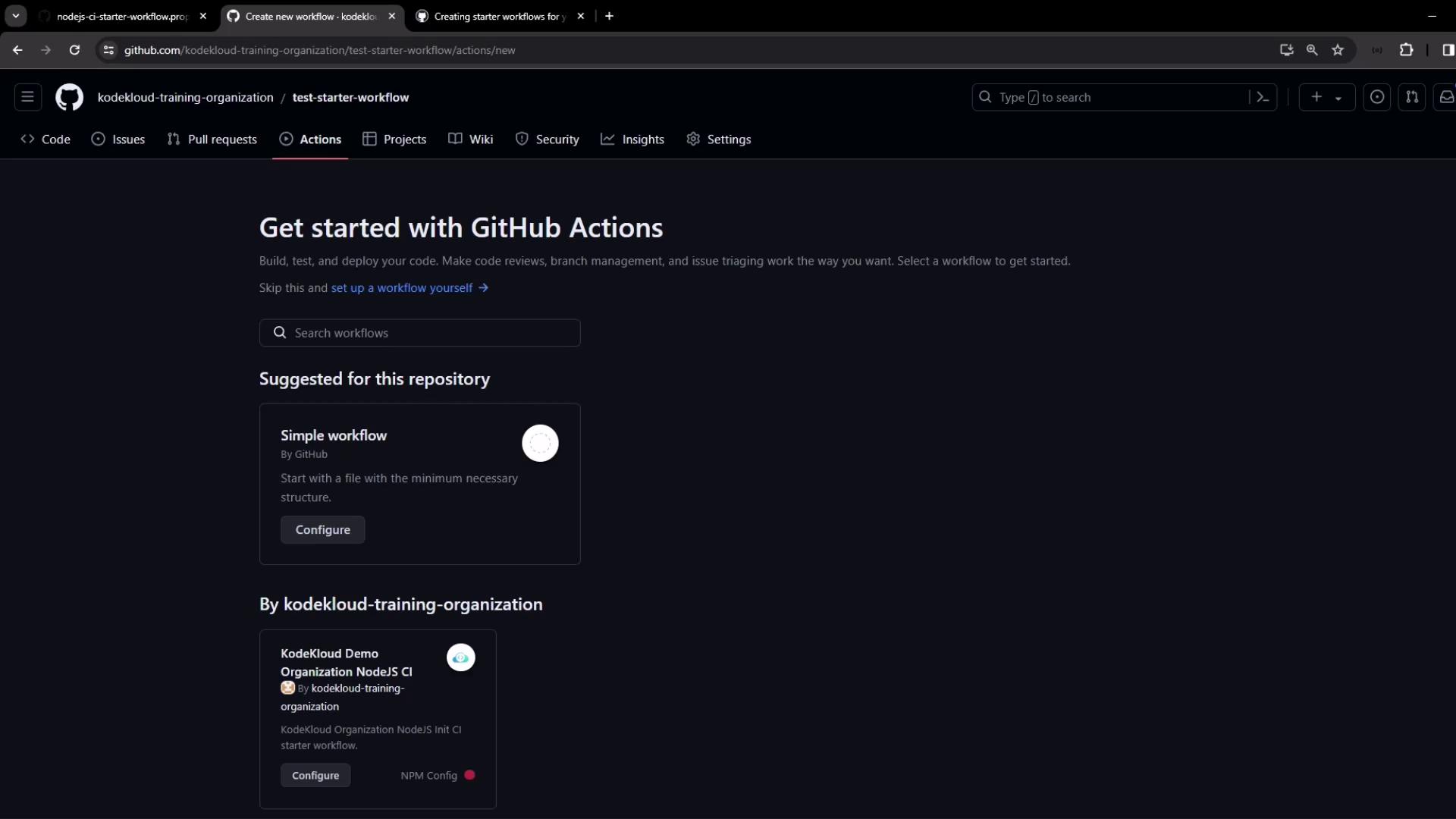
Below GitHub’s built-in suggestions, you’ll see your organization’s starter templates:
<Frame>
  ![The image shows a GitHub Actions setup page, suggesting workflows for a repository, including a simple workflow and a NodeJS CI starter workflow by KodeKloud.](https://kodekloud.com/kk-media/image/upload/v1752876330/notes-assets/images/GitHub-Actions-Certification-Organizations-Templated-workflow/github-actions-workflows-nodejs-setup.jpg)
</Frame>

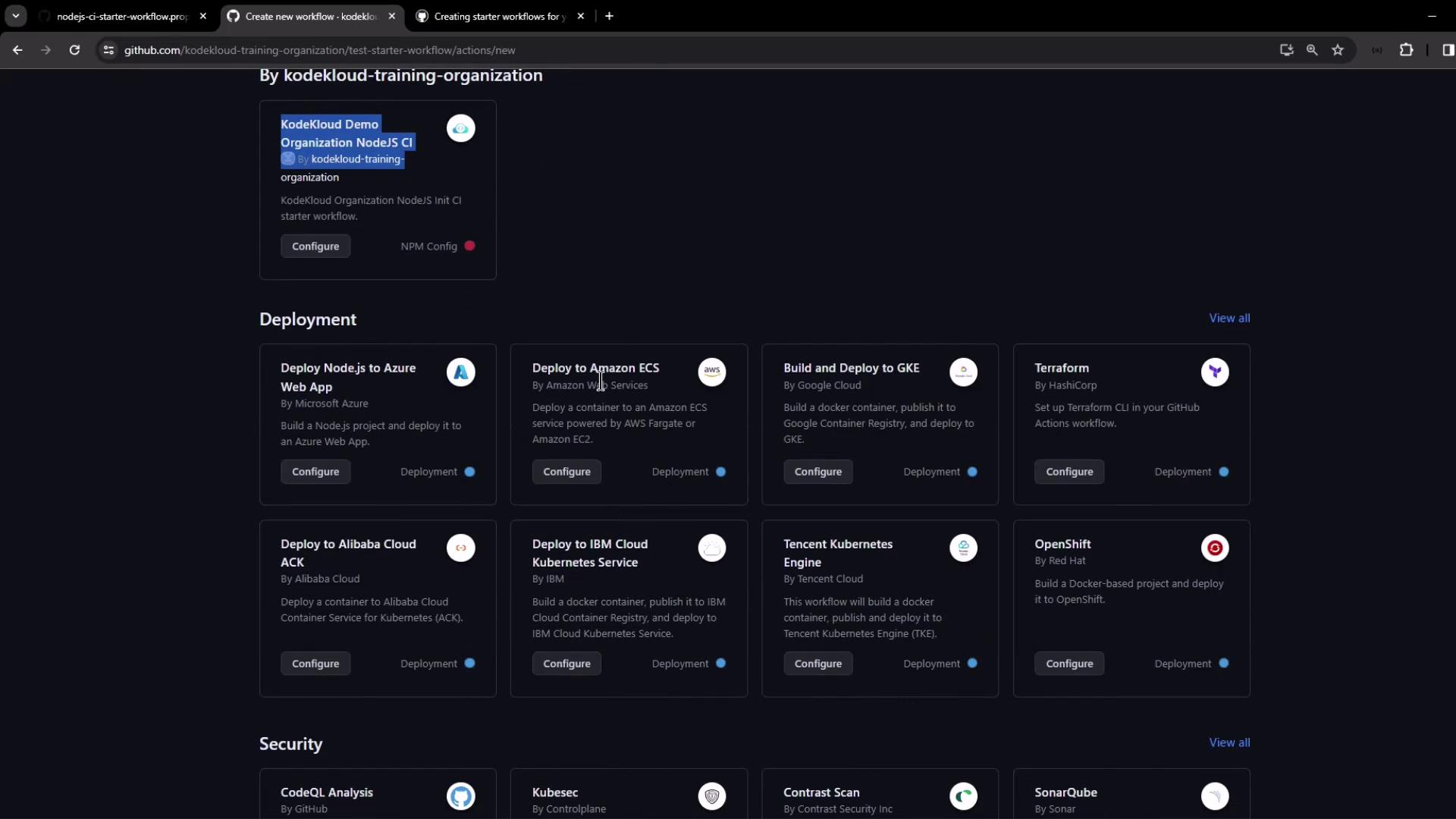
You can also filter by deployment, security, CI, and more:
<Frame>
  ![The image shows a GitHub Actions interface with various deployment and security workflow options, such as deploying Node.js to Azure and Amazon ECS, and performing CodeQL analysis.](https://kodekloud.com/kk-media/image/upload/v1752876332/notes-assets/images/GitHub-Actions-Certification-Organizations-Templated-workflow/github-actions-deployment-security-workflows.jpg)
</Frame>

Click **Configure** on your Node.js CI starter. GitHub will generate the YAML and replace `$default-branch` (e.g., `main`):

```yaml theme={null}
name: KodeKloud Demo Organization NodeJS CI
on:
  push:
    branches: ["main"]
  pull_request:
    branches: ["main"]
jobs:
  build:
    runs-on: ubuntu-latest
    steps:
      - name: Checkout Repository
        uses: actions/checkout@v4
      - name: Setup Node.js (20.x)
        uses: actions/setup-node@v4
        with:
          node-version: '20.x'
      - name: Install Dependencies
        run: npm install
      - name: Run Tests
        run: npm test --if-present
      - name: Generate Coverage
        run: npm run coverage --if-present
```

Customize steps or add new jobs, then commit to kick off the workflow.

***

## 6. Configure Runners for Organization Repos

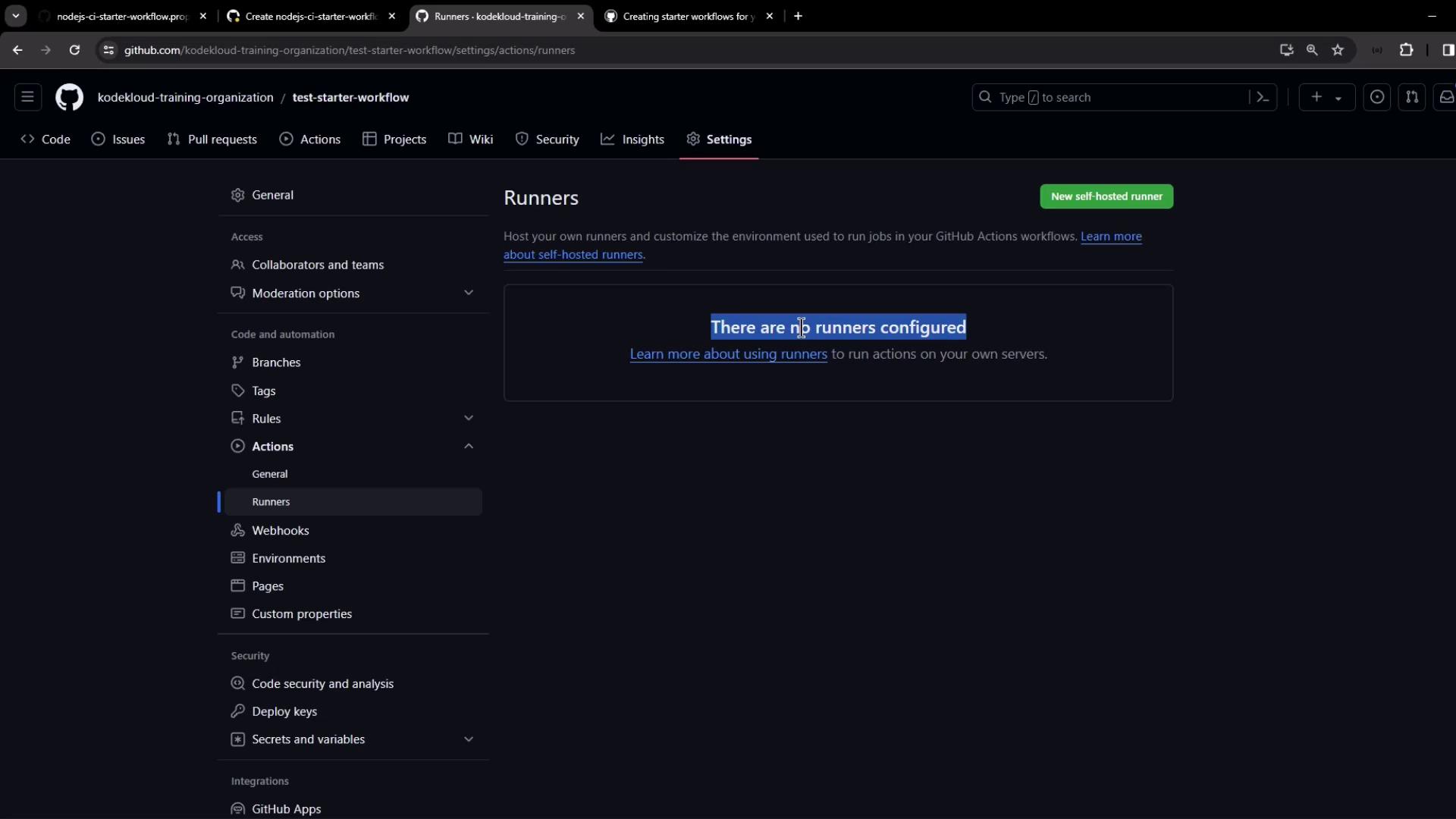
If your workflow remains queued, verify runner access:

1. In the repo: **Settings > Actions > Runners**—you may see none configured.
<Frame>
  ![The image shows a GitHub repository settings page for configuring runners, indicating that no runners are currently configured.](https://kodekloud.com/kk-media/image/upload/v1752876333/notes-assets/images/GitHub-Actions-Certification-Organizations-Templated-workflow/github-repo-settings-no-runners.jpg)
</Frame>

2. At the org level: **Settings > Actions > Runners**. The default runner group might exclude public repos.
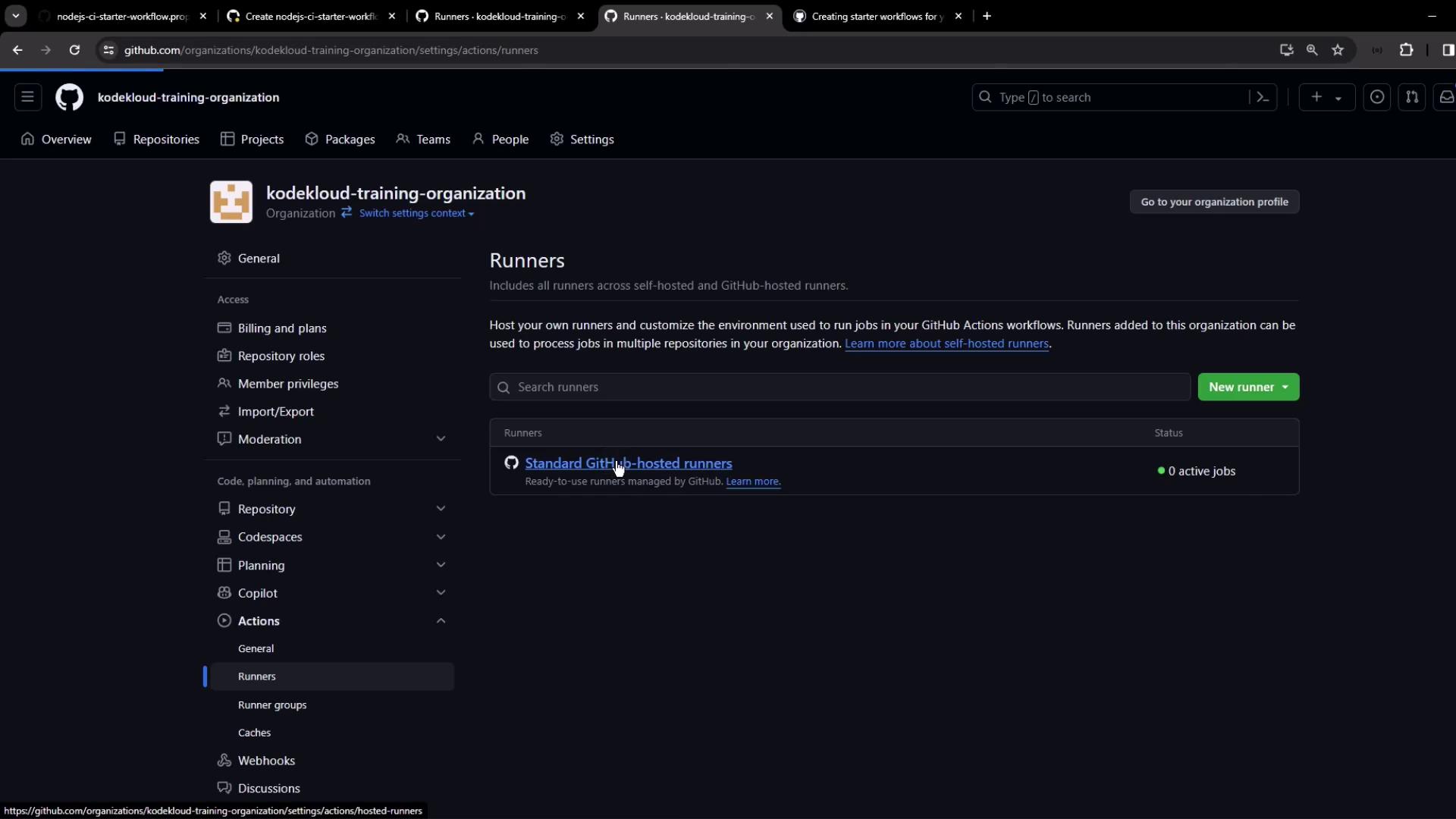
<Frame>
  ![The image shows a GitHub organization settings page for "kodekloud-training-organization," specifically focusing on the "Runners" section under GitHub Actions. It displays options for managing self-hosted and GitHub-hosted runners, with a standard GitHub-hosted runner listed.](https://kodekloud.com/kk-media/image/upload/v1752876334/notes-assets/images/GitHub-Actions-Certification-Organizations-Templated-workflow/github-organization-settings-runners-actions.jpg)
</Frame>

3. Edit the default group to allow all repositories (including public).
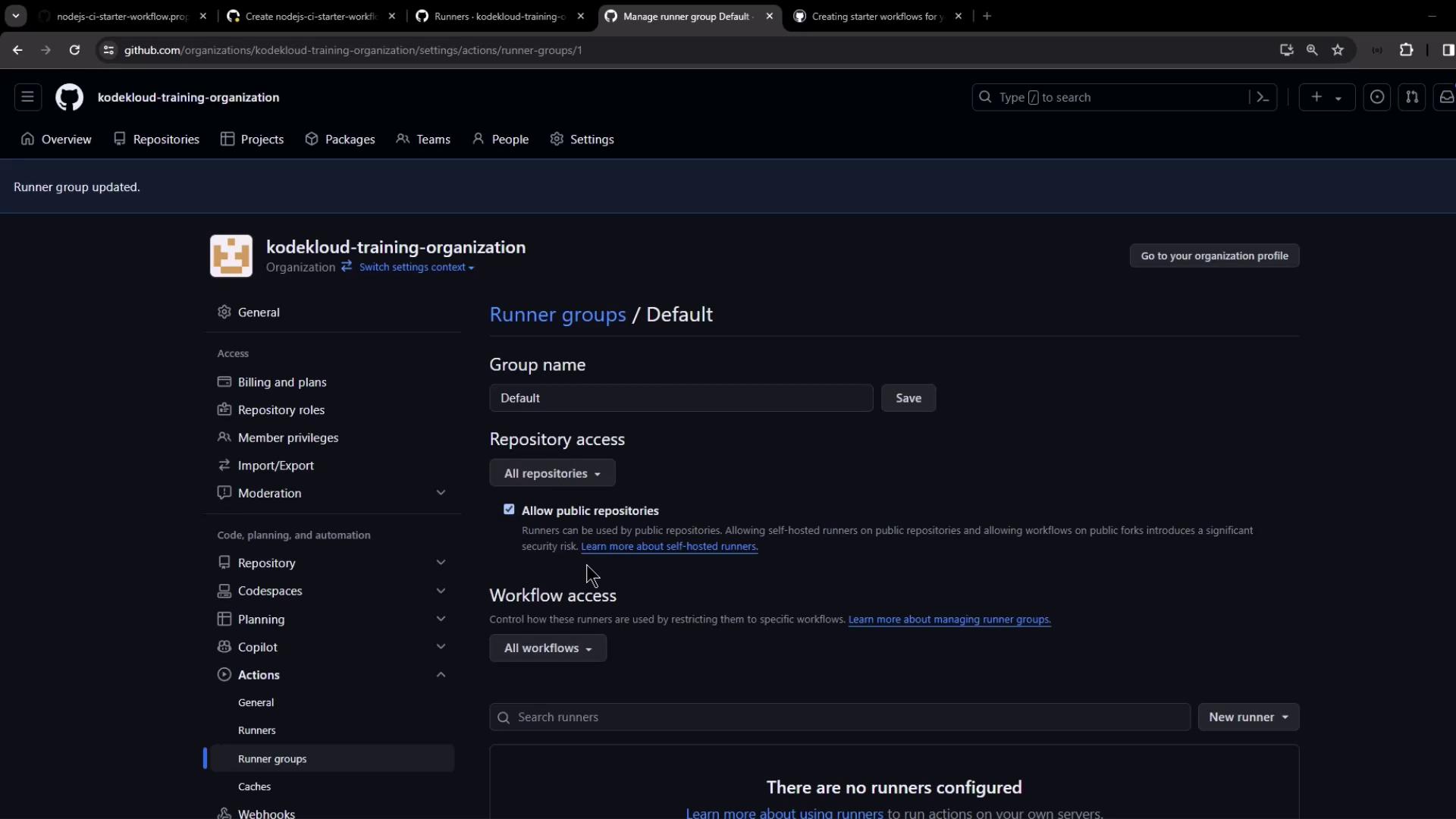
<Frame>
  ![The image shows a GitHub settings page for an organization, specifically focusing on configuring runner groups for GitHub Actions. It includes options for group name, repository access, and workflow access.](https://kodekloud.com/kk-media/image/upload/v1752876335/notes-assets/images/GitHub-Actions-Certification-Organizations-Templated-workflow/github-settings-runner-groups-actions.jpg)
</Frame>

Once configured, GitHub-hosted runners will pick up jobs:
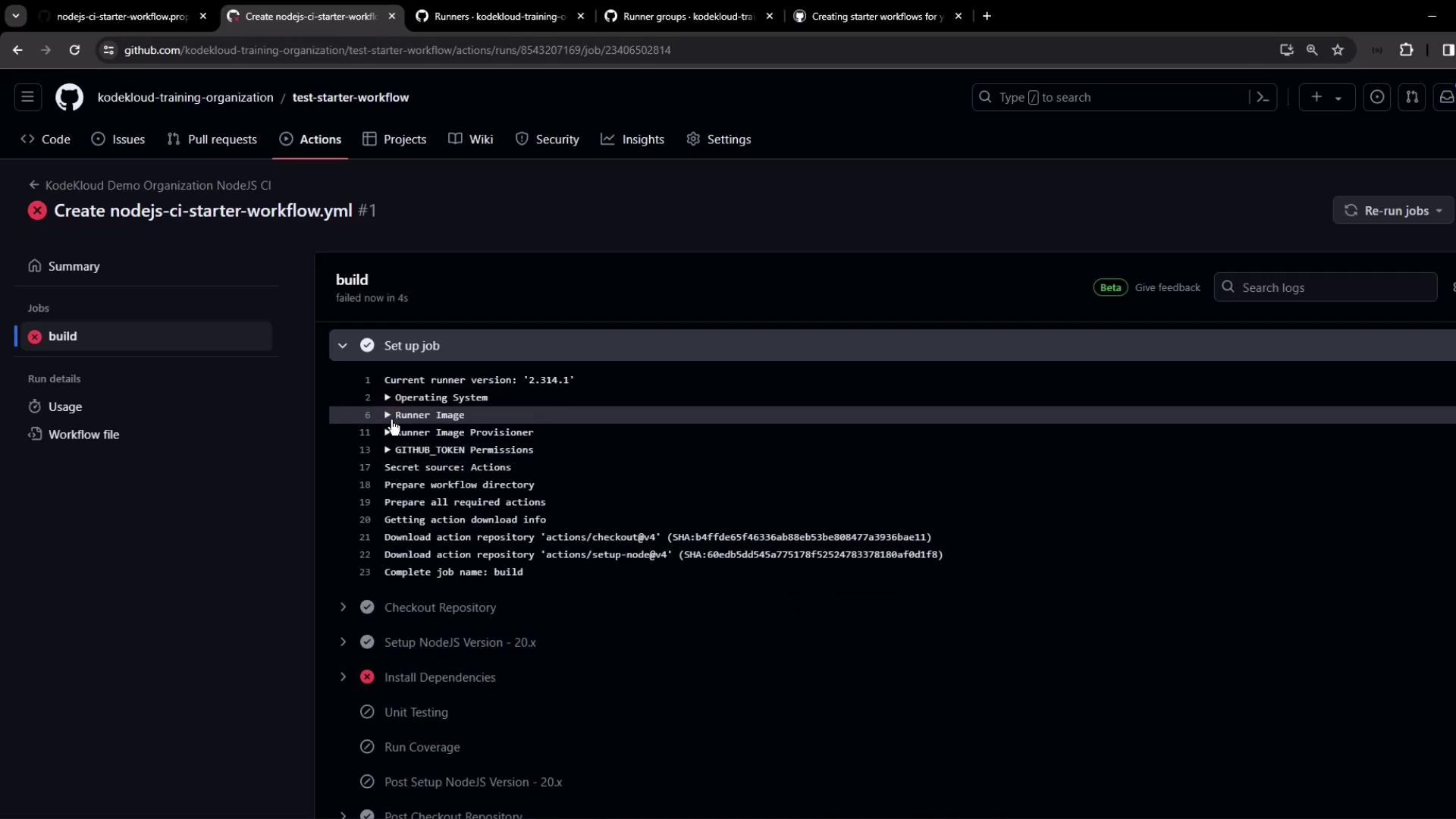
<Frame>
  ![The image shows a GitHub Actions workflow run for a Node.js project, where the "build" job has failed. The interface displays the setup steps and logs related to the job execution.](https://kodekloud.com/kk-media/image/upload/v1752876337/notes-assets/images/GitHub-Actions-Certification-Organizations-Templated-workflow/github-actions-nodejs-build-failed.jpg)
</Frame>

<Callout icon="triangle-alert" color="#FF6B6B">
  If no runners are permitted, workflows will remain queued indefinitely. Always verify your runner group settings after creating or migrating repositories.
</Callout>

***

## Links and References

* [GitHub Actions Starter Workflows](https://docs.github.com/actions/learn-github-actions/starter-workflows)
* [Creating a GitHub Organization](https://docs.github.com/organizations)
* [Managing Self-hosted Runners](https://docs.github.com/actions/hosting-your-own-runners)

<CardGroup>
  <Card title="Watch Video" icon="video" cta="Learn more" href="https://learn.kodekloud.com/user/courses/github-actions-certification/module/da8706ee-24ab-41a1-916d-da8232ca028e/lesson/25ac82cb-c1dd-45d8-929f-7c0bd0ec0a95" />

  <Card title="Practice Lab" icon="installation" cta="Learn more" href="https://learn.kodekloud.com/user/courses/github-actions-certification/module/da8706ee-24ab-41a1-916d-da8232ca028e/lesson/2427a5f3-4e9e-4b49-9944-f592476c5657" />
</CardGroup>