> ## Documentation Index
> Fetch the complete documentation index at: https://notes.kodekloud.com/llms.txt
> Use this file to discover all available pages before exploring further.
# Slack Notify GitHub Action
> Integrate Slack notifications into your GitHub Actions CI/CD pipeline using the rtCamp/action-slack-notify@v2 action.
Integrate Slack notifications into your GitHub Actions CI/CD pipeline using the `rtCamp/action-slack-notify@v2` action. This guide covers setting up a Slack Incoming Webhook, securing it as a GitHub secret, and adding a notification job that always runs.
## 1. Overview
The Slack Notify action sends a customizable message to your Slack channel at the end of a workflow. You provide it with environment variables for configuration:
| Variable | Description | Example |
| --------------- | ------------------------------------------ | -------------------------------------------- |
| SLACK\_WEBHOOK | Your Slack Incoming Webhook URL (secret) | `${{ secrets.SLACK_WEBHOOK }}` |
| SLACK\_CHANNEL | Channel name or ID | `general` |
| SLACK\_COLOR | Attachment color (`good`, `#ff0000`, etc.) | `${{ job.status }}` |
| SLACK\_ICON | URL for a custom icon | `https://github.com/rtCamp.png?size=48` |
| SLACK\_MESSAGE | The notification text | `"Build *${{ github.workflow }}* completed"` |
| SLACK\_TITLE | Title shown above the message | `"CI/CD Pipeline"` |
| SLACK\_USERNAME | Username for the Slack bot | `rtCamp` |
Here’s a minimal step configuration:
```yaml theme={null}
- name: Slack Notification
uses: rtCamp/action-slack-notify@v2
env:
SLACK_WEBHOOK: ${{ secrets.SLACK_WEBHOOK }}
SLACK_CHANNEL: general
SLACK_COLOR: ${{ job.status }}
SLACK_ICON: https://github.com/rtCamp.png?size=48
SLACK_MESSAGE: "Build *${{ github.workflow }}* completed"
SLACK_TITLE: "CI/CD Pipeline"
SLACK_USERNAME: rtCamp
```
## 2. Create a Slack Channel & Webhook
1. In Slack, create a new channel (e.g., `github-actions-channel`).
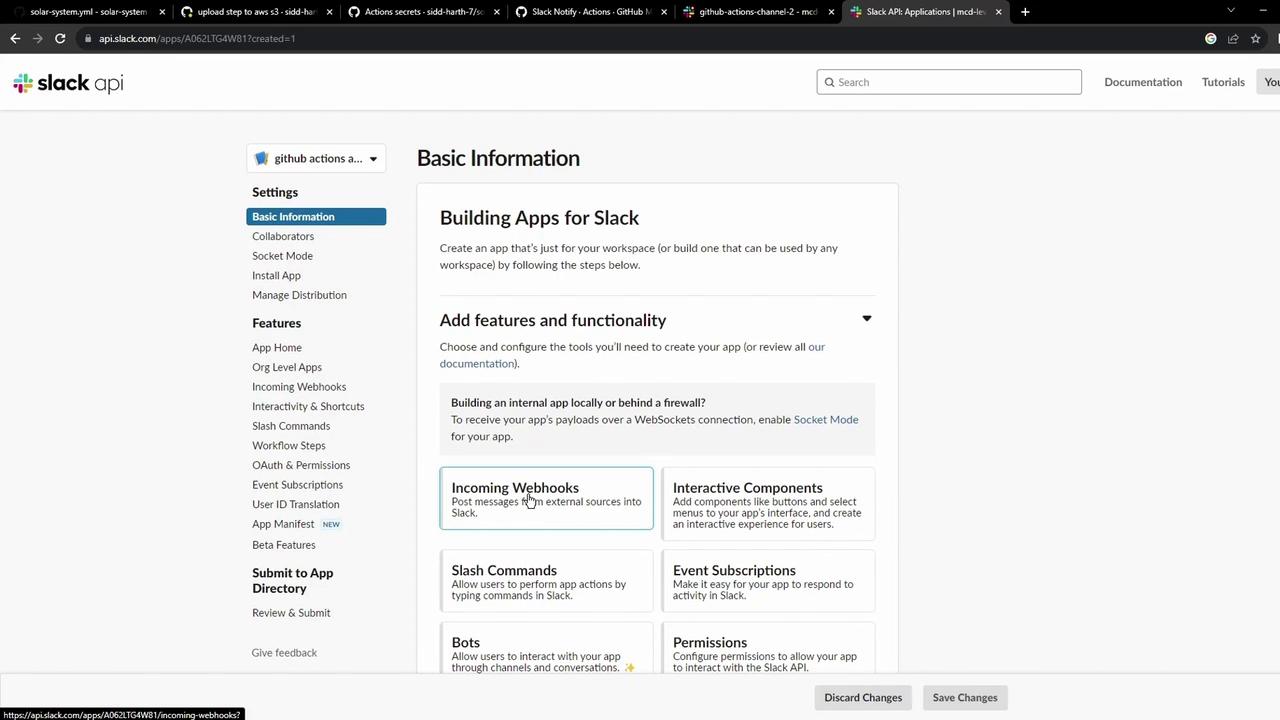
2. Visit Incoming Webhooks in the [Slack API](https://api.slack.com/messaging/webhooks) and click **Create an App** → **From scratch**.
3. Enable **Incoming Webhooks** and add to your channel.
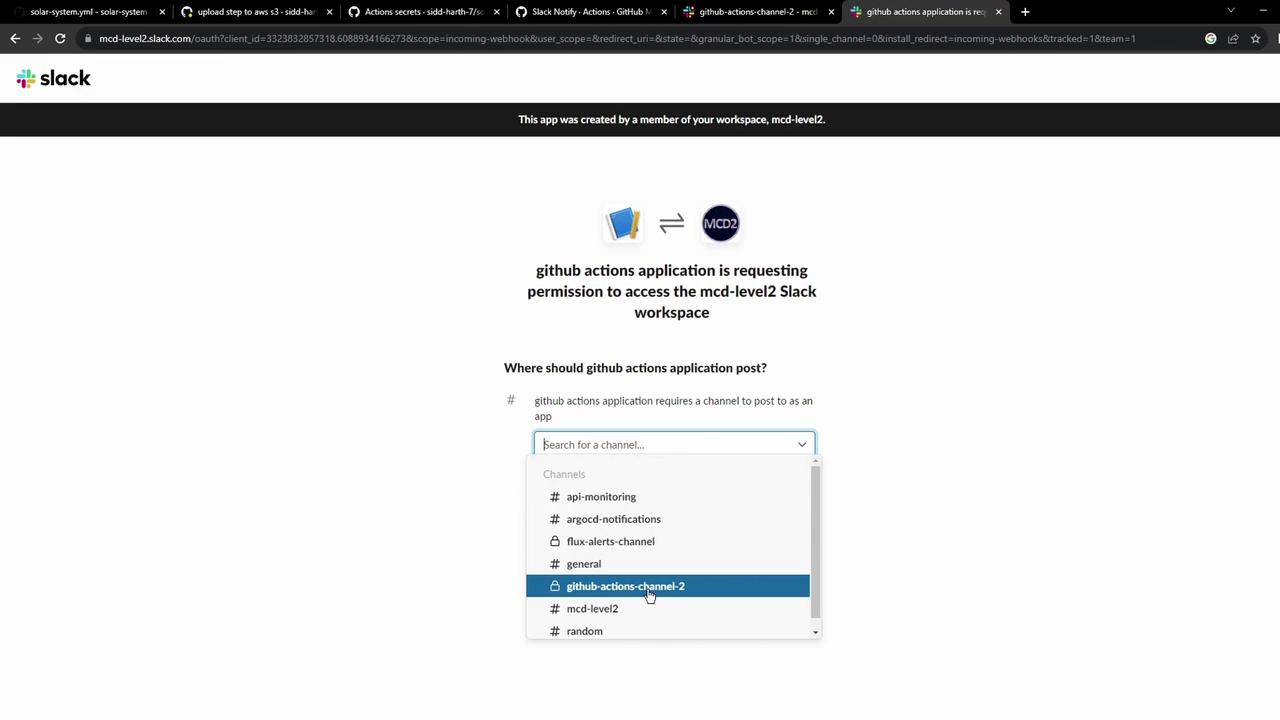
4. Select your channel; Slack generates a Webhook URL. Test it with:
```bash theme={null}
curl -X POST -H 'Content-type: application/json' \
--data '{"text":"Hello, World!"}' YOUR_WEBHOOK_URL_HERE
```
## 3. Store the Webhook as a GitHub Secret
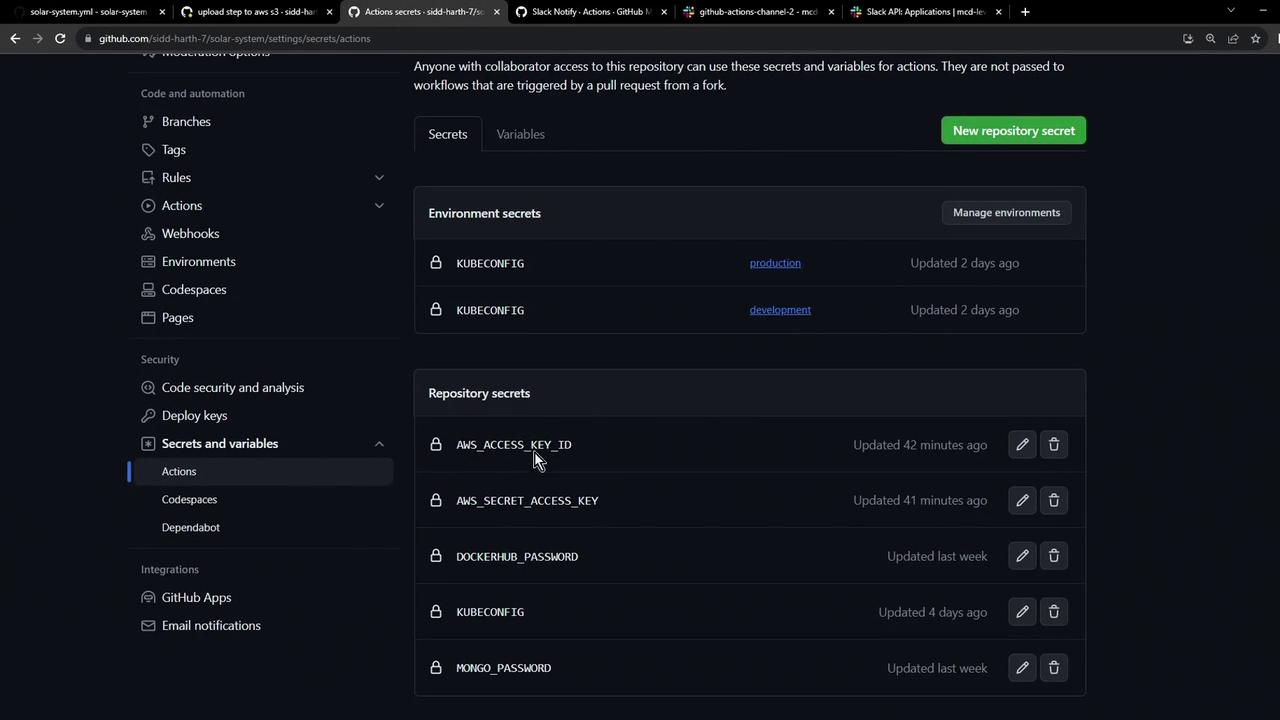
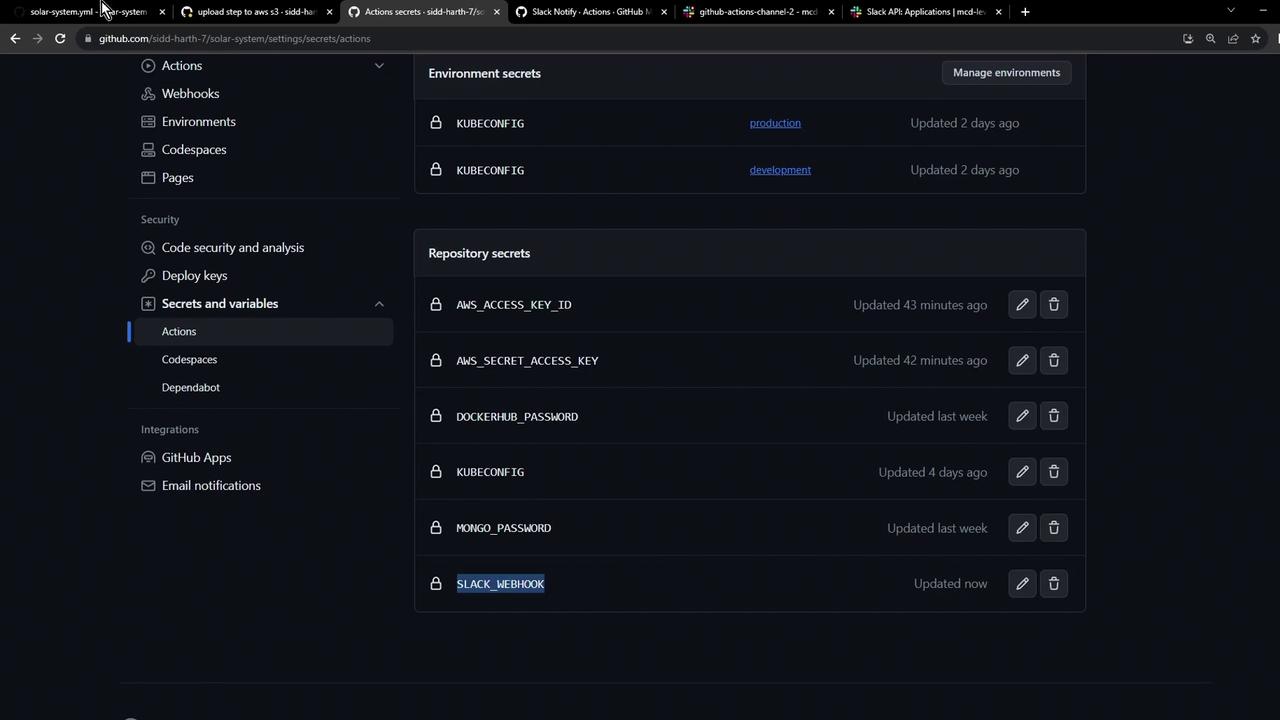
1. Navigate to your repo’s **Settings → Secrets and variables → Actions**.
2. Click **New repository secret** and add:
* **Name**: `SLACK_WEBHOOK`
* **Value**: ``
Keep your Webhook URL confidential. Anyone with this URL can post messages to your Slack channel.
## 4. Add the Slack Notification Job
Append this job to your workflow file (e.g., `.github/workflows/solar-system.yml`). It uses `if: always()` so it runs regardless of success, failure, or cancellation, and `continue-on-error: true` to avoid blocking the pipeline.
```yaml theme={null}
jobs:
# ... other jobs ...
slack-notification:
if: always()
name: Slack Notification
needs: [dev-integration-testing, prod-integration-testing]
continue-on-error: true
runs-on: ubuntu-latest
steps:
- name: Checkout repository
uses: actions/checkout@v4
- name: Send Slack notification
uses: rtCamp/action-slack-notify@v2
env:
SLACK_WEBHOOK: ${{ secrets.SLACK_WEBHOOK }}
SLACK_CHANNEL: github-actions-channel
SLACK_COLOR: ${{ job.status }}
SLACK_ICON: https://gitlab.com/sidd-harth/solar-system/-/raw/main/images/saturn.png
SLACK_MESSAGE: ":hammer_and_wrench: Triggered by ${{ github.actor }}"
SLACK_TITLE: "Pipeline Status"
```
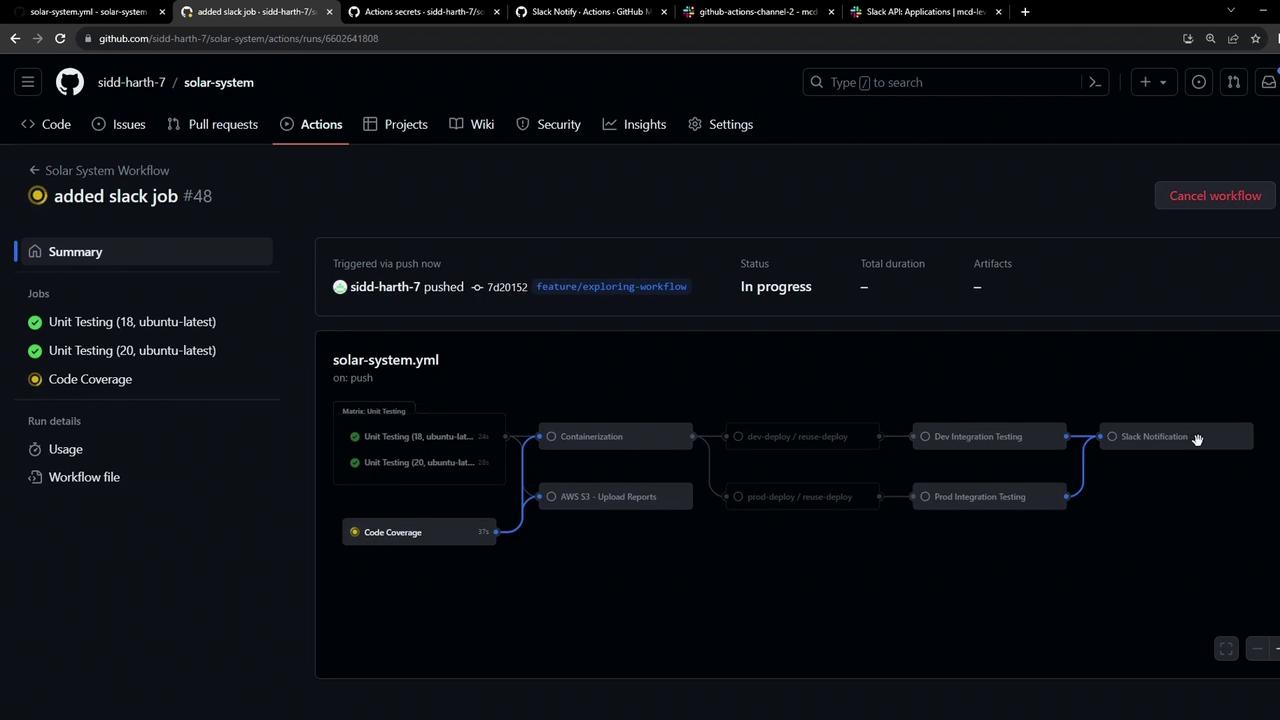
Once pushed, your workflow graph will include the new notification job:
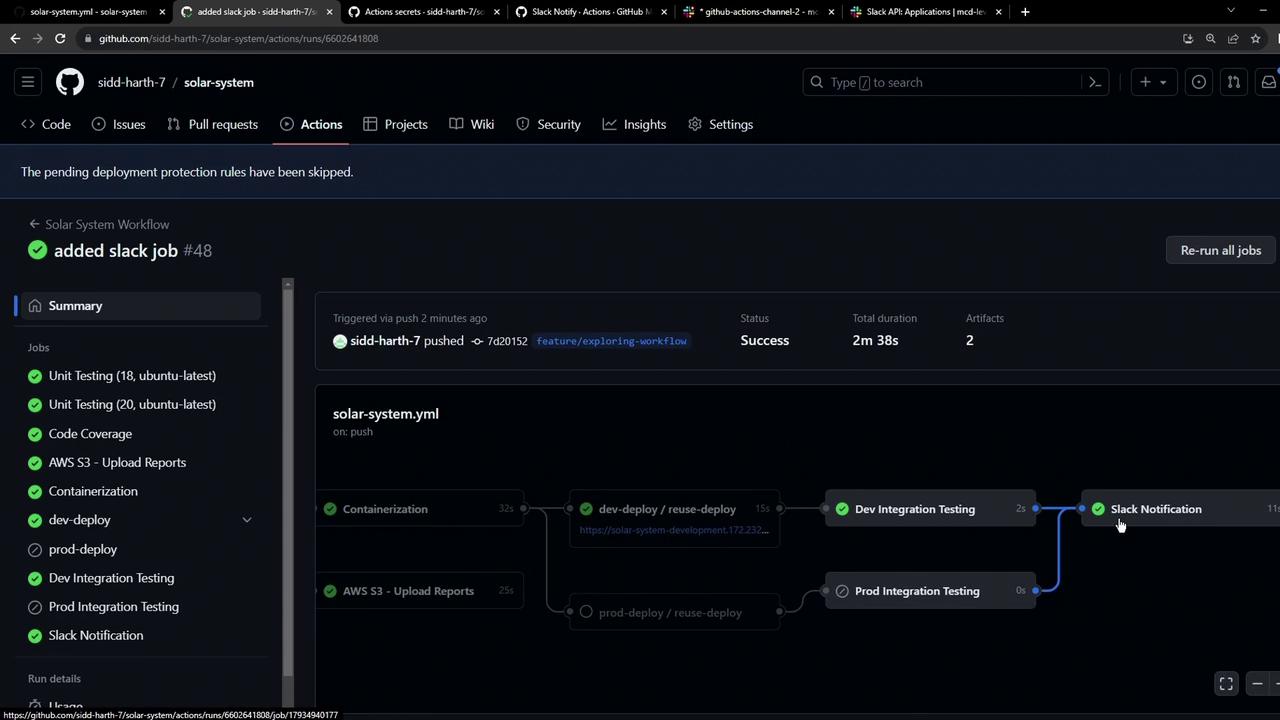
After completion, you’ll see its result in the summary:
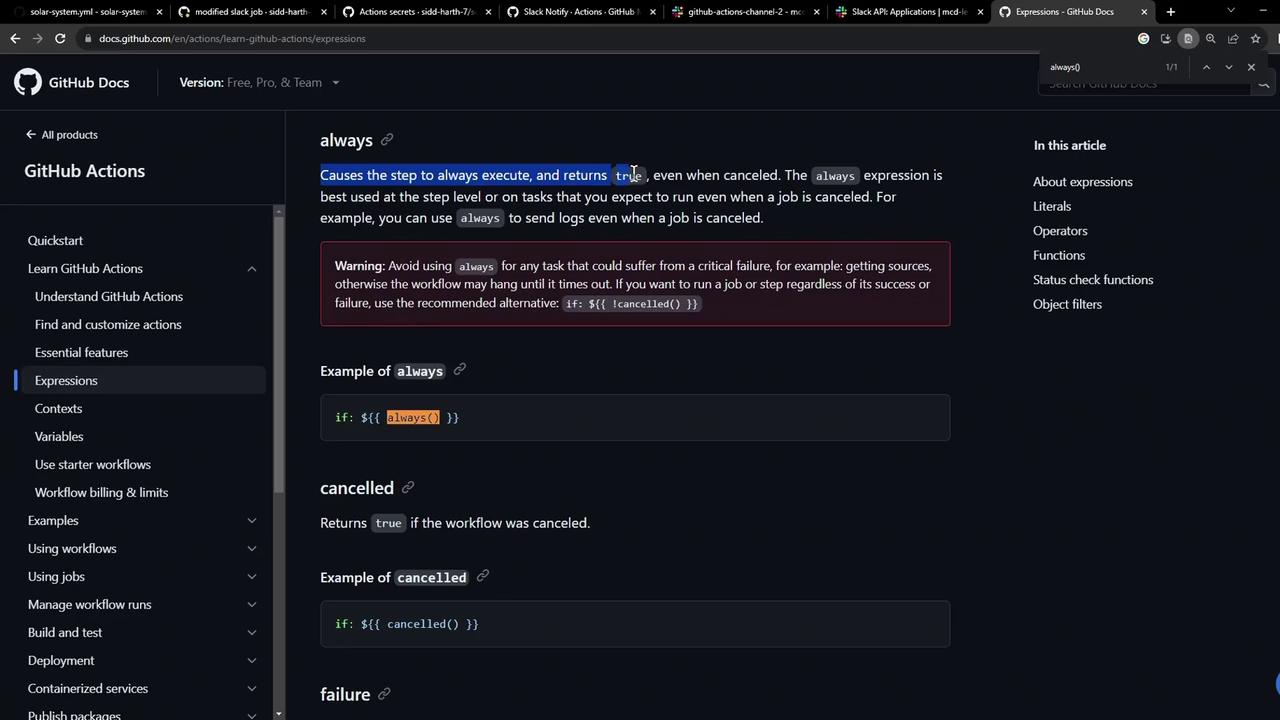
## 5. Verify `always()` Behavior
Even if the workflow is canceled or fails, the Slack notification runs because of `if: always()`:
***
With this setup, every GitHub Actions run—successful, failed, or canceled—triggers a Slack notification, keeping your team informed in real time.
## Links and References
* [Incoming Webhooks Documentation](https://api.slack.com/messaging/webhooks)
* [GitHub Actions Encrypted Secrets](https://docs.github.com/en/actions/security-guides/encrypted-secrets)
* [rtCamp/action-slack-notify](https://github.com/rtCamp/action-slack-notify)