> ## Documentation Index
> Fetch the complete documentation index at: https://notes.kodekloud.com/llms.txt
> Use this file to discover all available pages before exploring further.
# ArchiveStore Unit Test Reports
> Learn to archive Mocha unit test reports using GitHub Actions upload-artifact action for easy access and management of test results.
## Introduction
In this guide, you’ll learn how to archive Mocha unit test reports (JUnit XML) using GitHub Actions’ `upload-artifact` action. By the end, you’ll be able to:
* Generate a JUnit-style `test-results.xml` locally with Mocha.
* Configure a reusable GitHub Actions workflow.
* Access archived test results directly from the GitHub UI.
## Prerequisites
* A GitHub repository with Node.js and Mocha tests.
* [`mocha-junit-reporter`](https://www.npmjs.com/package/mocha-junit-reporter) installed in your project.
* A basic GitHub Actions workflow triggering on your desired event (e.g., `push` or `pull_request`).
## 1. Generate JUnit Report Locally
Run your tests with Mocha’s JUnit reporter to produce `test-results.xml` in the repository root:
```shell theme={null}
npm test
> Solar System@6.7.6 test
> mocha app-test.js --timeout 10000 --reporter mocha-junit-reporter --exit
server successfully running on port - 3000
```
### Sample `test-results.xml`
```xml theme={null}
```
## 2. Archive the JUnit XML in GitHub Actions
Add an **Archive Test Result** step to your workflow using `actions/upload-artifact@v3`. Below is a sample workflow named `archive-unit-tests.yml`:
```yaml theme={null}
name: Archive Unit Test Reports
on:
push:
branches: [ main ]
pull_request:
jobs:
unit-testing:
name: Run & Archive Mocha Tests
runs-on: ubuntu-latest
steps:
- name: Checkout Repository
uses: actions/checkout@v4
- name: Setup Node.js
uses: actions/setup-node@v3
with:
node-version: '18'
- name: Install Dependencies
run: npm install
- name: Run Unit Tests
run: npm test
- name: Archive Test Result
uses: actions/upload-artifact@v3
with:
name: Mocha-Test-Result
path: test-results.xml
```
### Workflow Steps Breakdown
| Step | Action |
| -------------------- | ----------------------------------------------- |
| Checkout Repository | `actions/checkout@v4` |
| Setup Node.js | `actions/setup-node@v3` with `node-version: 18` |
| Install Dependencies | `npm install` |
| Run Unit Tests | `npm test` |
| Archive Test Result | `actions/upload-artifact@v3` |
The `name` field under `with:` serves as the artifact identifier. The `path` field should point to your generated `test-results.xml`.
## 3. View Artifacts in GitHub Actions
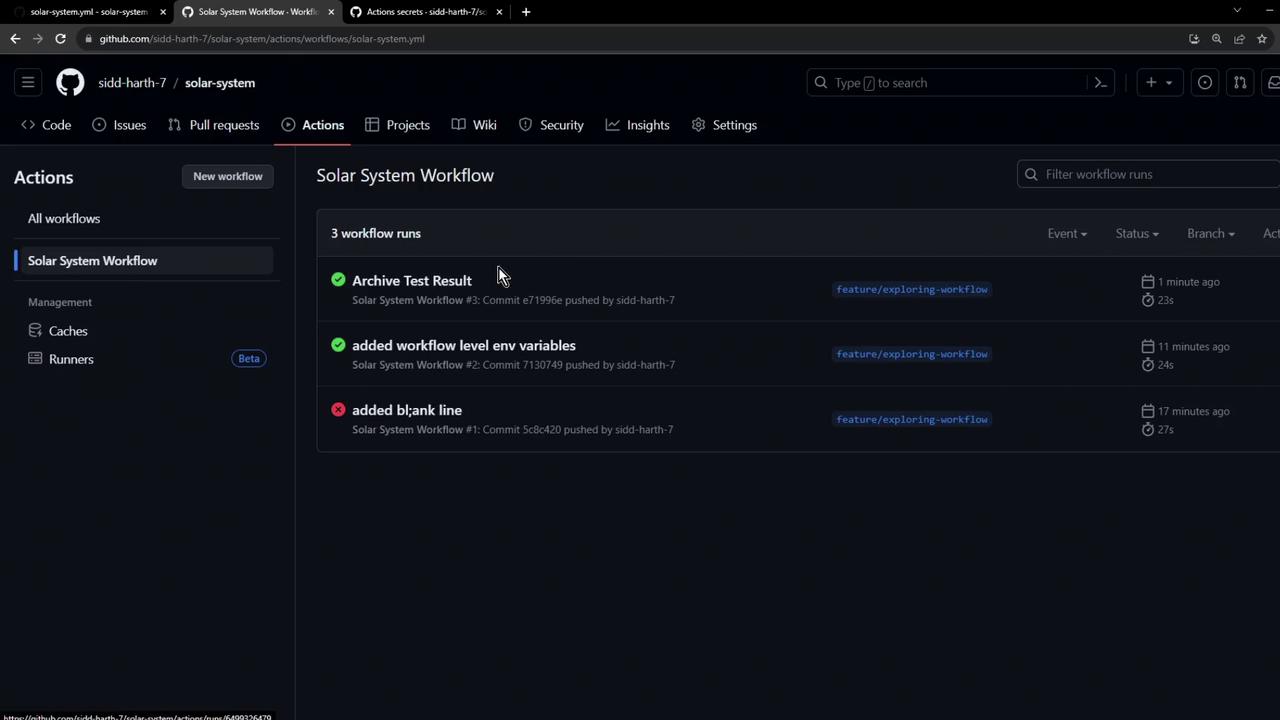
After pushing your workflow, open the **Actions** tab in your repository. You’ll see your workflow run listed with its status:
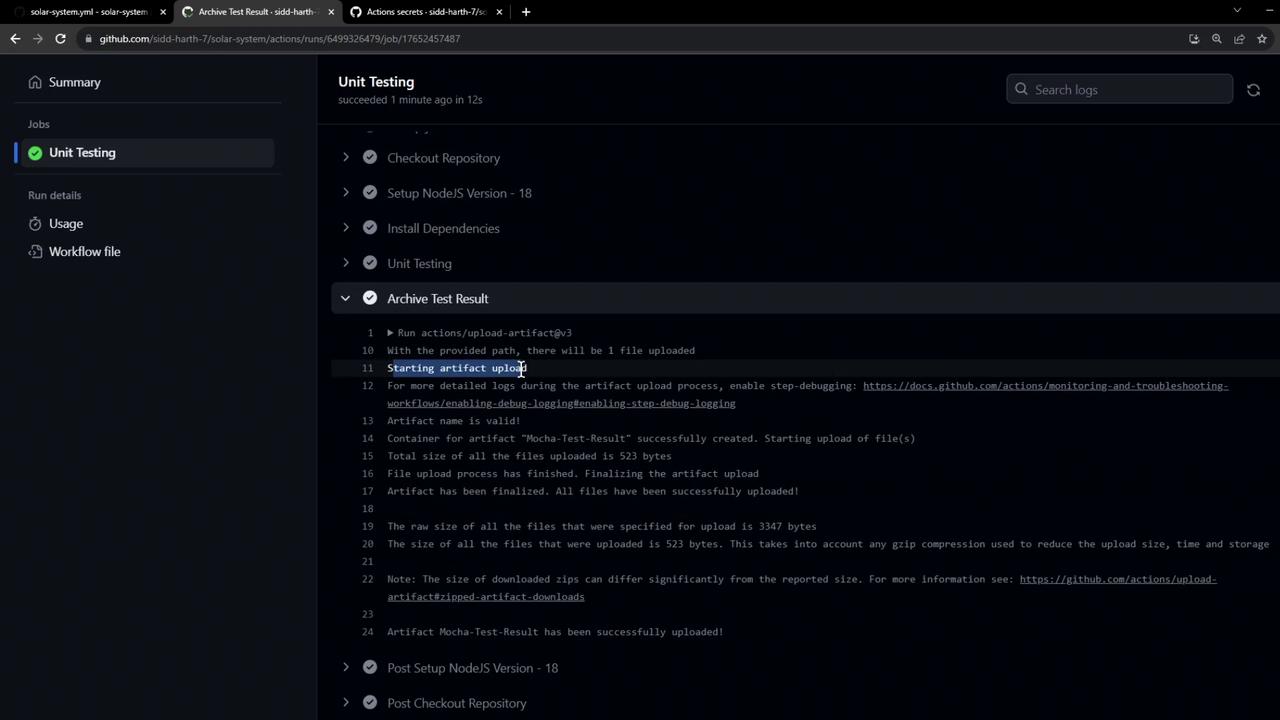
Click into the run to explore individual steps, including the **Archive Test Result**:
## 4. Upload Logs
During execution, you’ll observe logs similar to:
```plaintext theme={null}
Run actions/upload-artifact@v3
With the provided path, there will be 1 file uploaded
Starting artifact upload
Artifact name is valid!
Container for artifact "Mocha-Test-Result" successfully created. Starting upload of file(s)
Total size of all the files uploaded is 523 bytes
File upload process has finished. Finalizing the artifact upload
Artifact has been finalized. All files have been successfully uploaded!
The raw size of all the files that were specified for upload is 3347 bytes
The size of all the files that were uploaded is 523 bytes. This takes into account any gzip compression used to reduce the upload size, time and storage.
Note: The size of downloaded zips can differ significantly from the reported size. For more information see: https://github.com/actions/upload-artifact#zipped-artifact-downloads
Artifact Mocha-Test-Result has been successfully uploaded!
```
## 5. Retention & Download
Artifacts are retained for **90 days** by default. You can download or delete them via the workflow summary under your repository’s **Actions** tab.
## References
* [actions/upload-artifact@v3](https://github.com/actions/upload-artifact)
* [GitHub Actions Documentation](https://docs.github.com/actions)
* [Mocha JUnit Reporter](https://www.npmjs.com/package/mocha-junit-reporter)