> ## Documentation Index
> Fetch the complete documentation index at: https://notes.kodekloud.com/llms.txt
> Use this file to discover all available pages before exploring further.
# Clone Git Repo
> This article explains how to migrate a GitLab repository to GitHub and set up for CI/CD workflows.
In this lesson, we’ll migrate the Solar System application source code from GitLab to GitHub. Once imported, you can start building GitHub Actions workflows for CI/CD.
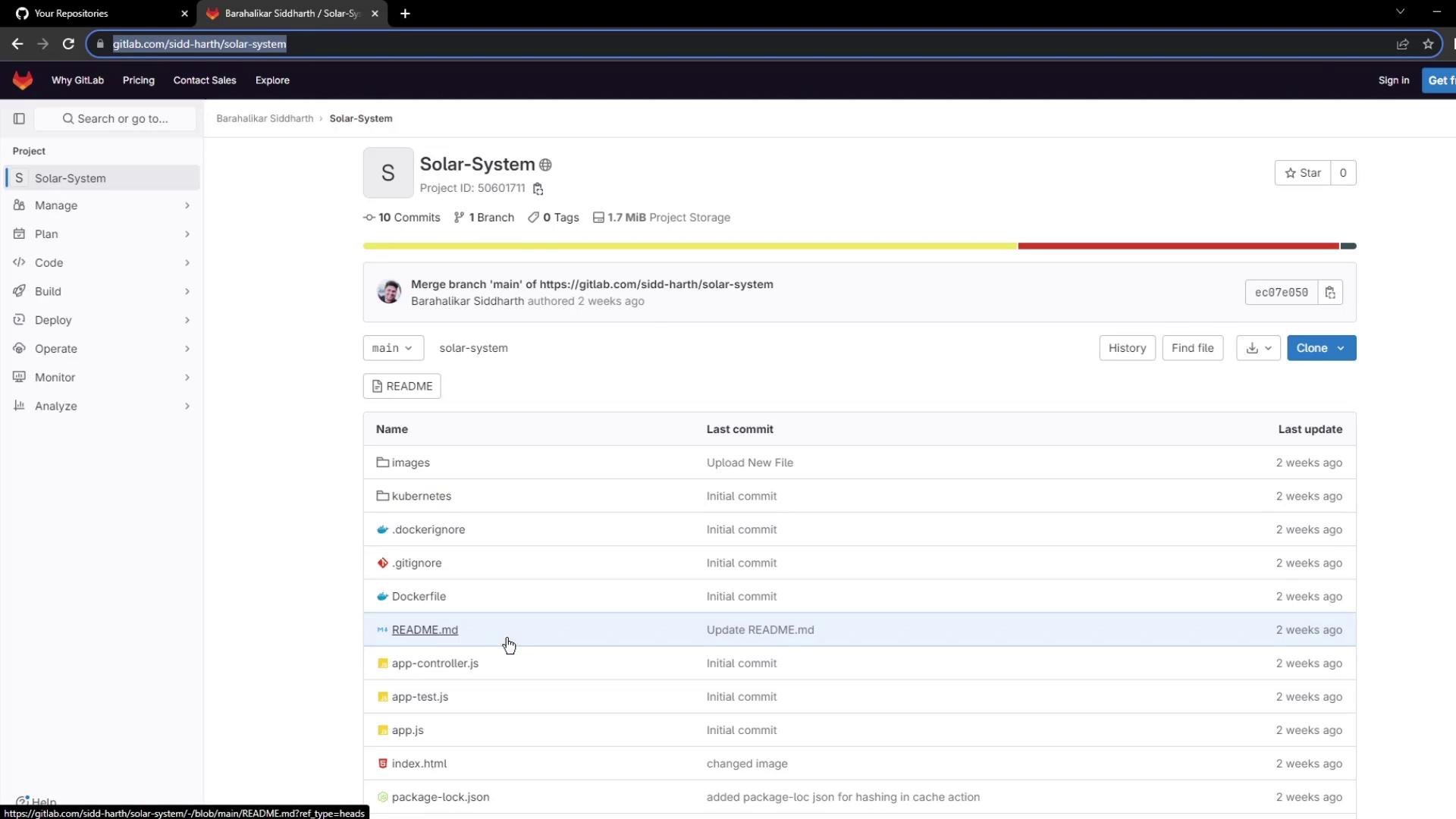
## Step 1: Copy the GitLab Repository URL
On GitLab, navigate to the **Solar-System** project and copy its HTTPS clone URL:
## Step 2: Import the Repository into GitHub
1. Go to GitHub’s import interface at `https://github.com/new/import`.
2. Paste the GitLab URL into the **Your old repository’s clone URL** field.
3. Set the **Owner** and enter `solar-system` as the **Repository Name**.
4. Choose **Public** visibility.
5. Click **Begin import**.
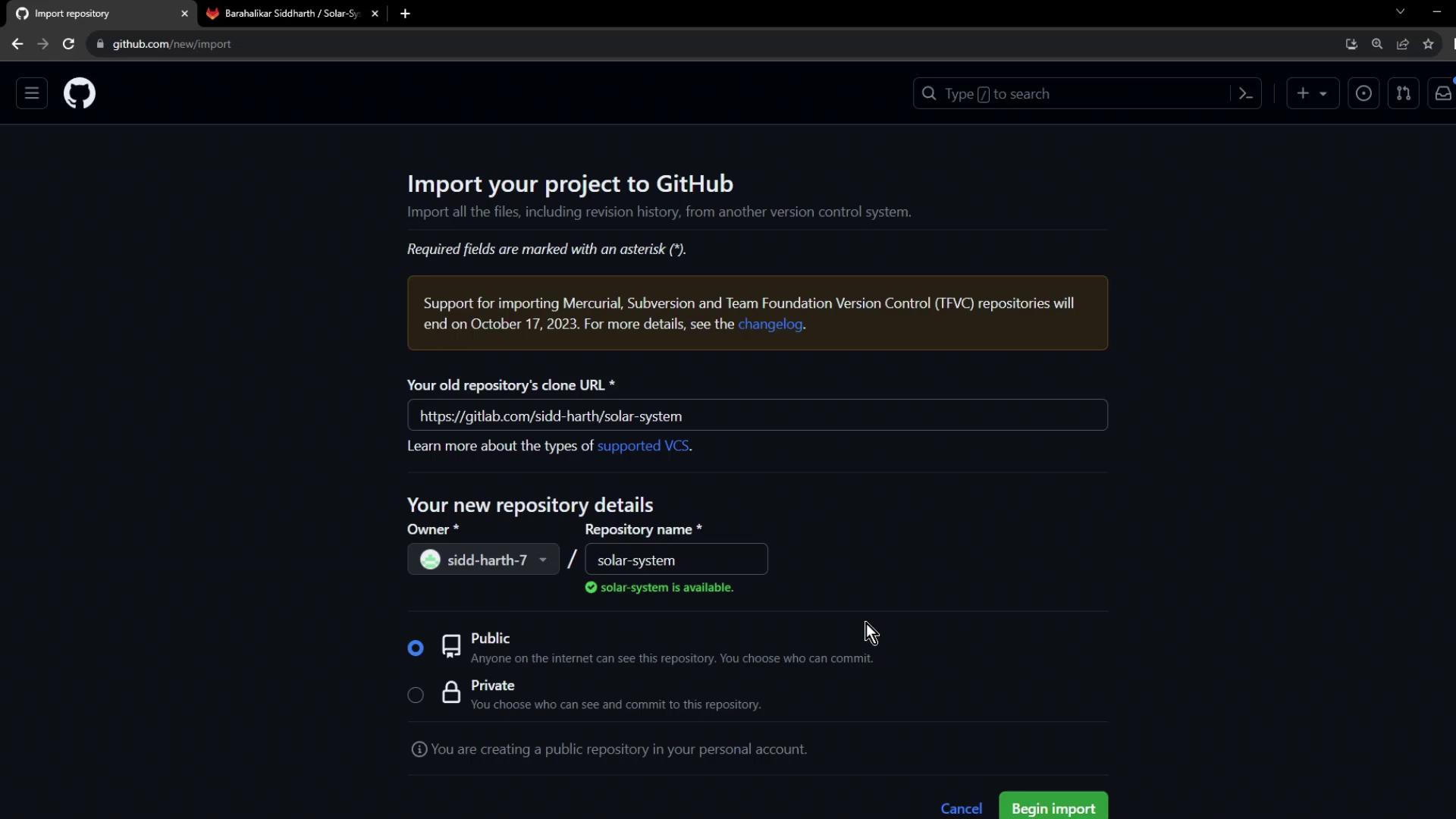
Large repositories may take several minutes to import. You can monitor progress on the same page.
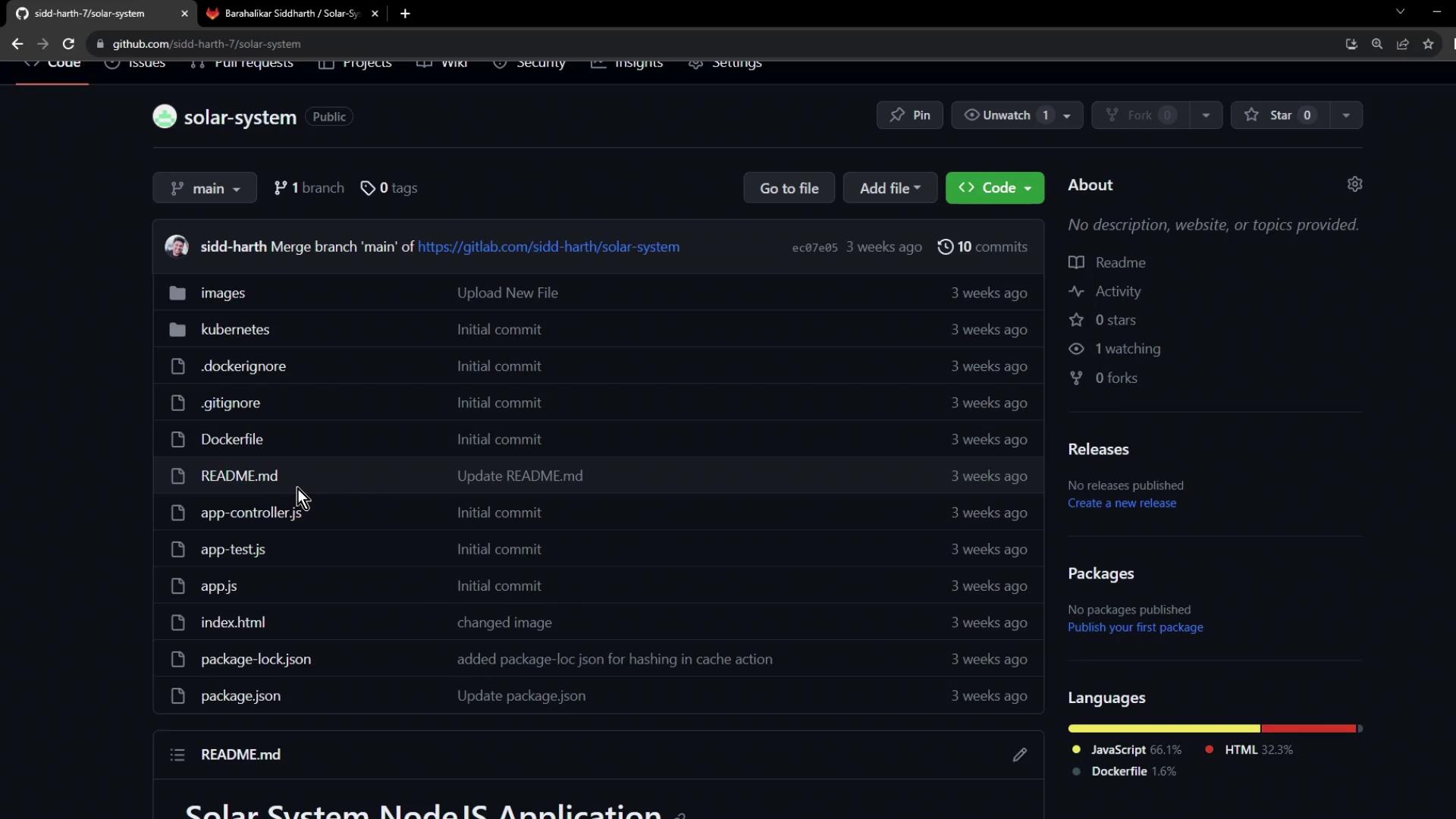
## Step 3: Verify the Imported Files
After the import completes, navigate to your new `solar-system` repository. Confirm that all files—such as `README.md`, `Dockerfile`, and JavaScript source files—have been migrated successfully:
## Quick Reference
| Step | Action | Location |
| ---- | ------------------------------- | --------------------------- |
| 1 | Copy GitLab clone URL | GitLab project overview |
| 2 | Import repository via GitHub UI | `github.com/new/import` |
| 3 | Verify files in new GitHub repo | GitHub repository main page |
## Next Steps
With your code now on GitHub, you can:
* Create a workflow file in `.github/workflows/`
* Define jobs for linting, testing, and building
* Trigger CI/CD on each push or pull request
## Links and References
* [GitHub: Importing a repository](https://docs.github.com/en/repositories/importing-your-projects-to-github/importing-a-repository-with-github-importer)
* [GitLab Documentation](https://docs.gitlab.com/)
* [GitHub Actions Overview](https://docs.github.com/en/actions/learn-github-actions)