> ## Documentation Index
> Fetch the complete documentation index at: https://notes.kodekloud.com/llms.txt
> Use this file to discover all available pages before exploring further.
# Run Code Coverage Job using a Container and Service
> This guide explains setting up a code coverage workflow in GitHub Actions using a job container and a MongoDB service container.
In this guide, you’ll learn how to set up a **code coverage** workflow in GitHub Actions by combining a job container with a MongoDB service container. This approach ensures all steps run in a consistent environment and can connect to your database service seamlessly.
## 1. Recap: Unit Testing with a Service Container
Below is a sample job that runs unit tests in Node.js while using a MongoDB service container:
```yaml theme={null}
jobs:
unit-testing:
name: Unit Testing
runs-on: ${{ matrix.operating_system }}
services:
mongo-db:
image: siddharth67/mongo-db:non-prod
ports:
- 27017:27017
env:
MONGO_URI: "mongodb://localhost:27017/superData"
MONGO_USERNAME: non-prod-user
MONGO_PASSWORD: non-prod-password
strategy:
matrix:
nodejs_version: [18, 20]
operating_system: [ubuntu-latest]
exclude:
- nodejs_version: 18
operating_system: macos-latest
steps:
- uses: actions/checkout@v4
name: Checkout Repository
- uses: actions/setup-node@v3
name: Setup Node.js ${{ matrix.nodejs_version }}
with:
node-version: ${{ matrix.nodejs_version }}
- uses: actions/cache@v3
name: Cache npm Dependencies
with:
path: node_modules
key: ${{ runner.os }}-node-modules-${{ hashFiles('package-lock.json') }}
- run: npm install
name: Install Dependencies
- run: npm test
id: nodejs-unit-testing-step
name: Run Unit Tests
- if: always()
uses: actions/upload-artifact@v3
name: Archive Test Results
with:
name: Mocha-Test-Result
path: test-results.xml
```
| Service Name | Image | Ports | Environment Variables |
| ------------ | ----------------------------- | ----------- | ----------------------------------------------- |
| mongo-db | siddharth67/mongo-db:non-prod | 27017:27017 | `MONGO_URI`, `MONGO_USERNAME`, `MONGO_PASSWORD` |
## 2. What Is a Job Container?
A **job container** allows you to execute every step of a job inside a specified Docker image instead of on the default runner VM. This ensures your CI environment matches production more closely.
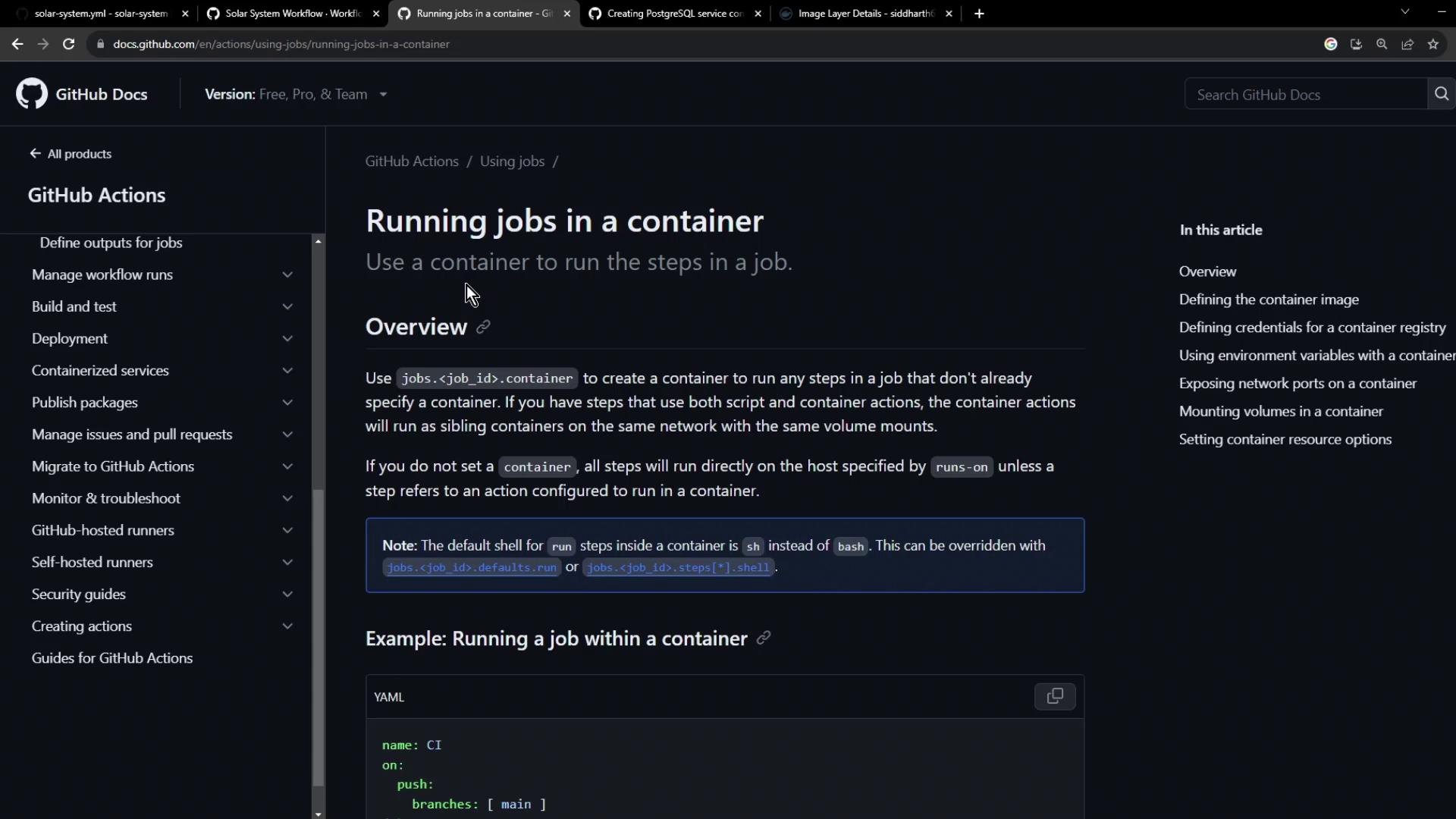
(See: [https://docs.github.com/en/actions/using-jobs/running-jobs-in-a-container](https://docs.github.com/en/actions/using-jobs/running-jobs-in-a-container))
```yaml theme={null}
jobs:
example-job:
runs-on: ubuntu-latest
container:
image: node:18
steps:
- name: Verify Docker Environment
run: |
if [ -f ./dockerenv ]; then
echo "Found dockerenv"
else
echo "No dockerenv"
fi
```
By specifying `container.image`, all subsequent steps run inside that Docker image. You no longer need a separate setup action for Node.js.
## 3. Defining the Code Coverage Workflow
The following workflow runs a code coverage job in a Node.js 18 container and attaches a MongoDB service container for database operations:
```yaml theme={null}
name: CI
on:
push:
branches: [ main ]
jobs:
code-coverage:
name: Code Coverage
runs-on: ubuntu-latest
container:
image: node:18
services:
mongo-db:
image: siddharth67/mongo-db:non-prod
options: --name mongo
env:
MONGO_URI: 'mongodb://mongo:27017/superData'
MONGO_USERNAME: non-prod-user
MONGO_PASSWORD: non-prod-password
steps:
- uses: actions/checkout@v4
name: Checkout Repository
- uses: actions/cache@v3
name: Cache npm Dependencies
with:
path: node_modules
key: ${{ runner.os }}-node-modules-${{ hashFiles('package-lock.json') }}
- run: npm install
name: Install Dependencies
- run: npm run coverage
name: Run Code Coverage
```
| Key Point | Details |
| --------------------------- | --------------------------------------------------- |
| Job Container Image | `node:18` |
| Service Container | `siddharth67/mongo-db:non-prod` |
| Service Network Alias | `mongo` (used in `MONGO_URI`) |
| No `setup-node` Step Needed | Node is preinstalled within the job container image |
Make sure the service container name (`mongo`) matches the hostname used in `MONGO_URI`. Incorrect naming can lead to connection failures.
## 4. Verify and Inspect Logs
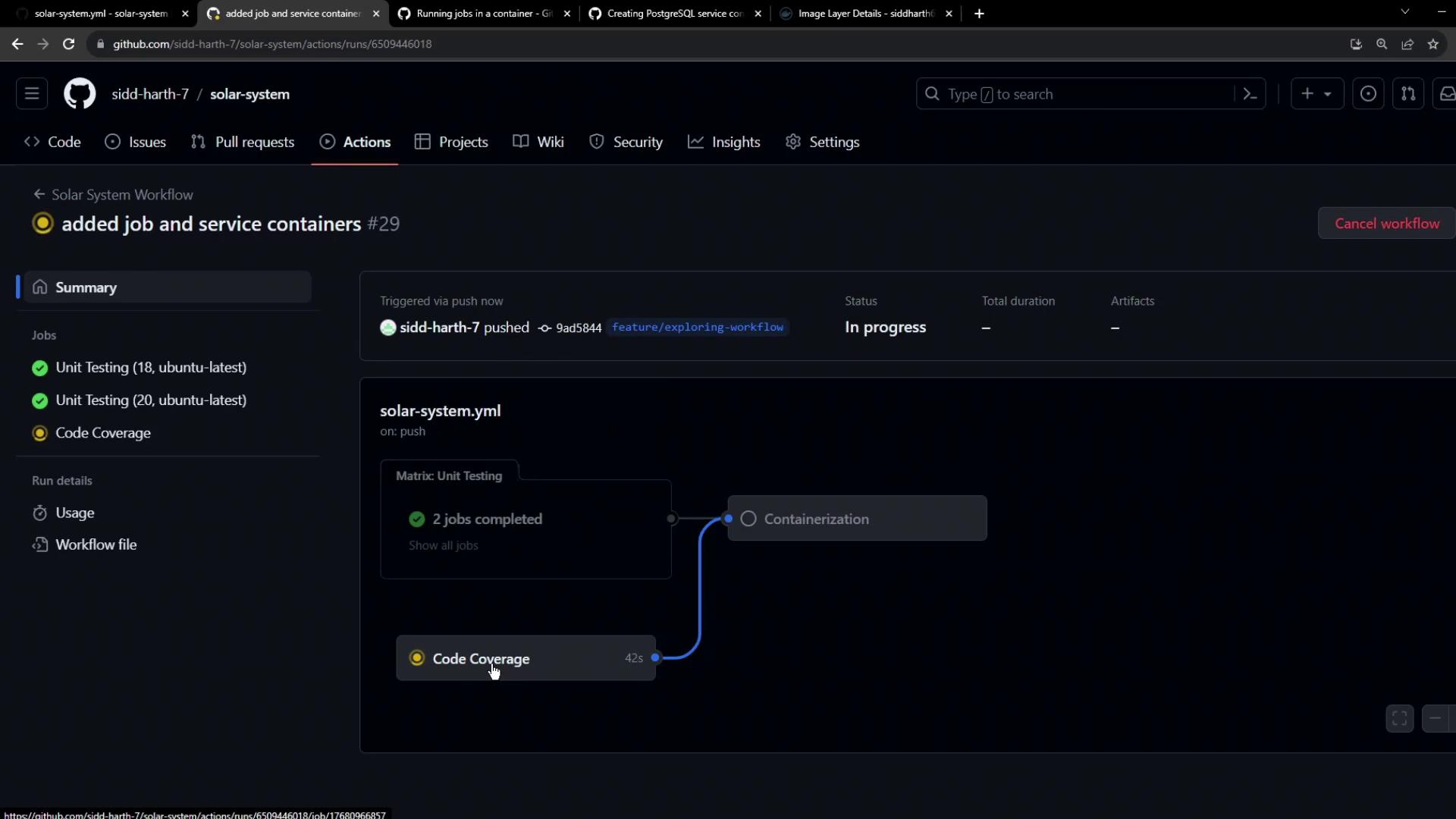
After committing and pushing your workflow, navigate to the **Actions** tab in GitHub. You should see both the **Unit Testing** and **Code Coverage** jobs running in parallel.
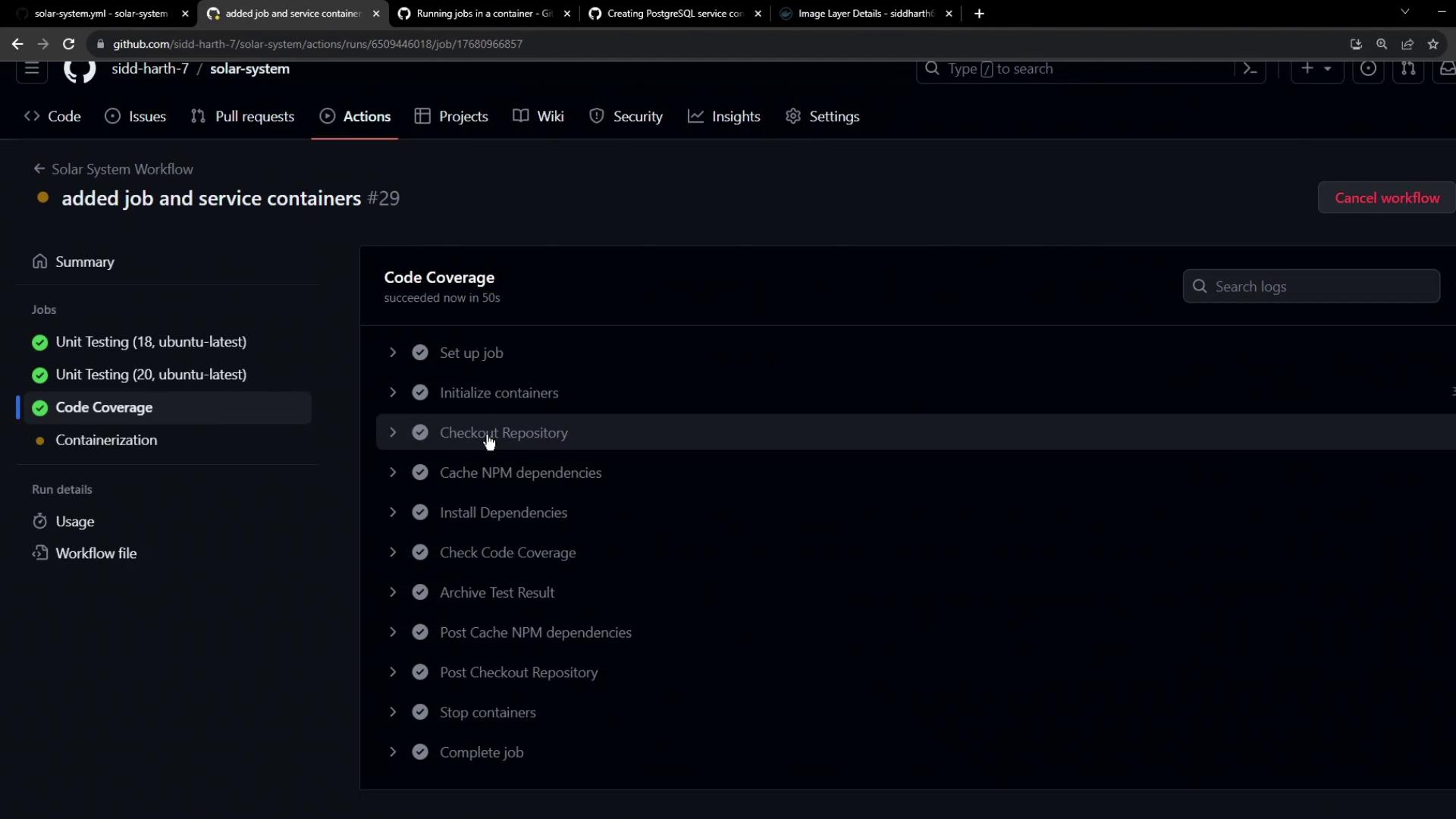
In the logs, you’ll find Docker commands demonstrating how GitHub Actions starts both the job and service containers:
```bash theme={null}
/usr/bin/docker start 99621c88b3e11e3a36090a1a87149e466bf5e8479ab5a54185f073369248
/usr/bin/docker create --name mongo --network github_network \
-e GITHUB_ACTIONS=true -e CI=true sidharth67/mongo-db:non-prod
```
## Links and References
* [Running jobs in a container (GitHub Docs)](https://docs.github.com/en/actions/using-jobs/running-jobs-in-a-container)
* [GitHub Actions: Workflow Syntax](https://docs.github.com/en/actions/using-workflows/workflow-syntax-for-github-actions)
* [MongoDB Docker Hub](https://hub.docker.com/_/mongo)