> ## Documentation Index
> Fetch the complete documentation index at: https://notes.kodekloud.com/llms.txt
> Use this file to discover all available pages before exploring further.
# Using if expressions with Step contexts
> Learn to control step execution in GitHub Actions based on previous step outcomes, ensuring artifact archiving regardless of test success or failure.
Learn how to control step execution based on the outcome of previous steps. In this guide, we’ll update a Unit Testing workflow so that the **Archive Test Result** step runs regardless of test success or failure.
## Initial Workflow
Our current Unit Testing job runs on Node.js v18 and v20 across Ubuntu and macOS. If any step fails, subsequent steps (like archiving test results) are skipped:
```yaml theme={null}
name: Unit Testing
strategy:
matrix:
nodejs_version: [18, 20]
operating_system: [ubuntu-latest, macos-latest]
exclude:
- nodejs_version: 18
operating_system: macos-latest
runs-on: ${{ matrix.operating_system }}
steps:
- name: Checkout Repository
uses: actions/checkout@v4
- name: Setup Node.js ${{ matrix.nodejs_version }}
uses: actions/setup-node@v3
with:
node-version: ${{ matrix.nodejs_version }}
- name: Install Dependencies
run: npm install
- name: Unit Testing
run: npm test
- name: Archive Test Result
uses: actions/upload-artifact@v3
with:
name: Mocha-Test-Result
path: test-results.xml
```
## Simulating a Failing Test
Modify `app-test.js` to introduce an assertion error and force a failure:
```javascript theme={null}
// app-test.js
let mongoose = require("mongoose");
let server = require("../app");
let chai = require("chai");
let chaiHttp = require("chai-http");
chai.should();
chai.use(chaiHttp);
describe("Planets API Suite", () => {
describe("Fetching Planet Details", () => {
it("it should fetch a planet named Mercury", (done) => {
let payload = { id: 1 };
chai.request(server)
.post("/planet")
.send(payload)
.end((err, res) => {
res.should.have.status(200);
// Intentional error to force a failure:
res.body.should.have.property("name").eql("Mercury_ERRORRRRRRRRRR");
done();
});
});
it("it should fetch a planet named Venus", (done) => {
let payload = { id: 2 };
chai.request(server)
.post("/planet")
.send(payload)
.end((err, res) => {
done();
});
});
});
});
```
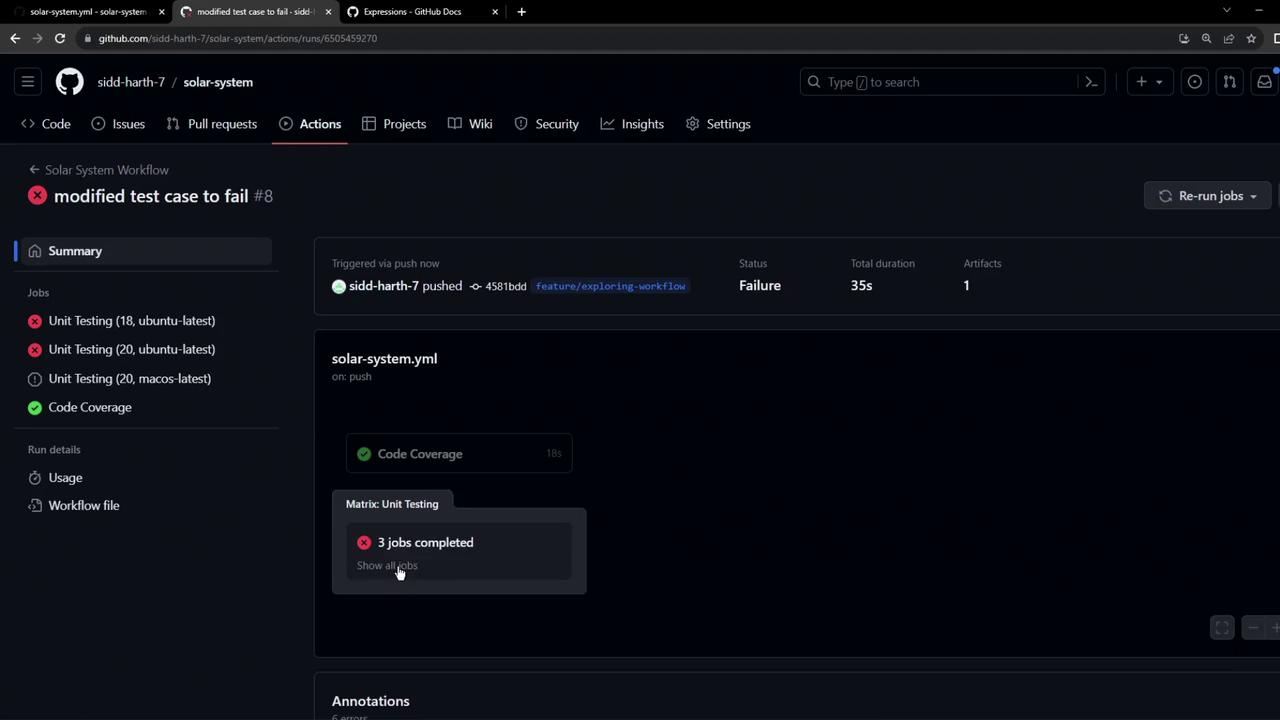
After pushing this change, the workflow fails at the Unit Testing step:
```bash theme={null}
$ npm test
> mocha app-test.js --timeout 10000 --reporter mocha-junit-reporter --exit
Server successfully running on port - 3000
Error: Process completed with exit code 1.
```
Because the test step failed, the **Archive Test Result** step never runs and no XML artifact is produced.
## Understanding Step Contexts
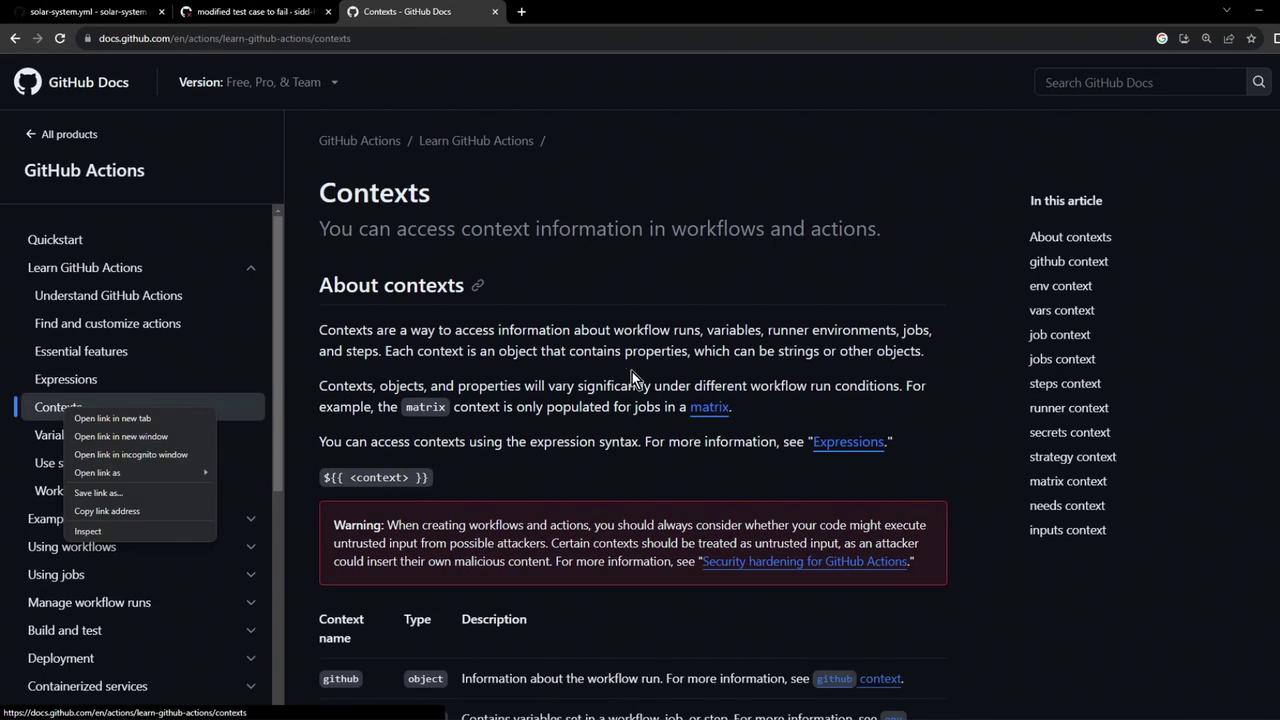
GitHub Actions exposes a `steps` context to examine the outcome of previous steps. Each step can have properties like `outcome`, `conclusion`, and custom `outputs` accessible by its `id`.
You can learn more about contexts in the official docs:\
[Contexts documentation][contexts-docs]
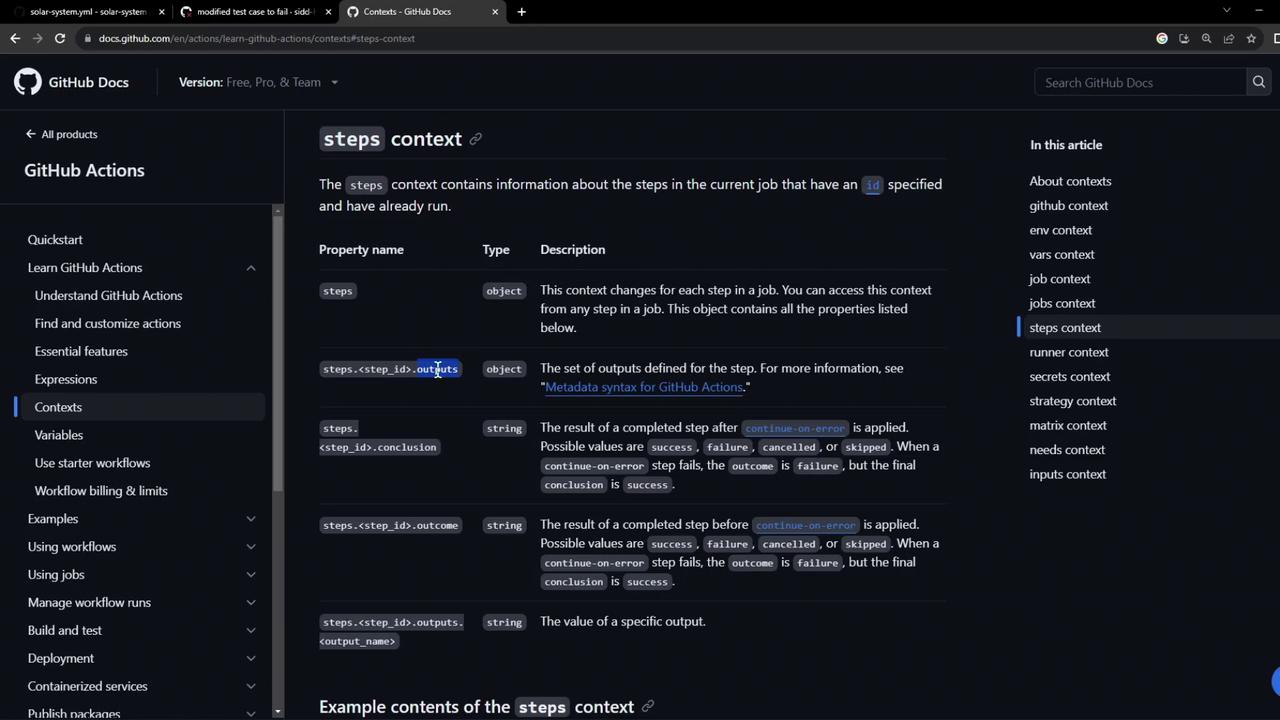
Reference a step property like this:
```yaml theme={null}
${{ steps.. }}
```
## Assigning an ID to the Testing Step
Give your test step an `id` so other steps can refer to it:
```yaml theme={null}
- name: Unit Testing
id: nodejs-unit-testing
run: npm test
```
## Status Check Functions
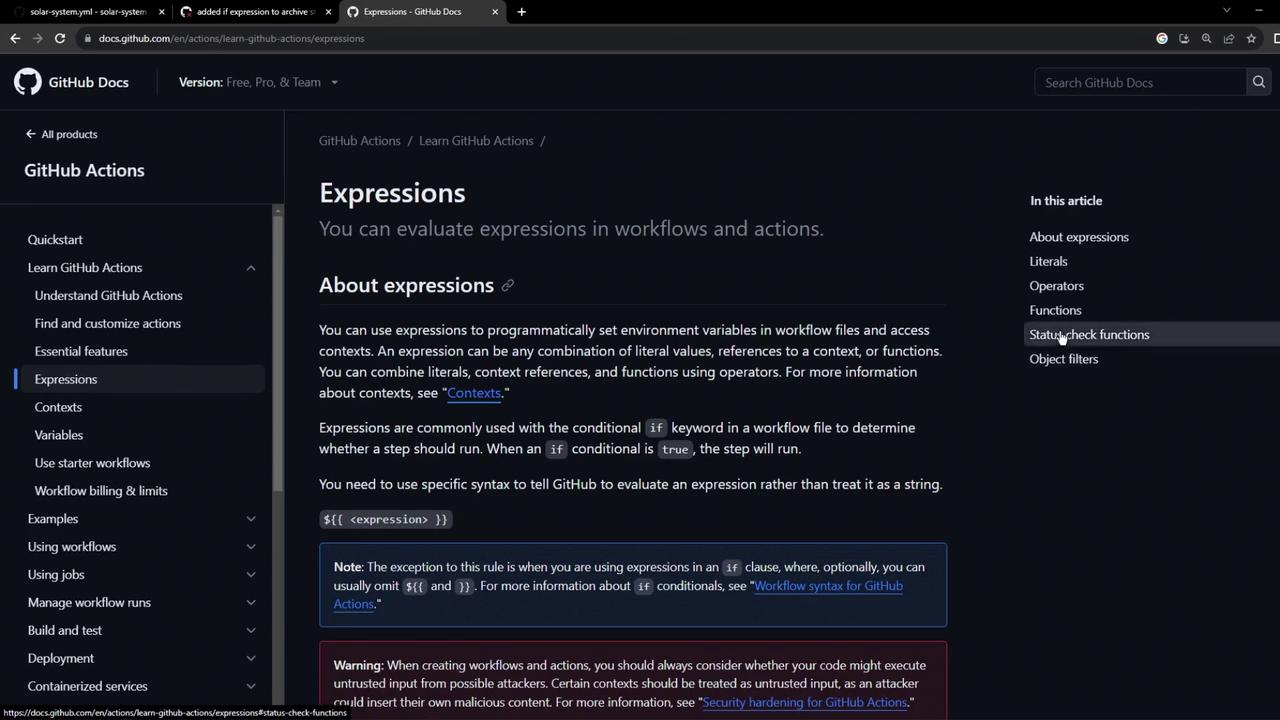
Use built-in functions to control when steps run:
| Function | Description |
| ----------- | ------------------------------------------------------- |
| `success()` | Only if all previous steps and jobs succeeded (default) |
| `failure()` | Only if a previous step or job failed |
| `always()` | Run regardless of the outcome of previous steps or jobs |
Learn more in the GitHub Actions expressions guide: [Evaluating expressions][expressions-docs]
## Conditional Archive Step
### 1. Archive Only on Failure
To upload artifacts only when tests fail:
```yaml theme={null}
- name: Archive Test Result
if: failure() && steps.nodejs-unit-testing.outcome == 'failure'
uses: actions/upload-artifact@v3
with:
name: Mocha-Test-Result
path: test-results.xml
```
This runs the archive step when the testing step fails:
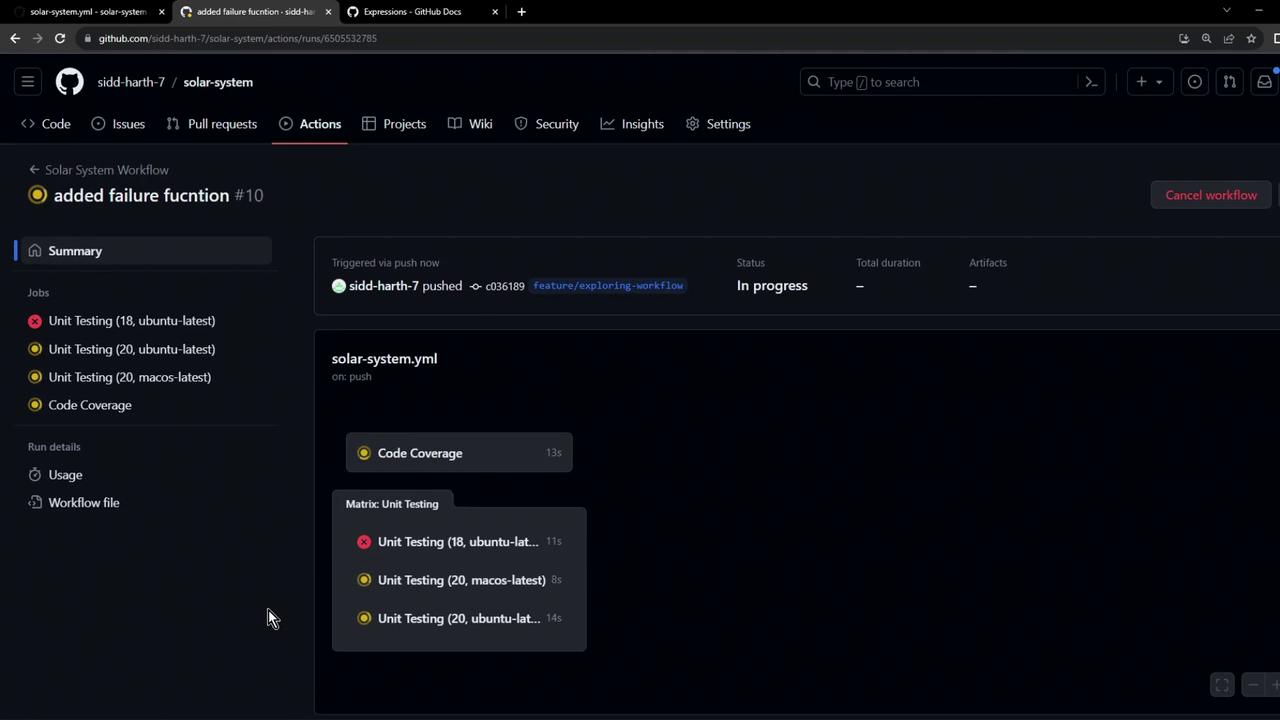
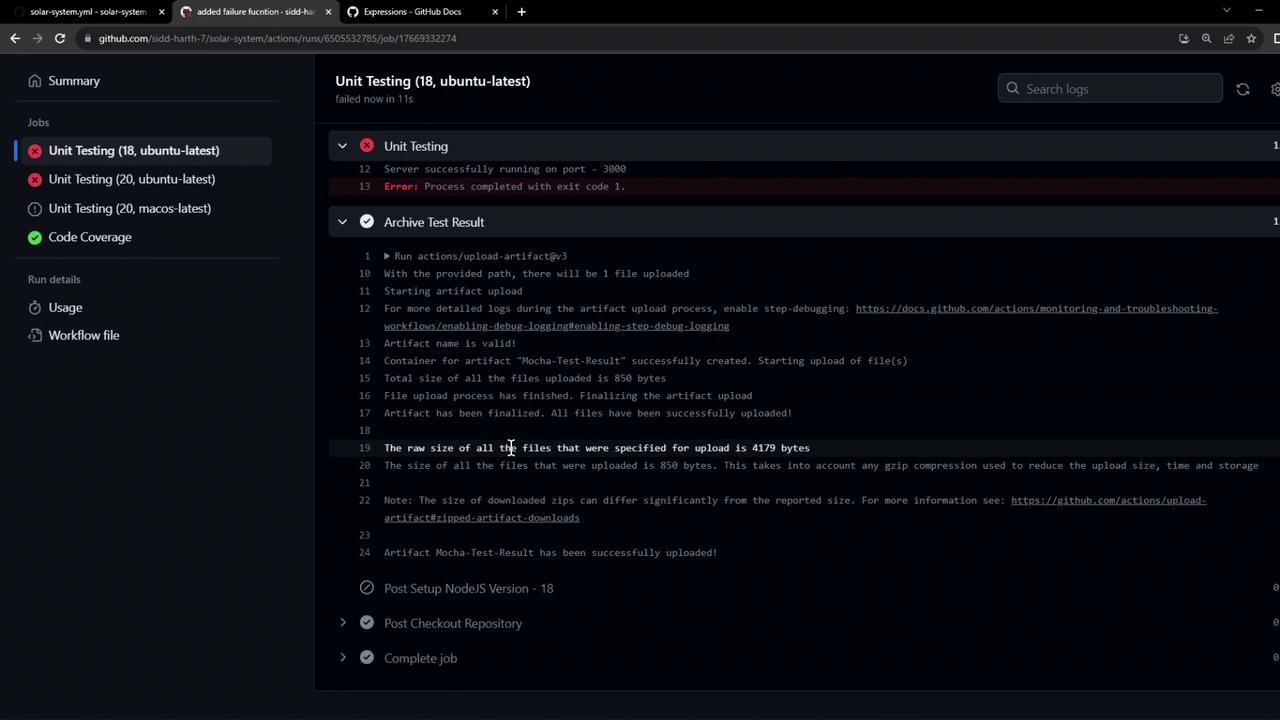
### 2. Archive on Every Run
If you want the test results available on both success and failure, use `always()`:
```yaml theme={null}
steps:
- name: Checkout Repository
uses: actions/checkout@v4
- name: Setup Node.js ${{ matrix.nodejs_version }}
uses: actions/setup-node@v3
with:
node-version: ${{ matrix.nodejs_version }}
- name: Install Dependencies
run: npm install
- name: Unit Testing
id: nodejs-unit-testing
run: npm test
- name: Archive Test Result
if: always()
uses: actions/upload-artifact@v3
with:
name: Mocha-Test-Result
path: test-results.xml
```
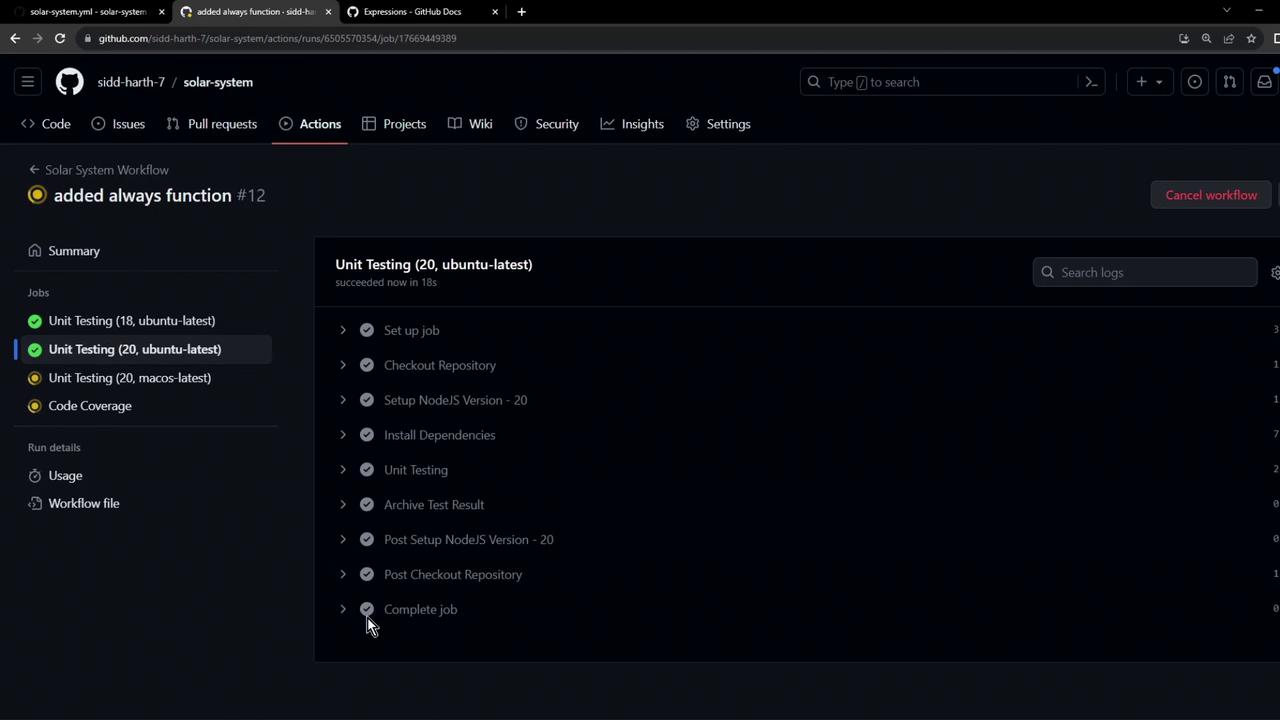
On a successful run, archiving still occurs:
## Links and References
* [Contexts documentation][contexts-docs]
* [Evaluating expressions][expressions-docs]
[contexts-docs]: https://docs.github.com/en/actions/learn-github-actions/contexts
[expressions-docs]: https://docs.github.com/en/actions/learn-github-actions/expressions#status-check-functions