> ## Documentation Index
> Fetch the complete documentation index at: https://notes.kodekloud.com/llms.txt
> Use this file to discover all available pages before exploring further.
# Workflow Configure Unit Testing
> This guide explains how to set up automated unit tests for a Solar System application using GitHub Actions.
In this guide, we’ll set up automated unit tests for our Solar System application using GitHub Actions. You’ll learn how to:
* Create and configure a workflow file
* Install Node.js dependencies
* Securely manage environment variables
* Trigger the workflow on feature branches
## 1. Create a Feature Branch
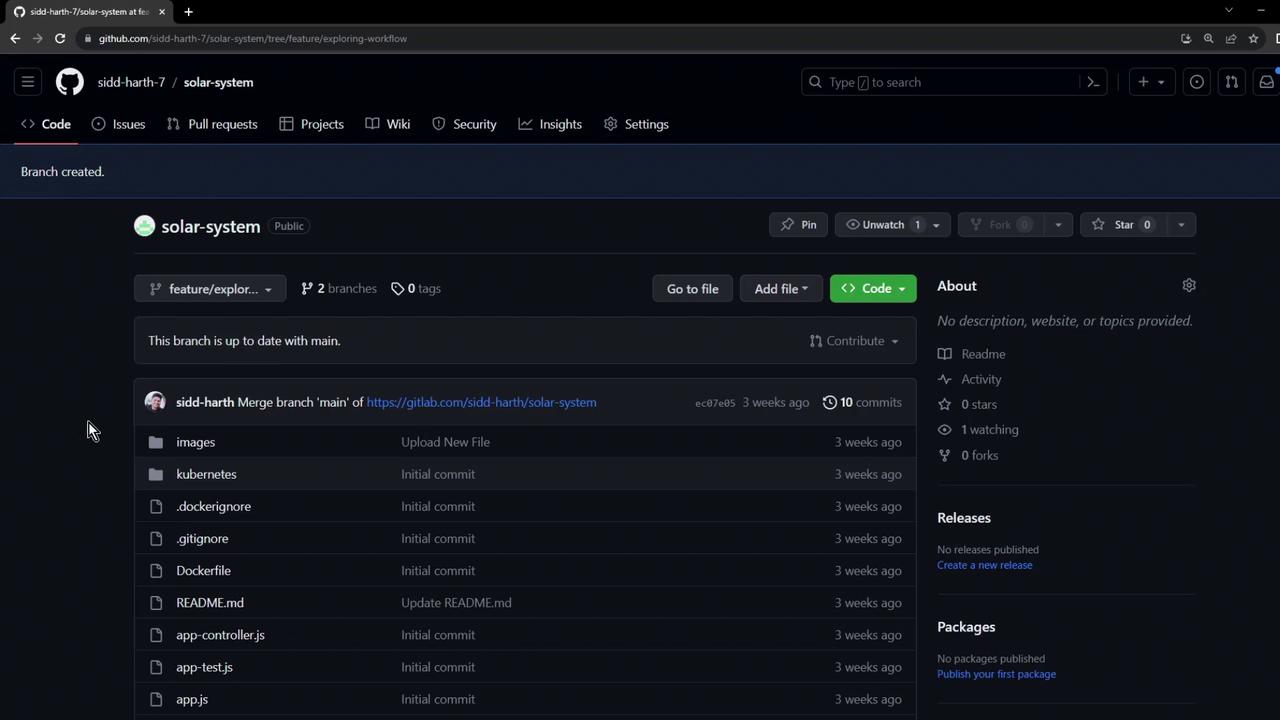
First, clone the repository and switch to a new feature branch to keep `main` stable:
```bash theme={null}
git clone https://github.com/your-org/solar-system.git
cd solar-system
git checkout -b feature/unit-testing-workflow main
```
Open the project in your editor to get started.
## 2. Open in Visual Studio Code
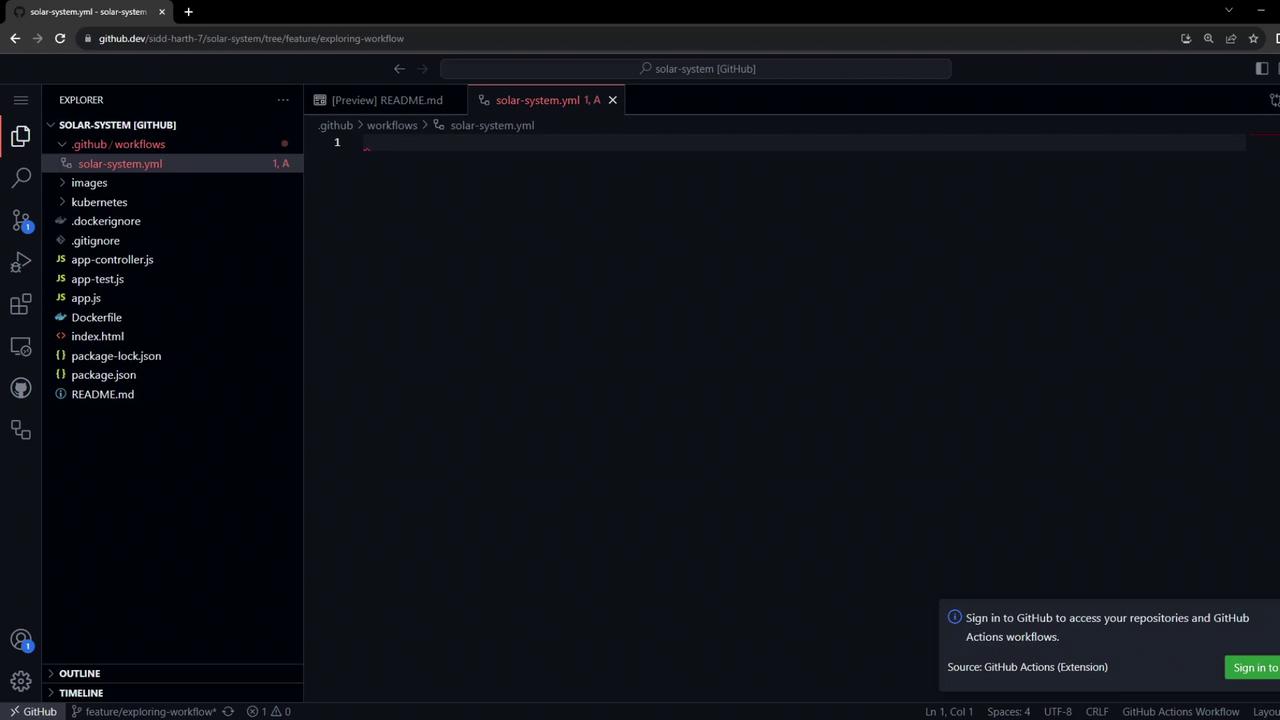
You can launch VS Code locally or use the GitHub.dev web editor by appending `.dev` to the repo URL.
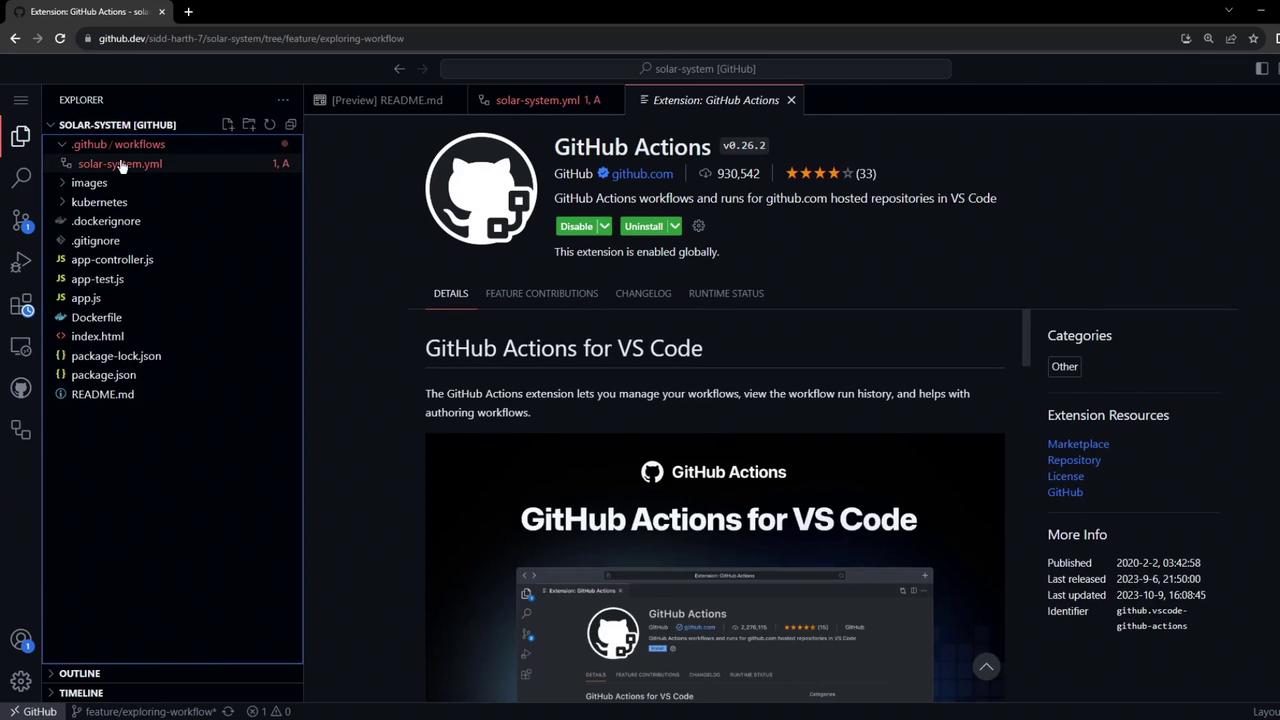
Make sure the GitHub Actions extension is installed for syntax highlighting and workflow previews.
## 3. Define the Workflow File
Create a new file at `.github/workflows/solar-system.yml` with the following contents:
```yaml theme={null}
name: Solar System Workflow
on:
workflow_dispatch:
push:
branches:
- main
- 'feature/*'
jobs:
unit-testing:
name: Unit Testing
runs-on: ubuntu-latest
env:
MONGO_URI: 'mongodb+srv://supercluster.d3jj.mongodb.net/superData'
MONGO_USERNAME: ${{ vars.MONGO_USERNAME }}
MONGO_PASSWORD: ${{ secrets.MONGO_PASSWORD }}
steps:
- name: Checkout Repository
uses: actions/checkout@v4
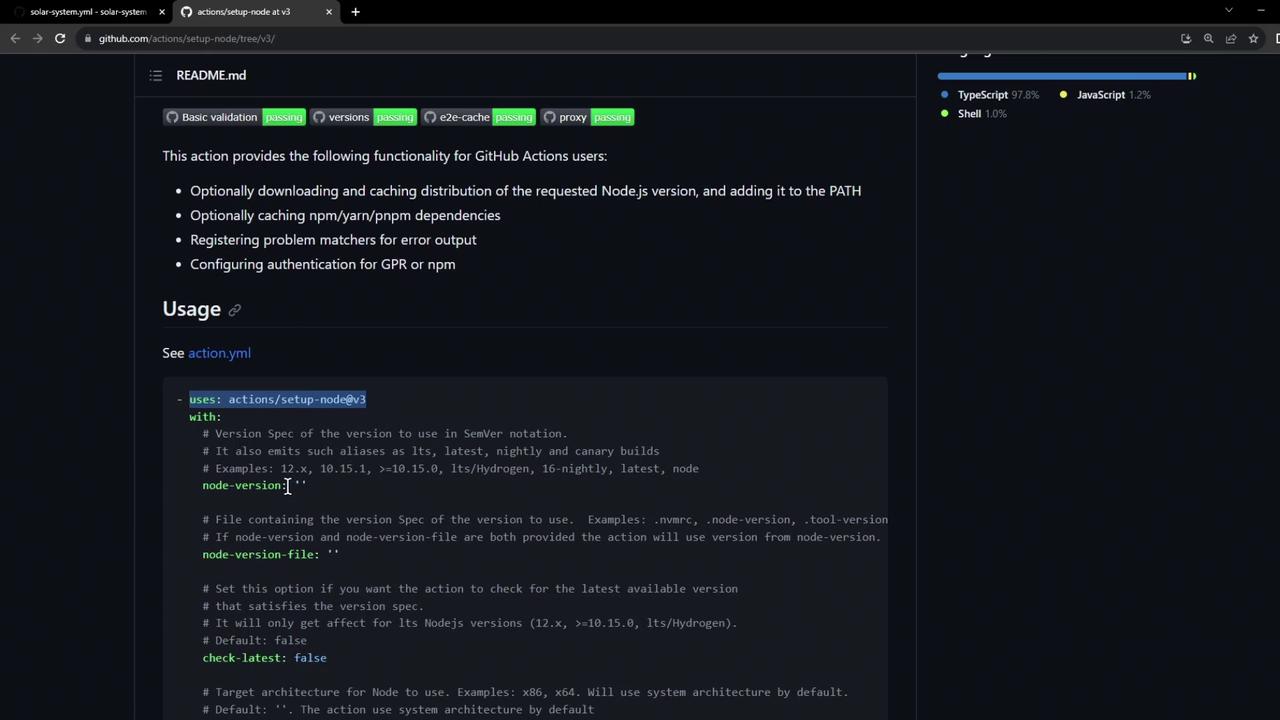
- name: Setup Node.js Environment
uses: actions/setup-node@v3
with:
node-version: 18
cache: 'npm'
- name: Install Dependencies
run: npm install
- name: Run Unit Tests
run: npm test
```
This workflow:
* Triggers on manual dispatch and pushes to `main` or `feature/*`
* Runs on `ubuntu-latest`
* Checks out the code, sets up Node.js v18, installs dependencies, and runs `npm test`
Do not store sensitive credentials directly in the workflow. Use [repository secrets](https://docs.github.com/actions/security-guides/encrypted-secrets) and variables for any sensitive data.
## 4. Enable GitHub Actions Tab
If you cannot see the **Actions** tab:
1. Go to **Settings > Actions > General**
2. Select **Allow all actions and reusable workflows**
3. Click **Save**
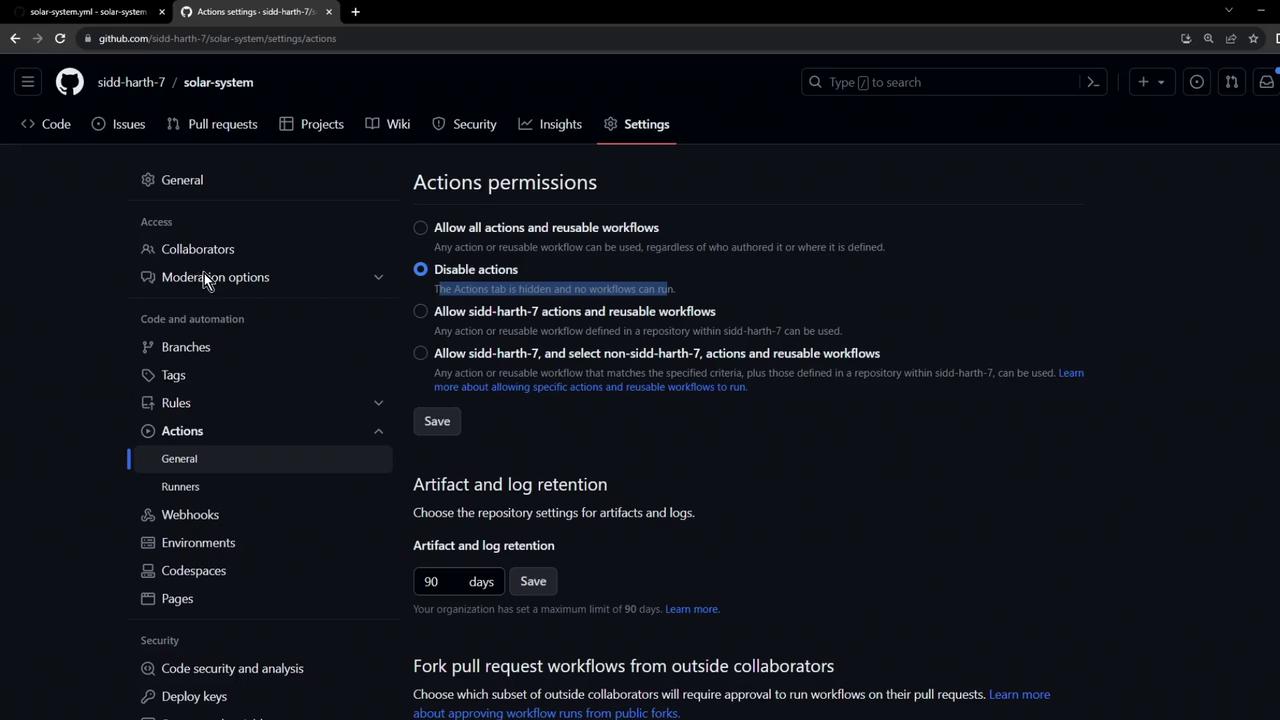
Once enabled, the Actions tab will appear in your repository.
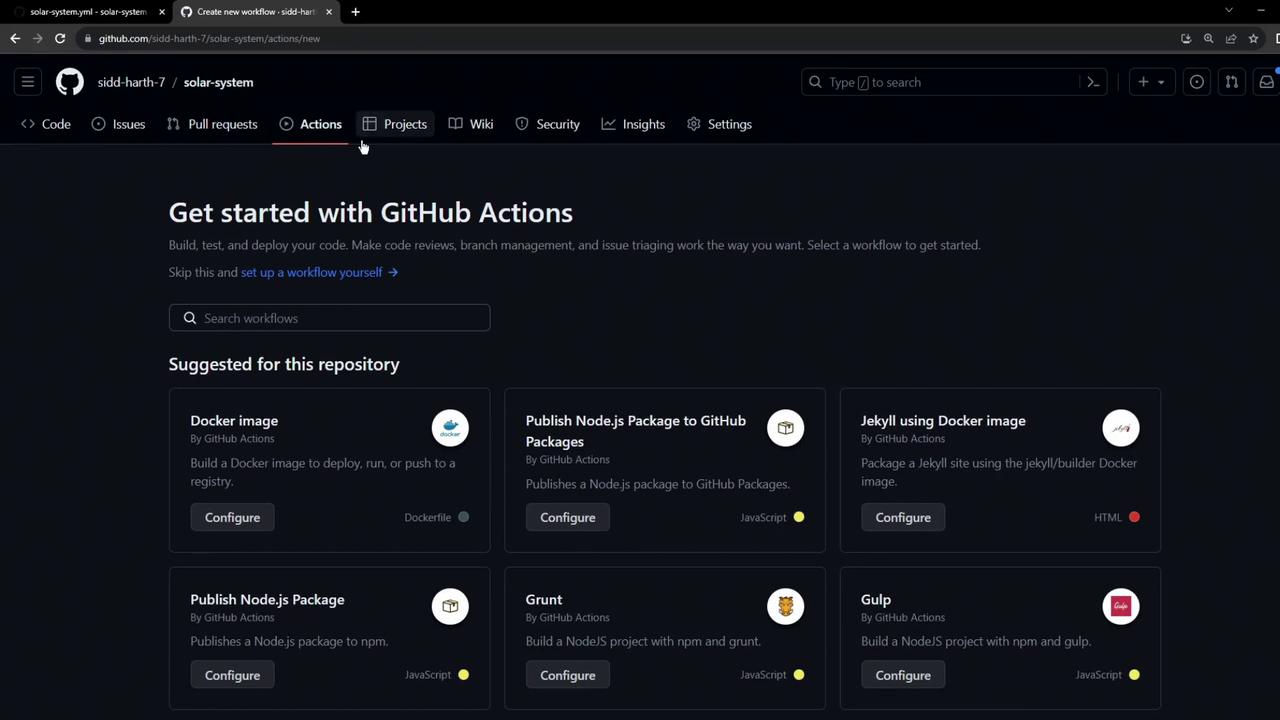
## 5. Commit and Push
Commit your new workflow and push to the feature branch:
```bash theme={null}
git add .github/workflows/solar-system.yml
git commit -m "Add unit testing workflow"
git push origin feature/unit-testing-workflow
```
Pushing this branch automatically triggers the workflow run.
## 6. Inspect Workflow Run
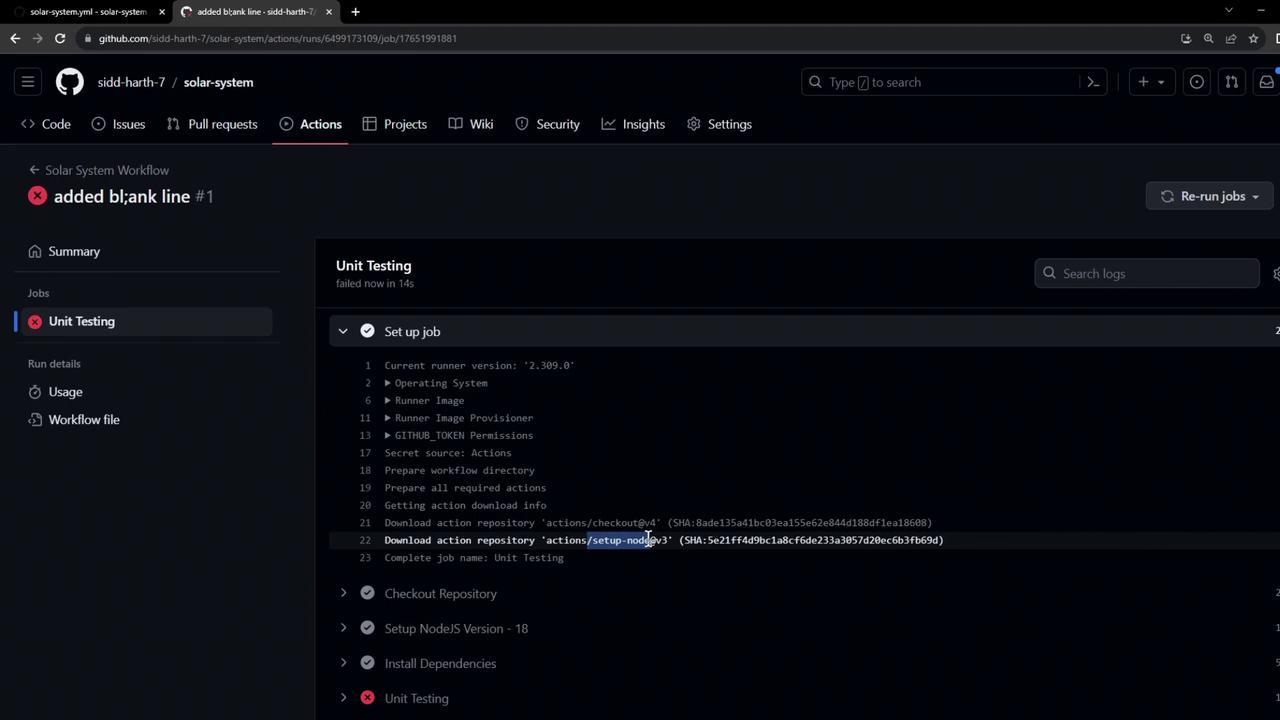
Visit the **Actions** tab to monitor progress. If a unit test fails, you might see an error like:
```text theme={null}
MongooseError: The 'uri' parameter to 'openUri' must be a string, got "undefined"...
```
## 7. Provide Environment Variables
Our `app.js` connects to MongoDB using environment variables:
```javascript theme={null}
// app.js (excerpt)
mongoose.connect(process.env.MONGO_URI, {
user: process.env.MONGO_USERNAME,
pass: process.env.MONGO_PASSWORD,
useNewUrlParser: true,
useUnifiedTopology: true
});
```
At the workflow level (shown in Step 3), we reference:
| Variable | Type | Usage |
| --------------- | -------------------- | ---------------------------- |
| MONGO\_URI | Hardcoded (for demo) | MongoDB connection string |
| MONGO\_USERNAME | Repository variable | MongoDB username (`vars`) |
| MONGO\_PASSWORD | Repository secret | MongoDB password (`secrets`) |
Best practice is to store connection strings and credentials in secrets and variables. Rotate secrets regularly and grant least-privilege access.
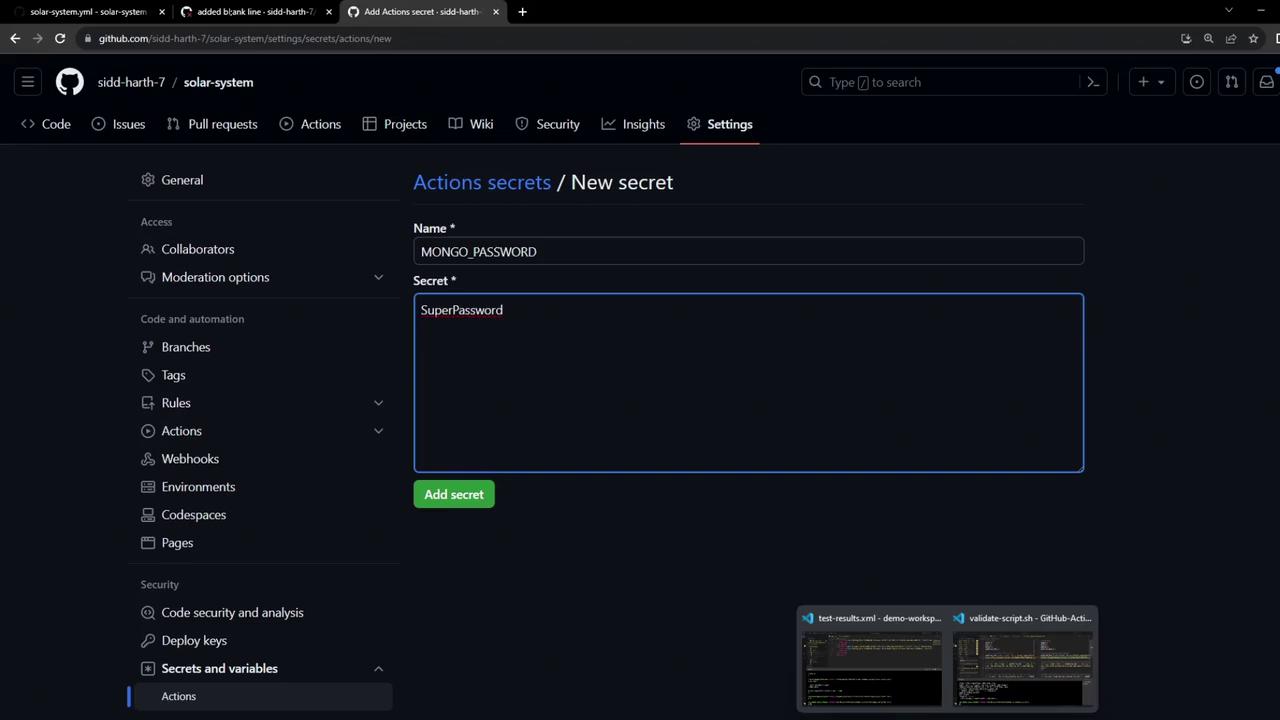
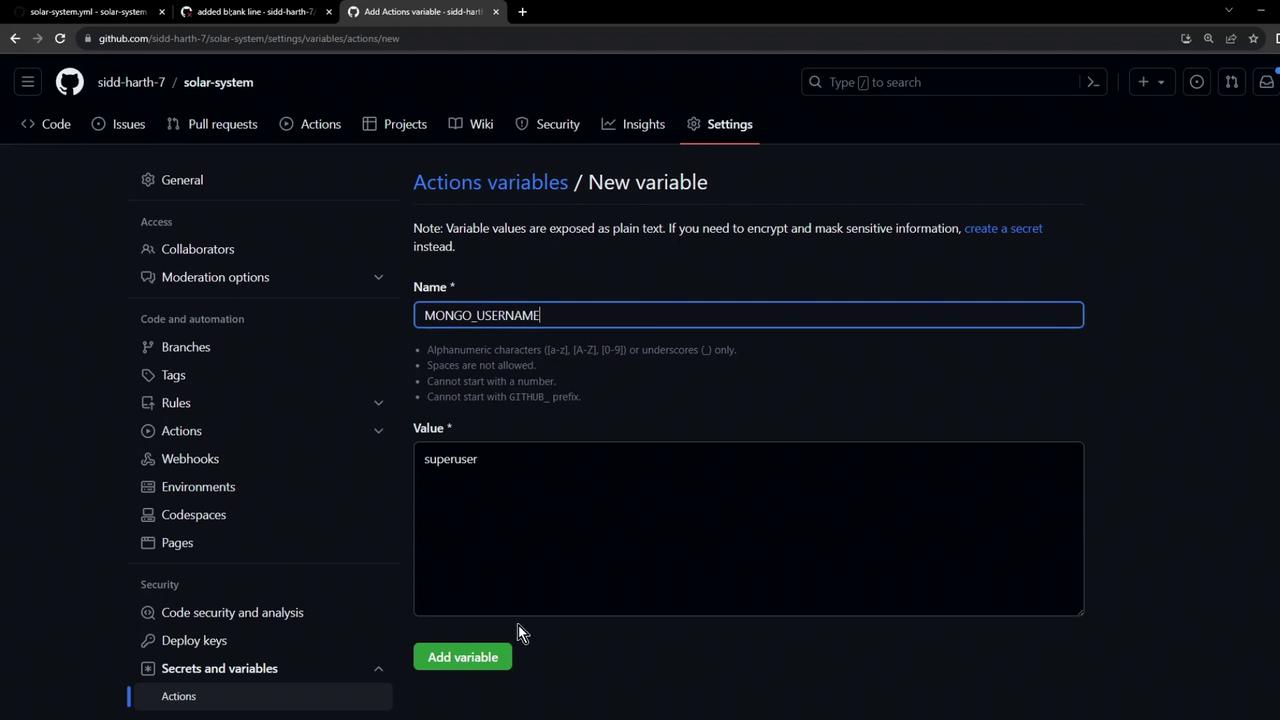
Add these via **Settings > Secrets and variables > Actions**:
1. **Name**: `MONGO_PASSWORD` (Secret)\
**Value**: `SuperPassword`
2. **Name**: `MONGO_USERNAME` (Variable)\
**Value**: `superuser`
## 8. Re-run the Workflow
After adding secrets and variables, commit any remaining changes:
```bash theme={null}
git add .github/workflows/solar-system.yml
git commit -m "Configure environment variables for MongoDB"
git push origin feature/unit-testing-workflow
```
Your workflow should now succeed, connecting to MongoDB and executing all tests.
## Next Steps
Next, we’ll explore how to upload test artifacts so you can review detailed test reports after your runner completes.
***
## Links and References
* [GitHub Actions Documentation](https://docs.github.com/actions)
* [actions/setup-node](https://github.com/actions/setup-node)
* [Encrypted Secrets in GitHub Actions](https://docs.github.com/actions/security-guides/encrypted-secrets)